Logging Overview
Real-time trace logging with color-coded output directly in Revit

The Logging module captures all trace output from your Revit applications and displays it in a color-coded, real-time log panel - similar to Visual Studio's output window but integrated directly into Revit.
Watch all Trace.TraceInformation(), Trace.TraceWarning(), and Trace.TraceError() calls appear instantly with color-coded severity levels.
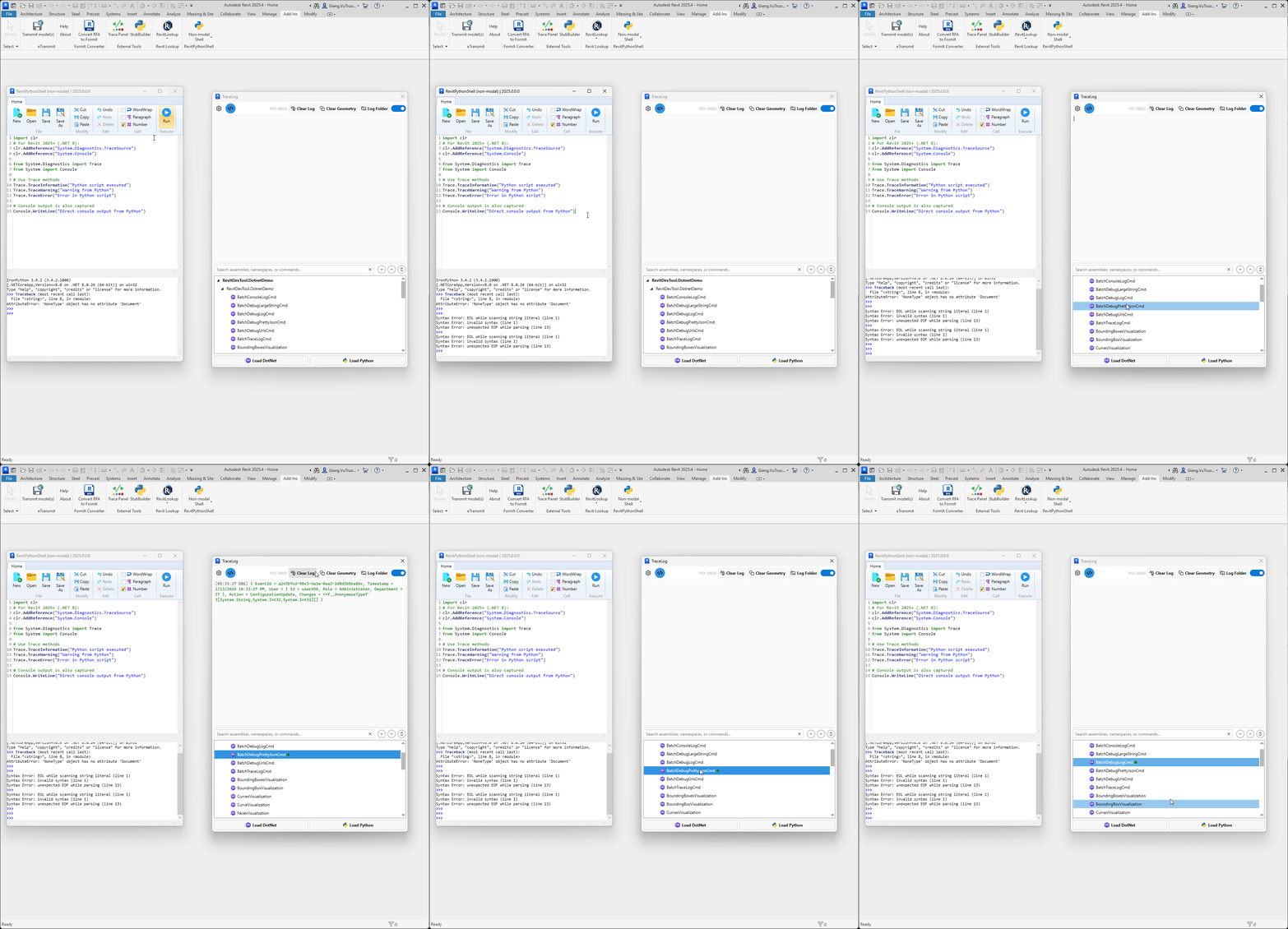
Export logs to plain text (.log) or JSON (.json) for persistent storage, auditing, or AI-assisted development workflows.
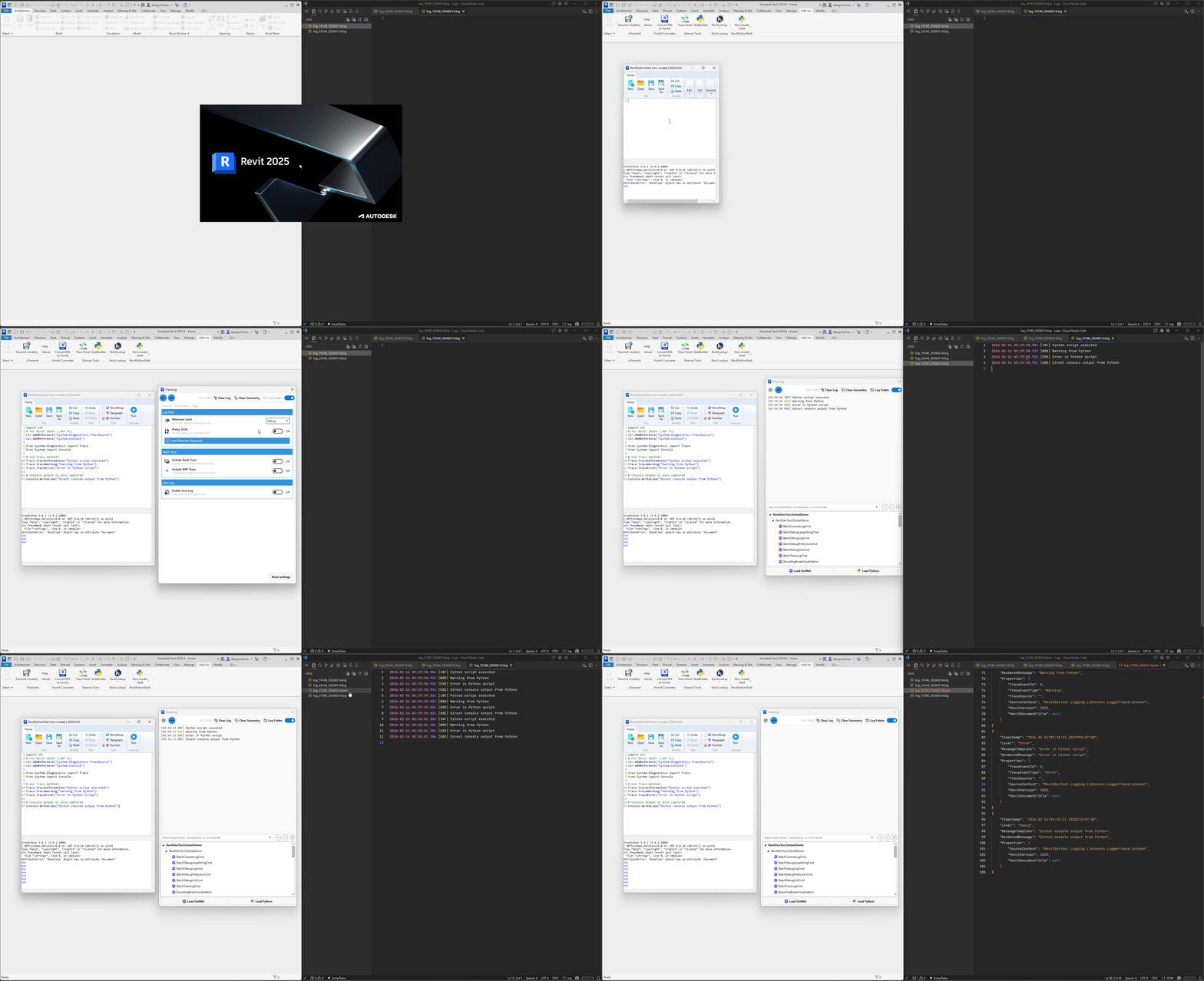
The trace window automatically opens when events occur and no document is open, helping catch startup issues and initialization problems.
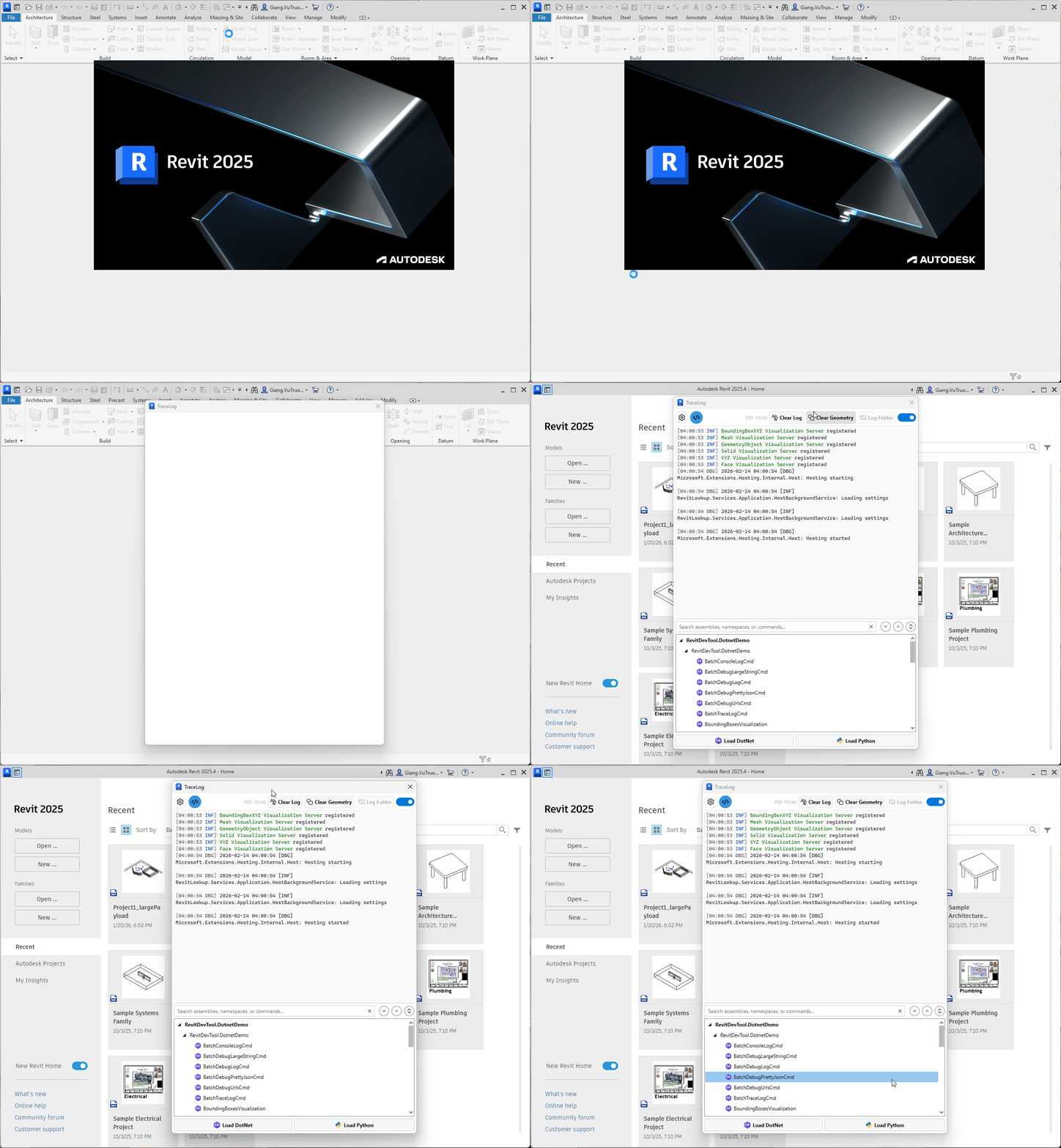
Ctrl + Click the "Trace Panel" button in Revit's External Tools ribbon to show/hide the dockable panel.
Open the Trace Log panel and ensure the logger is enabled (toggle Start/Stop Listener if needed).
Select your desired minimum log level (Debug, Information, Warning, Error, Fatal).
Use Trace methods in your code - output appears instantly in the panel.
using System.Diagnostics;

// Information logging
Trace.TraceInformation("Application started successfully");
Trace.TraceInformation("Processed {0} items in {1}ms", items.Count, stopwatch.ElapsedMilliseconds);

// Warning logging
Trace.TraceWarning("Element not found, using default values");

// Error logging
Trace.TraceError("Failed to process element: " + exception.Message);
Trace.TraceError("Error processing element {0}: {1}", element.Id, exception.Message);

// Debug logging
Debug.WriteLine("Debug information: " + debugInfo);

// Console output (automatically captured)
Console.WriteLine("This will appear in the trace log");For pyRevit/RevitPythonShell/Dynamo:
import clr
# For Revit 2025+ (.NET 8):
clr.AddReference("System.Diagnostics.TraceSource")
clr.AddReference("System.Console")

from System.Diagnostics import Trace
from System import Console

# Use Trace methods
Trace.TraceInformation("Python script executed")
Trace.TraceWarning("Warning from Python")
Trace.TraceError("Error in Python script")

# Console output is also captured
Console.WriteLine("Direct console output from Python")
For RevitDevTool Python scripts:
# RevitDevTool automatically captures print() output
print("[INFO] Script started")
print("Processing elements...")
print("[WARN] Element not found")
print("[ERROR] Processing failed")

# No import needed - print() is automatically redirected to trace log- Configurable log levels (Debug, Information, Warning, Error, Fatal)
- Color-coded output for easy identification
- Auto-start listening on Revit startup
- Cascadia Mono font for better readability
- Captures
Console.WriteLine()output - Python
print()statements automatically redirected - No need to change existing code
Automatically detects log levels from message content - see Color Keywords
Enable in settings to automatically format complex objects as indented JSON - see Pretty JSON Example
Full stack trace support for Python/pyRevit scripts - see Python Stack Traces
Log geometry objects directly - they appear in 3D view - see Visualization
For Trace Geometry or Pretty JSON, you must use
Tracemethods that acceptobjectparameters directly (not string formatting).
Supported for both Trace Geometry and Pretty JSON:
Trace.Write(object value)Trace.WriteLine(object value)Trace.WriteIf(bool condition, object value)Trace.WriteLineIf(bool condition, object value)
Supported for Pretty JSON only:
Trace.Write(object value, string category)Trace.WriteLine(object value, string category)Trace.WriteIf(bool condition, object value, string category)Trace.WriteLineIf(bool condition, object value, string category)Trace.TraceInformation(string format, params object[] args)Trace.TraceWarning(string format, params object[] args)Trace.TraceError(string format, params object[] args)
Methods from
ConsoleandDebugwill convert objects to strings using.ToString()before reaching the tool, disabling visualization features.
Enable Pretty JSON in settings to automatically format complex objects:

// Log complex objects with automatic JSON formatting
var auditLog = new
{
    EventId = Guid.NewGuid(),
    Timestamp = DateTime.UtcNow,
    User = new { Id = "user456", Role = "Administrator" },
    Changes = new[]
    {
        new { Property = "MaxConnections", OldValue = 100, NewValue = 200 }
    }
};

Trace.WriteLine(auditLog);  // Formatted JSON when Pretty JSON is enabled
Output:
{
  "EventId": "a1b2c3d4-...",
  "Timestamp": "2026-01-18T10:30:00Z",
  "User": {
    "Id": "user456",
    "Role": "Administrator"
  },
  "Changes": [
    { "Property": "MaxConnections", "OldValue": 100, "NewValue": 200 }
  ]
}- Color Keywords - Automatic log level detection from message content
- Python Stack Traces - Enhanced Python error formatting
- Geometry Visualization - Display geometry from trace logs
- Dockable Panel: Integrated with Revit's interface
- Theme Support: Works with Revit's light and dark themes (2024+)
- Auto-scroll: Automatically scrolls to show new entries
- Copy/Paste: Standard keyboard shortcuts work
- Clear Function: Reset log output on demand
- Log Level Filtering: Real-time message filtering
- Use Appropriate Log Levels: Information for status, Warning for non-critical issues, Error for problems
- Meaningful Messages: Include element IDs, counts, and relevant context
- Document Workflow: Use logging to track script progress and results
- Missing Logs: Check log level settings match your trace calls
- No Output: Ensure logger is enabled (toggle Start/Stop Listener)
- Performance: Console redirection has minimal overhead
See demo scripts:
- Log.cs - C# logging examples
- logging_format_script.py - Python logging examples