Docker
Note: These are questions I faced during the interview process!
Docker uses a client-server architecture. The Docker client talks to the Docker daemon, which does the heavy lifting of building, running, and distributing your Docker containers. The Docker client and daemon can run on the same system, or you can connect a Docker client to a remote Docker daemon. The Docker client and daemon communicate using a REST API, over UNIX sockets or a network interface. Another Docker client is Docker Compose, which lets you work with applications consisting of a set of containers.
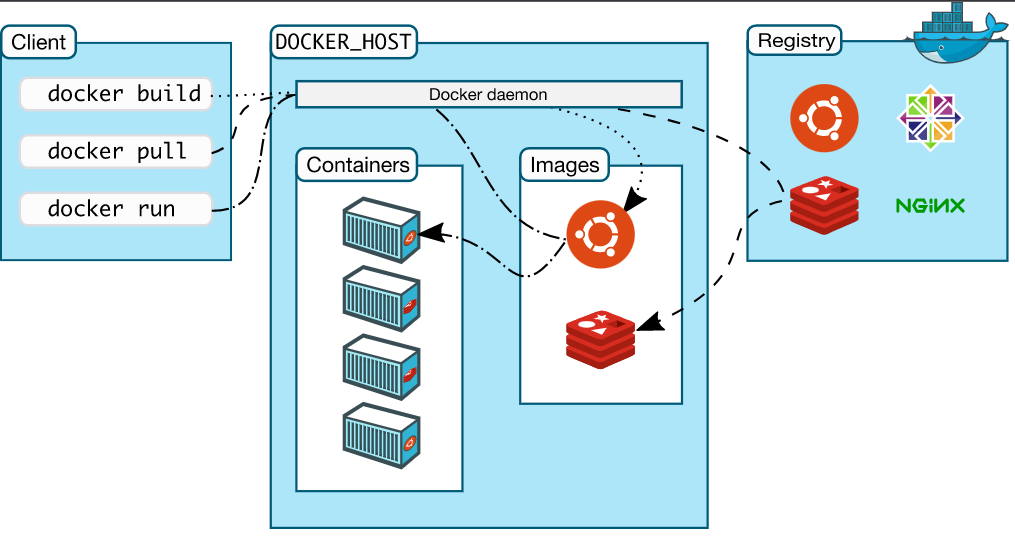
The Docker daemon The Docker daemon (dockerd) listens for Docker API requests and manages Docker objects such as images, containers, networks, and volumes. A daemon can also communicate with other daemons to manage Docker services.
The Docker client The Docker client (docker) is the primary way that many Docker users interact with Docker. When you use commands such as docker run, the client sends these commands to dockerd, which carries them out. The docker command uses the Docker API. The Docker client can communicate with more than one daemon.
Docker registries A Docker registry stores Docker images. Docker Hub is a public registry that anyone can use, and Docker is configured to look for images on Docker Hub by default. You can even run your own private registry.
When you use the docker pull or docker run commands, the required images are pulled from your configured registry. When you use the docker push command, your image is pushed to your configured registry.
A container is a runnable instance of an image. You can create, start, stop, move, or delete a container using the Docker API or CLI. You can connect a container to one or more networks, attach storage to it, or even create a new image based on its current state.
By default, a container is relatively well isolated from other containers and its host machine. You can control how isolated a container’s network, storage, or other underlying subsystems
Docker
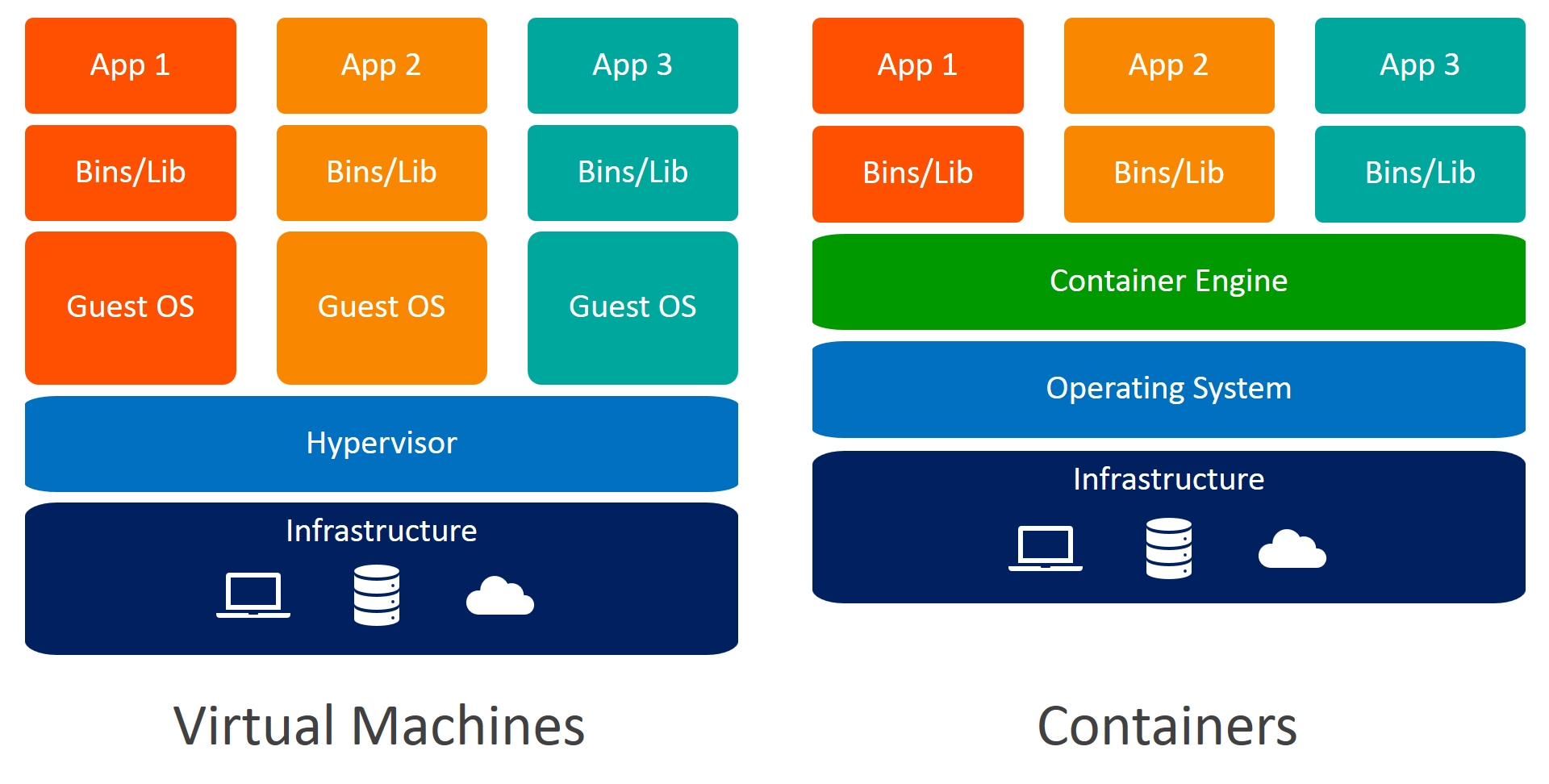
- Docker containers are process-isolated and don’t require a hardware hypervisor.
- Docker is fast. Very fast. While a VM can take at least a few minutes to boot and be dev-ready, it takes anywhere from a few milliseconds to (at most) a few seconds to start a Docker container from a container image.
- Containers can be shared across multiple team members, bringing much-needed portability across the development pipeline.
VMware emulates machine hardware whereas Docker emulates the operating system in which your application runs. Docker is a much more lightweight virtualization technology since it does not have to emulate server hardware resources.
Step 1: Create Independent Docker Volumes We will start by creating independent volumes that are not related to any Docker container. To achieve this, we have the command docker volume create that was introduced in Docker 1.9 version. Enter the following command to create a volume named Step1DataVolume
$ docker volume create --name Step1DataVolume
$ mkdir Step1DataVolume
$ docker run -ti --rm -v Step1DataVolume:/Step1DataVolume ubuntu
$ echo "Step One Sample Text" > /Step1DataVolume/StepOne.txt
$ exit
$ docker volume inspect Step1DataVolume
$ docker run -ti --rm -v Step1DataVolume:/Step1DataVolume ubuntu
$ cat /Step1DataVolume/StepOne.txt
You cannot override the ENTRYPOINT instruction by adding command-line parameters to the docker run command. By opting for this instruction, you imply that the container is specifically built for such use.
ENTRYPOINT
FROM ubuntu
MAINTAINER DevOps
RUN apt-get update
ENTRYPOINT ["echo", "Hello World"]
Command:
$ sudo docker build .
$ sudo docker images
$ sudo docker run [container_name]

---

Hello world

---

$ sudo docker run [container_name] DevOps

---

Hello world DevOps
CMD
FROM ubuntu
MAINTAINER DevOps
RUN apt-get update
CMD ["echo", "Hello World"]
Command:
$ sudo docker build .
$ sudo docker images
$ sudo docker run [image_name]

---

Hello world

---

$ sudo docker run [image_name] hostname

---

kali LinuxCOPY and ADD are both Dockerfile instructions that serve similar purposes. They let you copy files from a specific location into a Docker image.
COPY takes in an src and destination. It only lets you copy in a local or directory from your host (the machine-building the Docker image) into the Docker image itself.
COPY <src> <dest>
ADD lets you do that too, but it also supports 2 other sources. First, you can use a URL instead of a local file/directory. Secondly, you can extract tar from the source directory into the destination.
ADD <src> <dest>
With multi-stage builds, you use multiple FROM statements in your Dockerfile. Each FROM instruction can use a different base, and each of them begins a new stage of the build. You can selectively copy artifacts from one stage to another, leaving behind everything you don’t want in the final image. To show how this works, let’s adapt the Dockerfile from the previous section to use multi-stage builds.
Dockerfile:
# syntax=docker/dockerfile:1
FROM golang:1.16
WORKDIR /go/src/github.com/alexellis/href-counter/
RUN go get -d -v golang.org/x/net/html
COPY app.go ./
RUN CGO_ENABLED=0 GOOS=linux go build -a -installsuffix cgo -o app .

FROM alpine:latest
RUN apk --no-cache add ca-certificates
WORKDIR /root/
COPY --from=0 /go/src/github.com/alexellis/href-counter/app ./
CMD ["./app"]
You only need the single Dockerfile. You don’t need a separate build script, either. Just run docker build.
docker build -t alexellis2/href-counter:latest .