Containers: Docker
- Docker architecture
- Docker security
Docker uses a client-server architecture. The Docker client talks to the Docker daemon, which does the heavy lifting of building, running, and distributing your Docker containers. The Docker client and daemon can run on the same system, or you can connect a Docker client to a remote Docker daemon. The Docker client and daemon communicate using a REST API, over UNIX sockets or a network interface. Another Docker client is Docker Compose, that lets you work with applications consisting of a set of containers.
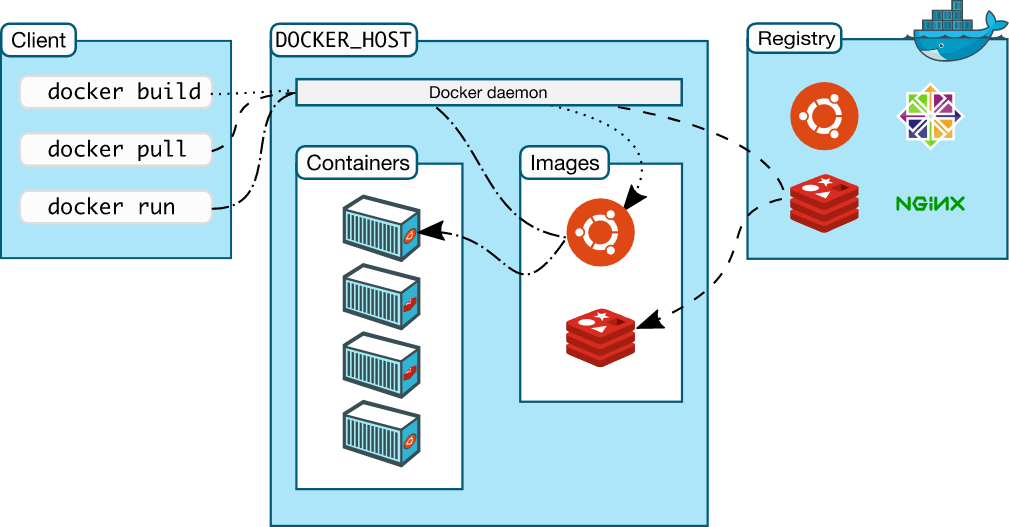
The Docker daemon (dockerd) listens for Docker API requests and manages Docker objects such as images, containers, networks, and volumes. A daemon can also communicate with other daemons to manage Docker services.
The Docker client (docker) is the primary way that many Docker users interact with Docker. When you use commands such as docker run, the client sends these commands to dockerd, which carries them out. The docker command uses the Docker API. The Docker client can communicate with more than one daemon.
Docker Desktop is an easy-to-install application for your Mac or Windows environment that enables you to build and share containerized applications and microservices. Docker Desktop includes the Docker daemon (dockerd), the Docker client (docker), Docker Compose, Docker Content Trust, Kubernetes, and Credential Helper. For more information, see Docker Desktop.
A Docker registry stores Docker images. Docker Hub is a public registry that anyone can use, and Docker is configured to look for images on Docker Hub by default. You can even run your own private registry.
When you use the docker pull or docker run commands, the required images are pulled from your configured registry. When you use the docker push command, your image is pushed to your configured registry.
When you use Docker, you are creating and using images, containers, networks, volumes, plugins, and other objects.
Images
An image is a read-only template with instructions for creating a Docker container.
You might create your own images or you might only use those created by others and published in a registry. To build your own image, you create a Dockerfile with a simple syntax for defining the steps needed to create the image and run it. Each instruction in a Dockerfile creates a layer in the image. When you change the Dockerfile and rebuild the image, only those layers which have changed are rebuilt. This is part of what makes images so lightweight, small, and fast, when compared to other virtualization technologies.
Containers
A container is a runnable instance of an image. You can create, start, stop, move, or delete a container using the Docker API or CLI. You can connect a container to one or more networks, attach storage to it, or even create a new image based on its current state.
By default, a container is relatively well isolated from other containers and its host machine. You can control how isolated a container’s network, storage, or other underlying subsystems are from other containers or from the host machine.
A container is defined by its image as well as any configuration options you provide to it when you create or start it. When a container is removed, any changes to its state that are not stored in persistent storage disappear.
To prevent from known, container escapes vulnerabilities, which typically end in escalating to root/administrator privileges, patching Docker Engine and Docker Machine is crucial.
In addition, containers (unlike in virtual machines) share the kernel with the host, therefore kernel exploits executed inside the container will directly hit host kernel. For example, kernel privilege escalation exploits (like Dirty COW) executed inside a well-insulated container will result in root access in a host.
Docker socket /var/run/docker.sock is the UNIX socket that Docker is listening to. This is the primary entry point for the Docker API. The owner of this socket is root. Giving someone access to it is equivalent to giving unrestricted root access to your host.
Do not enable tcp Docker daemon socket. If you are running docker daemon with -H tcp://0.0.0.0:XXX or similar you are exposing un-encrypted and unauthenticated direct access to the Docker daemon, if the host is internet connected this means the docker daemon on your computer can be used by anyone from the public internet. If you really, really have to do this, you should secure it. Check how to do this following Docker official documentation.
Do not expose /var/run/docker.sock to other containers. If you are running your docker image with -v /var/run/docker.sock://var/run/docker.sock or similar, you should change it. Remember that mounting the socket read-only is not a solution but only makes it harder to exploit. Equivalent in the docker-compose file is something like this:
volumes:
- "/var/run/docker.sock:/var/run/docker.sock"Configuring the container to use an unprivileged user is the best way to prevent privilege escalation attacks. This can be accomplished in three different ways as follows:
- During runtime using -u option of docker run command e.g.:
docker run -u 4000 alpine- During build time. Simple add user in Dockerfile and use it. For example:
FROM alpine
RUN groupadd -r myuser && useradd -r -g myuser myuser
<HERE DO WHAT YOU HAVE TO DO AS A ROOT USER LIKE INSTALLING PACKAGES ETC.>
USER myuser- Enable user namespace support (--userns-remap=default) in Docker daemon
More information about this topic can be found at Docker official documentation
In kubernetes, this can be configured in Security Context using runAsNonRoot field e.g.:
kind: ...
apiVersion: ...
metadata:
  name: ...
spec:
  ...
  containers:
  - name: ...
    image: ....
    securityContext:
          ...
          runAsNonRoot: true
          ...
As a Kubernetes cluster administrator, you can configure it using Pod Security Policies.
Linux kernel capabilities are a set of privileges that can be used by privileged. Docker, by default, runs with only a subset of capabilities. You can change it and drop some capabilities (using --cap-drop) to harden your docker containers, or add some capabilities (using --cap-add) if needed. Remember not to run containers with the --privileged flag - this will add ALL Linux kernel capabilities to the container.
The most secure setup is to drop all capabilities --cap-drop all and then add only required ones. For example:
docker run --cap-drop all --cap-add CHOWN alpineAnd remember: Do not run containers with the --privileged flag!!!
In kubernetes this can be configured in Security Context using capabilities field e.g.:
kind: ...
apiVersion: ...
metadata:
  name: ...
spec:
  ...
  containers:
  - name: ...
    image: ....
    securityContext:
          ...
          capabilities:
            drop:
              - all
            add:
              - CHOWN
          ...
As a Kubernetes cluster administrator, you can configure it using Pod Security Policies.
By default inter-container communication (icc) is enabled - it means that all containers can talk with each other (using docker0 bridged network). This can be disabled by running docker daemon with --icc=false flag. If icc is disabled (icc=false) it is required to tell which containers can communicate using --link=CONTAINER_NAME_or_ID:ALIAS option. See more in Docker documentation - container communication
In Kubernetes Network Policies can be used for it.
First of all, do not disable default security profile!
Consider using security profile like seccomp or AppArmor.
Instructions how to do this inside Kubernetes can be found at Security Context documentation and in Kubernetes API documentation
The best way to avoid DoS attacks is by limiting resources. You can limit memory, CPU, maximum number of restarts (--restart=on-failure:<number_of_restarts>), maximum number of file descriptors (--ulimit nofile=) and maximum number of processes (--ulimit nproc=).
Check documentation for more details about ulimits
You can also do this inside Kubernetes: Assign Memory Resources to Containers and Pods, Assign CPU Resources to Containers and Pods and Assign Extended Resources to a Container
RULE #8 - Set filesystem and volumes to read-only
Run containers with a read-only filesystem using --read-only flag. For example:
docker run --read-only alpine sh -c 'echo "whatever" > /tmp'If an application inside a container has to save something temporarily, combine --read-only flag with --tmpfs like this:
docker run --read-only --tmpfs /tmp alpine sh -c 'echo "whatever" > /tmp/file'Equivalent in the docker-compose file will be:
version: "3"
services:
  alpine:
    image: alpine
    read_only: true
Equivalent in kubernetes in Security Context will be:
kind: ...
apiVersion: ...
metadata:
  name: ...
spec:
  ...
  containers:
  - name: ...
    image: ....
    securityContext:
          ...
          readOnlyRootFilesystem: true
          ...
In addition, if the volume is mounted only for reading mount them as a read-only It can be done by appending :ro to the -v like this:
docker run -v volume-name:/path/in/container:ro alpineOr by using --mount option:
docker run --mount source=volume-name,destination=/path/in/container,readonly alpineRULE #9 - Use static analysis tools¶ To detect containers with known vulnerabilities - scan images using static analysis tools.
Free
Commercial
- Snyk (open source and free option available)
- anchore (open source and free option available)
- Aqua Security's MicroScanner (free option available for rate-limited number of scans)
- JFrog XRay
- Qualys
To detect secrets in images:
- ggshield (open source and free option available)
- SecretScanner (open source)
To detect misconfigurations in Kubernetes:
To detect misconfigurations in Docker:
By default, the Docker daemon is configured to have a base logging level of 'info', and if this is not the case: set the Docker daemon log level to 'info'. Rationale: Setting up an appropriate log level, configures the Docker daemon to log events that you would want to review later. A base log level of 'info' and above would capture all logs except the debug logs. Until and unless required, you should not run docker daemon at the 'debug' log level.
To configure the log level in docker-compose:
docker-compose --log-level info upMany issues can be prevented by following some best practices when writing the Dockerfile. Adding a security linter as a step in the build pipeline can go a long way in avoiding further headaches. Some issues that are worth checking are:
- Ensure a USER directive is specified
- Ensure the base image version is pinned
- Ensure the OS packages versions are pinned
- Avoid the use of ADD in favor of COPY
- Avoid curl bashing in RUN directives
MOre info - OWASP project