Administrators guide
Admin guide available in English-spoken video format here: https://youtu.be/mW0q-QY_CIc
Erick is the administrator. He gets to check if everything is OK with the platform. He receives emails from time to time from unhappy users who feel they received a recommendation for a training that is not really a training, more like a SPAM advertisement. So he checks the details and, if he finds this is true, he will freeze the corresponding institution’s account and ask for details. He might also need to check on the latest user accounts created, just in case there would be a big increase in SPAM accounts. Erick’s job is made easy by simple administration screens in his profile. He even has a “To do tasks” interface where he can check his pending tasks.
The administrator account cannot be auto-created. It has to be created by another admin user. The administrator's role is to ensure the system is working as expected.
Once logged in, the administrator will get to the dashboard, which should include the latest events of the system and some statistics. At this point, the dashboard is not very developed.
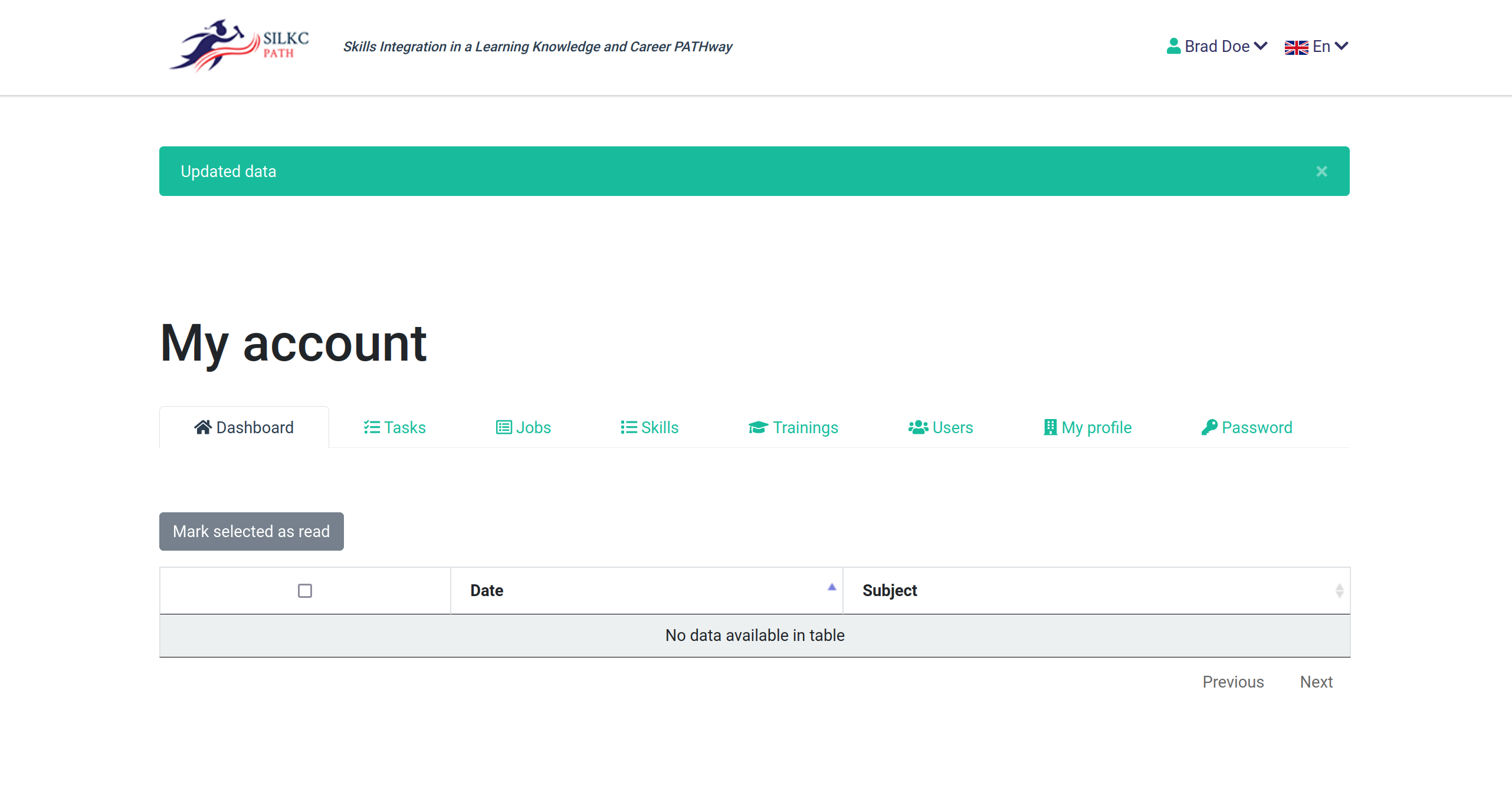
The "Tasks" tab will allow the administrator to see tasks that are pending review. These include moderation of users, of training and other reporting by users or suspicious events that need a human review.
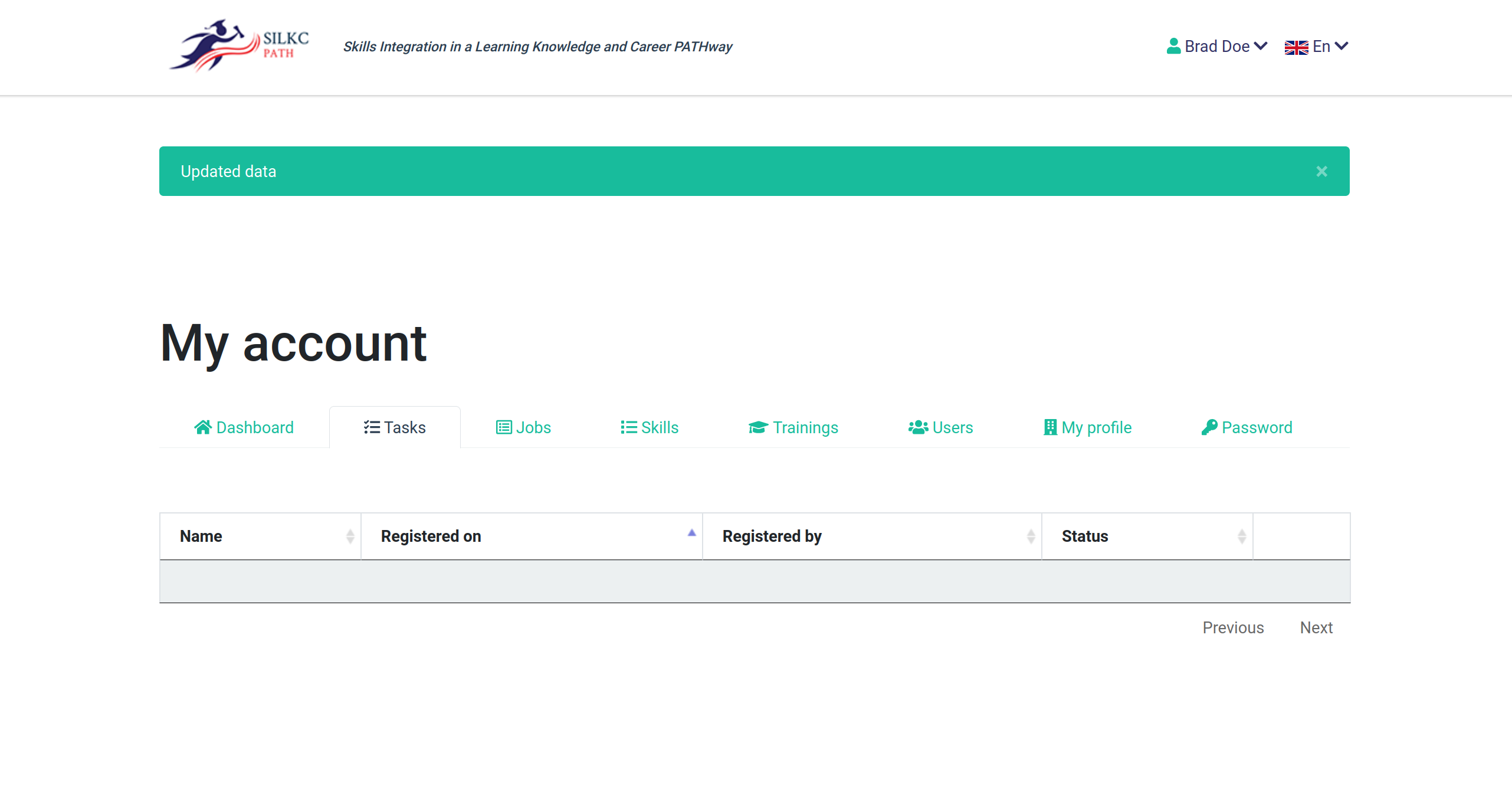
The "Jobs" tab allows the administrator to review the details of jobs. This is a fixed list provided by the ESCO framework. As such, the list or jobs cannot be edited.
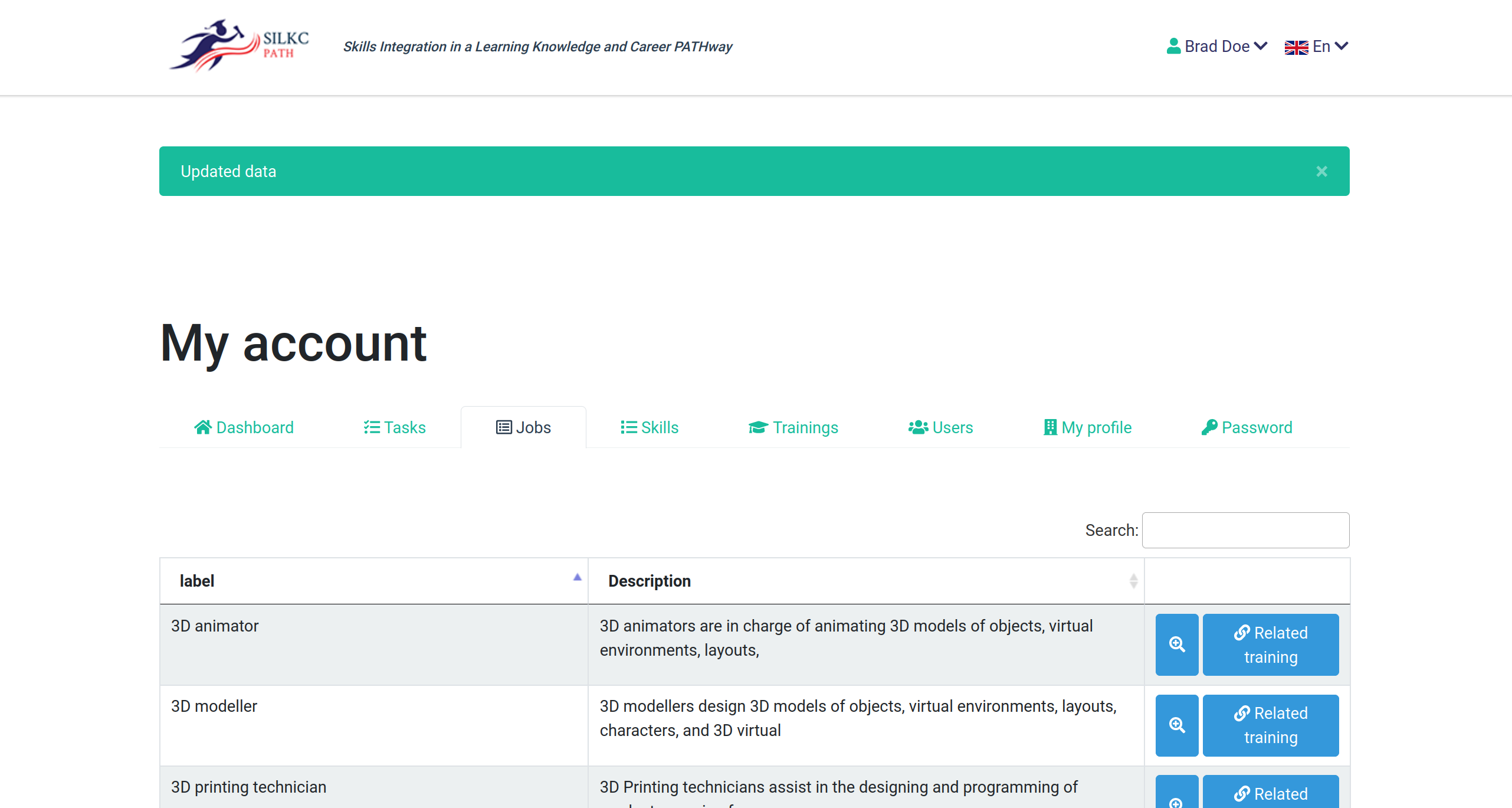
However, the administrator can see the details of a job, including the list of skills that are considered necessary for this job.
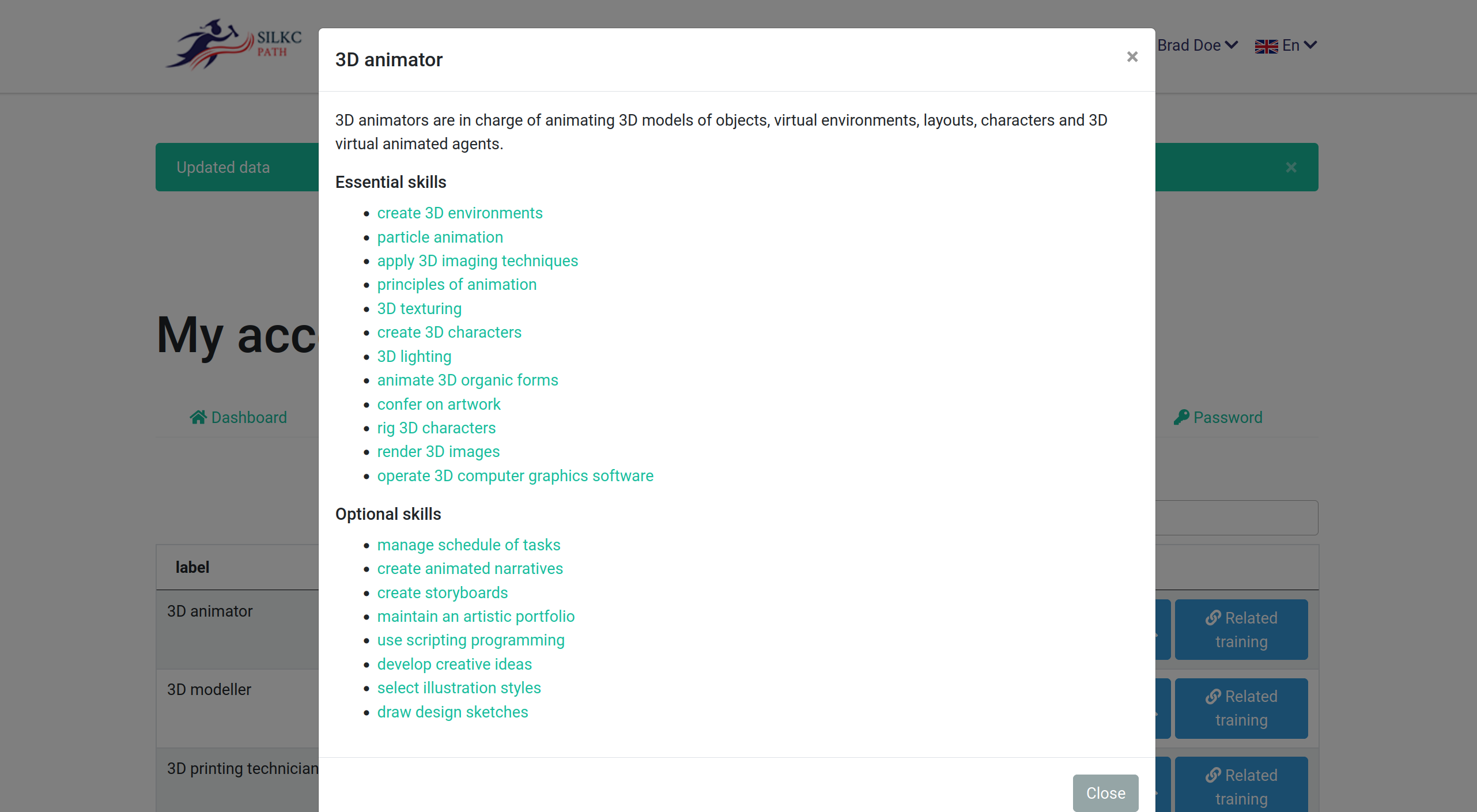
Each skill shows a small tooltip when clicked, explaining the skill itself.
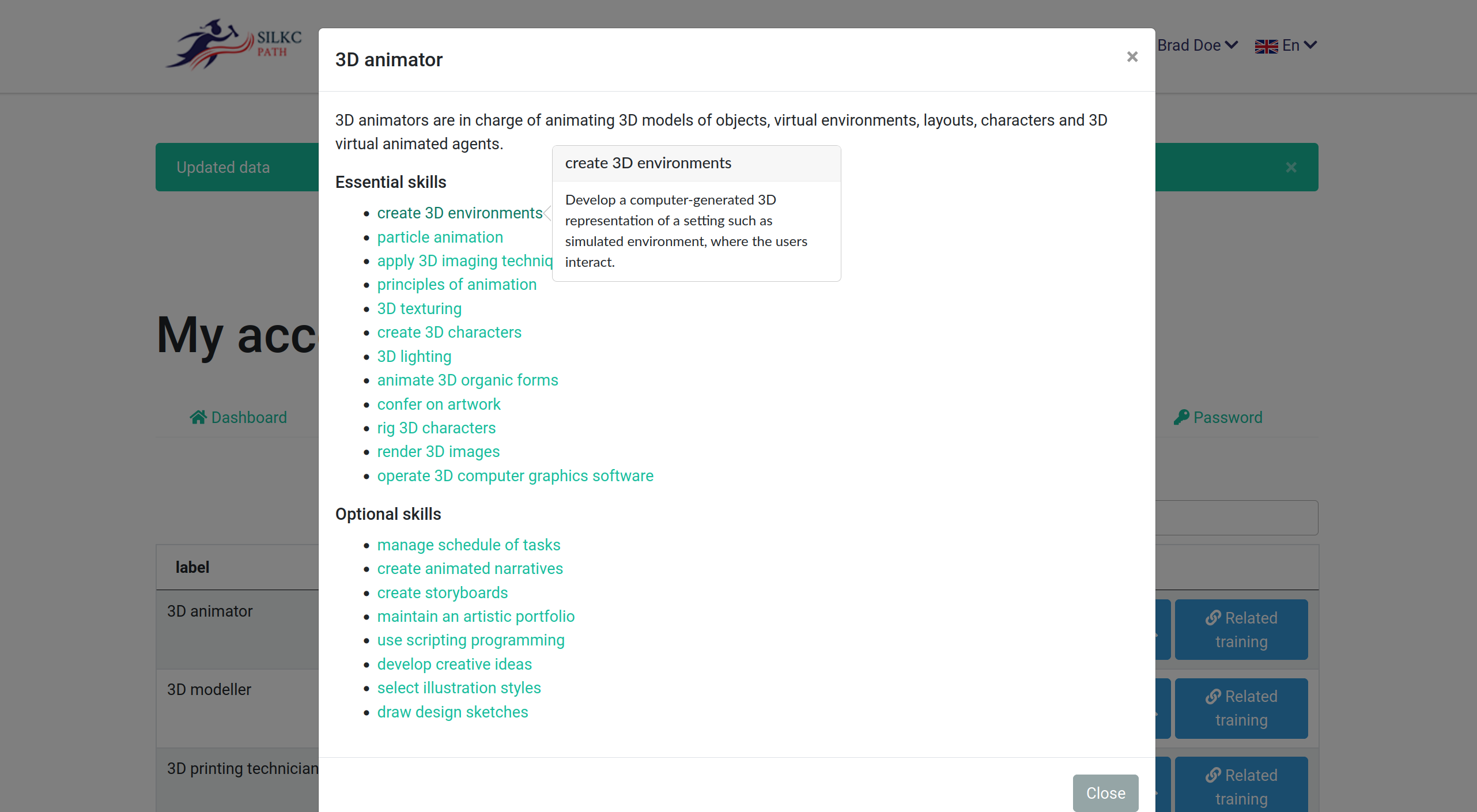
Also, each job can have related training, allowing the administrator to quickly find all training related to one specific job.
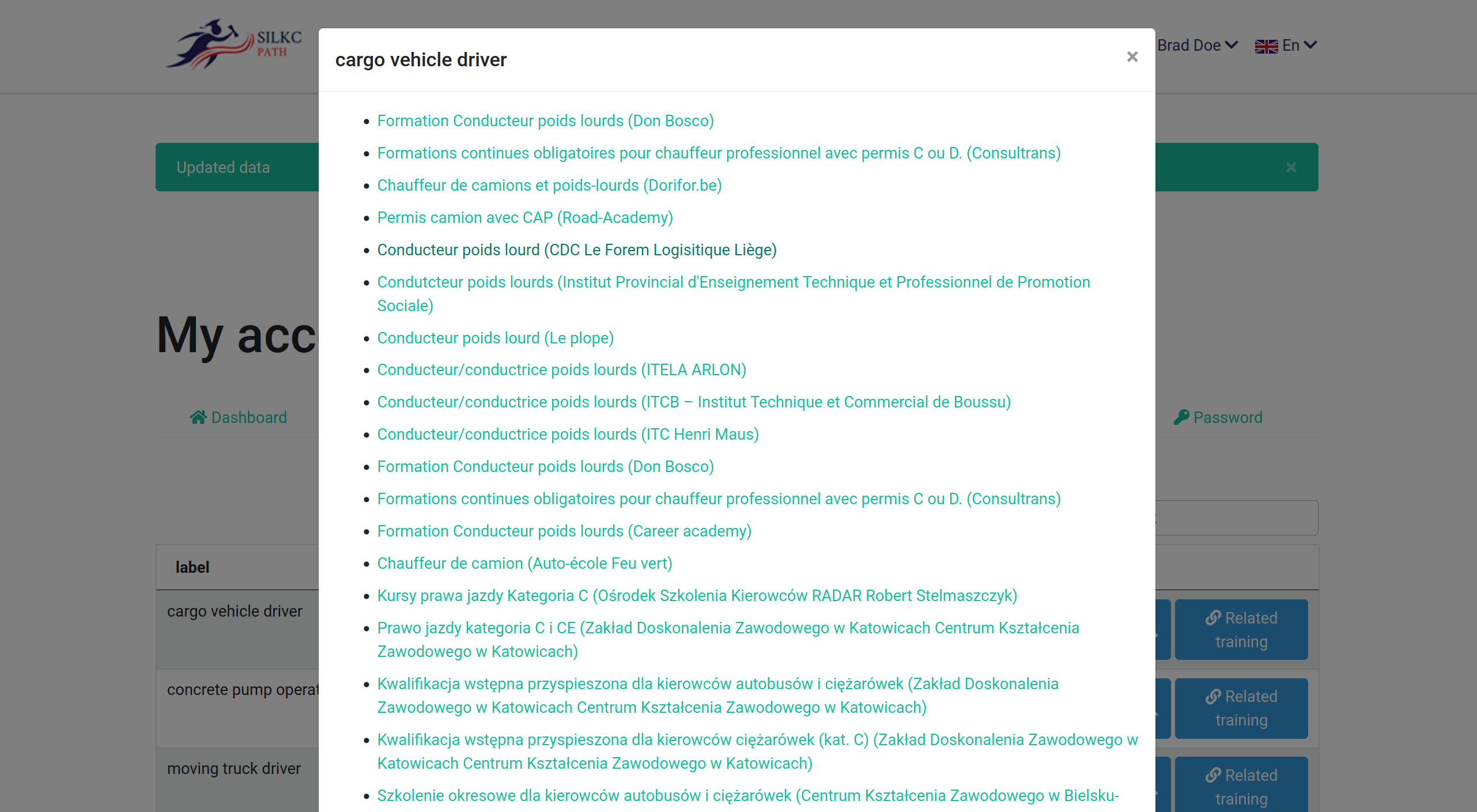
The "Skills" tab is similar to the jobs tab, in that it comes from ESCO and cannot be edited.
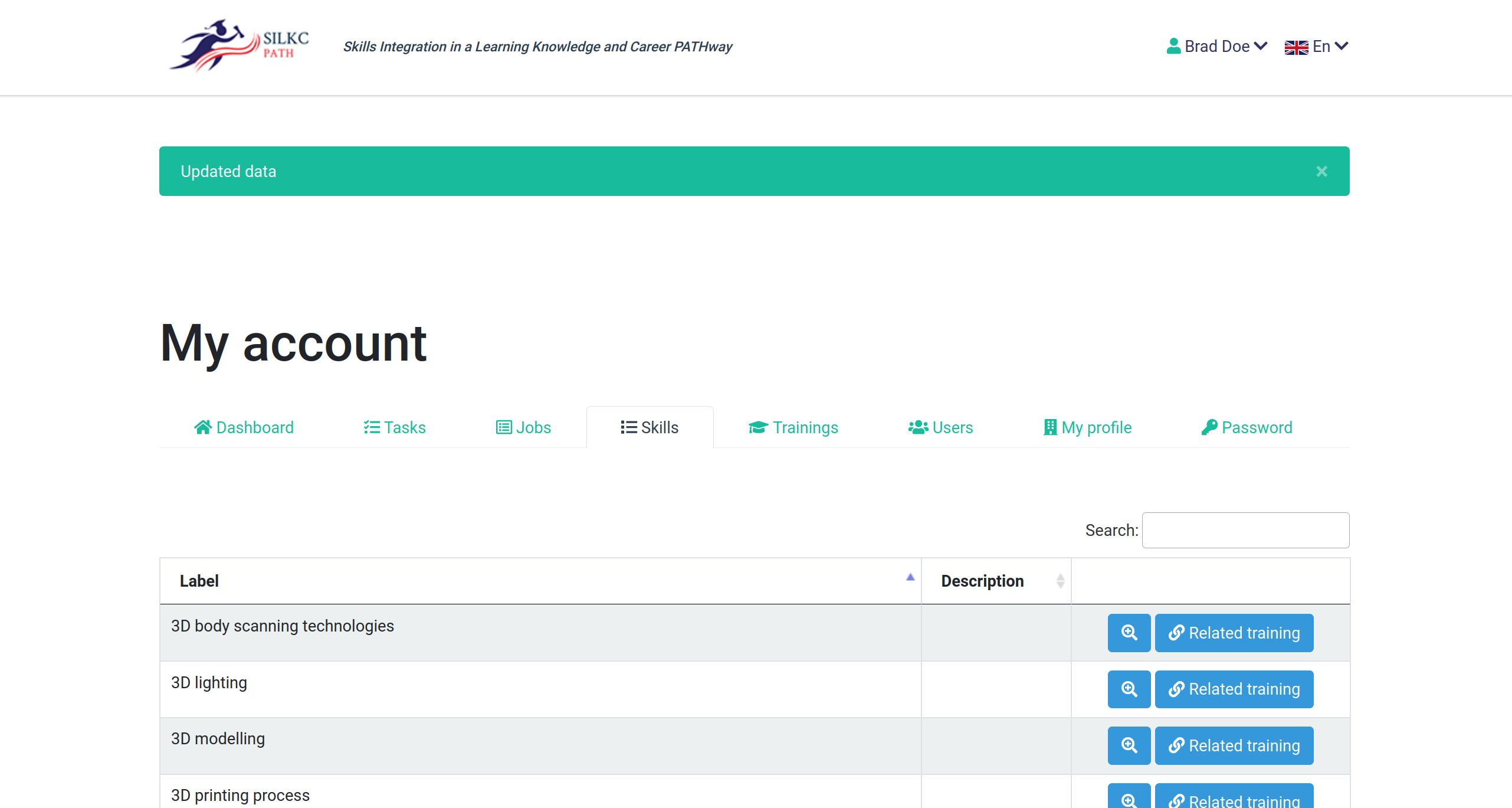
Each skill comes with a detailed card linking it to the ESCO framework.
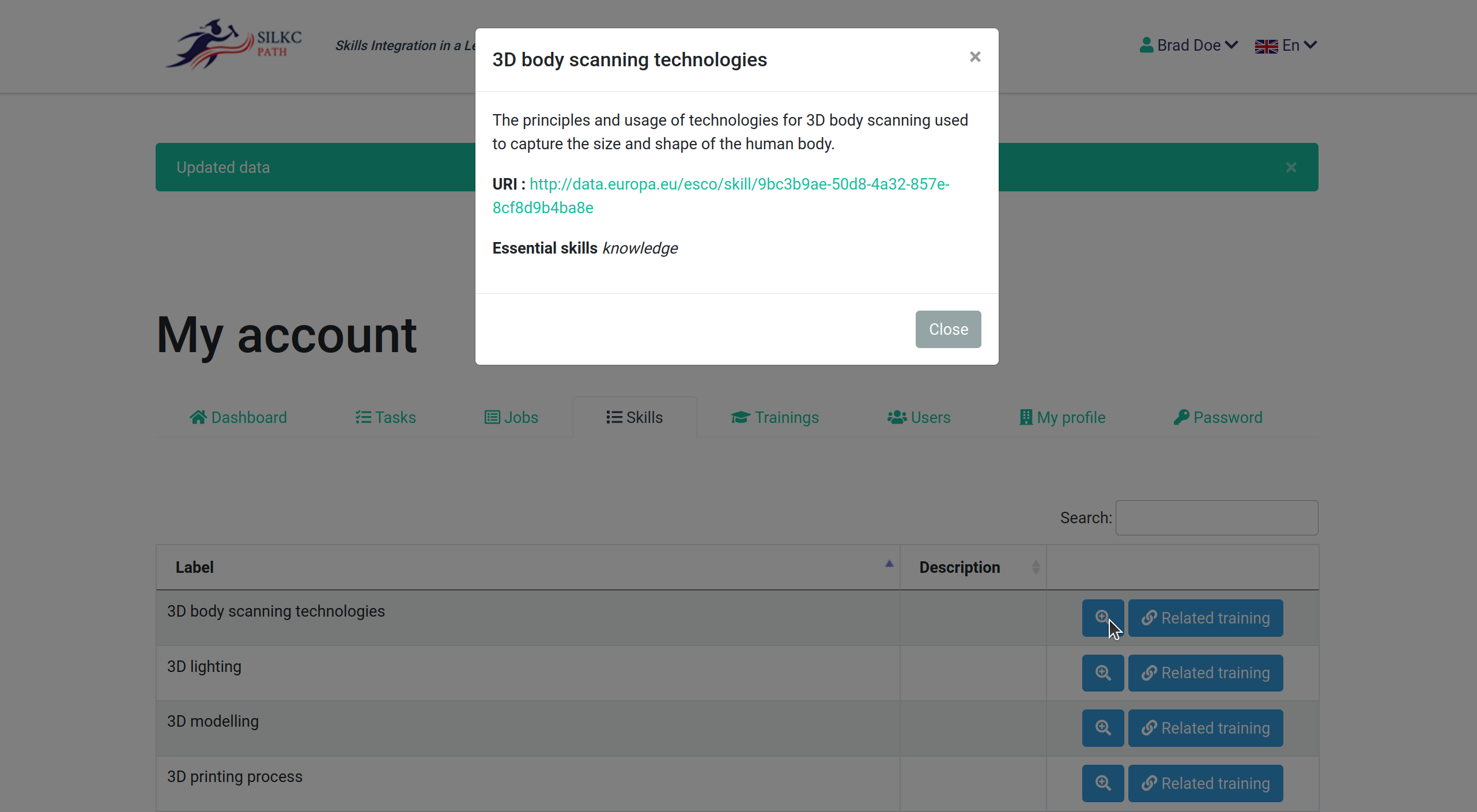
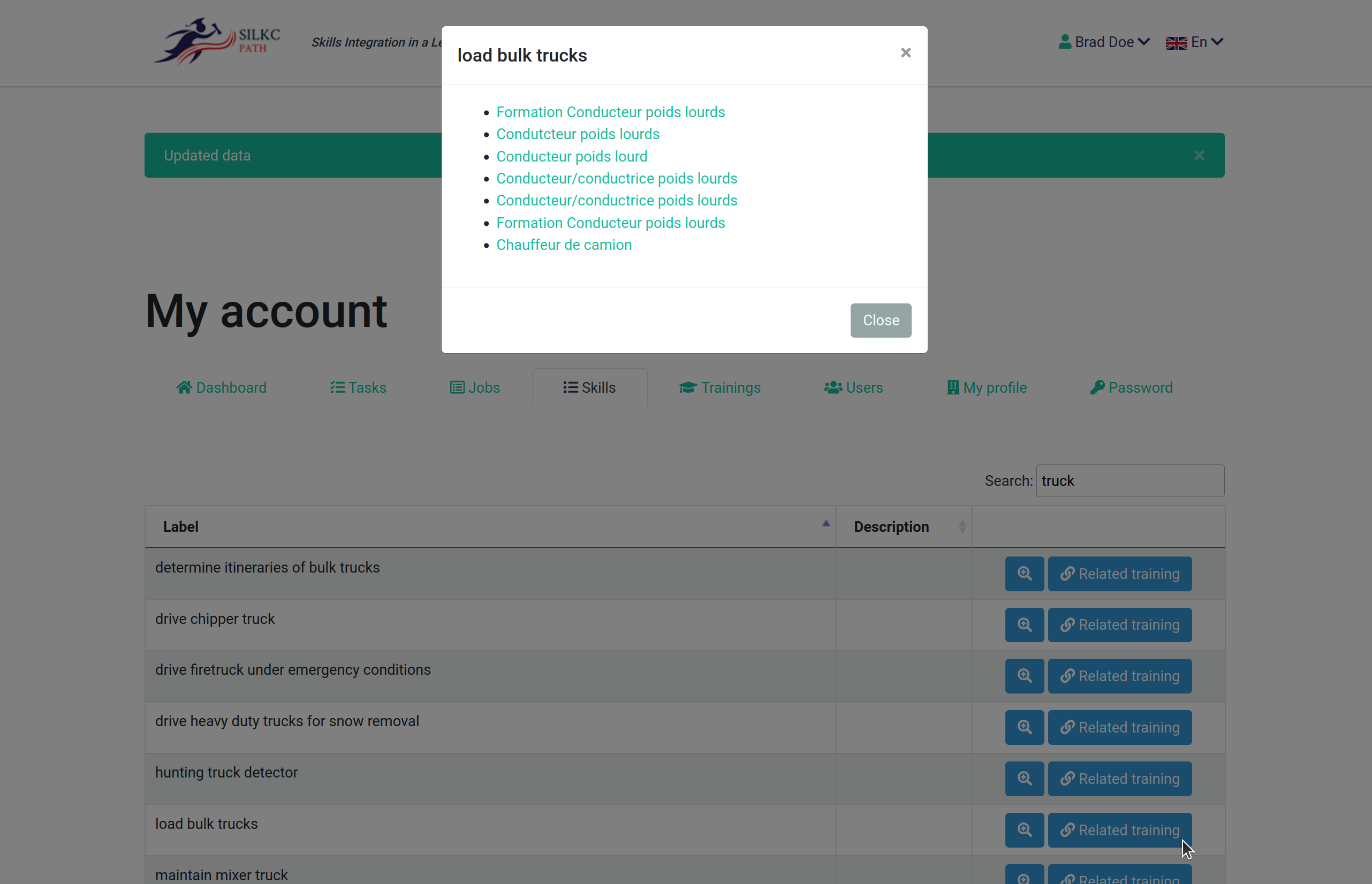
Each skill also shows the training related to the skill.
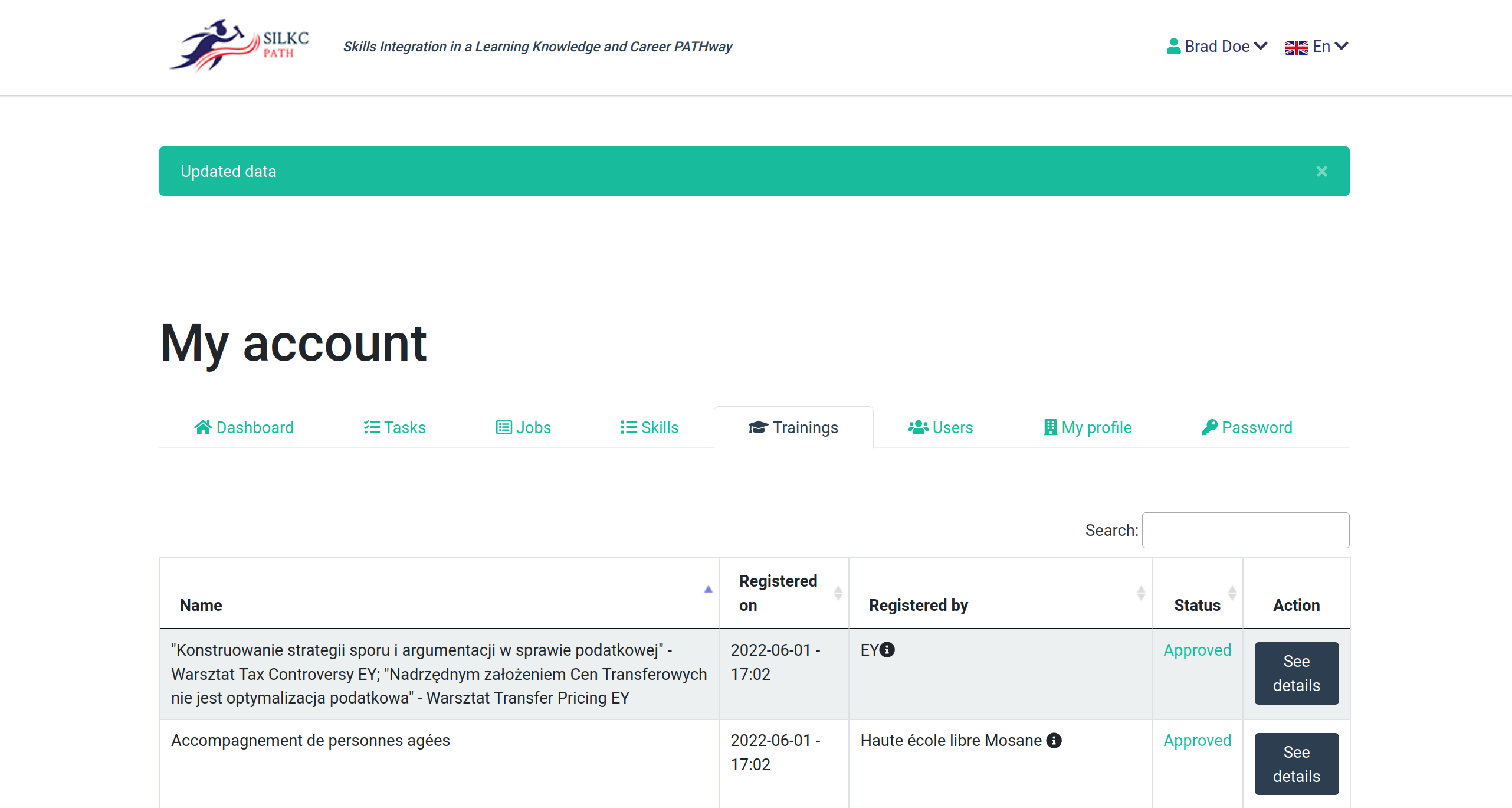
The "Training" tab shows all training registered on the platform. Unlike jobs and skills, training are not imported from ESCO, they are created on the platform by institutional users. As such, they need to be reviewed and can be edited, frozen or deleted.
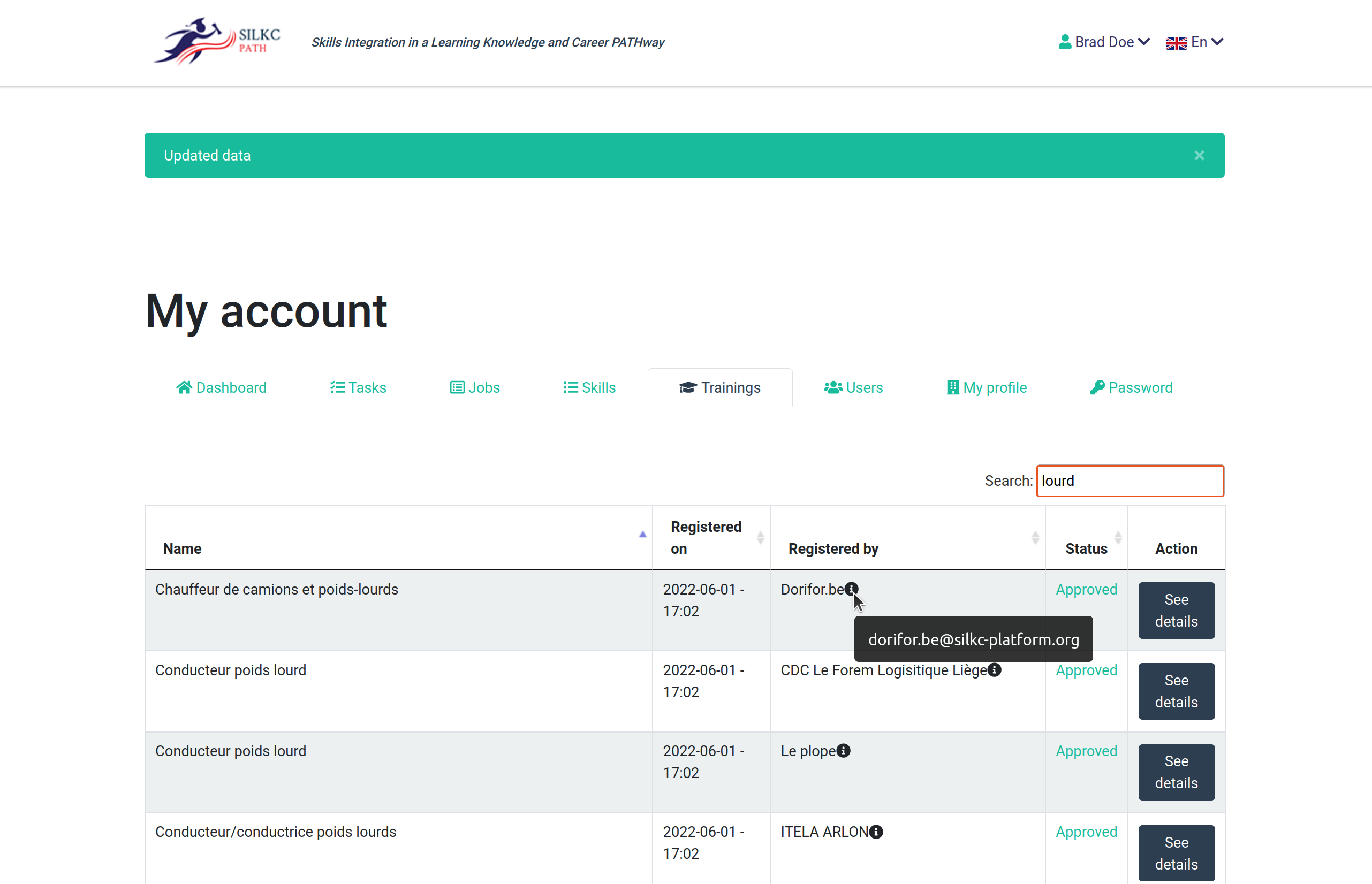
The e-mail of the registering institution can be seen by clicking the questionmark icon next to the institution's name.
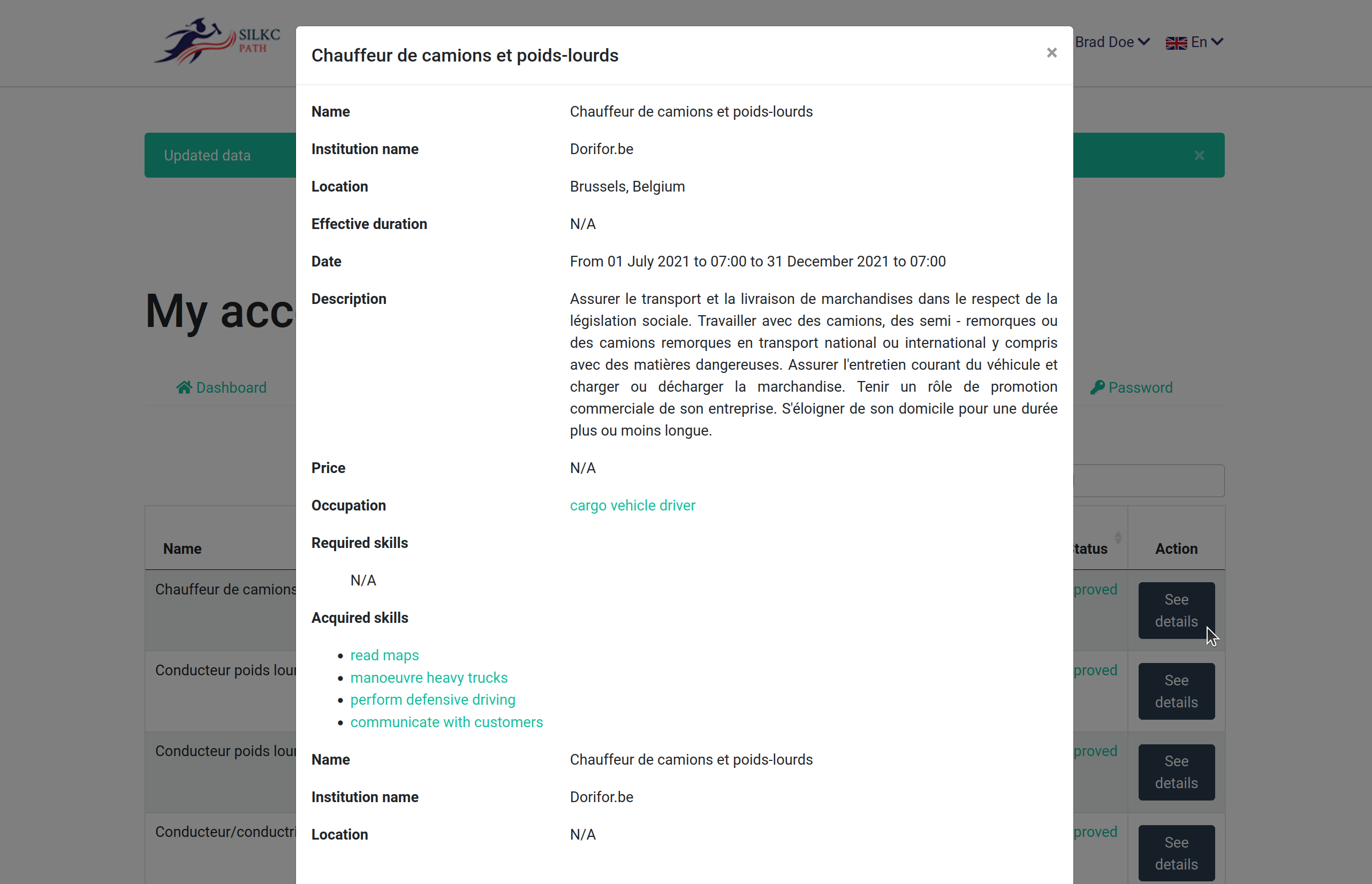
Details of the training can be seen by clicking on the "See details" button. Although not shown in the following screenshot, the detailed view has an "Edit" button at the bottom.
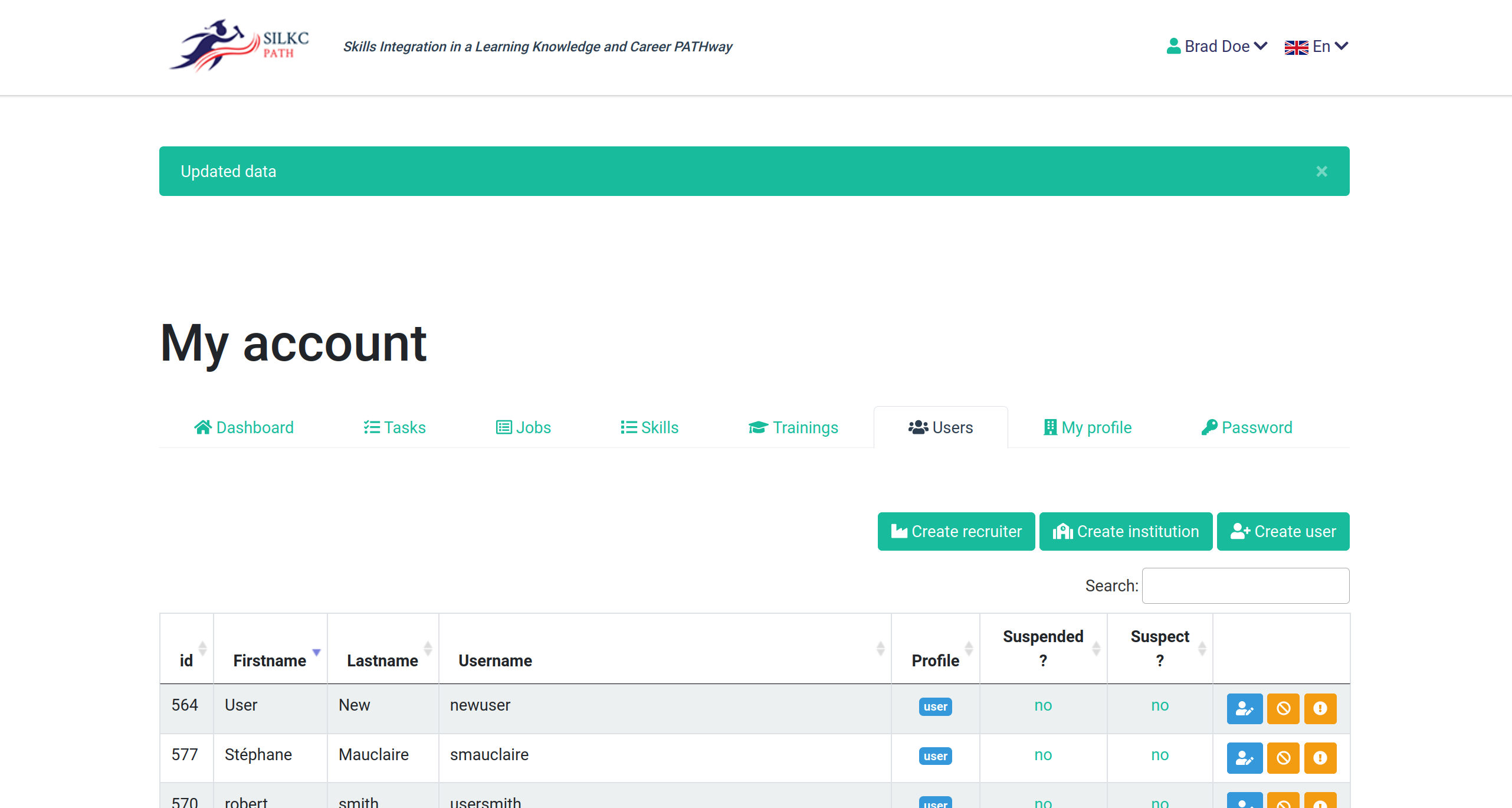
The administrator must have control over the users in order to make sure the system is not abused, but also to help some users find their username and check over the general state of the system.
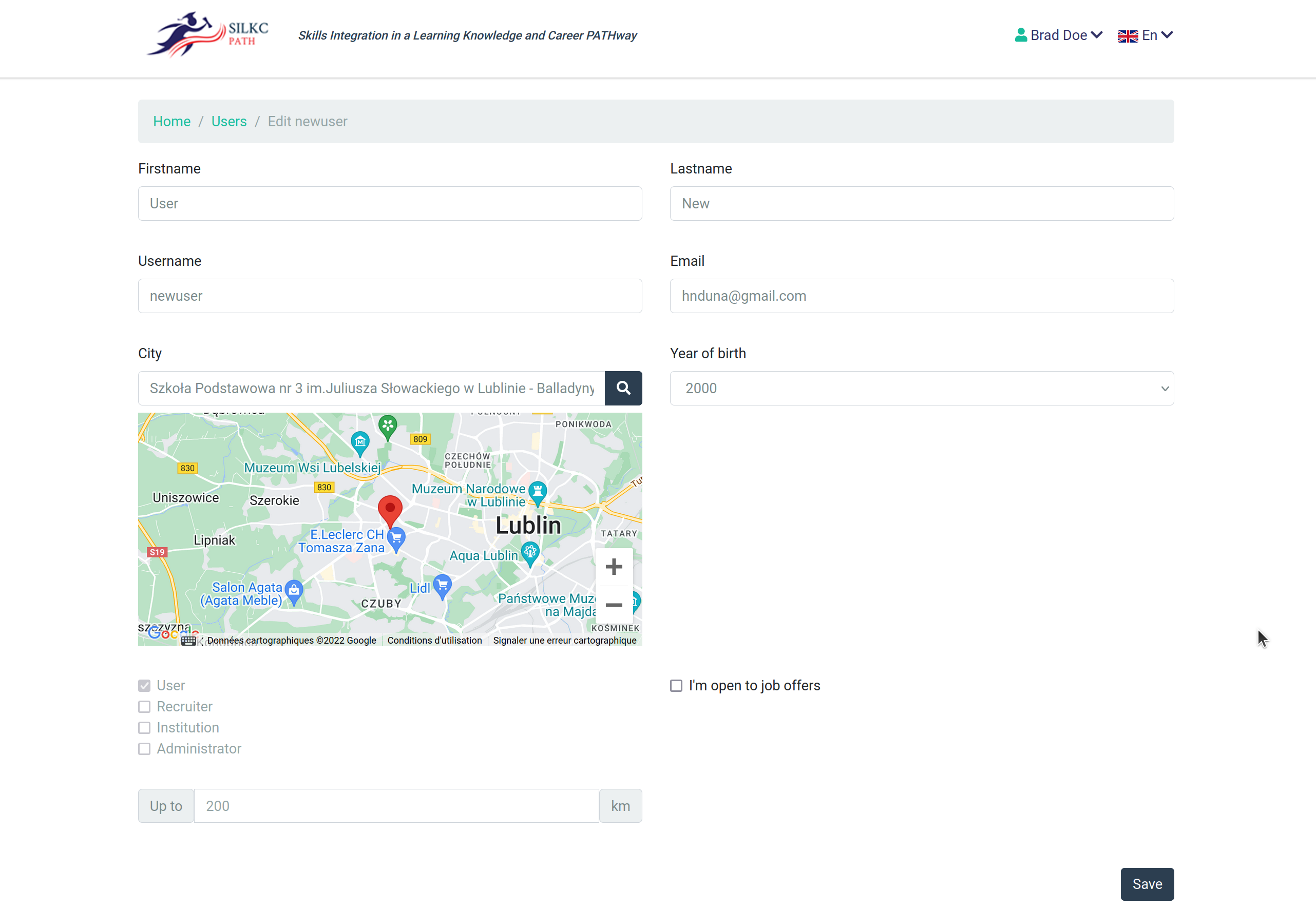
It is possible for the administrator to edit any user. The password cannot be seen or edited, for security reasons.
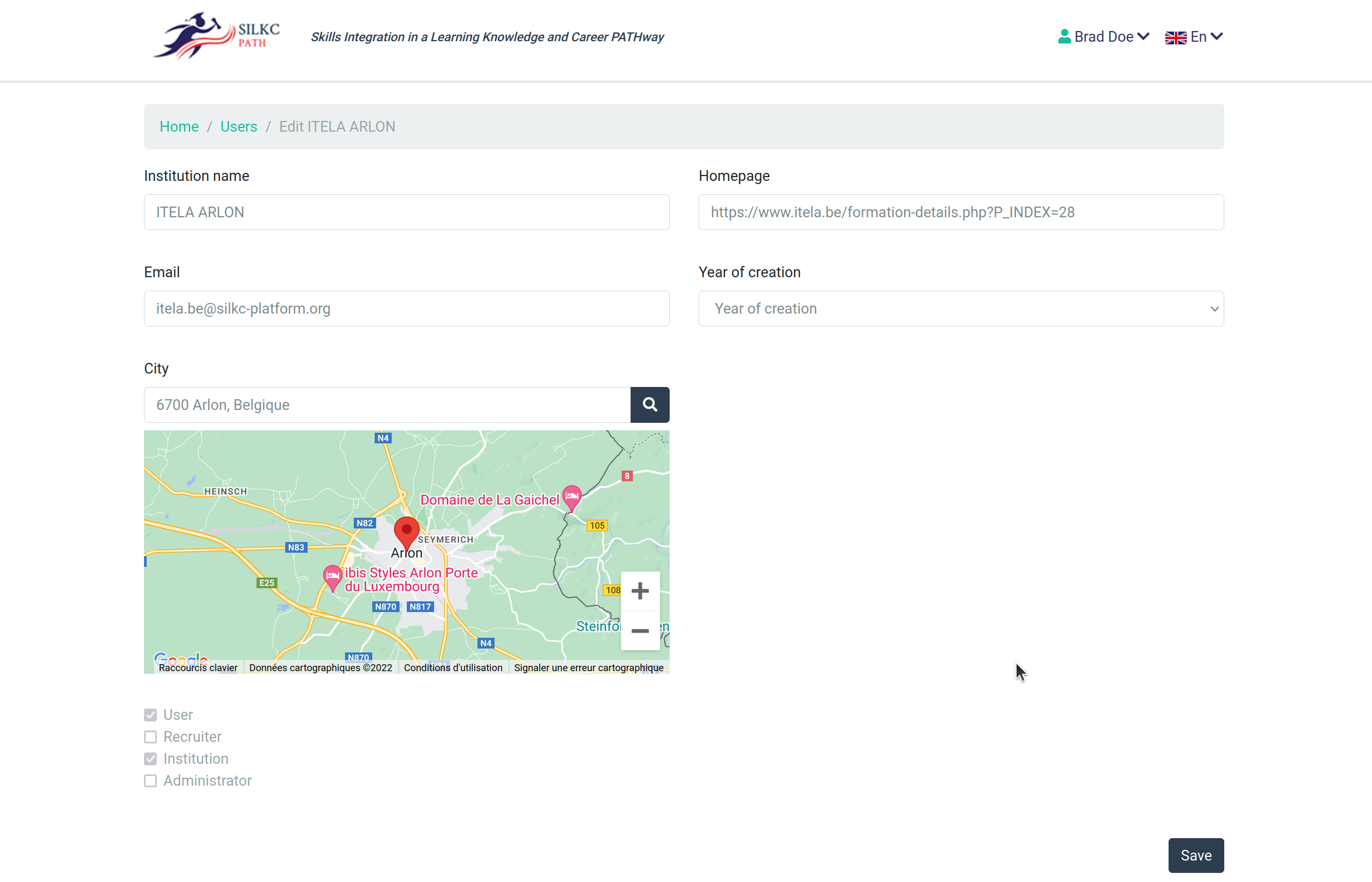
Other user types, like institutions and recruiters, can also be edited by the administrator.
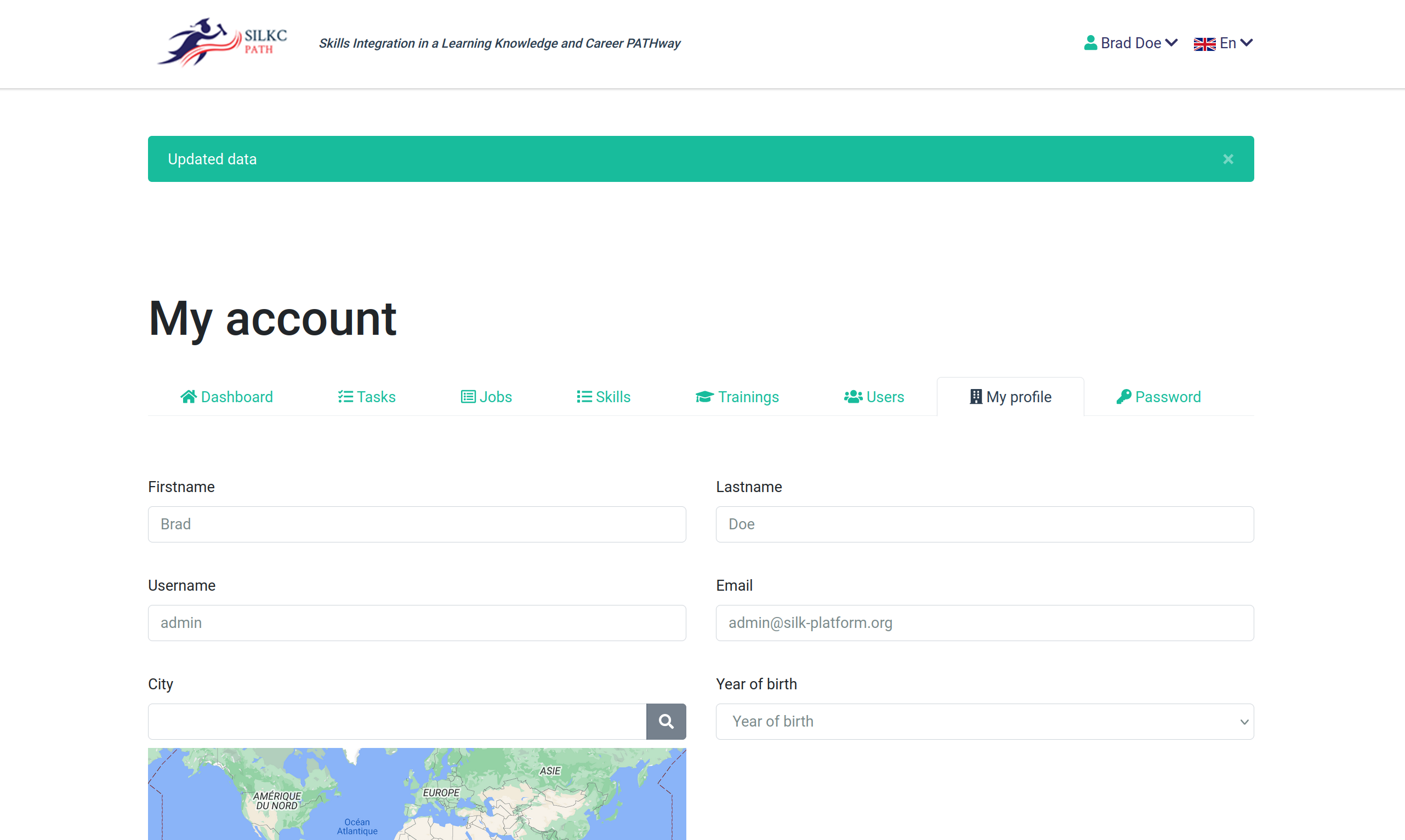
The profile page for the administrator is relatively self-explaining.
The admin can change his/her own password from the interface, provided he/she remembers the current password.