This repository was archived by the owner on Mar 21, 2023. It is now read-only.
TVShows
The following is a detailed description of the TV Shows tab in the program.
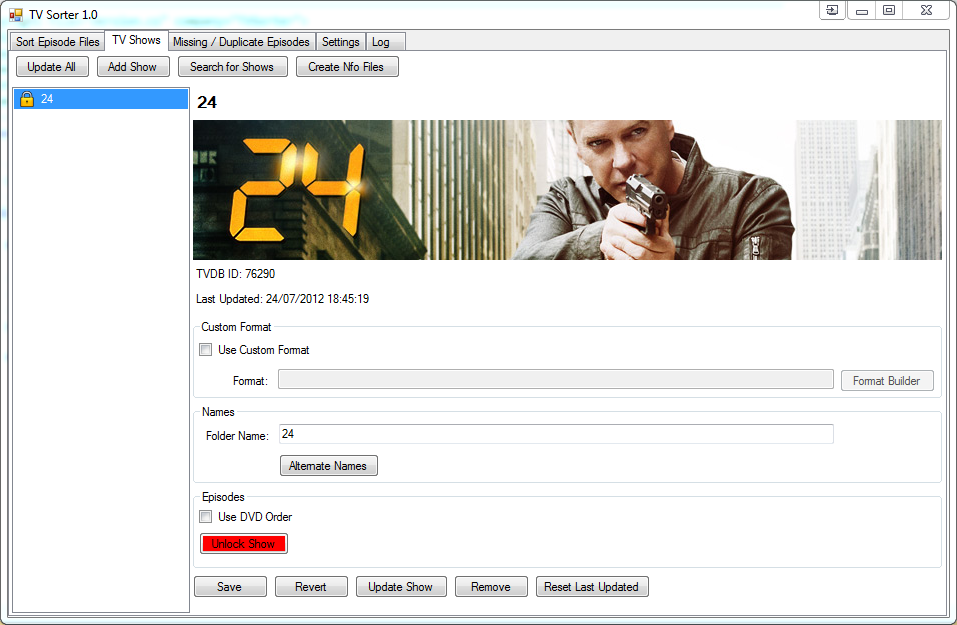
- Update All This will check every show for updates and download them for any that have them.
- Add Show This can be used to add a single show to the database. It is searched for on The TVDB. Enter the name and click search. The results will appear, select the desired result and click Add Show
- Search for Shows This will scan the destination directories for subfolders and assume each is the name of a TV Show. If it has not been entered into the database, it will search for the show on The TVDB and attempt to add it. If multiple search results are returned then the user will be prompted to select which it is. The program will search all shows first and then display results one by one after. Any shows that yield only one result will be added without prompt. For shows that don't have any results, the user enter another search term. The show that was searched is shown in the title of the dialog.
For each show there is a number of settings. These can be edited by selecting the show from the list, they then appear on the right.
- Use Custom Format This option is disabled by default and will mean that when handling any episodes for that the show, the default output format will be used. Specified on the Settings tab.
- Format If the Use Custom Format option is enabled, then the user can specify a custom format. This will be used for handling episodes of that show. See Settings for details on the format variables.
- Folder Name A custom folder name can be specified for the show. This can then be used in the output format as the {FName} variable. Reasons for this may be that you don't want the full name of the show on the folder. For example, CSI: Crime Scene Investigation, you may just want CSI.
- Alternate Names Opens a dialog for editting the alternate names of the show. These are checked during scanning to match filenames to shows. Sometimes show names may be written in different ways and this allows the user to edit the names that TV Sorter can check against.
- Use DVD Order When enabled, the show will be updated with the DVD order for the episodes rather than the default airing order. If this is changed the the show will need to be updated. Force Update should be used since if there are no changes to the show since the last update then nothing will happen despite the changed setting.
- Show (Un)locked This control toggles the locked status of the show. If the show is locked then it is skipped over in any updates of the database.
- Save This will save the settings to the database.
- Revert This will revert any unsaved changes to the show.
- Update This will check the selected show for updates, and download them if there is any. This includes the episode data for the show and the banner image.
- Remove Show This will remove the selected show from the database and from the list. All episode data pertaining to the show is removed as well.
- Reset Last Updated This will reset the last updated time. Can be used to force an update to the show since it will check if there are any updates since the last update time before downloading episode data.