Settings
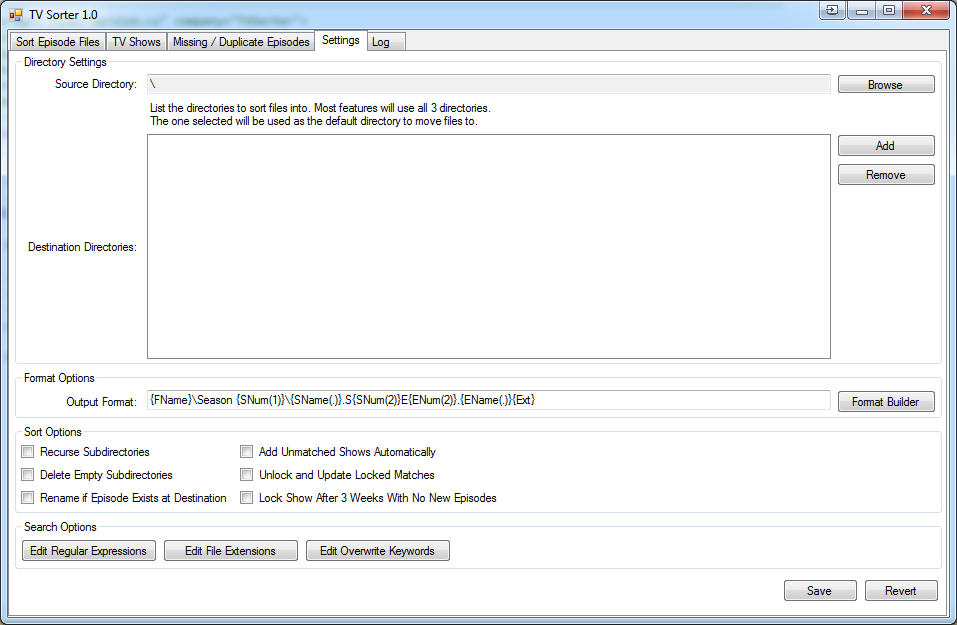
- Source Directory: This is the directory that TV Sorter will scan for episode files.
- Destination Directories: These are the directories where you have TV Shows stored. The selected one in the list is where the episodes are moved/copied to. All are searched for missing/duplicate episodes and for new shows (see TVShows)
The format of the output directory path and file name can be defined. The option on the settings page can be used to define the default, although this can be overridden on a per-show basis. For example, some shows, such as Mock The Week, list the episode names as just Episode 1, Episode 2 etc. you may not want you files to be named Mock.The.Week.S01E01.Episode.1.avi so could define a custom format for Mock The Week to not have an episode name. The rest of the shows would continue using the default.
Several variables can be defined the path. This is a path relative to the output directory so does not need to include C:\TV or similar. An example below the box shows the what the output will look like using the first episode of The IT Crowd as an example.
- {SName($)} Show Name
- {EName($)} Episode Name
- {SNum(#)} Season Number
- {ENum(#)} Episode Number
- {Date(%)} Original Air Date
- {FName} The user defined folder name for the show
- {Ext} The file extension (includes the . e.g. '.avi')
The $ should be changed to the character to separate the words of the name. For example:
- {SName( )} The IT Crowd
- {SName(.)} The.IT.Crowd
-
{SName(
_)} The_IT_Crowd Any single character can be used.
The # represents the minimum number of digits to display. For exmaple:
- {SNum(1)} 1
- {SNum(3)} 001
The % represent the date format. This complies with the .Net Date Format. For example:
- {Date(dd-MMM-yyyy)} 01-Jan-2010
- {Date(MMMM yyyy)} January 2010
The Format Builder provides a dialog for configuring these options.
- Recurse Subdirectories: This option, when checked, will make TV Sorter check in the subdirectories of the input folder when refreshing.
- Delete Empty Folders: After moving files, if the folder is left empty, this option will mean that it is deleted. It will only delete the folder if it is completely empty of all files, not just TV show files. It is recursive so if deleting a folder, leaves its parent empty, then it will be deleted as well. The input directory itself however, will not be deleted; only subdirectories within it.
- Rename if Episode Exists at Destination: Will search the destination folder for the episode. If it already exists under a differnet name then it will rename the file that is already there to the new name rather than making a duplicate. This may be useful if the episode has been previously copied and the episode's name has since changed on The TVDB making the file different.
- Add Unmatched Shows Automatically: This option will attempt to the show on The TVDB and add it if a match could not be made locally.
- Unlock and Update Locked Matches: If a file is matched to a show that is locked, this option will unlock it and update its episode data before returning the match.
- Lock Show After 3 Weeks With No New Episodes: This option will lock any show after an update that has not had an episode in the last weeks. By locking the show, it is excluded from future updates.
- Edit Regular Expressions: Allows you to edit the regular expressions used for matching. See Regular Expressions.
- Edit File Extensions: Allows you to edit the list of file extensions that are considered when searching.
- Edit Overwrite Keywords: Allow you to edit the keywords, that when included in the filename, will overwrite any file that may already exist in the destination directory.