Instrument Server
This section contains the documentation on Instrument Server (Main GUI) and all of its components.
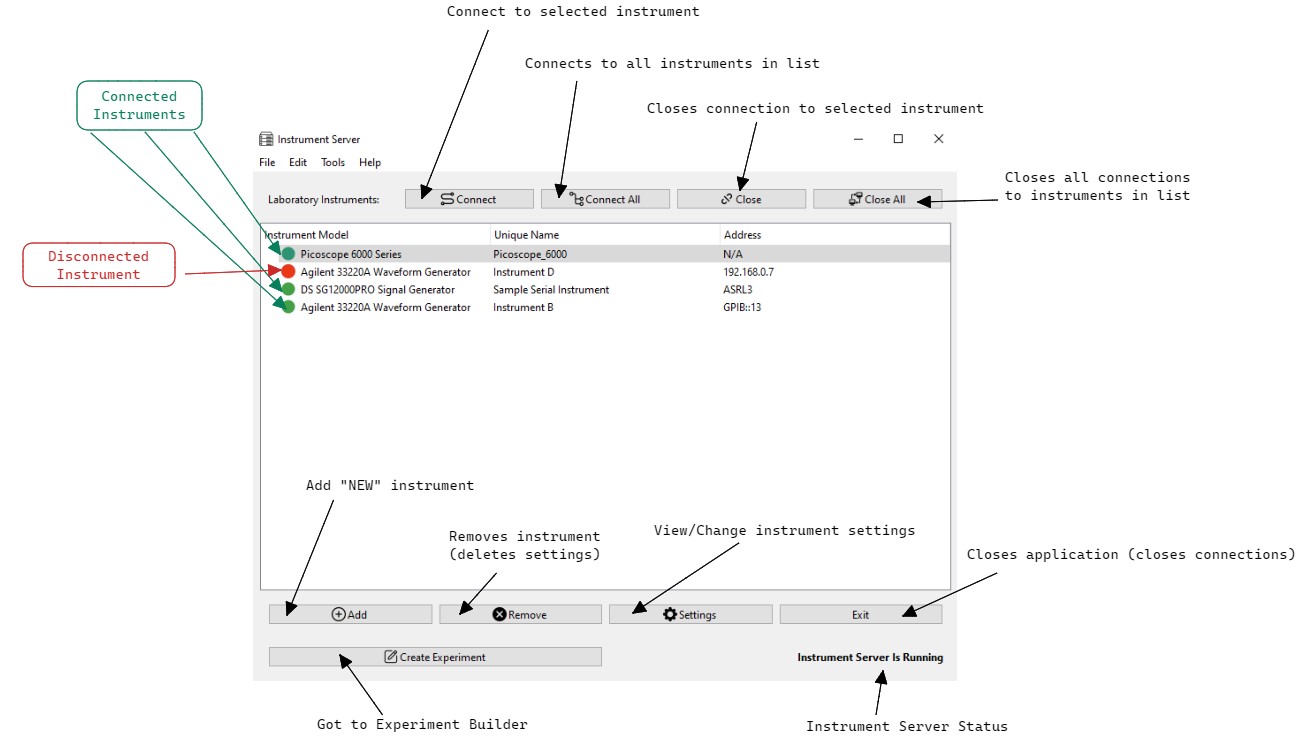
The Instrument Server Window automatically pops-up when the application is started. The table shows all instruments known to the application (initially, it will be empty). All instruments will have a 🔴 next to it indicating that there is no active connection to it at this time.
-
To add a new instrument, click on
Add. The following dialog will pop-up on the screen: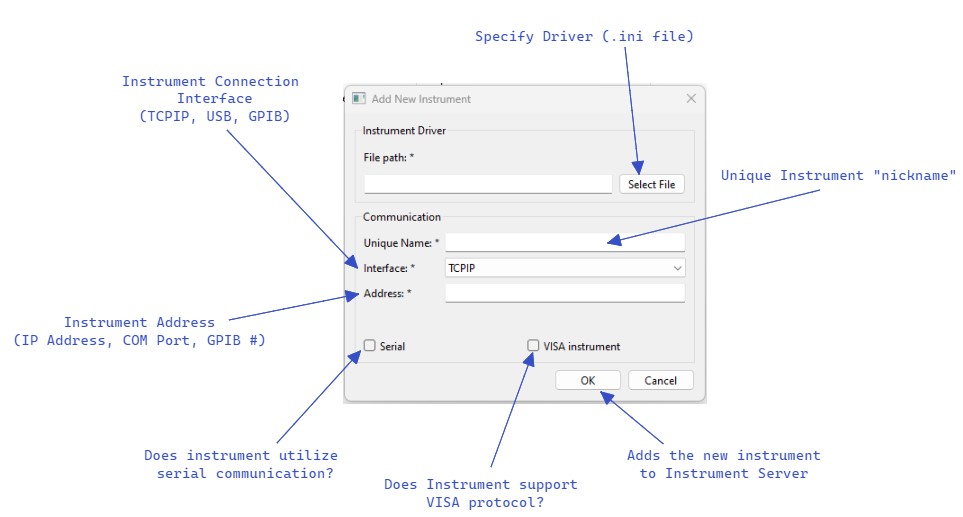
-
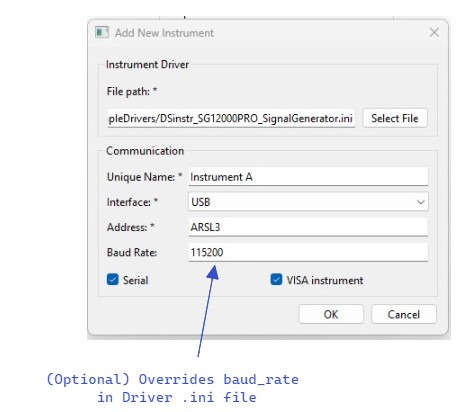
When adding a serial instrument, an optional "Baud Rate" field will appear. This gives you the option to override the
baud_ratespecified in the driver.inifile. If the "Baud Rate" field is left blank, the value from the Driver.inifile will be used.
- After adding an instrument, you can try connecting to it by either double-clicking on the instrument in the table, or clicking on "Connect" with the instrument selected. This will construct a
InstrumentManagerfor the instrument and attempt a connection. If the connection was successful, the 🔴 will change to a 🟢. This connected instrument can now we used in experiments!