Randomizer
When enabled will automatically assign random images to Actor portraits and/or Tokens. Keep in mind that pop-ups will not appear regardless of how the Pop-up settings are configured if the image is being randomized.

Ticking these checkboxes will enable randomization.
Portrait/Actor sheet image will be randomized when the Actor is first created. Portrait (Search Filters) type search will be performed and an image randomly selected from it.
Token image will be randomized when a token is dragged on the canvas or created through a macro or some other automated means. Token (Search Filters) type search will be performed and an image randomly selected from it.
Token Variant Art draws a distinction between tokens being created by copy pasting (Ctrl+C -> Ctrl+V) and all other means of creating a token. This setting will specifically randomize token images only when the token is being created via copy pasting. Token (Search Filters) type search will be performed and an image randomly selected from it.
Portrait randomization will cause both the Portrait and Token to have same images. However randomization of the token will not update the portrait with the same image. This setting is a means to instruct the module to do so.
If randomization is enabled on Actor create, or on Token create / copy+paste only the potrait or the token image will be randomized or set to be the same in the case of the Apply Token image to Portrait. This setting allows both the Portrait and Token images to be randomized at the same time.
When Different images for Portrait and Token is enabled the Portrait and Token images will be randomized completely independently of one another. However if you have matching pairs of Portraits and Tokens e.g.:
- Orc_1.png and Orc_1_portrait.png
- Orc_2.png and Orc_2_portrait.png
you may want the randomizer to randomply pick Orc_2.png for the token image but then assign Orc_2_portrait.png for the portrait. This setting will make the module do just that. The module will first randomly pick either a potrait or the token images based on your previous settings, and then perform a search for a file that most closely matches what it just randomly picked.
There is a catch depending on how you've setup Search Algorithm settings, the most closely matching file to Orc_2.png will be itself Orc_2.png again. The way to prevent this is to configure Search Filters in a way to differentiate between Portrait and Token images. For the example we've been running with so far it would be something like so:
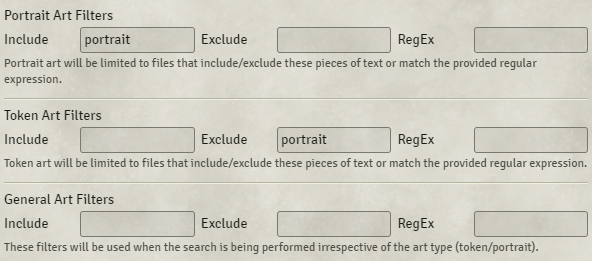
Once everything has been setup just right something like this will now be possible:
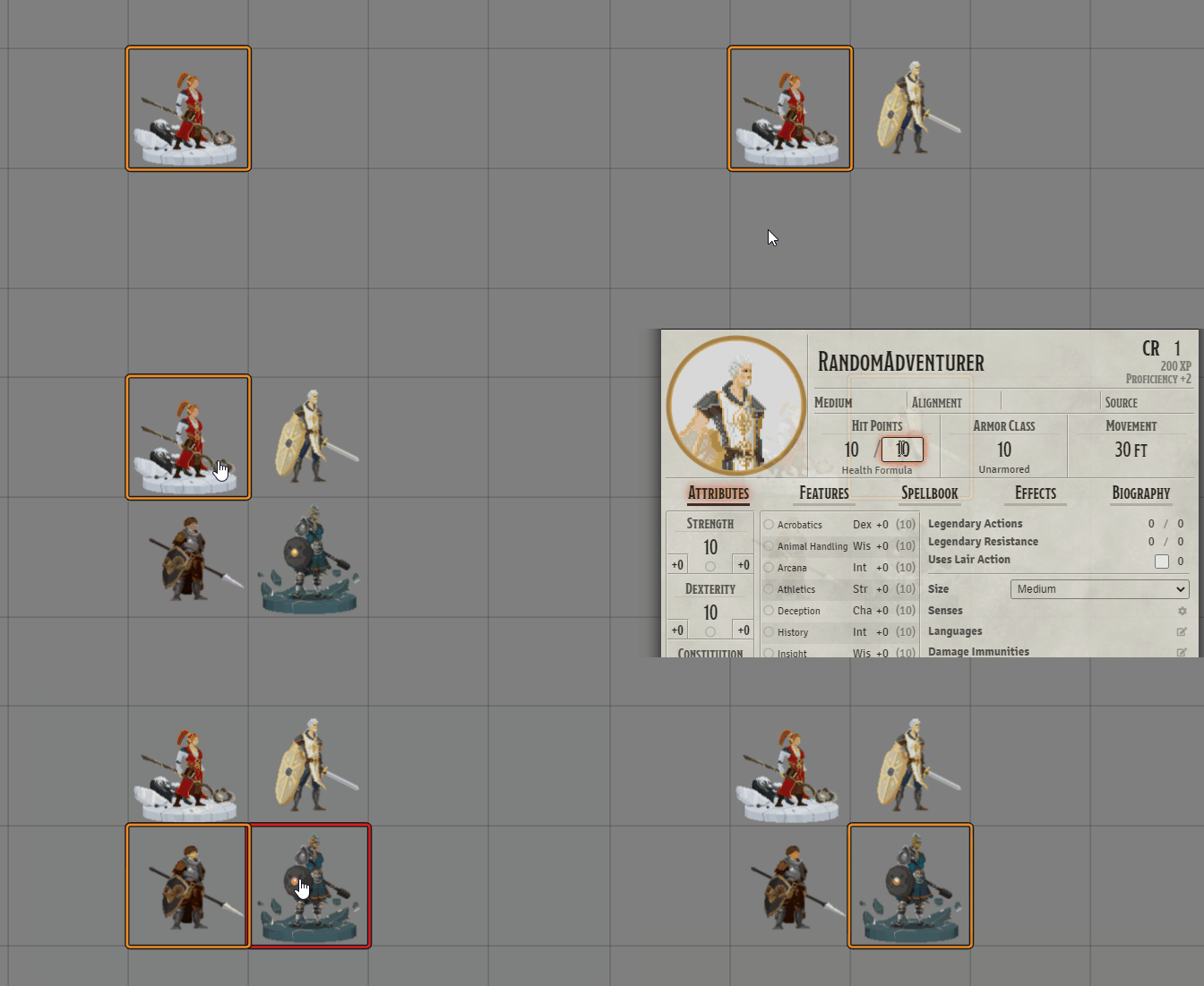
As the name suggest these settings are to control what types of searches should be performed when randomization is enabled.
A search will be done using the Actor's or Token's full name.
Searches will be done on each word within the Actor's or Token's name. e.g. 'Red Dragon' will be split and separate searches performed on 'Red' and 'Dragon'
Images Shared using the Token HUD will be included in the randomizer.
Checking any of the boxes under Randomize will enable randomization for all Token and/or Actors. These settings allow to fine tune this by disabling it under certain conditions.
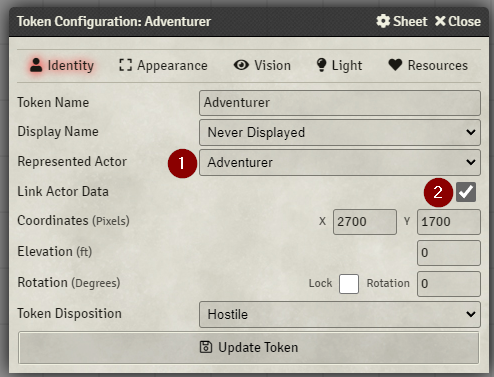
Disables randomization for any token that has a represented actor under Token Configuration. Field [1] in the image above.
Disables randomization for any token that is linked to their Actor. Field [2] in the image above.
This section here will contain all actor types supported by the game system you're running this module with. e.g. for DnD5e it will contain:
- Player Character
- Non-Player Character
- Vehicle
Selecting any of these checkboxes will disable randomization for any Actor of that corresponding type.
Enabling randomization will disable pop-ups unless this setting is enabled.