macleod python2 (alpha) GUI setup
These instructions are intended to be used with the following setup:
- Mac OSX 10.10+ (Yosemite and beyond)
- Python 2.7
For Windows, make sure to install:
- pywin32 https://github.com/mhammond/pywin32/releases
- wmi http://timgolden.me.uk/python/wmi/index.html
For the Alpha GUI, the scripts appear to run on Python 2.7+.
- Clone repo or download zip from GitHub from the April 2016 commit (https://github.com/thahmann/macleod/tree/fa5c900afdb46b34be85865b07ad68b0a520d09b).
- Change file paths in macleod_mac.conf (see conf/ folder)
- Create provers/ folder with the corresponding LADR, Vampire, and Paradox binaries.
- Give macleod folder executable permission (just in case OS-level permission errors show up):
chmod +x macleod- Check your Python version (should be Python 2.7+)
python --version- Install pip and texttable if you haven't already (rename to pip2 if you also have Python3 installed)
sudo easy_install pip
sudo pip install texttable- add src/ and task/ folders to PYTHONPATH variable on your machine
echo $PYTHONPATH
export PYTHONPATH=/path/to/macleod/src:/path/to/macleod/tasks:$PYTHONPATH
If you want to add this to the PYTHONPATH permanently, you will need to modify ~/.bash_profile by appending this at the end of the file (located in home directory; e.g., /Users/cchui/ - this is a hidden file, make sure you enabled viewing hidden files in Finder)
export PYTHONPATH=/path/to/macleod/src:/path/to/macleod/tasks:$PYTHONPATH- Navigate to Macleod GUI folder and run the Alpha GUI script:
ls
cd macleod
python gui/gui_alpha.py-
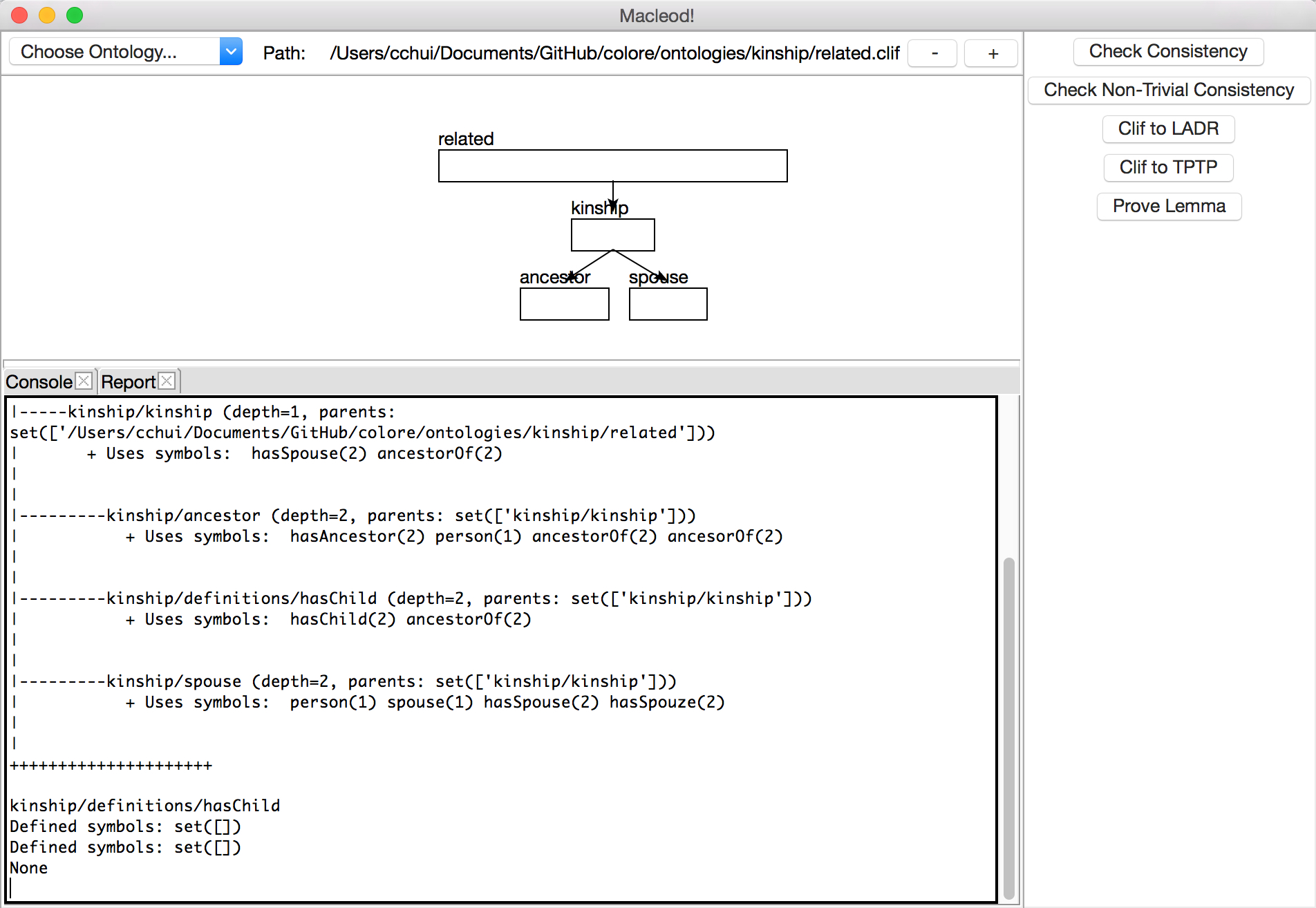
Open a clif file and see if it parses the imports correctly - if doing nested imports, your file directory in macleod_mac.conf must be accurate otherwise you will get errors. In this example, I am opening the related.clif file in the kinship hierarchy (http://colore.oor.net/kinship/related.clif).
-
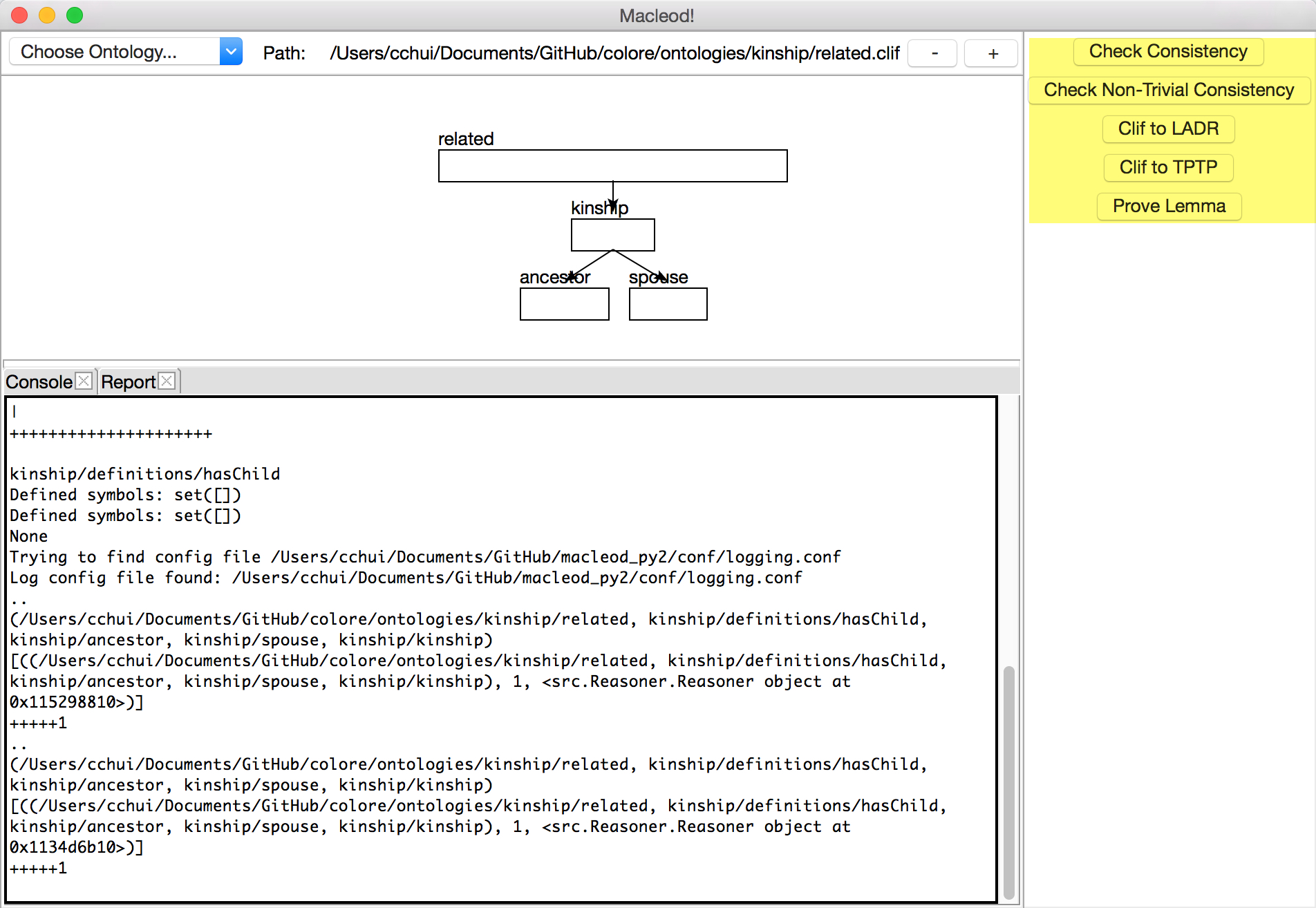
Click buttons to do desired translations or run a consistency check.
-
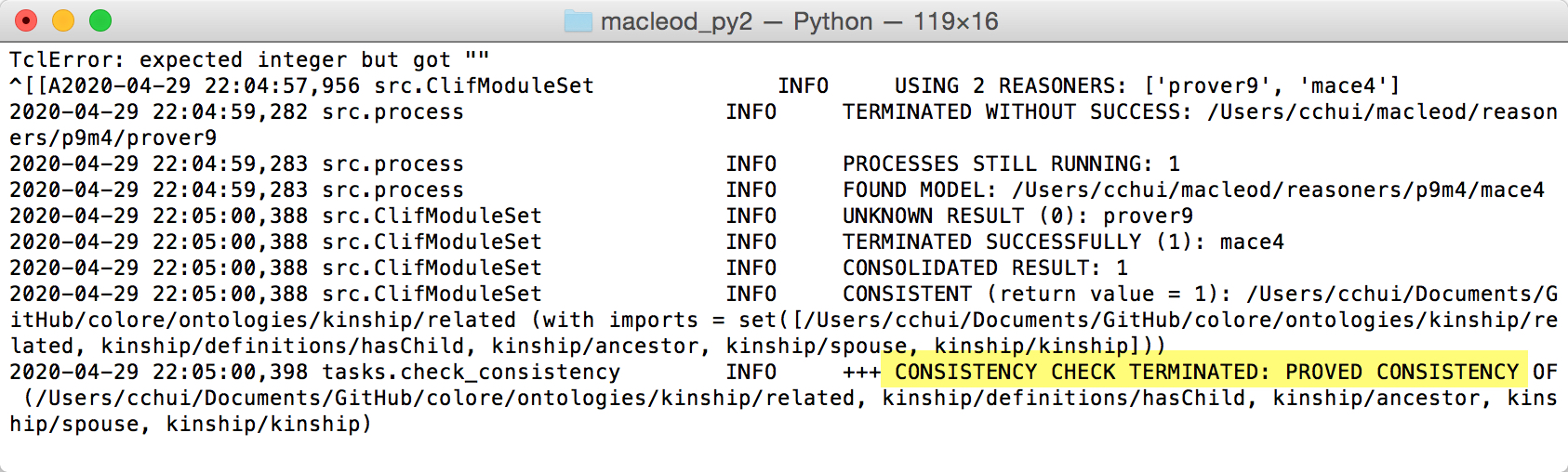
Check the Terminal window and the GUI for results of the check.
-
Translations will go into the /generated and /conversions file of wherever you store your ontologies (in this case, mine go to the colore repository).
-
Proofs and model output will be in the /output folder.
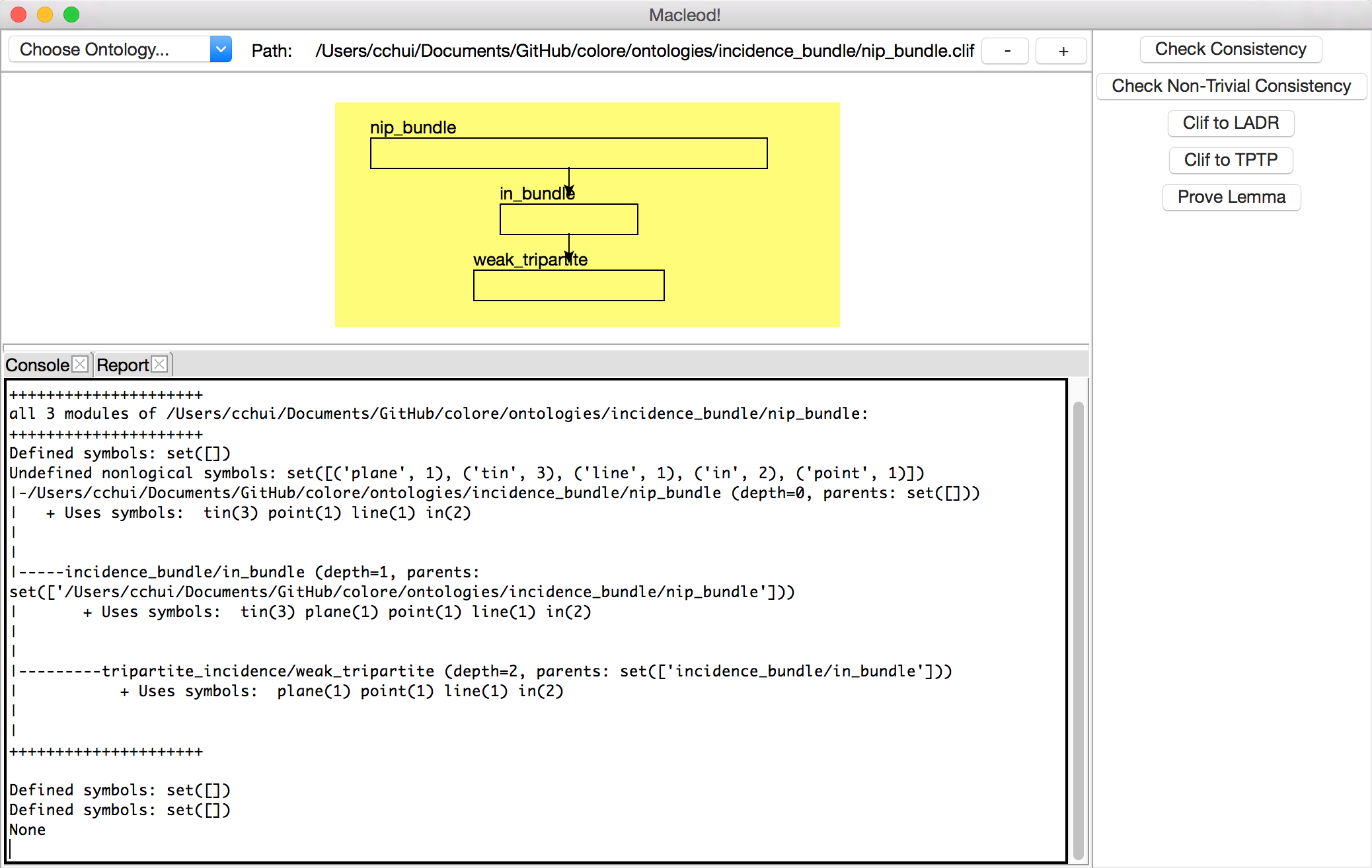
Macleod Alpha GUI will automatically show the import diagram of the CLIF file you've just opened. You do not need to click any buttons to get this diagram to appear.
- LADR and Paradox consistency check work. Set the provers and model finders in macleod_mac.conf.
- Vampire may throw OS-level threading errors on Mac. It's probably better to build the vampire binary from https://github.com/vprover/vampire and call it in a separate terminal. I do not have a Windows or Linux machine to test, but YMMV (your mileage may vary).
Tested and confirmed to work for:
- CLIF to Prover9 translation
- CLIF to TPTP translation
Translations will go into the /conversions folder of the corresponding hierarchy.
- .p9 is the translation of CLIF axioms into Prover9 syntax
- .tptp is the translation of CLIF axioms into TPTP syntax (used for Paradox, Vampire)
- .all.p9 and .all.tptp contain all of the CLIF axioms that were translated
These output files will be found in the /output folder of the corresponding hierarchy.
- .m4.out is a Mace4 output file
- .par.out is a Paradox output file
- .p9.out is a Prover9 output file
- .vam.out is a Vampire output file
The Alpha GUI does hang for a little bit if working with big files with many nested imports.