Usage and Demo
With the app built and running on your device of choosing, you can now start adding items to your cart and submit an order!
A video demo can be found here
Upon opening you should see this screen:
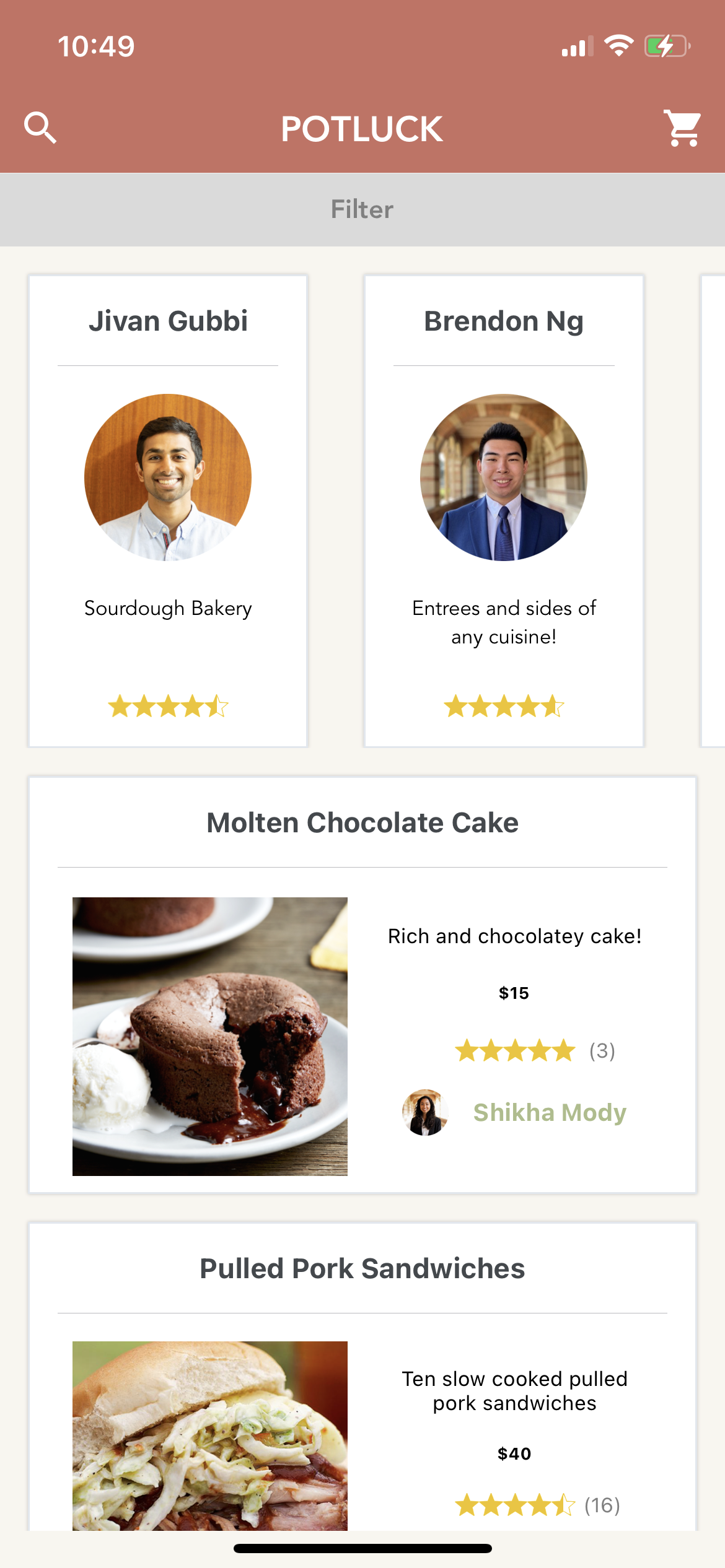
From top to bottom you can see the NavBar, A filter bar, A side scrolling list of recommended chefs, and a vertically scrolling menu of all the dishes on our app. Tapping one of these dishes should bring up that dish's Dish Page (see Dish Page).
Tapping on one of the Dishes will open that dish's page. Tapping on a chef either in the list of chefs, or on their name on a dish card, will bring up the chef's page (see Chef Page).
Tapping the Filter bar will open a menu with filtering options.
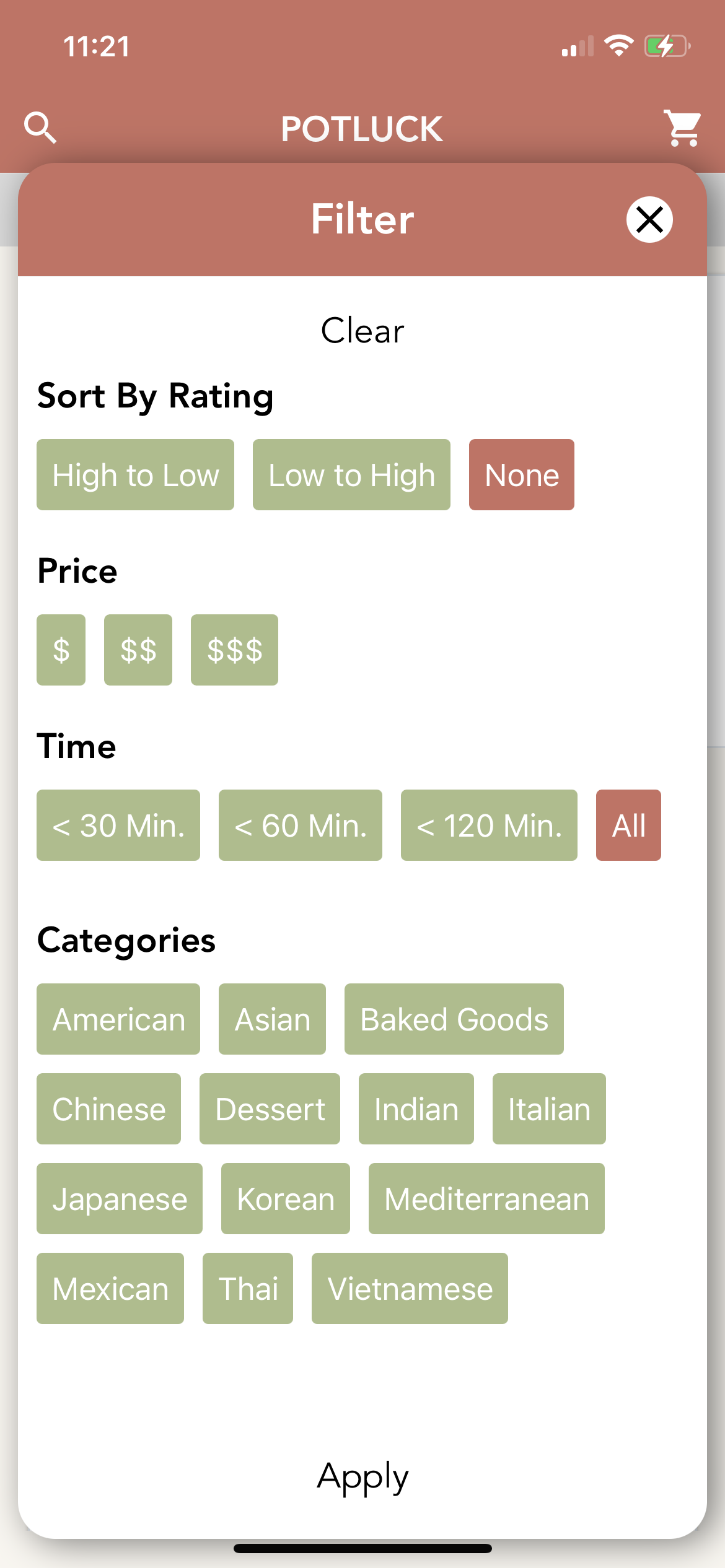
These can sort the dishes on the featured menu by rating, price, time, or tags that the Chef's have added to their Dishes.
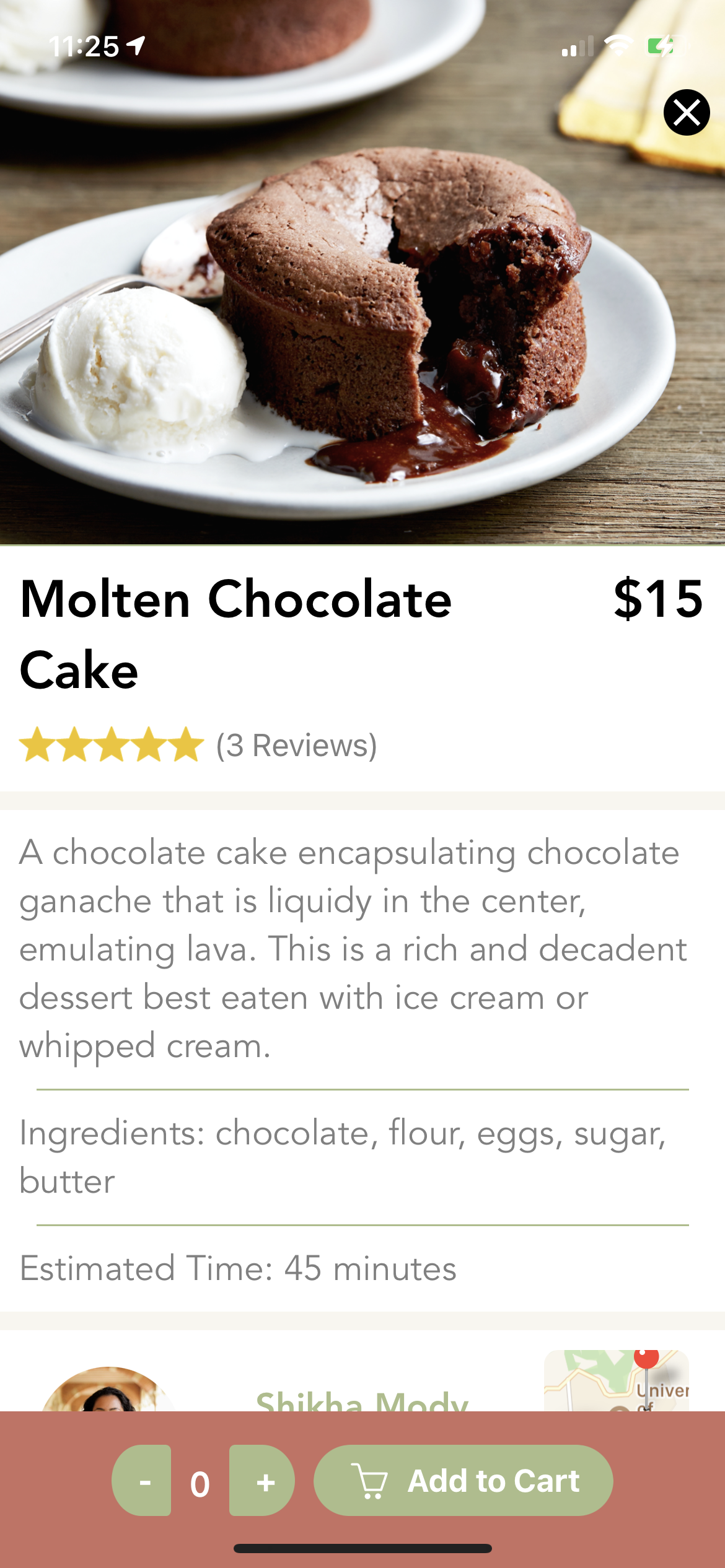
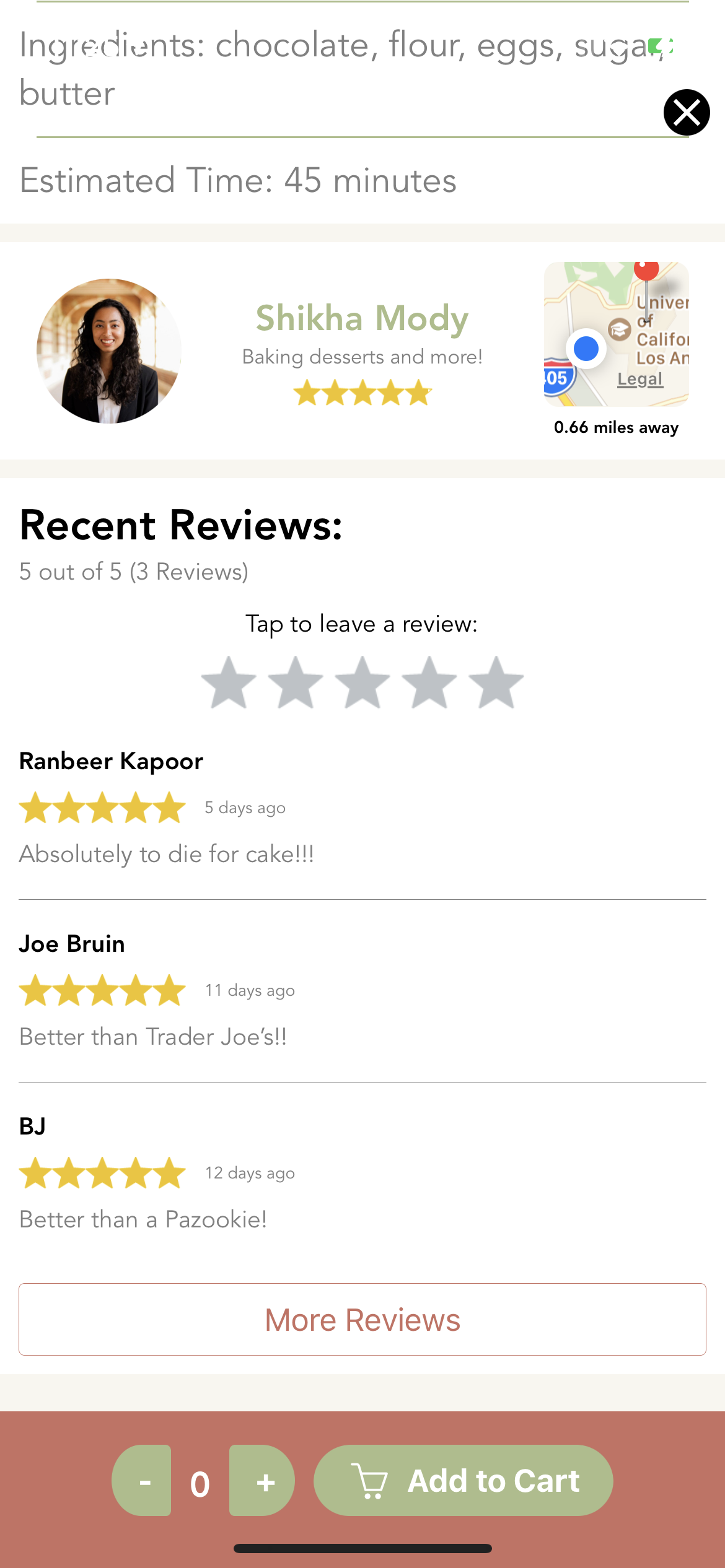
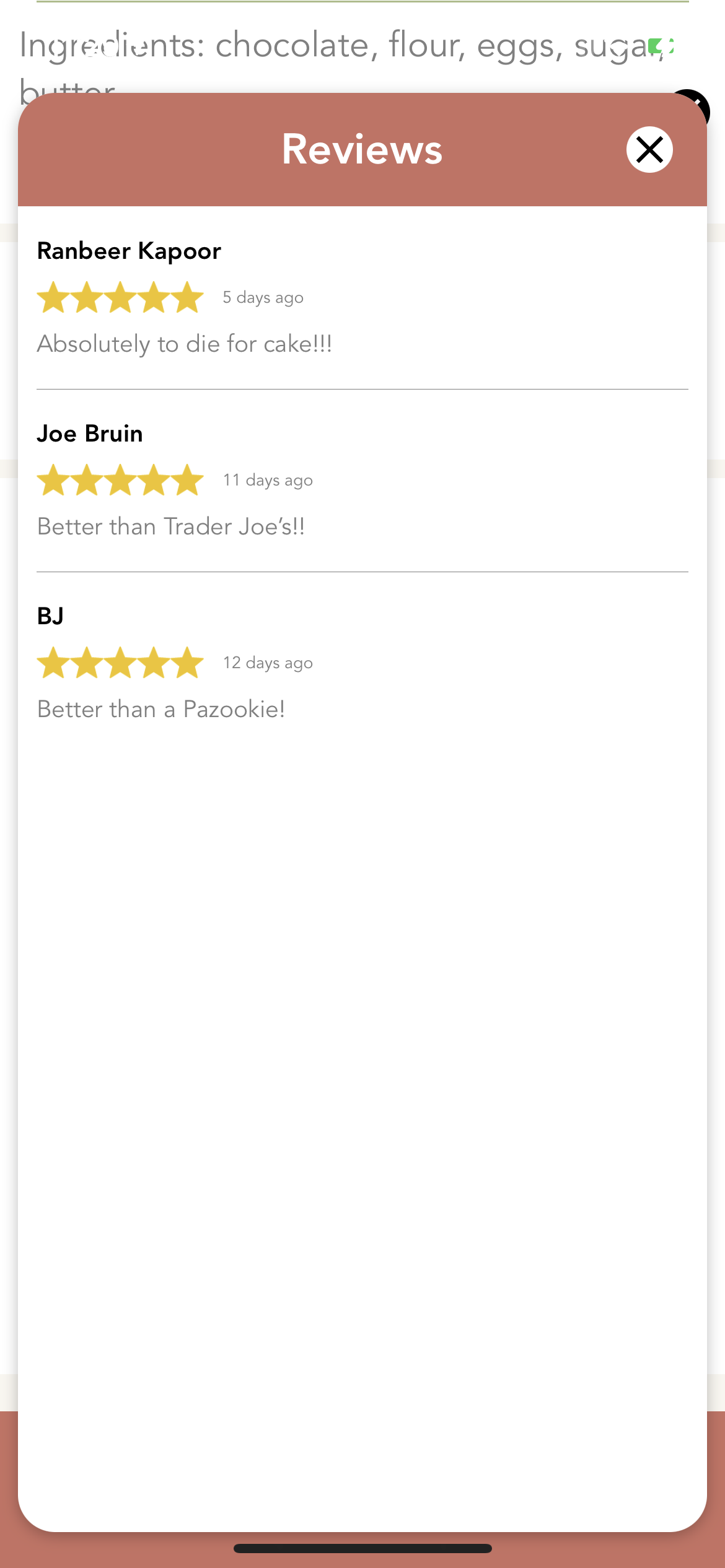
On the dish page you can view all the information about a dish as well as leave a review at the bottom of the page. Also the page has a Add to Cart bar at the bottom with which you can select an amount and add the dishes to your current cart to checkout. Tapping on the Chef will take you to their Chef Page. Tapping on "More Reviews" at the bottom of the page will bring up a popup displaying all reviews for a particular dish.
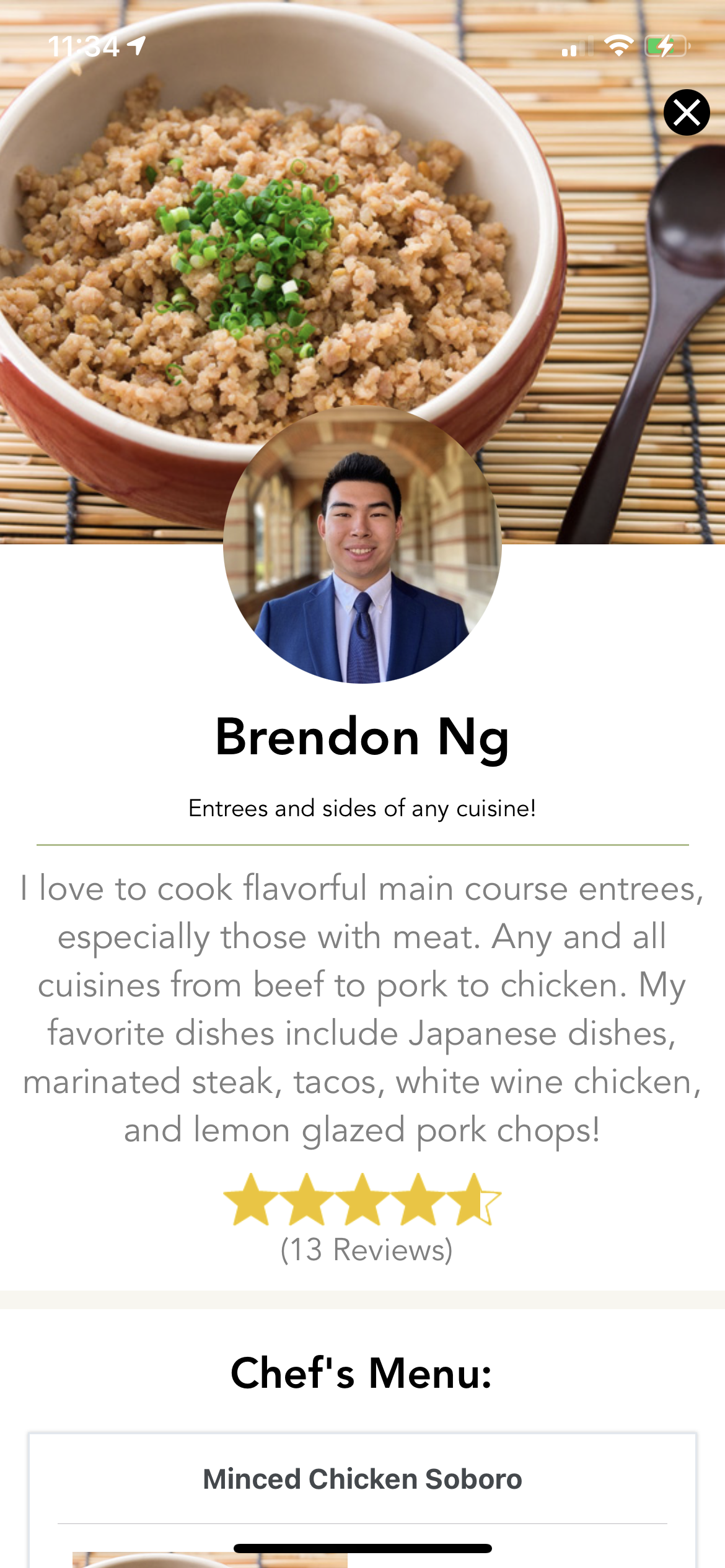
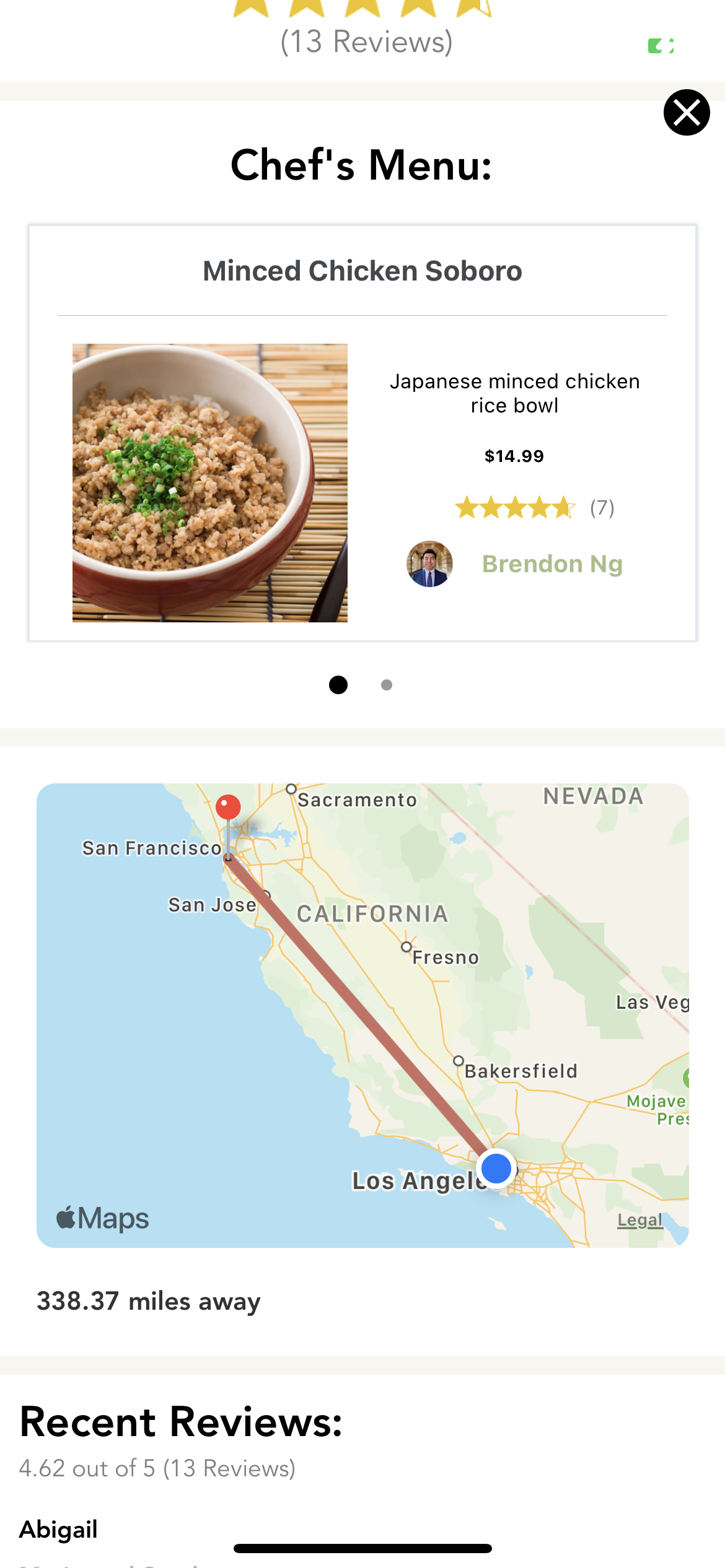
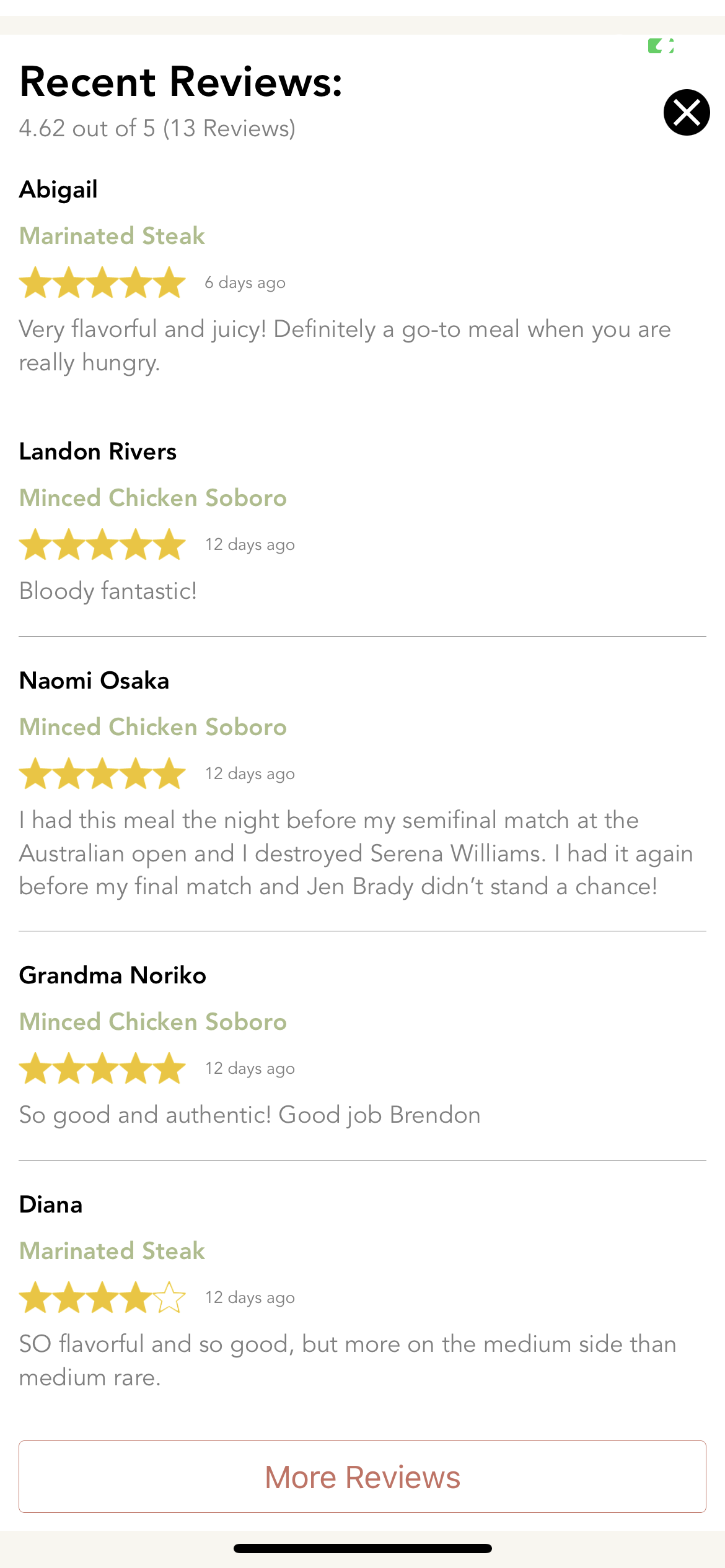
The chef page shows the Chef's Name, Bio, description, Dishes and Reviews. Also you can see the chef's location with respect to your current location within the interactive map. Similar to the Dish Page you can click on more reviews on the bottom to see reviews that wouldn't fit on the main page.
From the Navbar you can access Search and checkout functionality
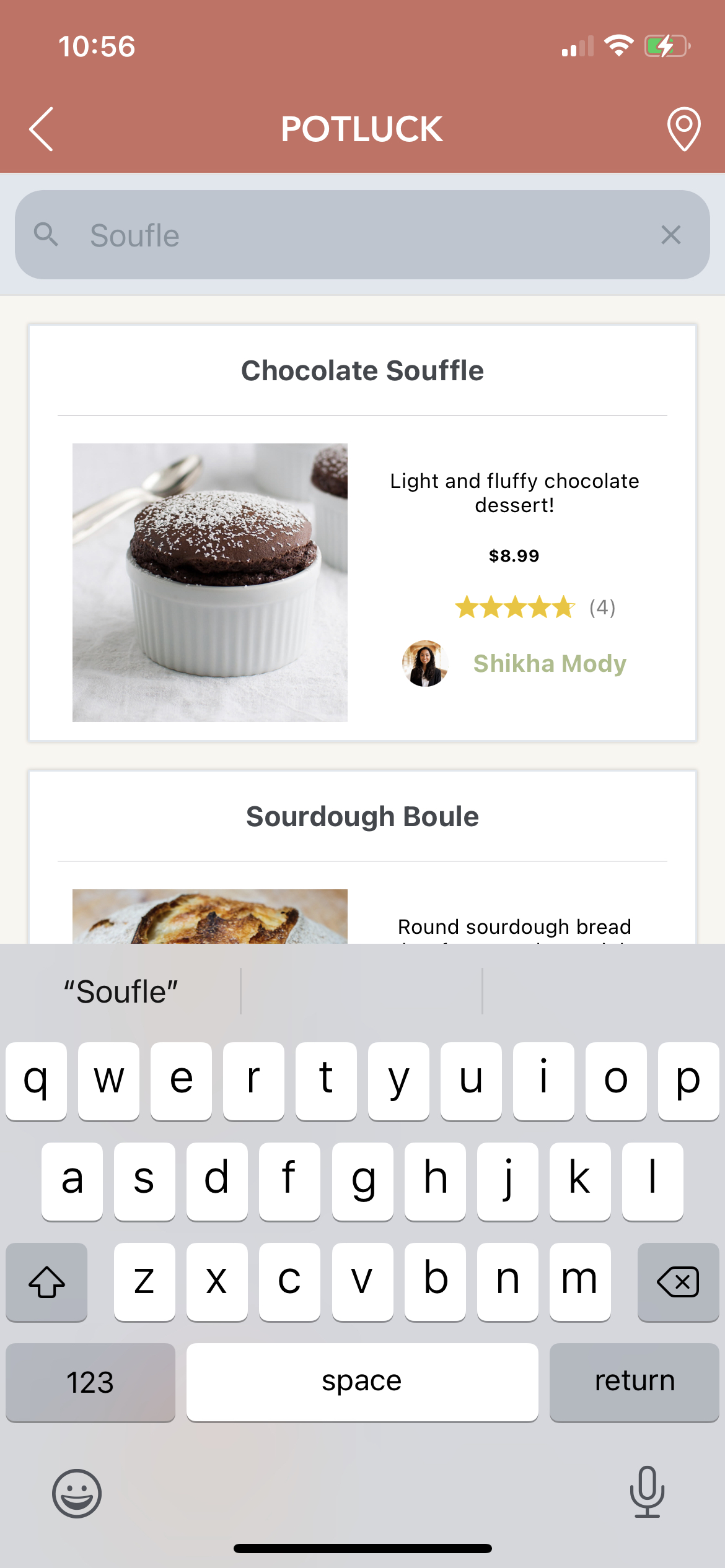
In the Navbar, tapping the search icon in the top left will bring up a text box. Typing here will find the dish which is closest to matching the search string. Tapping on the location icon in the top right will bring up potluck's Map Page.
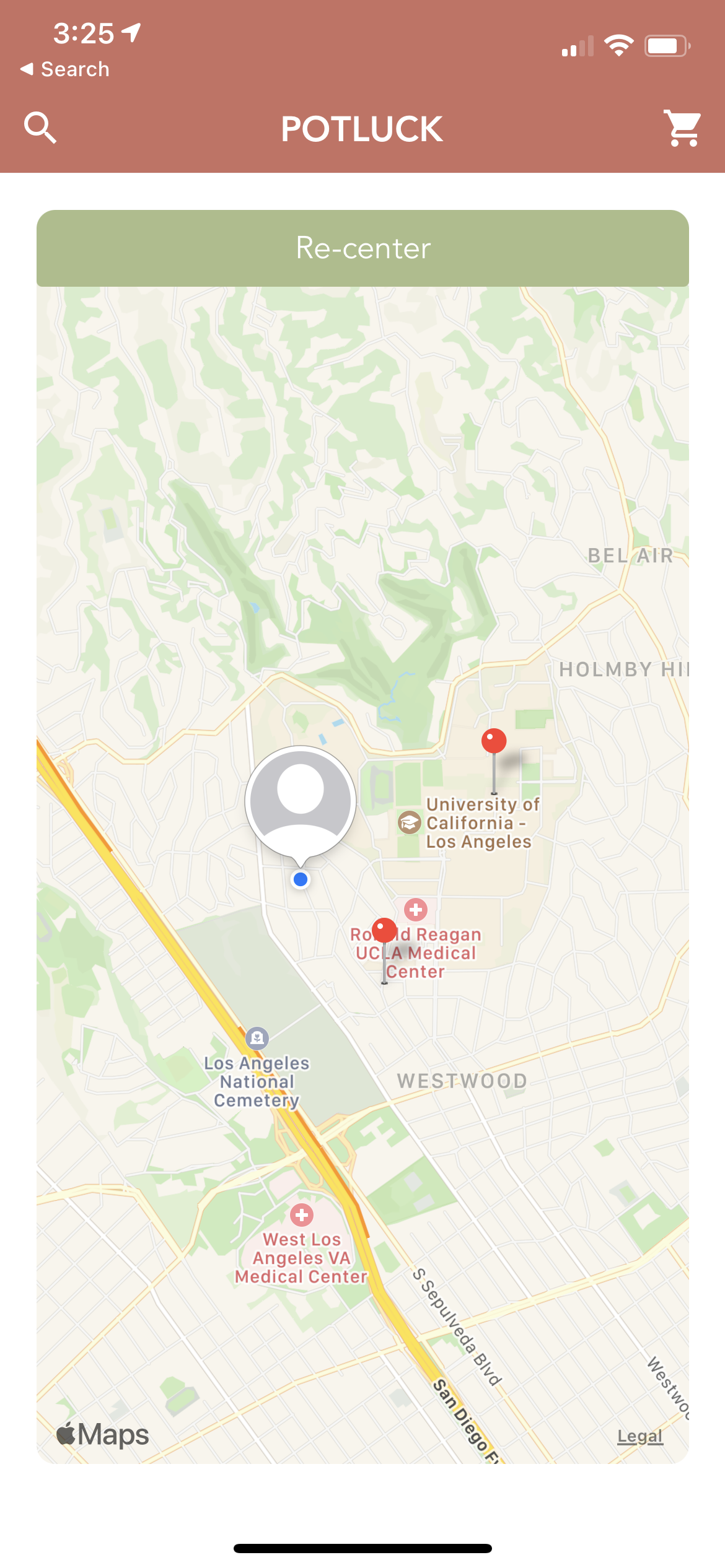
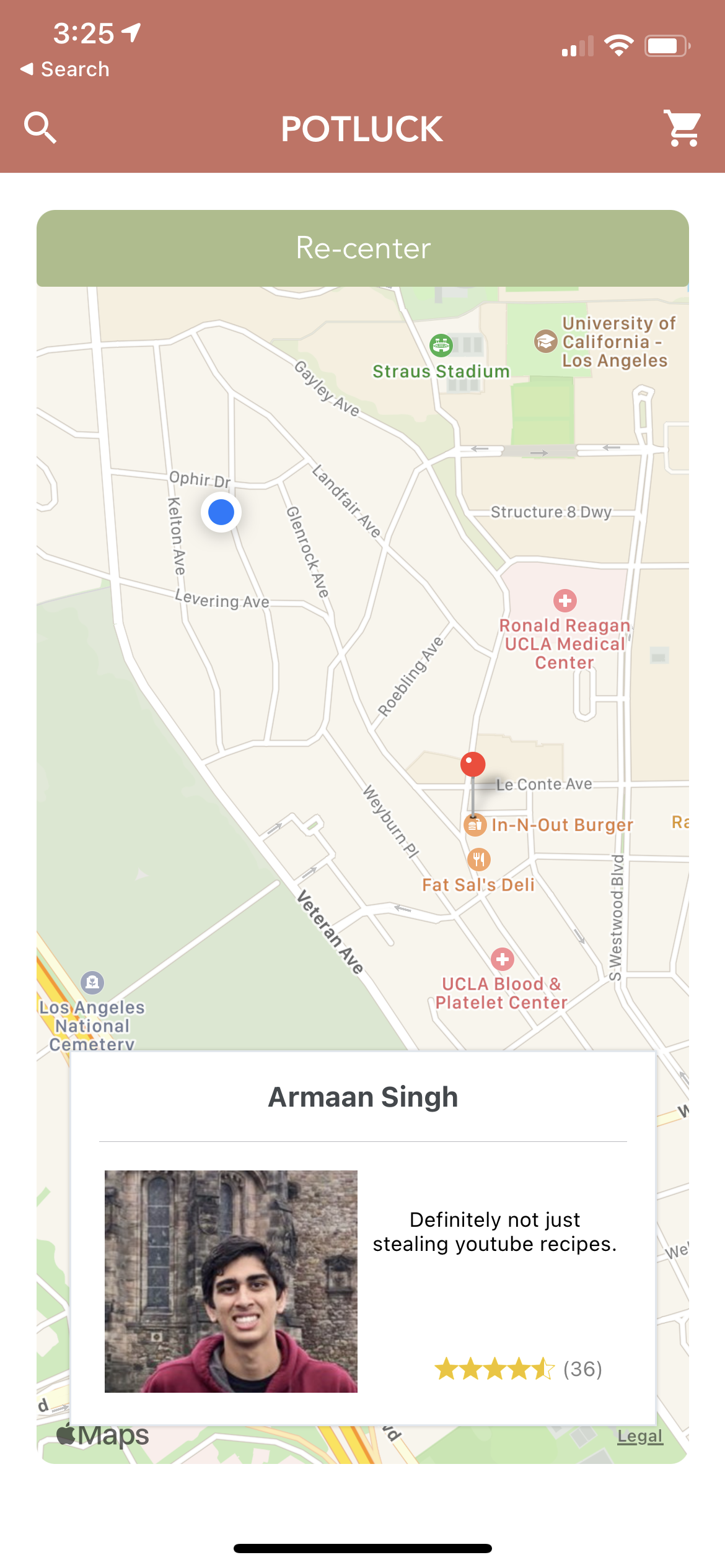
In the map page, you'll see a map accompanied with pins where any nearby chef is. Tapping on the pin will bring up information on that chef in a card. Tapping this card will bring up the chef's Chef Page.
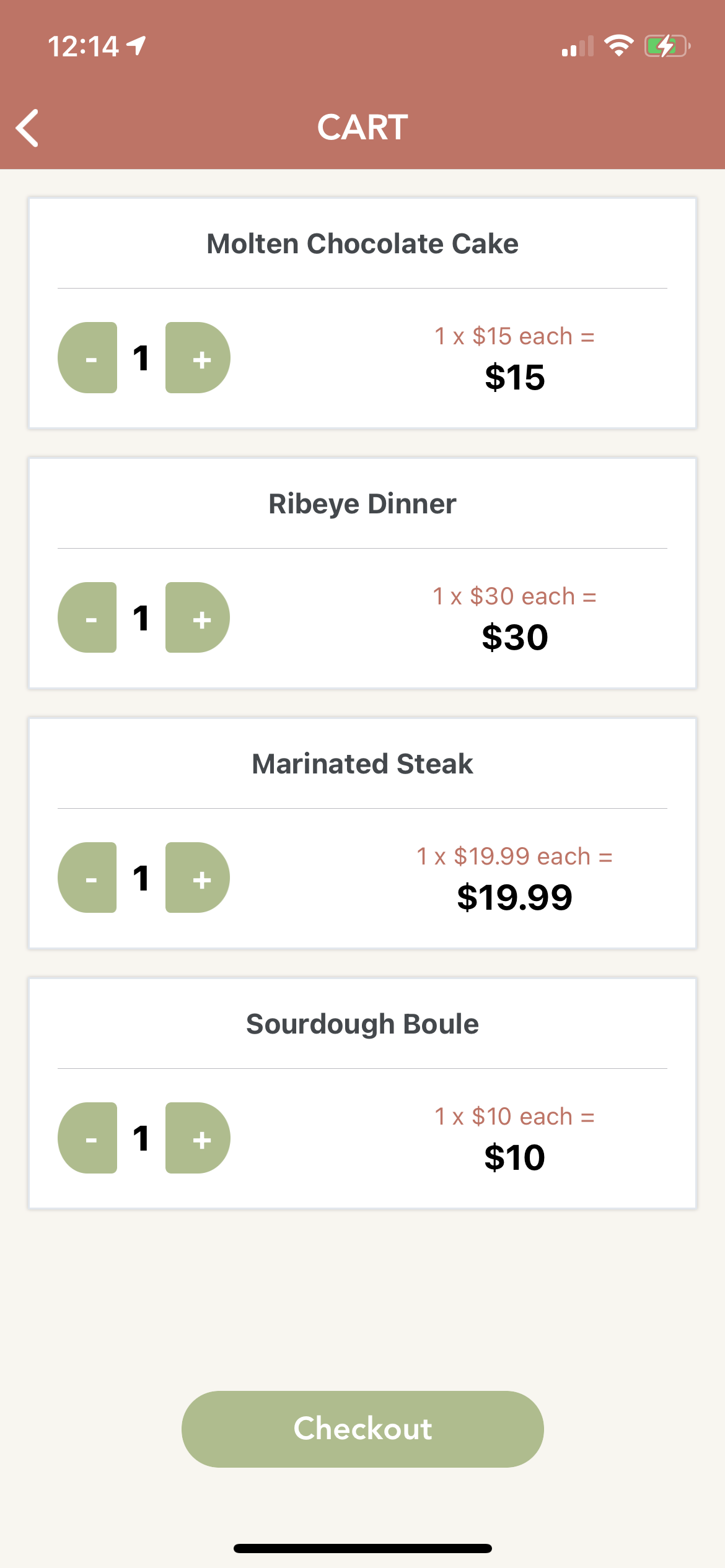
Tapping the cart icon in the top right of the Featured menu will bring you to the cart screen. Here you can review the items you've added, remove those you don't want, or add to the quantity you're ordering. Once you've reviewed your cart, you can tap checkout to proceed with ordering, or hit the back button at the top left to continue browsing the app.
Once Checkout is pressed, Potluck will bring up an order summary divided by the Chefs you've ordered from, as well as show the total cost of your order. Below each chef is a text field you can use to provide any special instructions for your dish.
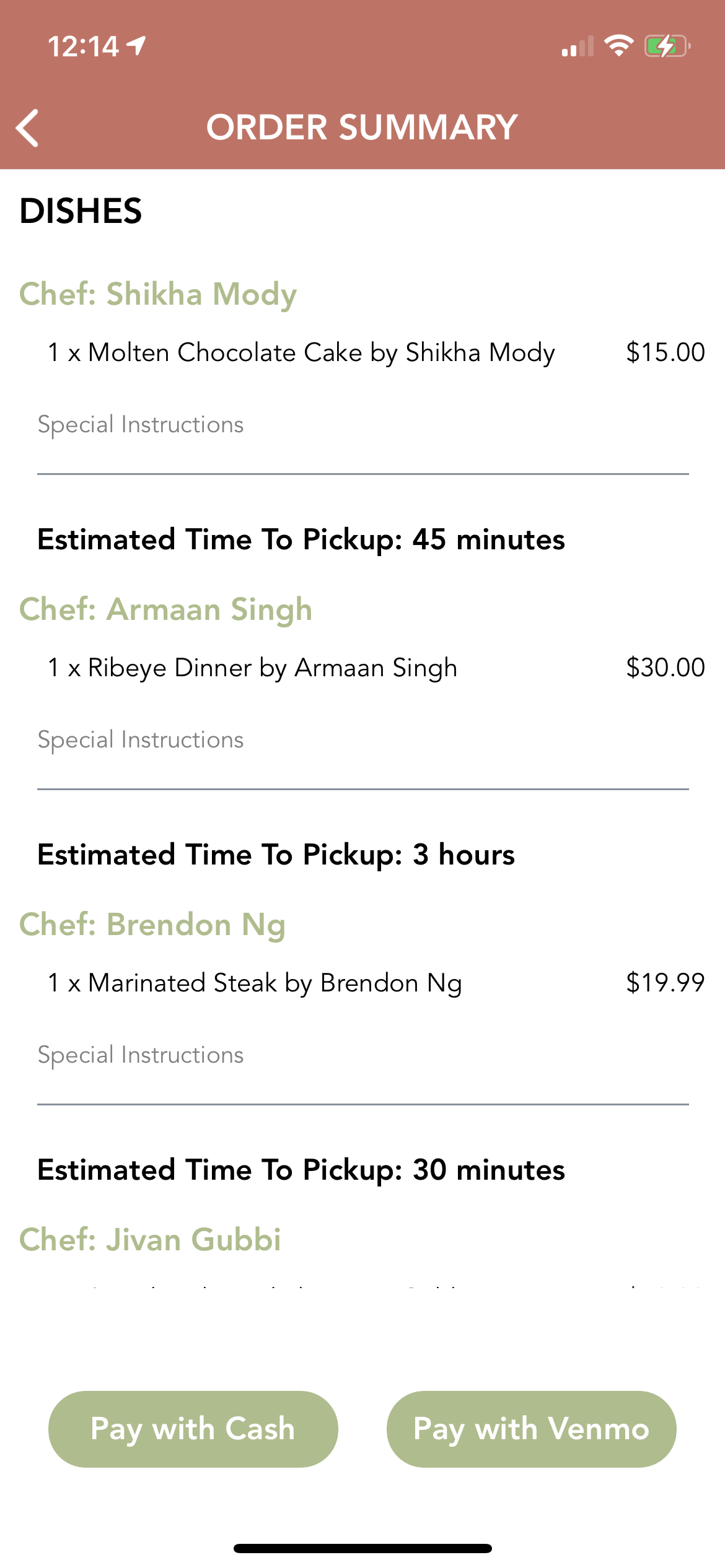

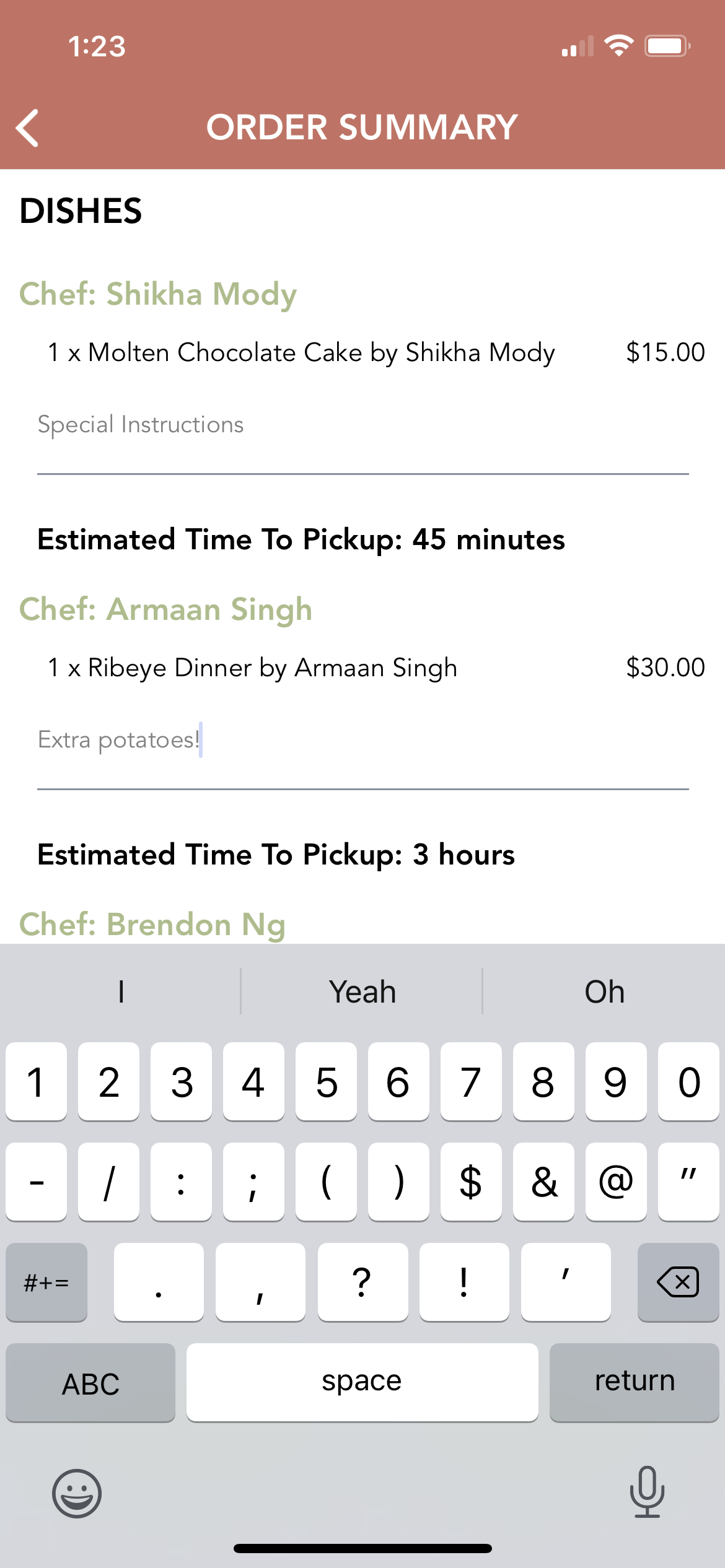
After review, you can hit pay with cash or pay with venmo to indicate your preference, and the order will be submitted to your chefs.
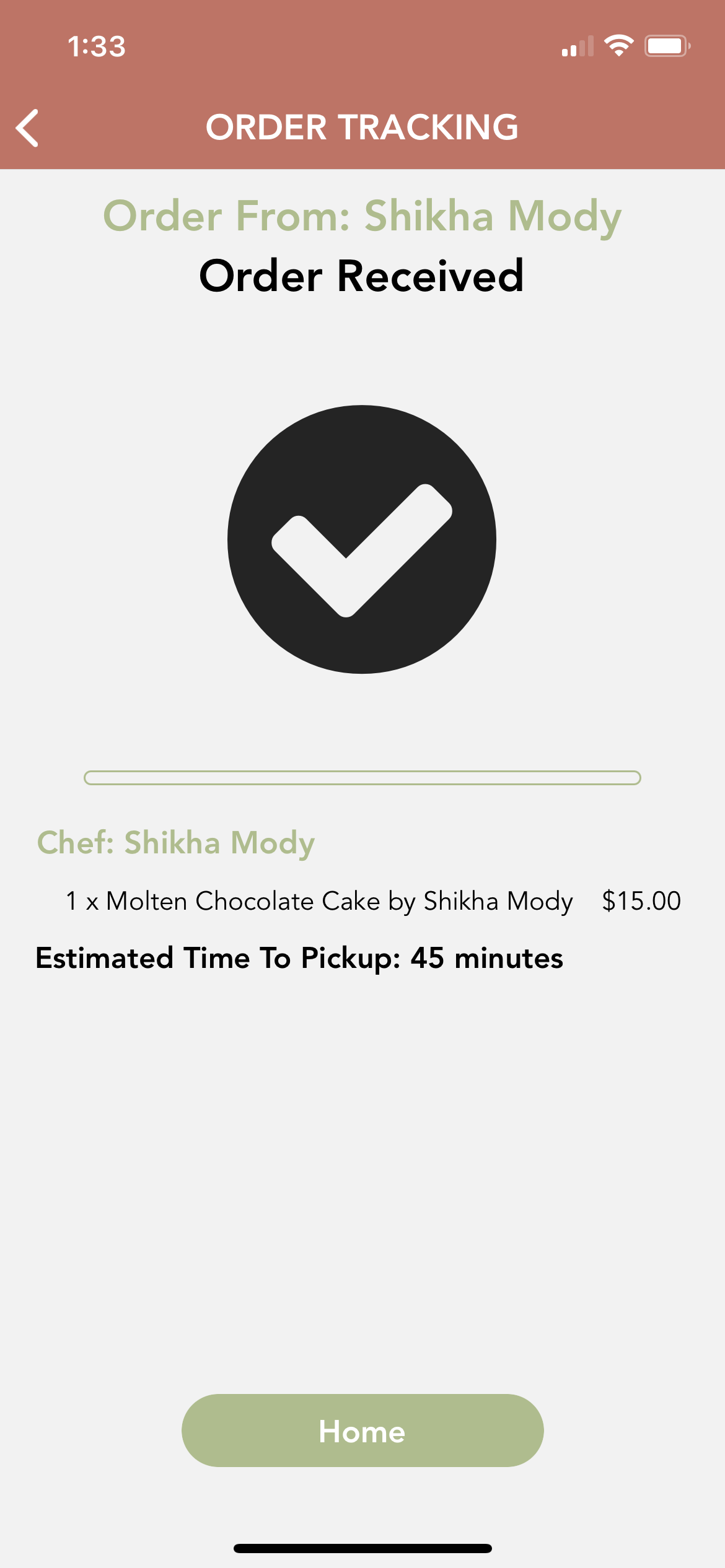
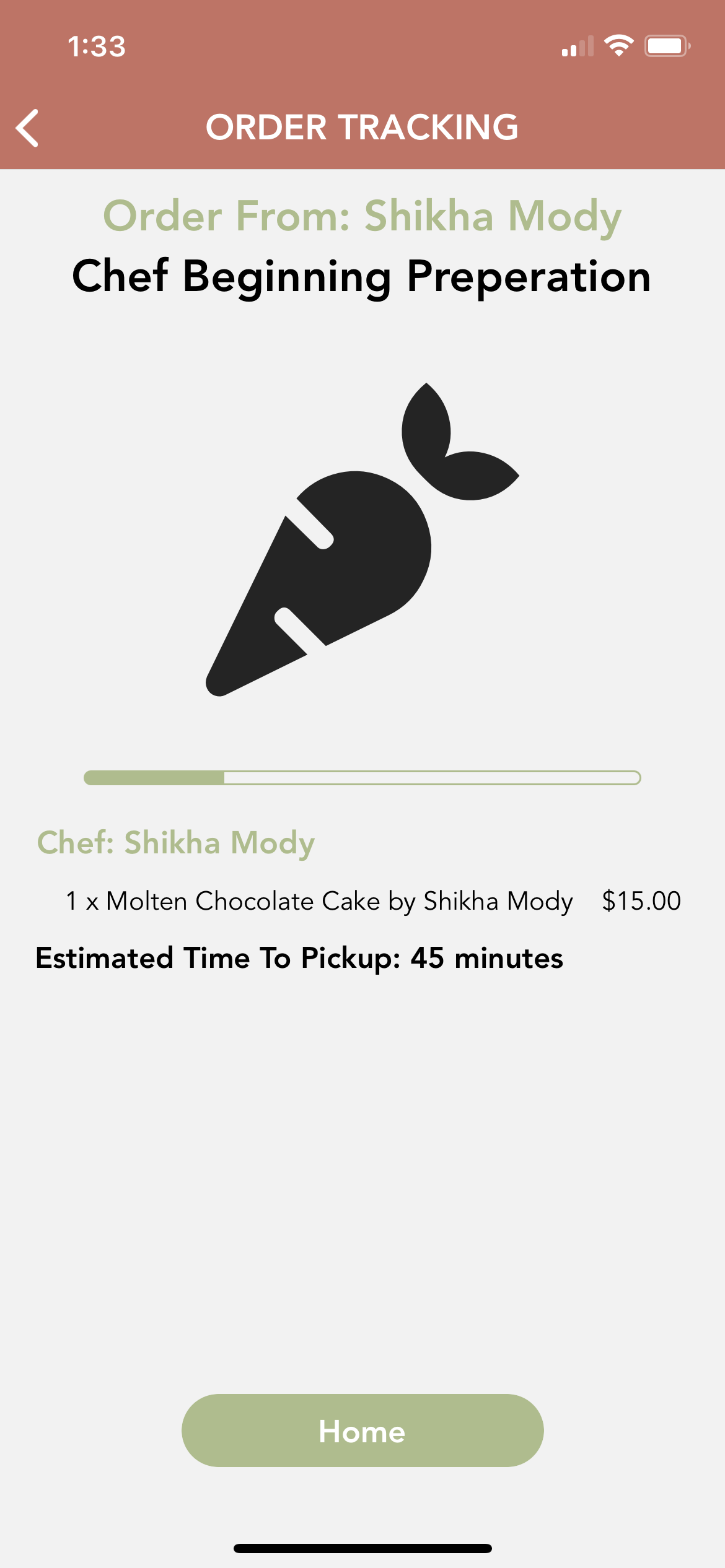
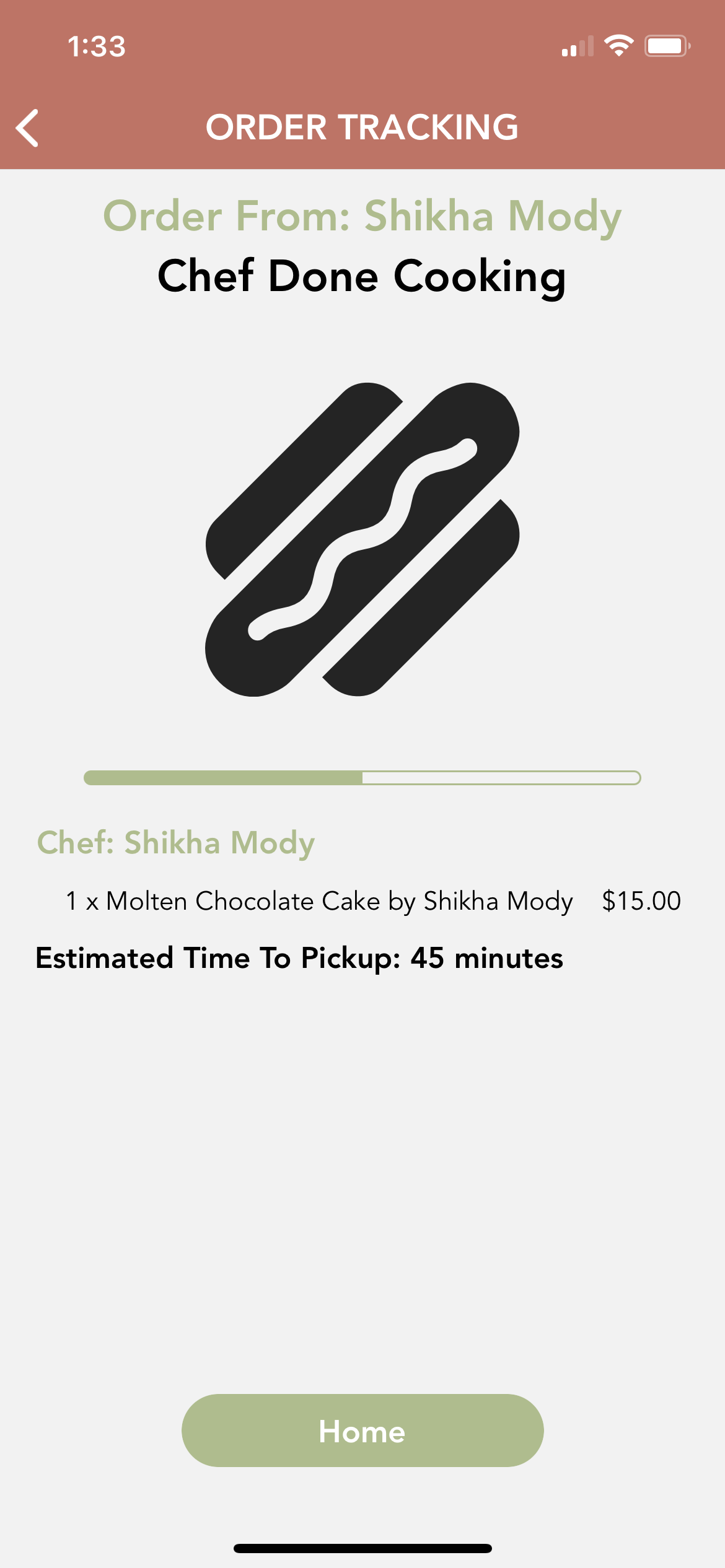
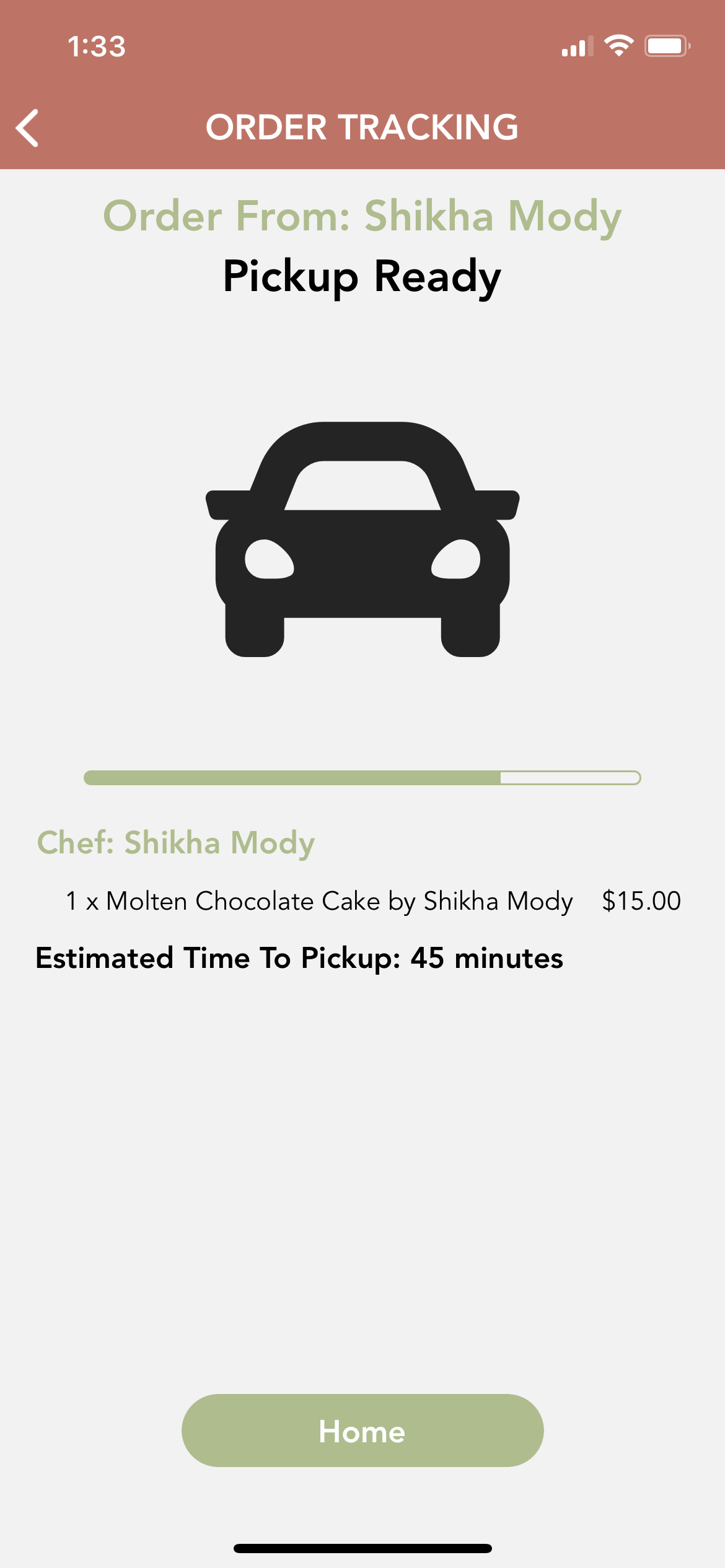
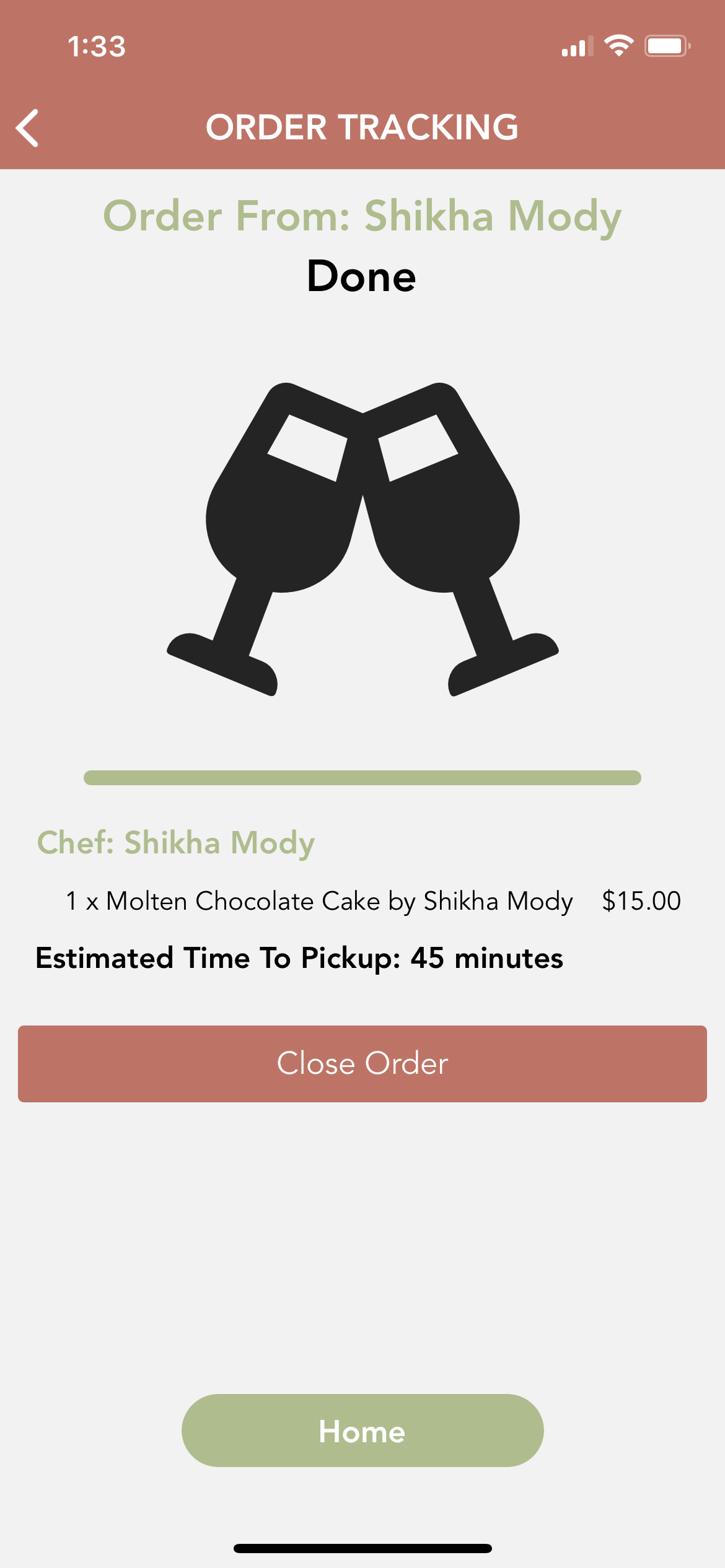
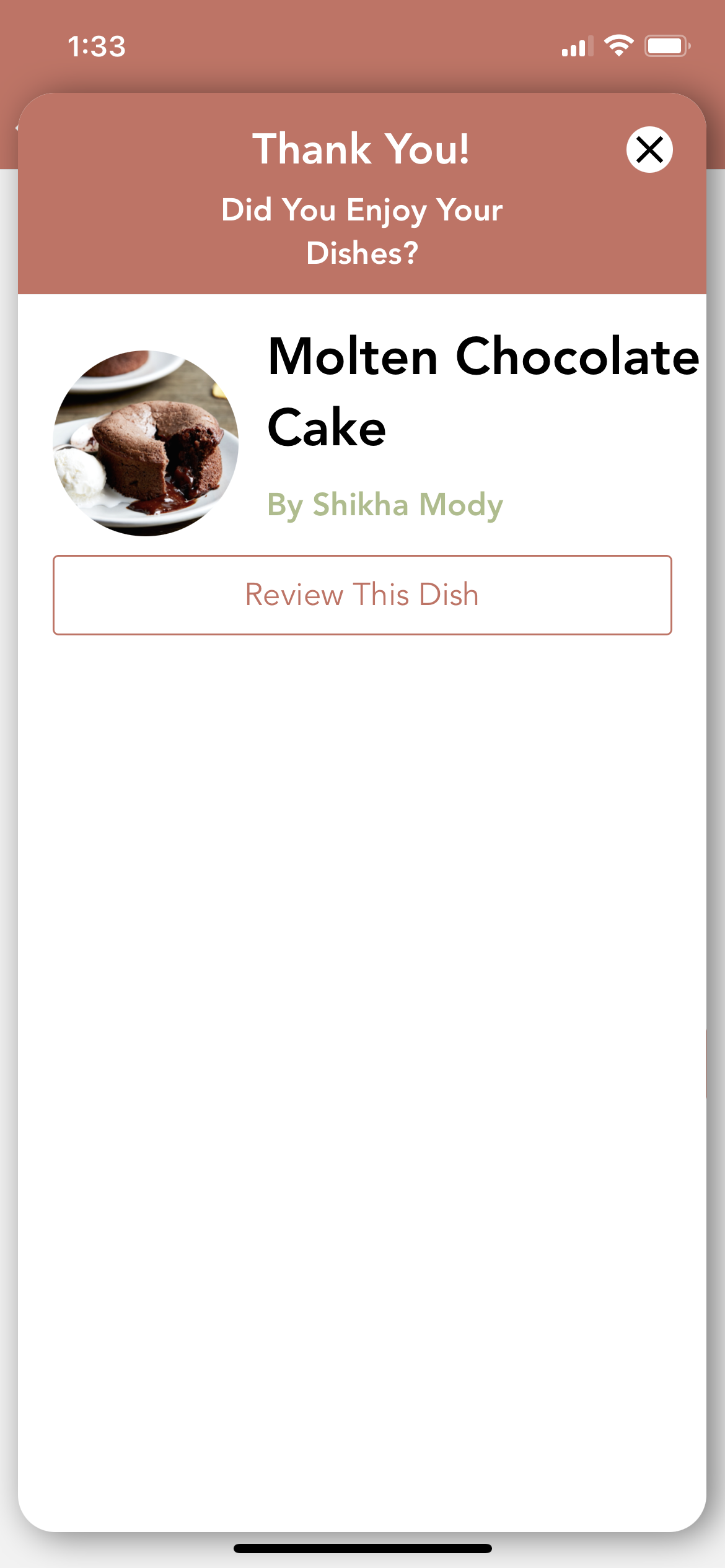
Once your items have been ordered, you can track each one's progress from the order tracking screen. Here you'll be updated at every stage of preparation for each chef you've ordered from. Once fulfilled, you will be prompted to close the order on your end, and review the Dish.
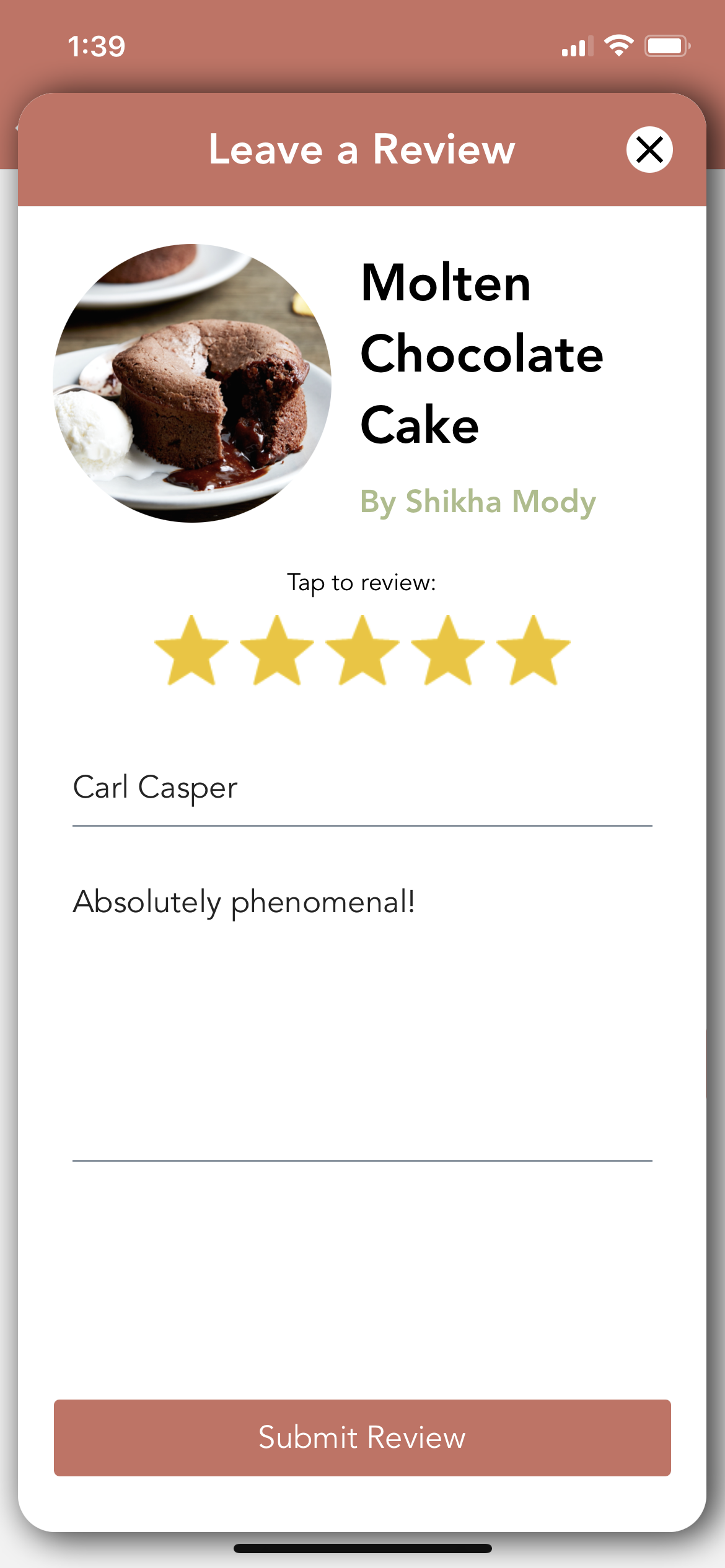
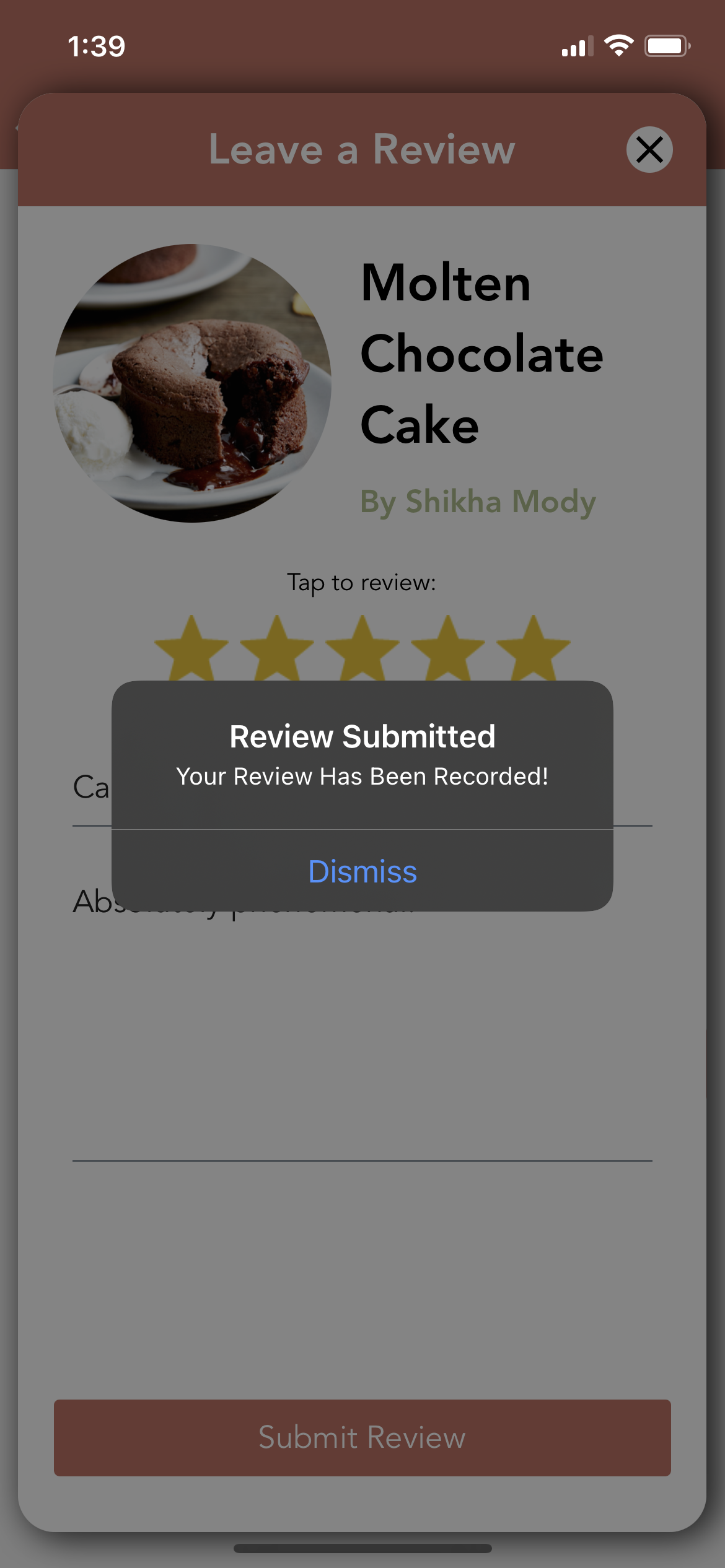
With the order closed, you should now have an empty cart ready for your next order.