Introduction
Let's take a quick tour around an existing Moxycart site so you know what you'll be shooting for when you build your own.
The focus of your Moxycart site will be a "Product Container" (also known simply as a "store") and the products it contains.
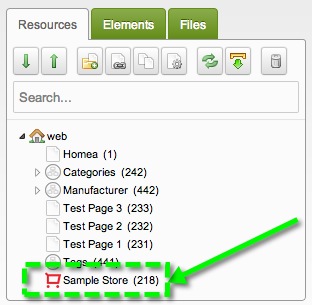
A Moxycart "Product Container" is just a special kind of MODX page (technically, it's called a MODX "Custom Resource Class"). You can create them in the MODX page tree, and they will have a red shopping cart icon.
A product container (i.e. a store) does not contain MODX pages: it contains products. Every Moxycart site must have at least one product container! Click on a Store to view its contents.
NOTE: Every Moxycart site must have at least one store/product container!
Moxycart is bundled with Asset Manager package. This package provides the functionality so you can quickly and easily upload images to your products.
Moxycart is also bundled with the Taxonomies package. You don't need to use Taxonomies to organize your products, but the option is there if you want it. You can control the behavior via the moxycart.enable_taxonomies System Setting.
There are a handful of System Settings that control the behavior of Moxycart, but the most important ones are these:
-
moxycart.domain: this must be fully-valid URL indicating your unique foxycart sub-domain, e.g. https://yoursubdomain.foxycart.com/. In rare cases, you can customize this to use your own HTTPS site. In most cases, this will be a subdomain of the foxycart.com domain. Make sure you include the fully qualified URL, including "https://" ! -
moxycart.api_key: this must begin with "m42Ccf" -
friendly_urls: your MODX site must be configured to support friendly URLs for Moxycart to function properly.
WARNING: If you are migrating an existing Foxycart store to use Moxycart, you MUST generate a new API key! The key must begin with "m42Ccf". You cannot re-use an older pre-existing API key!
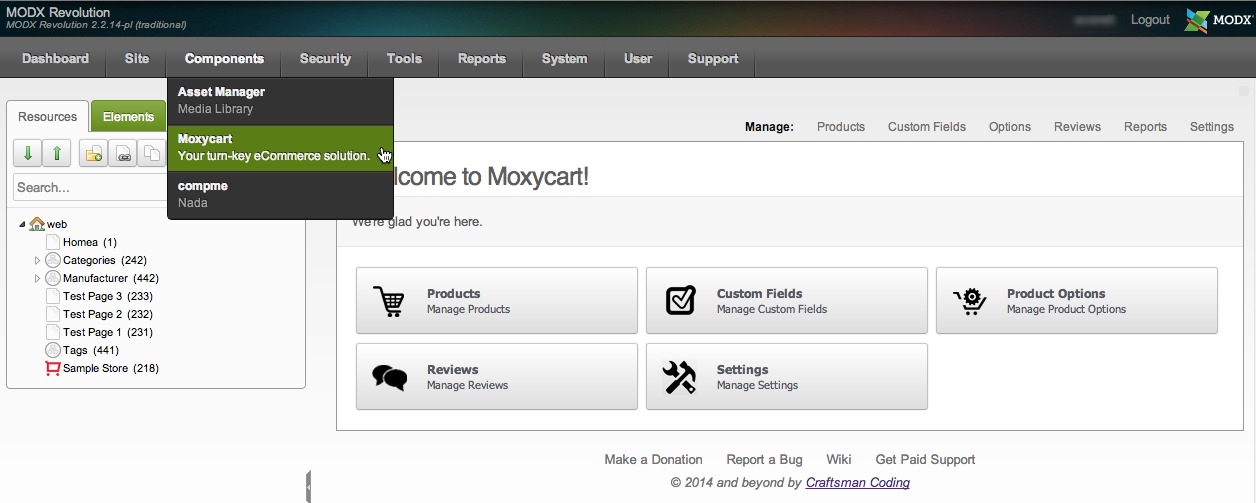
You can interface with Moxycart via its custom manager pages (CMPs). Take a look at the "Componets" menu in the MODX manager and look for the "Moxycart" page.