



Give Cursor and other AI-powered coding tools access to your Figma files with this Model Context Protocol server.
When Cursor has access to Figma design data, it's way better at one-shotting designs accurately than alternative approaches like pasting screenshots.
This enhanced version includes significant improvements for handling large Figma files:
- Universal Pattern Detection: Works with any Figma file regardless of language or naming conventions - no more hardcoded logic!
- Smart Duplicate Removal: Automatically detects and removes duplicate content based on structural patterns, keeping only the first N examples (configurable)
- Style Usage Optimization: Tracks style usage and inlines styles used less than 3 times
- Intelligent Layout Filtering: Keeps only visual-relevant properties, removing position/size data
- Depth Control: Limit processing depth to manage output size
- New Depth Analysis Tool:
analyze_figma_depth- Analyze your Figma file structure to determine optimal depth settings, with file size and token count estimation - API-level Optimization: Uses Figma API depth parameter for faster downloads
- Generic Layer Optimization: Automatically removes unnecessary single-child wrapper nodes
--duplicate-threshold N: Control how many duplicate examples to keep (default: 3)--no-table-detection: Disable automatic table structure detection--no-skip-intermediate: Disable skipping of intermediate wrapper nodes
These optimizations can reduce JSON output size by 40-90% while preserving all essential design information.
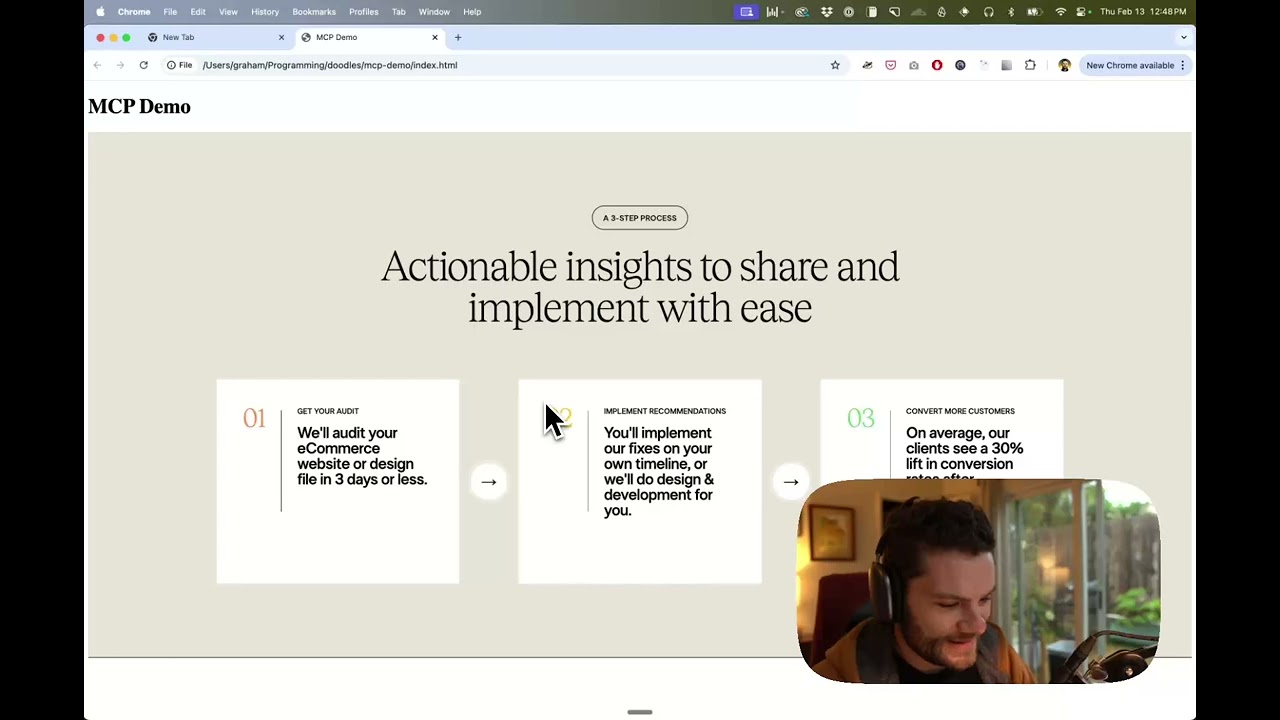
Watch a demo of building a UI in Cursor with Figma design data
- Open your IDE's chat (e.g. agent mode in Cursor).
- Paste a link to a Figma file, frame, or group.
- Ask Cursor to do something with the Figma file—e.g. implement the design.
- Cursor will fetch the relevant metadata from Figma and use it to write your code.
This MCP server is specifically designed for use with Cursor. Before responding with context from the Figma API, it simplifies and translates the response so only the most relevant layout and styling information is provided to the model.
Reducing the amount of context provided to the model helps make the AI more accurate and the responses more relevant.
Many code editors and other AI clients use a configuration file to manage MCP servers.
The figma-developer-mcp server can be configured by adding the following to your configuration file.
NOTE: You will need to create a Figma access token to use this server. Instructions on how to create a Figma API access token can be found here.
{
  "mcpServers": {
    "Framelink Figma MCP": {
      "command": "npx",
      "args": ["-y", "@yulin0629/figma-developer-mcp", "--figma-api-key=YOUR-KEY", "--stdio"]
    }
  }
}{
"mcpServers": {
"Framelink Figma MCP": {
"command": "cmd",
"args": ["/c", "npx", "-y", "@yulin0629/figma-developer-mcp", "--figma-api-key=YOUR-KEY", "--stdio"]
}
}
}Or you can set FIGMA_API_KEY and PORT in the env field.
If you need more information on how to configure the Framelink Figma MCP server, see the Framelink docs.
The Framelink Figma MCP server is simple but powerful. Get the most out of it by learning more at the Framelink site.
 Framelink |