


Start blogging in minutes with Zola and tabi.
- On the top right of this page, click "Use this template" → "Create a new repository"
- Replace placeholders in
content/_index.mdand in the first four lines ofconfig.toml - Save your profile photo to
static/img/profile.webp(or change the path to your image incontent/_index.md) - Start writing in
content/blog/. Seecontent/blog/hello.mdfor an example
Note: an error like Tried to build search index for language ko which is not supported, means Zola does not support search for that language. To disable search, set build_search_index = false in config.toml
Tip
Take a look through config.toml to customise further (set up social links, your email…). The Mastering tabi Settings guide has more details.
Warning
Syntax highlighting works on Zola 0.22.0 and newer. For older versions, set in config.toml:
[markdown]
highlight_code = true
bottom_footnotes = true
# To use a Zola built-in theme, CSP needs to allow unsafe-inline for style-src.
highlight_theme = "css"
smart_punctuation = true
├── config.toml              # Site configuration
├── content/
│   ├── _index.md            # Home page
│   ├── archive/             # Archive page
│   │   └── _index.md        # Archive page section
│   ├── blog/                # Blog posts
│   │   ├── hello.md         # Sample post
│   │   └── _index.md        # Blog section configuration
│   └── projects/            # Projects page
│       ├── cool_project.md  # Sample project
│       └── _index.md        # Projects section configuration
│── static/
│   └── img/
│       └── profile.webp     # Profile photo for home page
└── themes/
    └── tabi/                # tabi theme
- Install Zola
- Clone your repository
- Run
git submodule update --init --recursive - Run
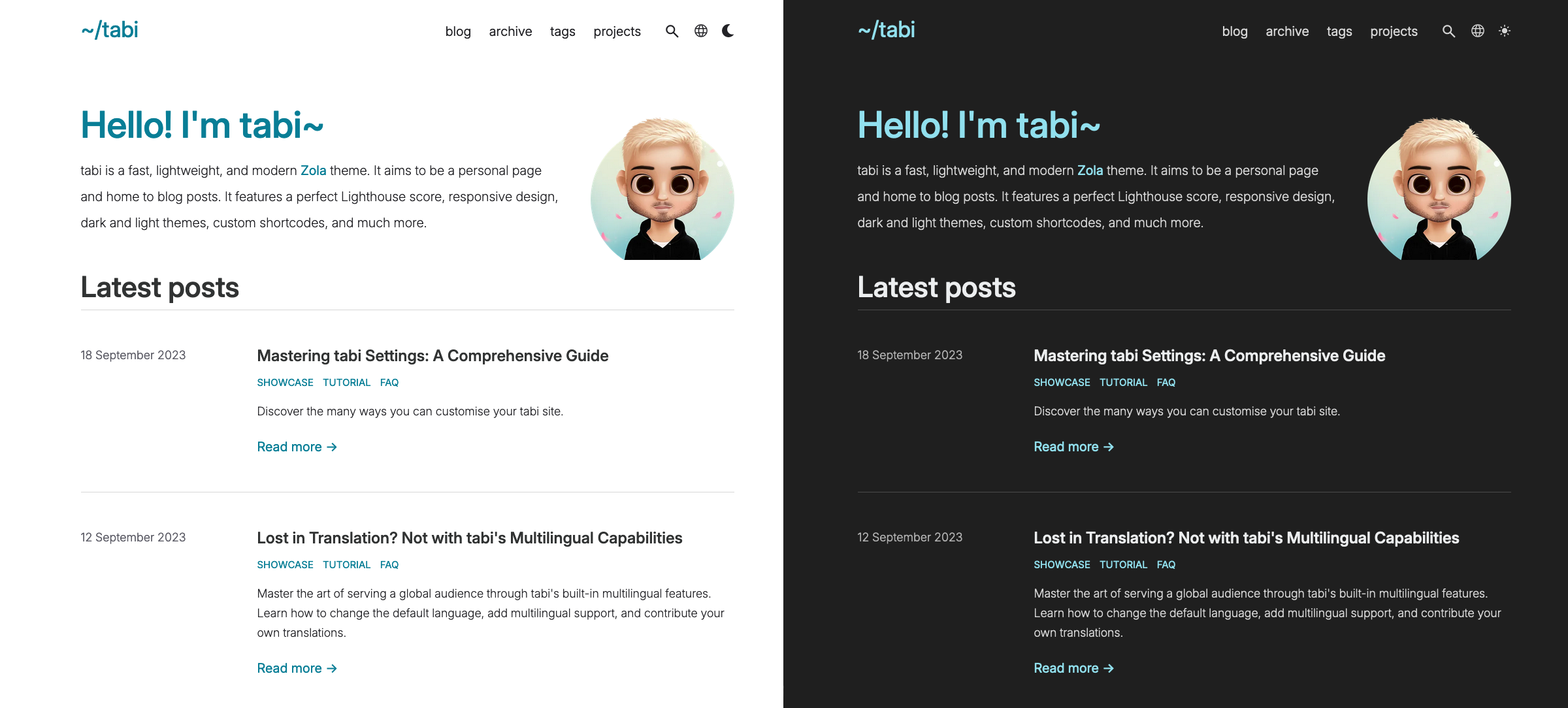
zola serve - Visit http://127.0.0.1:1111. You should see this.
Refer to the Zola documentation:
- AWS S3 Bucket
- Cloudflare Pages
- Codeberg Pages
- Docker image
- Edgio
- Fly.io
- GitHub Pages
- GitLab Pages
- Netlify
- Sourcehut Pages
- Vercel
- Zeabur
This template includes a GitHub Action workflow that checks for tabi theme updates weekly and creates a PR when updates are available.
The automated updates require proper GitHub Actions permissions:
- Go to your repository's Settings → Actions → General
- Scroll down to "Workflow permissions"
- Enable "Allow GitHub Actions to create and approve pull requests"
- Save changes
How automated updates work (click to read)
- Every Monday at midnight (UTC), the workflow checks for new tabi versions
- If an update is found, it creates a PR with:
- Detailed changelog
- Links to relevant commits and PRs
- The exact changes being made
- It runs the Test build workflow. If the build fails, you'll receive an email notification. Verify the site works locally before merging the PR
- You can review and merge these updates at your convenience
git submodule update --remote themes/tabiTip
How was your experience with this template?
Share your thoughts in this tabi discussion or report any issues you find! Thank you 🙇🏼♂️