


With docker-ddns-server you can set up your own dynamic DNS server. This project is inspired by https://github.com/dprandzioch/docker-ddns. In addition to the original version, you can setup and maintain your dyndns entries via a simple web UI with comprehensive security features, modern authentication, and threat monitoring.
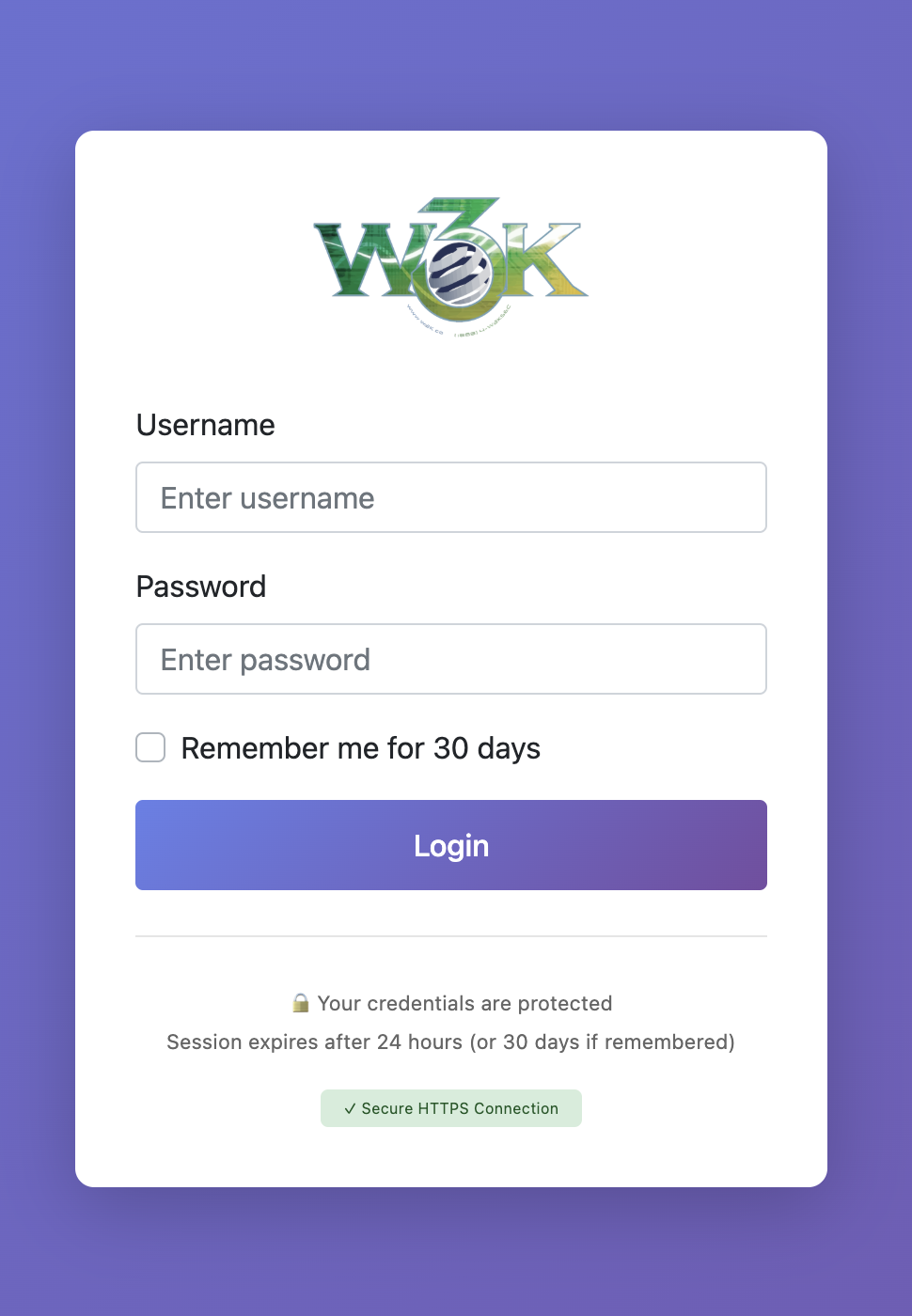
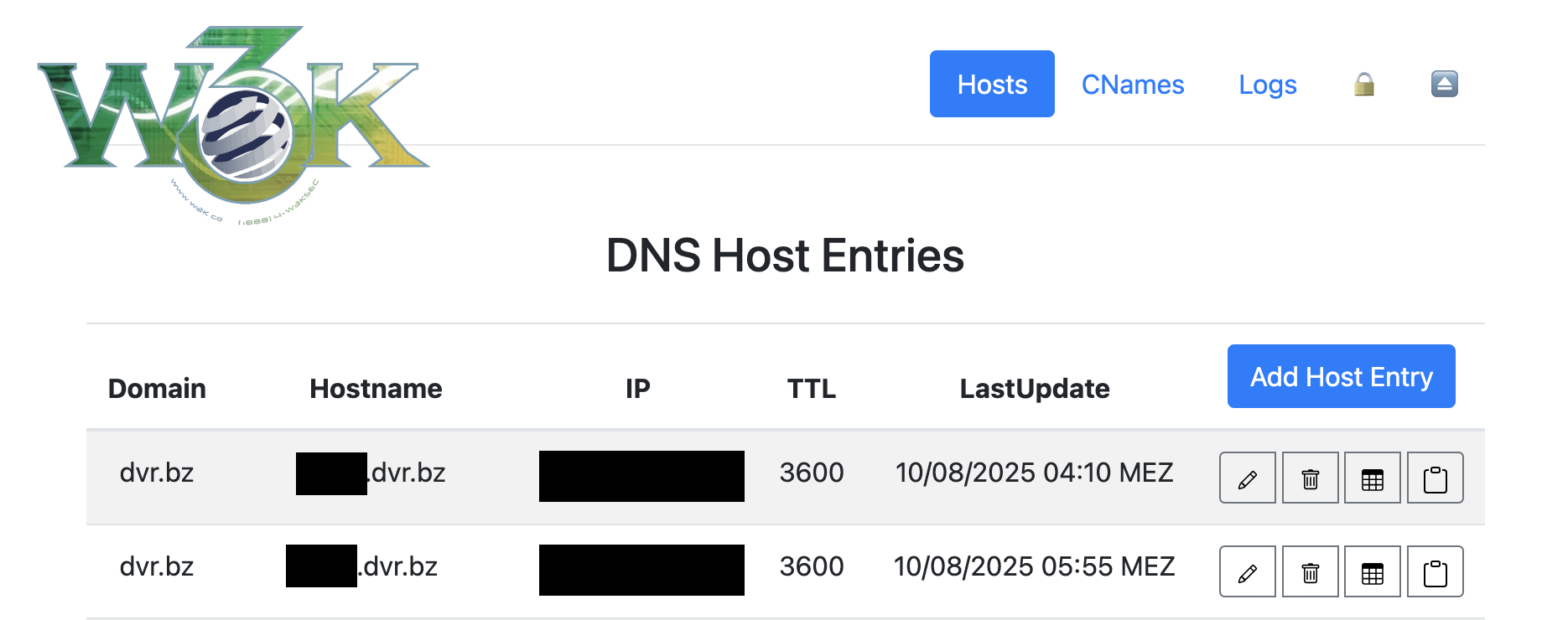
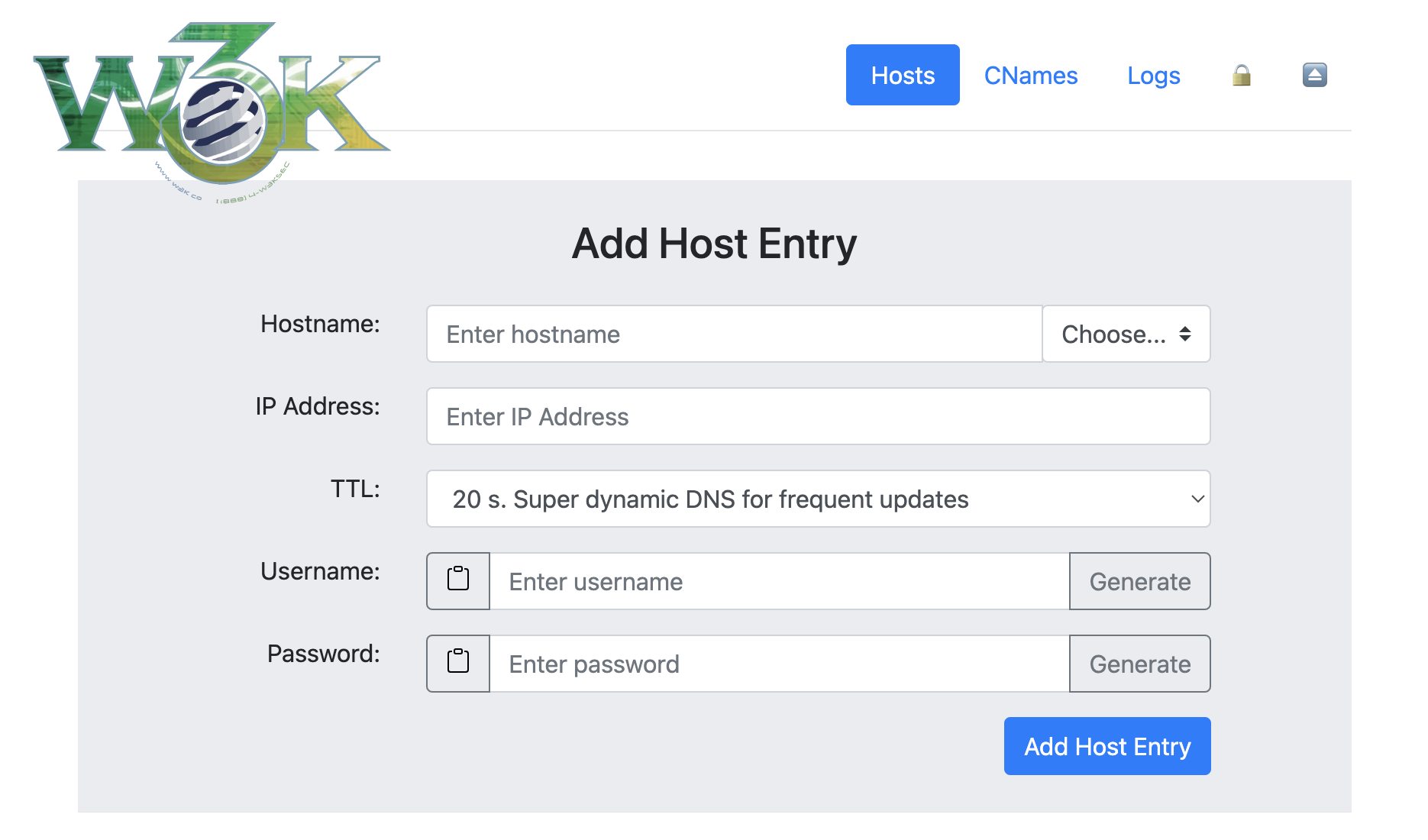
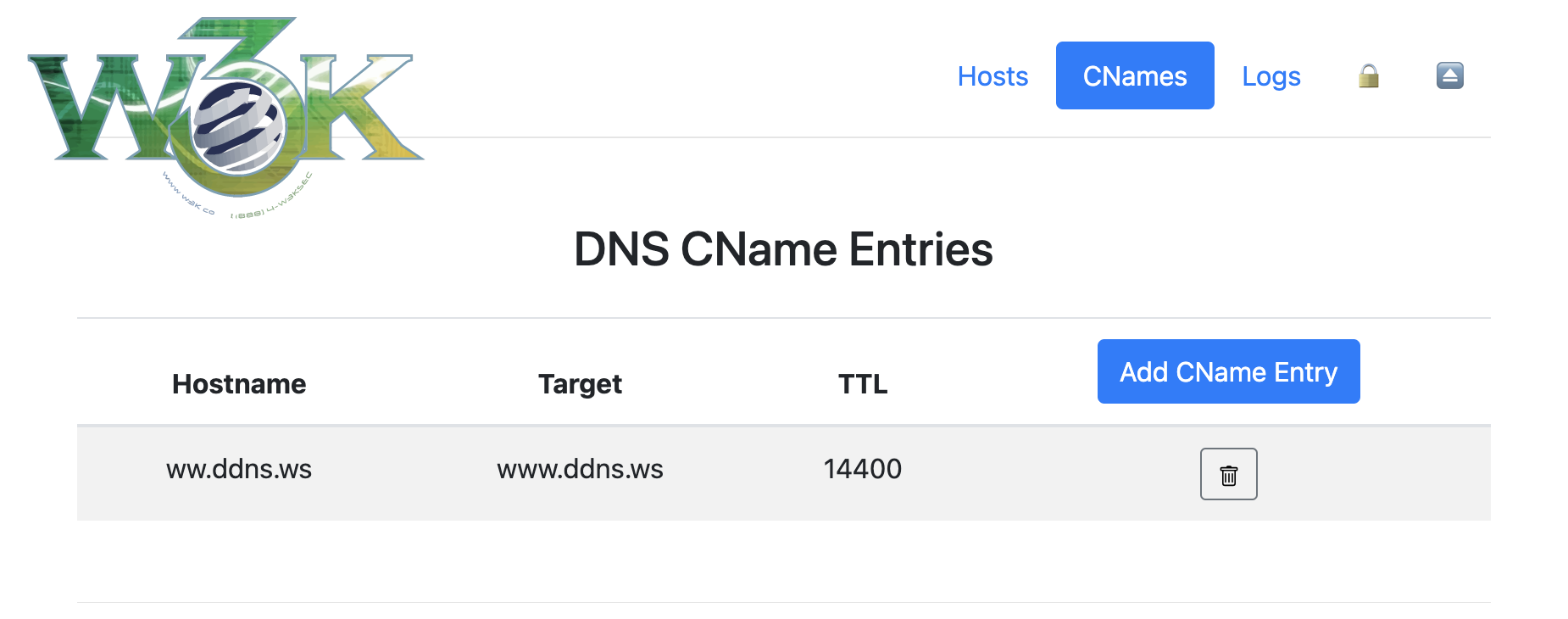
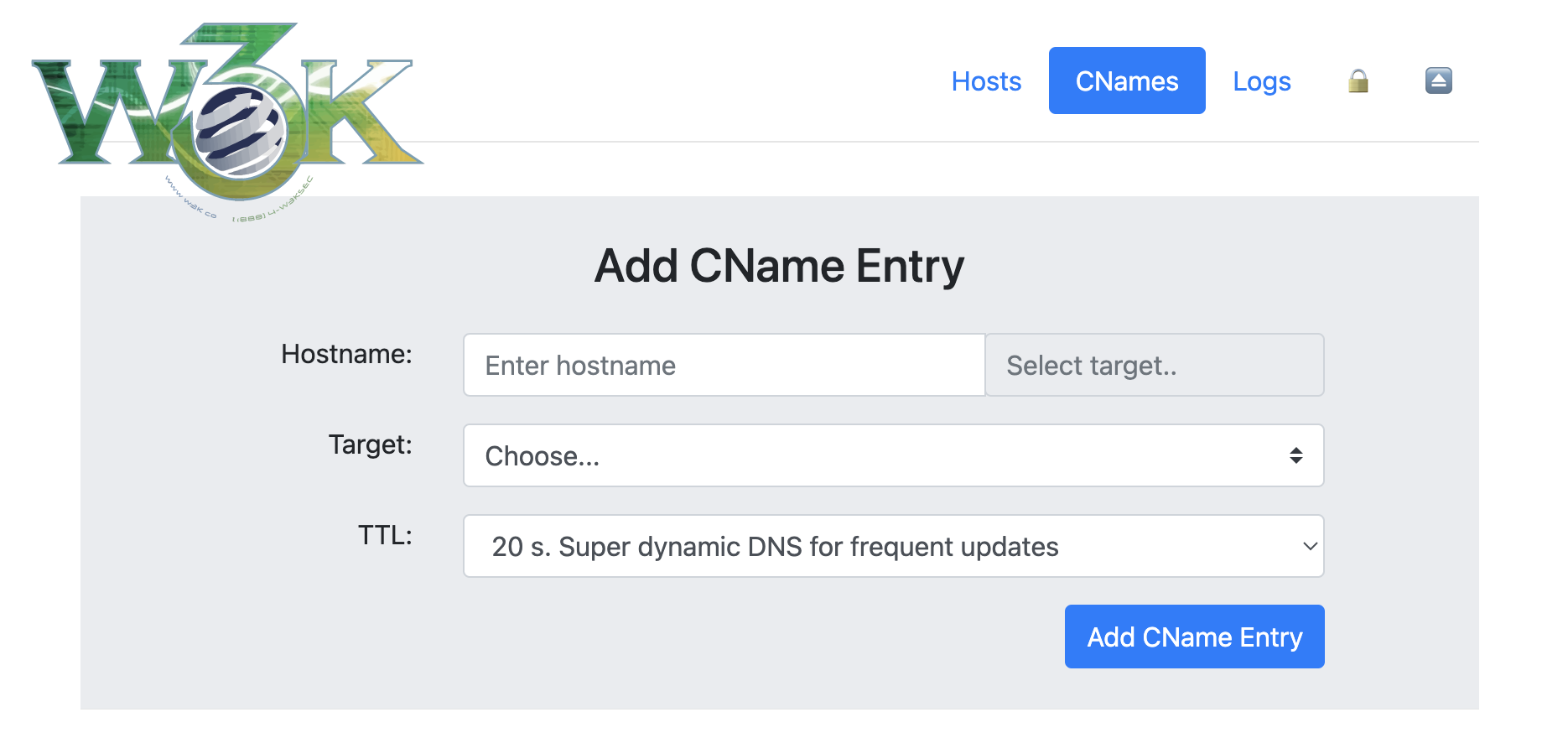
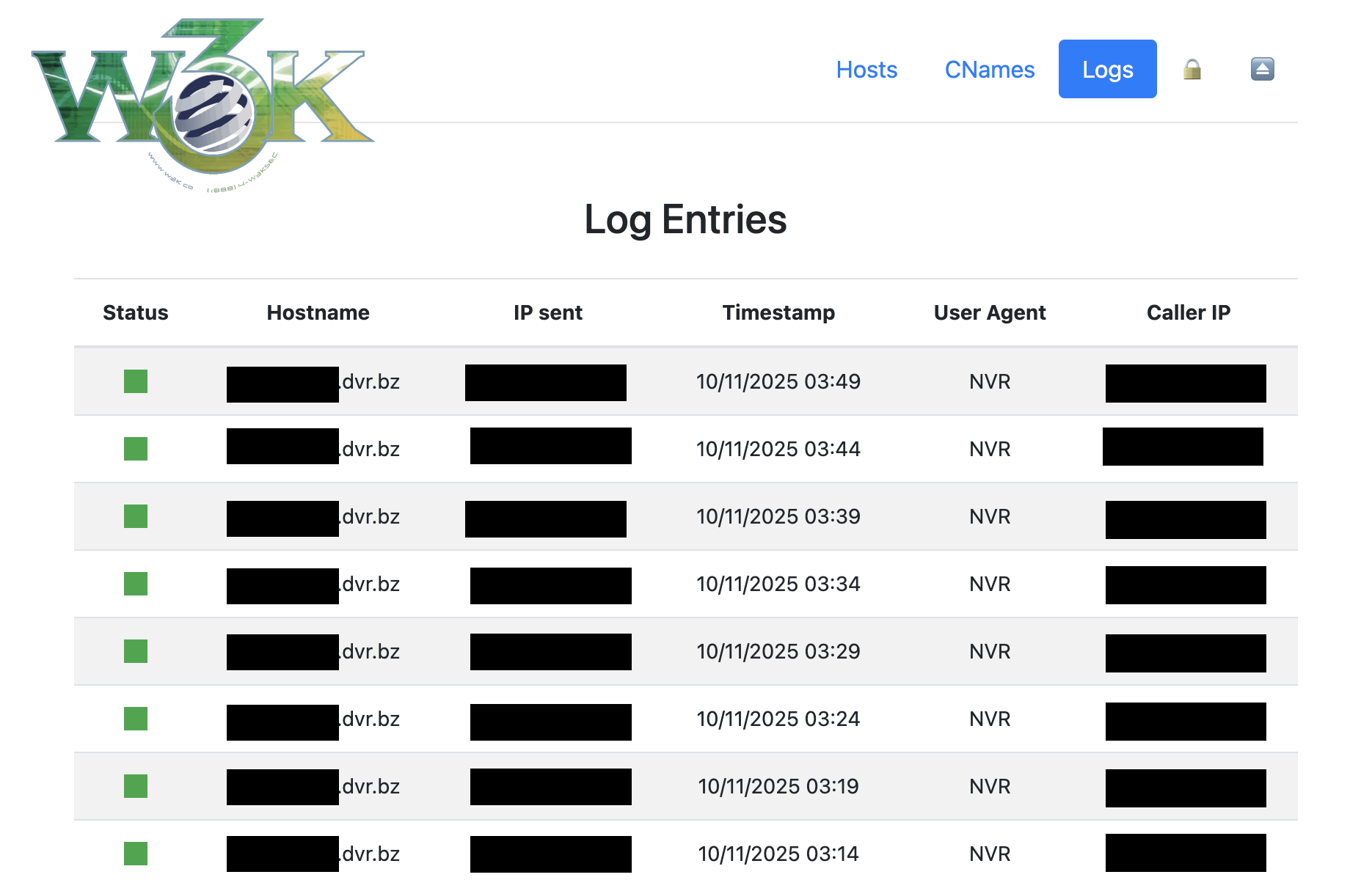
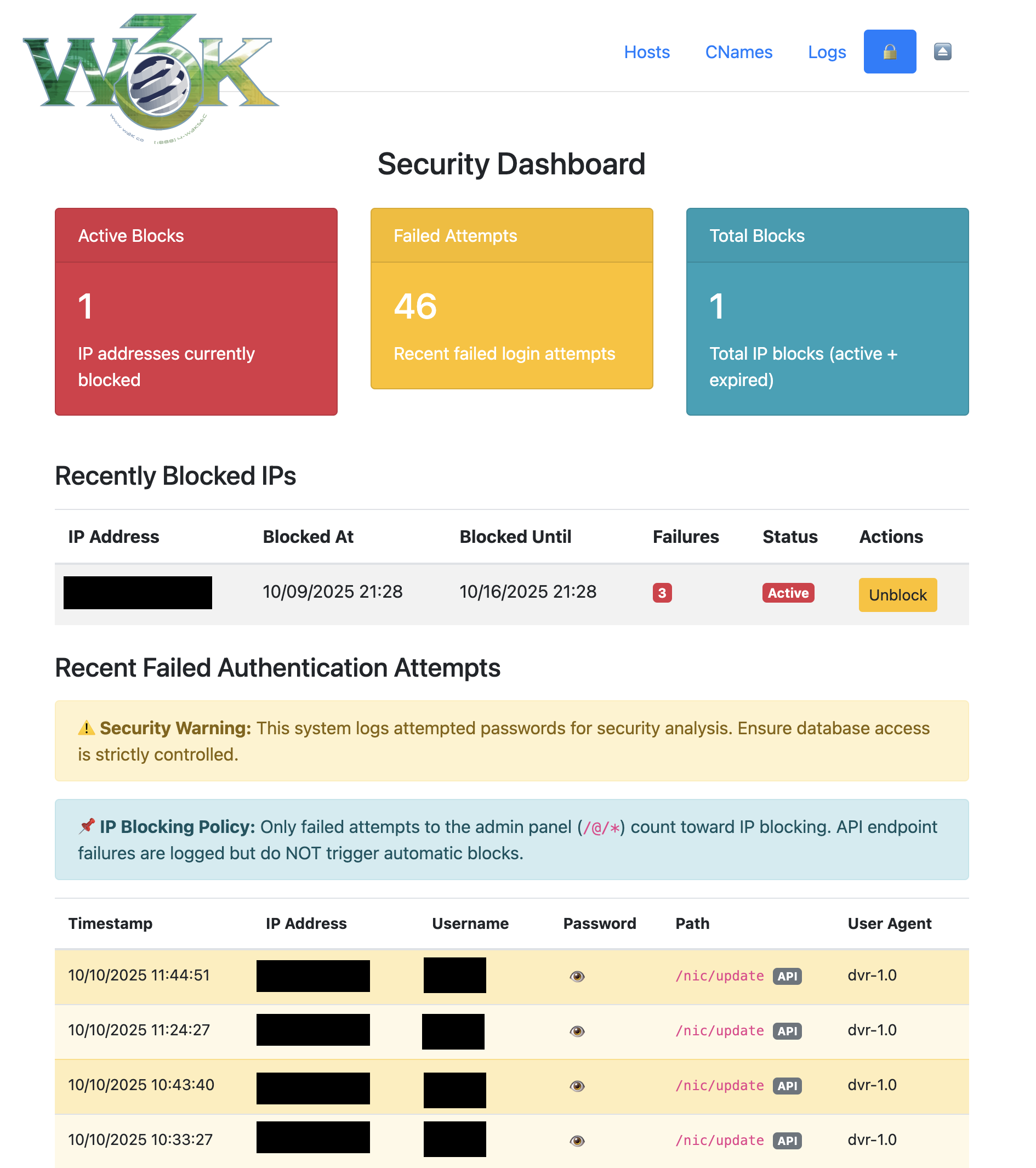
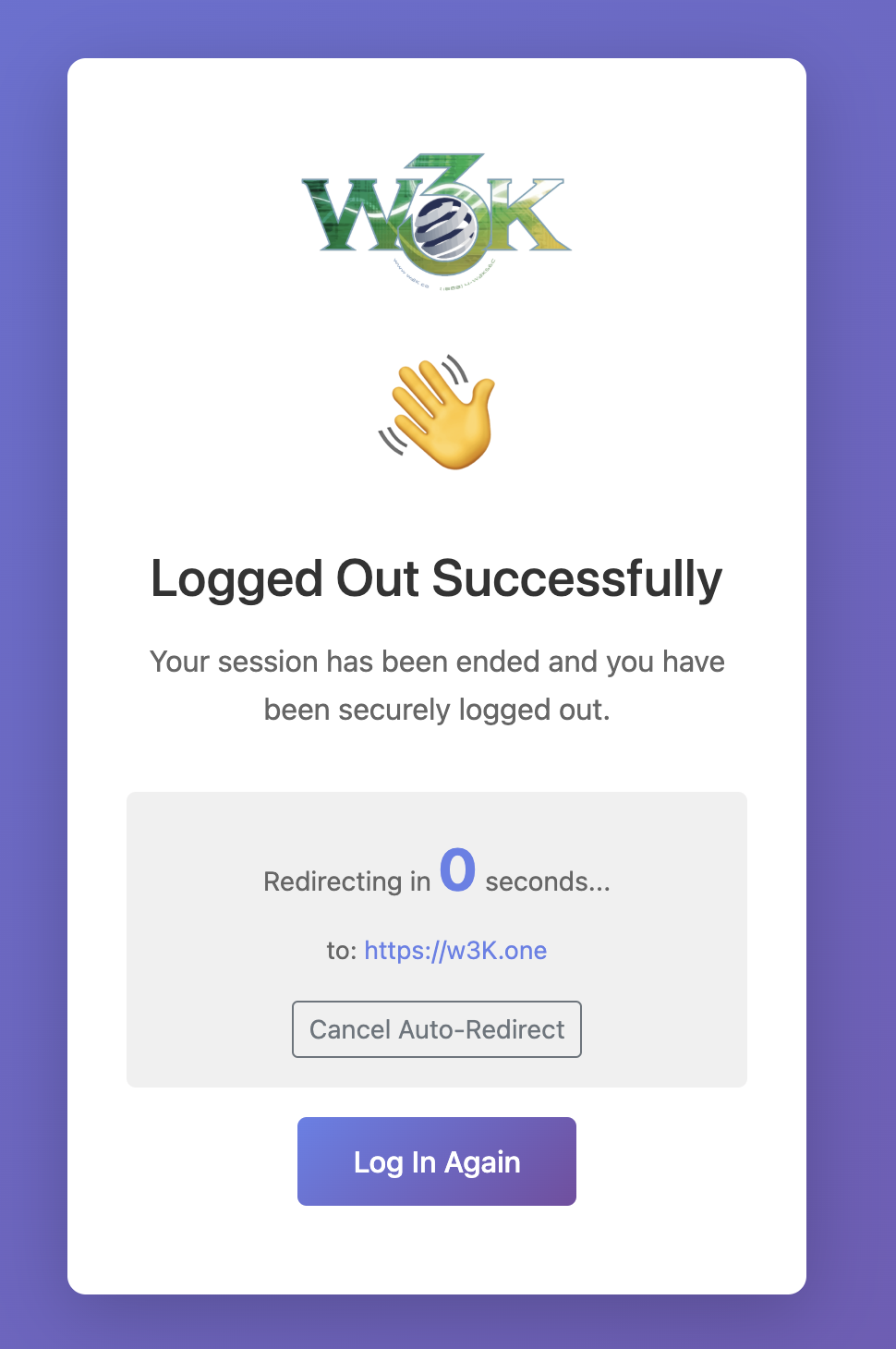
- Web-Based Management - Easy-to-use web interface for managing DNS entries
- Security & IP Blocking - Automatic protection against brute-force attacks
- Modern Authentication - Session-based admin login with HTTPS support
- Security Dashboard - Real-time monitoring of threats and blocked IPs
- Multi-Platform Support - Runs on amd64, arm64, arm (Raspberry Pi compatible)
- Automatic Migration - Handles legacy data with automatic normalization
- Reverse Proxy Ready - Works seamlessly with nginx, Caddy, Traefik
- Threat Intelligence - Comprehensive logging for attack pattern analysis
You can either use the pre-built Docker image or build it yourself.
Docker Hub: https://hub.docker.com/r/w3kllc/ddns
Quick Start:
docker run -it -d \
    -p 8080:8080 \
    -p 53:53 \
    -p 53:53/udp \
    -v /somefolder:/var/cache/bind \
    -v /someotherfolder:/root/database \
    -e DDNS_ADMIN_LOGIN=admin:$$2y$$05$$... \
    -e DDNS_DOMAINS=dyndns.example.com \
    -e DDNS_PARENT_NS=ns.example.com \
    -e DDNS_DEFAULT_TTL=3600 \
    -e DDNS_SESSION_SECRET=your-random-32-char-secret \
    --name=dyndns \
w3kllc/ddns:latestFor a complete setup example, see: docker-compose.yml
Example docker-compose.yml:
version: '3.8'

services:
  ddns:
    image: w3kllc/ddns:latest
    container_name: dyndns
    ports:
      - "8080:8080"
      - "53:53"
      - "53:53/udp"
    volumes:
      - ./bind:/var/cache/bind
      - ./database:/root/database
      - ./static:/app/static  # Optional: for custom logo
    environment:
      # Required
      - DDNS_ADMIN_LOGIN=admin:$$2y$$05$$hashed_password_here
      - DDNS_DOMAINS=dyndns.example.com
      - DDNS_PARENT_NS=ns.example.com
      - DDNS_DEFAULT_TTL=3600

      # Security (Recommended)
      - DDNS_SESSION_SECRET=your-random-32-character-secret-key

      # Optional
      - DDNS_TITLE=My DynDNS Server
      - DDNS_CLEAR_LOG_INTERVAL=30
      - DDNS_ALLOW_WILDCARD=true
      - DDNS_LOGOUT_URL=https://example.com
      - DDNS_POWERED_BY=ACME Inc
      - DDNS_POWERED_BY_URL=https://acme.inc
restart: unless-stoppedDDNS_ADMIN_LOGIN
Admin credentials in htpasswd format for web UI access.
Generate with:
htpasswd -nb username passwordFor docker-compose.yml (escape dollar signs):
echo $(htpasswd -nb username password) | sed -e s/\\$/\\$\\$/gIf not set, all /@/ routes are accessible without authentication (useful with auth proxy).
DDNS_DOMAINS
Comma-separated list of domains managed by the server.
Example: dyndns.example.com,dyndns.example.org
DDNS_PARENT_NS
Parent nameserver of your domain.
Example: ns.example.com
DDNS_DEFAULT_TTL
Default TTL (Time To Live) for DNS records in seconds.
Example: 3600 (1 hour)
DDNS_SESSION_SECRET
Secret key for session encryption. Should be 32+ random characters.
Generate with:
# Linux/Mac
openssl rand -base64 32

# Or using Python
python3 -c "import secrets; print(secrets.token_urlsafe(32))"DDNS_TITLE
Custom site title displayed in the web UI.
Default: "w3K DynDNS"
DDNS_CLEAR_LOG_INTERVAL
Automatically clear log entries older than specified days.
Example: 30 (keep 30 days of logs)
DDNS_ALLOW_WILDCARD
Enable wildcard DNS resolution (e.g., *.subdomain.dyndns.example.com).
Values: true or false
DDNS_LOGOUT_URL
Redirect to this URL after logout.
Example: https://example.com
DDNS_POWERED_BY
Show this in the footer credits.
Example: ACME Inc
DDNS_POWERED_BY_URL
The URL to ACME Inc.
Example: https:/acme.inc
If your parent domain is example.com and you want your DynDNS domain to be dyndns.example.com, your DynDNS hosts would be like blog.dyndns.example.com.
Add these entries to your parent DNS server:
dyndns                   IN NS      ns
ns                       IN A       <IPv4 address of your DynDNS server>
ns                       IN AAAA    <IPv6 address of your DynDNS server> (optional)
Example:
dyndns                   IN NS      ns
ns                       IN A       203.0.113.10
ns                       IN AAAA    2001:db8::10
- Automatic IP Blocking: IPs are blocked after 3 failed authentication attempts within 72 hours
- 7-Day Block Duration: Blocked IPs are automatically unblocked after 7 days
- Failed Authentication Logging: Comprehensive logs including IP, timestamp, username, and password
- Threat Intelligence: Analyze attack patterns and password attempts
- Manual Unblock: Security dashboard allows manual IP unblocking
- Automatic Cleanup: Expired blocks and old logs are cleaned up automatically
- Modern Login Page: No browser popup dialogs
- Secure Sessions: HttpOnly, Secure, and SameSite cookie attributes
- Remember Me: Optional 30-day session duration
- Proper Logout: Destroys sessions completely
- HTTPS Enforcement: Automatic redirect to HTTPS when available
- Reverse Proxy Support: Detects SSL via X-Forwarded-Proto headers
Access the security dashboard at /@/security to:
- Monitor blocked IPs and active threats
- Review failed authentication attempts
- Analyze password patterns in attack attempts
- Manually unblock IP addresses
- View statistics and historical data
Password Logging Rationale:
This is a single-user system where the admin is the only legitimate user. All other login attempts are malicious by definition. Password logging enables threat intelligence analysis to determine if attackers are getting close to your actual password. Ensure your database volume is properly secured.
The admin panel is accessible at /@/ (not /admin/ - more unique, less common).
- 🏠 Dashboard (
/@/) - Overview and quick access - 📝 Hosts (
/@/hosts) - Manage DNS hosts with automatic lowercase migration - 🔗 CNAMEs (
/@/cnames) - Manage CNAME records - 📊 Logs (
/@/logs) - View update history - 🔒 Security (
/@/security) - Monitor threats and blocked IPs ⏏️ Logout (/@/logout) - End session securely
- Navigate to
/@/(or any admin route) - Redirected to
/@/loginif not authenticated - Enter admin credentials
- Optionally check "Remember Me" for 30-day session
- Access admin panel
- Click logout icon (
⏏️ ) when done
HTTPS Detection:
If running behind a reverse proxy with SSL, the system automatically detects HTTPS and enforces it for the admin panel while keeping API endpoints accessible via HTTP for device compatibility.
After adding a host via the web UI, configure your router or device to update its IP address.
The server accepts updates on multiple endpoints:
/update/nic/update/v2/update/v3/update
http://dyndns.example.com:8080/update?hostname=blog.dyndns.example.com&myip=1.2.3.4
Or with authentication in URL:
http://username:password@dyndns.example.com:8080/update?hostname=blog.dyndns.example.com&myip=1.2.3.4
If your router/device doesn't support sending the IP address (e.g., OpenWRT), omit the myip parameter:
http://dyndns.example.com:8080/update?hostname=blog.dyndns.example.com
Or with authentication:
http://username:password@dyndns.example.com:8080/update?hostname=blog.dyndns.example.com
The server will automatically use the client's IP address from the request.
API endpoints use HTTP Basic Authentication with the username and password you set for each host in the web UI (not the admin credentials).
Important:
- Admin credentials (
DDNS_ADMIN_LOGIN) - For web UI access at/@/ - Host credentials - For API updates, set per-host in the web UI
Place a logo file in the static directory to automatically display it:
Supported formats:
static/icons/logo.pngstatic/icons/logo.webpstatic/icons/logo.svg
If no logo is found, the system displays the text title (DDNS_TITLE).
Docker volume mount for custom logo:
volumes:
  - ./static:/app/static
Then place your logo at: ./static/icons/logo.png
- Sticky Header: Navigation remains visible while scrolling
- Unicode Icons: 🏠 Dashboard, 🔒 Security,
⏏️ Logout (with tooltips) - Modern Design: Clean, professional interface
- HTTPS Indicator: Visual confirmation of secure connection on login page
- Password Controls: Hide/reveal functionality with confirmation prompts
- Responsive Layout: Works on desktop, tablet, and mobile
All usernames and hostnames are automatically converted to lowercase to prevent case-sensitivity issues:
- Database storage is always lowercase
- Lookups are case-insensitive
- Prevents duplicate entries with different cases
When accessing /@/hosts for the first time, the system automatically migrates any uppercase entries:
- Converts hostnames to lowercase
- Handles conflicts by appending numbers (e.g.,
host-1,host-2) - Displays migration report in the UI
- One-time process, status persisted in database
- Non-destructive, preserves all host data
- Non-Unique Usernames: Multiple hosts can share the same username
- Enables flexible credential management strategies
- Each host can have the same or different password
- Hostnames: Minimum 1 character (allows single-letter subdomains)
- Usernames: Minimum 1 character
- Passwords: Minimum 6 characters
The application intelligently detects HTTPS availability and adjusts behavior accordingly.
- Direct TLS connection (
request.TLS) X-Forwarded-ProtoheaderX-Forwarded-SslheaderX-Url-Schemeheader
Admin Panel (/@/*):
- Auto-redirects to HTTPS when available
- Graceful HTTP fallback if HTTPS unavailable
- Session cookies use Secure flag with HTTPS
API Endpoints (/update, /nic/update, etc.):
- Always accept HTTP connections
- No forced HTTPS redirect (device compatibility)
- Works with devices that don't support HTTPS
server {
    listen 443 ssl;
    server_name dyndns.example.com;

    ssl_certificate /path/to/fullchain.pem;
    ssl_certificate_key /path/to/privkey.pem;

    # Recommended SSL settings
    ssl_protocols TLSv1.2 TLSv1.3;
    ssl_ciphers HIGH:!aNULL:!MD5;
    ssl_prefer_server_ciphers on;

    location / {
        proxy_pass http://127.0.0.1:8080;
        proxy_set_header Host $host;
        proxy_set_header X-Real-IP $remote_addr;
        proxy_set_header X-Forwarded-For $proxy_add_x_forwarded_for;
        proxy_set_header X-Forwarded-Proto $scheme;
    }
}

# Optional: HTTP to HTTPS redirect
server {
    listen 80;
    server_name dyndns.example.com;
    return 301 https://$server_name$request_uri;
}dyndns.example.com {
reverse_proxy localhost:8080
}
Caddy automatically handles SSL certificates and sets appropriate headers.
Docker images are automatically built via GitHub Actions for multiple platforms:
Supported Platforms:
linux/amd64- Intel/AMD 64-bit (standard servers, PCs)linux/386- Intel/AMD 32-bit (older systems)linux/arm/v7- ARM 32-bit (Raspberry Pi 2/3, older ARM devices)linux/arm64- ARM 64-bit (Raspberry Pi 4+, modern ARM servers)
Docker images are tagged using semantic versioning:
:latest - Always points to the most recent stable build
:vX.Y.Z - Semantic version tags (e.g., :v1.2.3)
- Version from commit message (if commit starts with
vX.Y.Z) - OR auto-incremented from last git tag
- OR date-based tag if no version tags exist
Example:
# Pull latest version
docker pull w3kllc/ddns:latest

# Pull specific version
docker pull w3kllc/ddns:v1.2.3

# Pull specific platform
docker pull --platform linux/arm64 w3kllc/ddns:latestThe build system automatically determines version tags using this priority order:
- Commit Message Version (Highest Priority): If your commit message title starts with
vX.Y.Z(e.g.,v1.2.3), that exact version is used - Auto-Increment from Last Tag: If no version in commit message, finds the latest git tag and increments the patch version (e.g.,
v1.2.3→v1.2.4) - Date-Based Fallback: If no git tags exist at all, uses timestamp format
vYY.MM.DD-HHMM(e.g.,v25.10.11-1430)
Example commit messages:
# Explicit version (workflow extracts "v1.3.0" from start of commit message)
git commit -m "v1.3.0 Add new security features"

# Auto-increment (no version found, so increments last tag: v1.2.3 → v1.2.4)
git commit -m "Fix bug in authentication"

# Date-based (no tags exist yet, uses timestamp: v25.10.11-1430)
git commit -m "Initial release"
How version extraction works:
- Workflow searches for pattern
vX.Y.ZorvX.Yat the start of commit message - Must begin with
vfollowed by numbers and dots - Examples that work:
v1.0.0,v2.1.3,v1.2 - Examples that won't work:
version 1.0.0(missingv),Release v1.0.0(doesn't start withv)
Each build automatically creates a GitHub release with:
- Version tag
- Docker image reference
- Commit message as release notes
- Source code archives (zip and tar.gz)
If migrating from dprandzioch/docker-ddns or older versions of this fork:
-
Backup your data:
docker cp dyndns:/root/database ./backup-database
docker cp dyndns:/var/cache/bind ./backup-bind
-
Note your current configuration (environment variables)
-
Admin Panel URL: Changed from
/adminto/@/- Update bookmarks and links
- Use
/@/loginfor login page
-
Authentication Method: Admin panel now uses sessions
- Add
DDNS_SESSION_SECRETenvironment variable - Login via web form instead of browser popup
- Add
-
New Recommended Variable:
DDNS_SESSION_SECRET- Required for session persistence
- Generate:
openssl rand -base64 32
- Update docker-compose.yml or docker command with new variables
- Add
DDNS_SESSION_SECRETto environment - Update bookmarks from
/adminto/@/ - Restart container with new configuration
- Visit
/@/hoststo trigger automatic data migration - Review security dashboard for any blocked IPs
✅ Fully Compatible:
- DynDNS API endpoints unchanged
- HTTP Basic Auth still works for device updates
- Existing host configurations work without changes
- Database schema additions are non-breaking
- All original functionality preserved
- Bookmark/link updates for admin panel
- Addition of session secret (recommended)
Problem: Login redirects back to login page
Solution: Ensure DDNS_SESSION_SECRET is set. Without it, sessions won't persist.
Problem: Can't remember admin password
Solution: Regenerate password with htpasswd -nb username newpassword and update DDNS_ADMIN_LOGIN
Problem: HTTPS redirect loop
Solution: Verify reverse proxy sends X-Forwarded-Proto: https header
Problem: "Not Secure" warning
Solution: Check SSL certificate configuration in your reverse proxy
Problem: Locked out after failed login attempts
Solution:
- Wait 7 days for automatic unblock
- OR manually remove from
blocked_ipstable in database - OR access database with SQLite:
DELETE FROM blocked_ips WHERE ip_address='YOUR_IP';
Problem: Device updates not working
Solution:
- API uses host credentials (from web UI), not admin credentials
- Check username/password for specific host in
/@/hosts - Verify device is sending correct Basic Auth headers
Problem: "nochg" response from server
Solution: IP address hasn't changed, this is normal behavior
Problem: missing go.sum entry for gorilla/sessions
Solution:
go get github.com/gorilla/sessions@v1.2.2
go mod tidyProblem: Database locked errors
Solution: Ensure only one container instance is running
Problem: Lost all data after update
Solution: Check volume mounts are correct in docker-compose.yml
-
Always Set Session Secret
Generate a strong random secret:openssl rand -base64 32 -
Use HTTPS with Reverse Proxy
Never expose the admin panel over plain HTTP in production -
Secure Database Volume
Set appropriate file permissions:chmod 700 /path/to/database
-
Regular Updates
Keep Docker image updated:docker pull w3kllc/ddns:latest -
Monitor Security Dashboard
Check/@/securityregularly for attack patterns -
Strong Admin Password
Use a password manager to generate and store strong credentials -
Separate Credentials
Use different passwords for admin and each host -
Firewall Configuration
Limit access to web UI (port 8080) to trusted networks if possible -
Database Backups
Regularly backup the database volume -
Password Logging Awareness
Remember that failed auth logs include passwords - secure your database
All endpoints accept the same parameters:
Endpoints:
GET /updateGET /nic/updateGET /v2/updateGET /v3/update
Parameters:
hostname(required) - Fully qualified domain name to updatemyip(optional) - IP address to set (auto-detected if omitted)
Authentication:
- HTTP Basic Auth using host credentials (username/password from web UI)
Response Codes:
good <IP>- Update successfulnochg <IP>- IP address hasn't changedbadauth- Authentication failednotfqdn- Hostname is not a valid FQDNnohost- Hostname doesn't existabuse- IP address has been blocked
Example:
curl -u username:password \
"http://dyndns.example.com:8080/update?hostname=test.dyndns.example.com&myip=1.2.3.4"Contributions are welcome! Whether it's bug fixes, new features, documentation improvements, or reporting issues.
- Fork the repository
- Create a feature branch (
git checkout -b feature/amazing-feature) - Make your changes
- Test thoroughly
- Commit your changes (
git commit -m 'Add amazing feature') - Push to your fork (
git push origin feature/amazing-feature) - Open a Pull Request
# Clone the repository
git clone https://github.com/w3K-one/docker-ddns-server.git
cd docker-ddns-server

# Build the application
cd dyndns
go build

# Run tests (if available)
go test ./...

# Build Docker image locally
cd ..
docker build -t ddns:dev -f deployment/Dockerfile .- Follow Go conventions and best practices
- Use
gofmtfor code formatting - Add comments for complex logic
- Write meaningful commit messages
This project is licensed under the MIT License - see the LICENSE file for details.
Original Project:
dprandzioch/docker-ddns - Original DynDNS server implementation
Web UI Fork:
benjaminbear/docker-ddns-server - Added web UI for management
Enhanced Fork:
w3K-one/docker-ddns-server - Security features, modern auth, multi-platform support
- 🔒 IP blocking and threat protection system
- 🔐 Session-based authentication with modern login
- 📊 Security dashboard for monitoring attacks
- 🌐 HTTPS enforcement with reverse proxy support
- 🎨 Enhanced UI/UX with logo support and sticky header
- 📦 Multi-platform Docker builds (amd64, arm64, arm, 386)
- 🔄 Automatic data migration and normalization
- 📝 Comprehensive documentation
- 🤖 Automated CI/CD with GitHub Actions
- 🏷️ Semantic versioning with automatic releases
- Issues: GitHub Issues
- Discussions: GitHub Discussions
- Docker Hub: w3kllc/ddns
Potential future enhancements:
- Email notifications for security events
- Two-factor authentication (2FA)
- API rate limiting
- Web-based configuration wizard
- DNS over HTTPS (DoH) support
- Prometheus metrics export
- Docker Swarm / Kubernetes support
- Advanced search and filtering in logs
- Bulk host management
Have an idea? Open an issue or start a discussion!
Made with ❤️ by the community