Design and Planning
Rev. 1.0 2020-10-31 - initial version
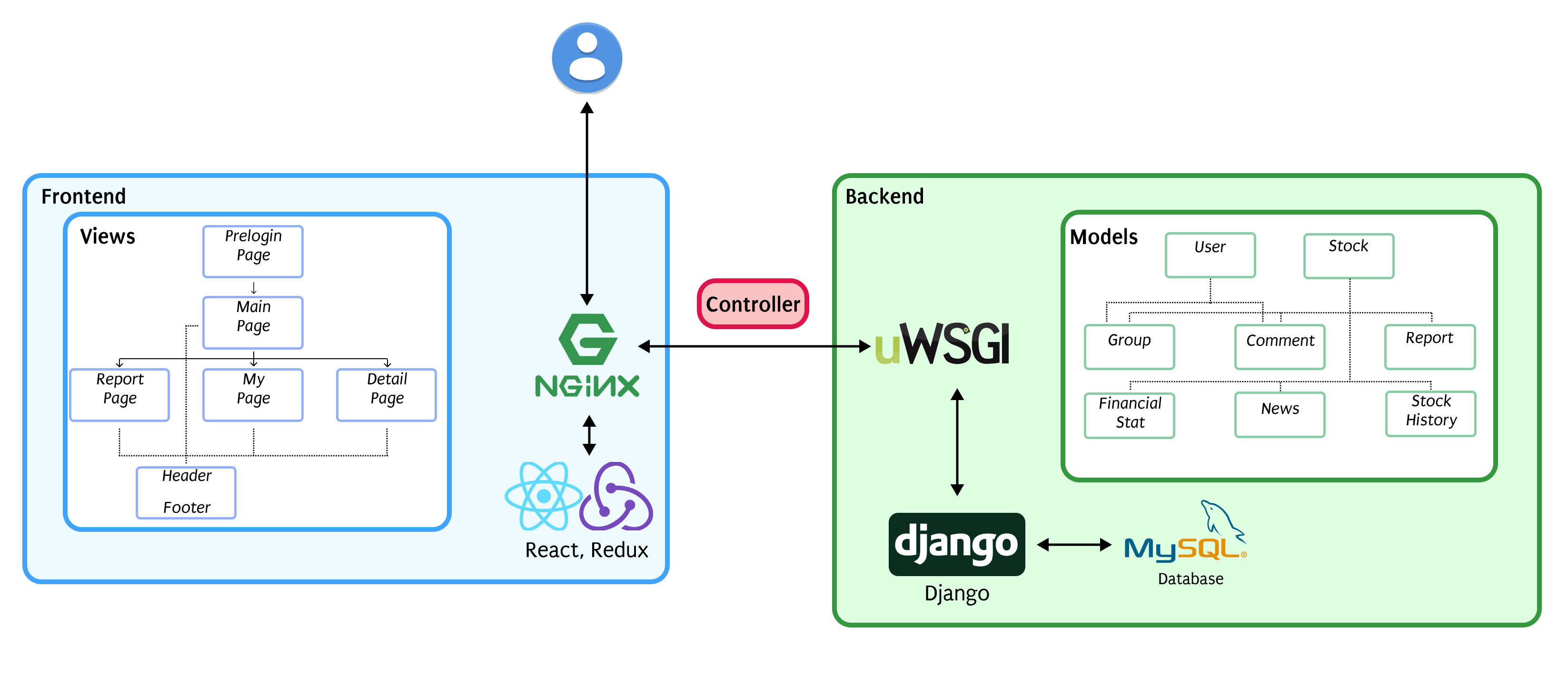
This is django-specific model diagram. Actually, since only models we deal with in development are Django ORM ones, we described it in class-like diagram rather than relational UML. When representing class relations, three line connected class matches to “many”, one line connected class matches to “one”. That is, “Group” model and “Stock” model is “many to many” relationship.
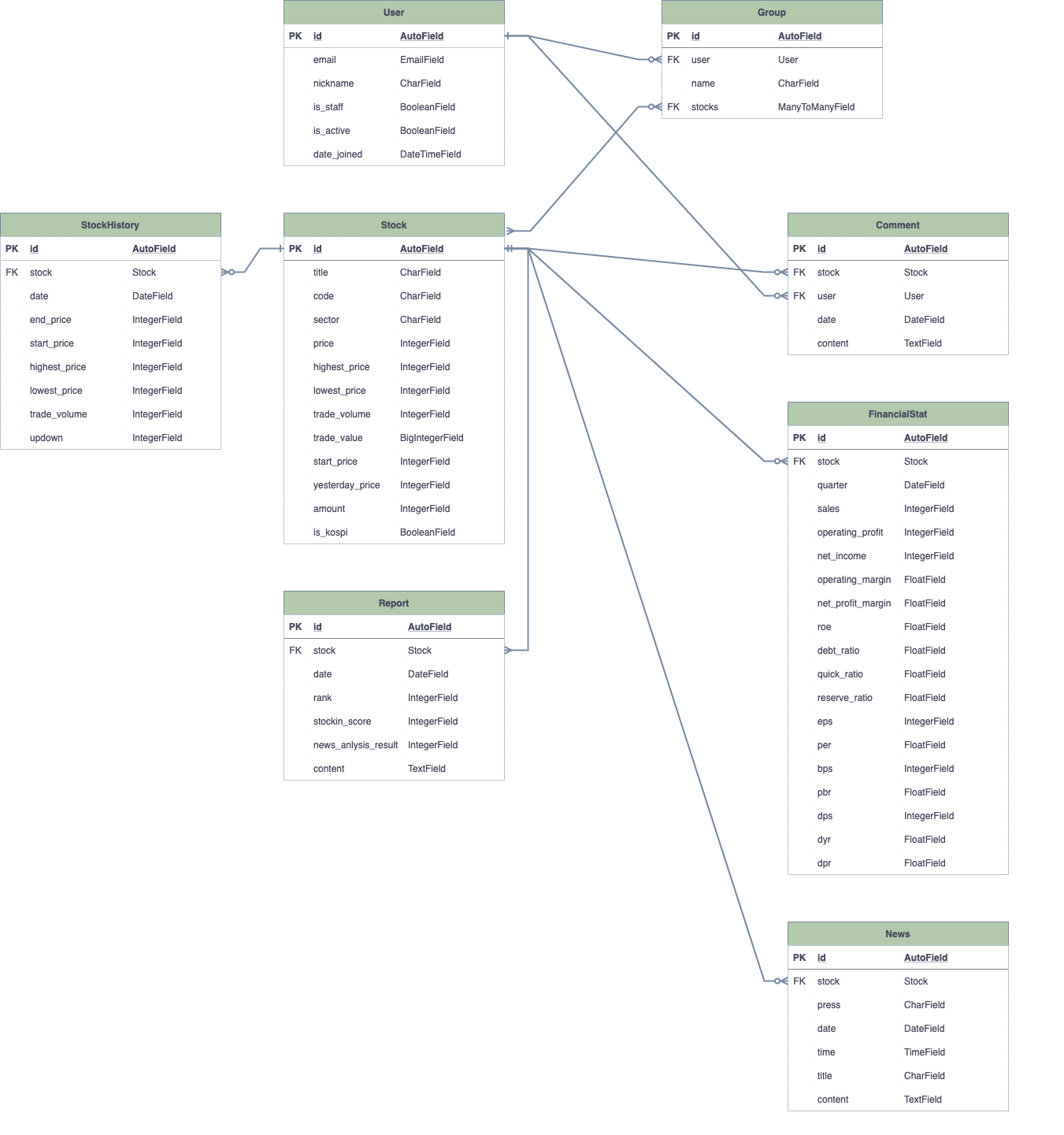
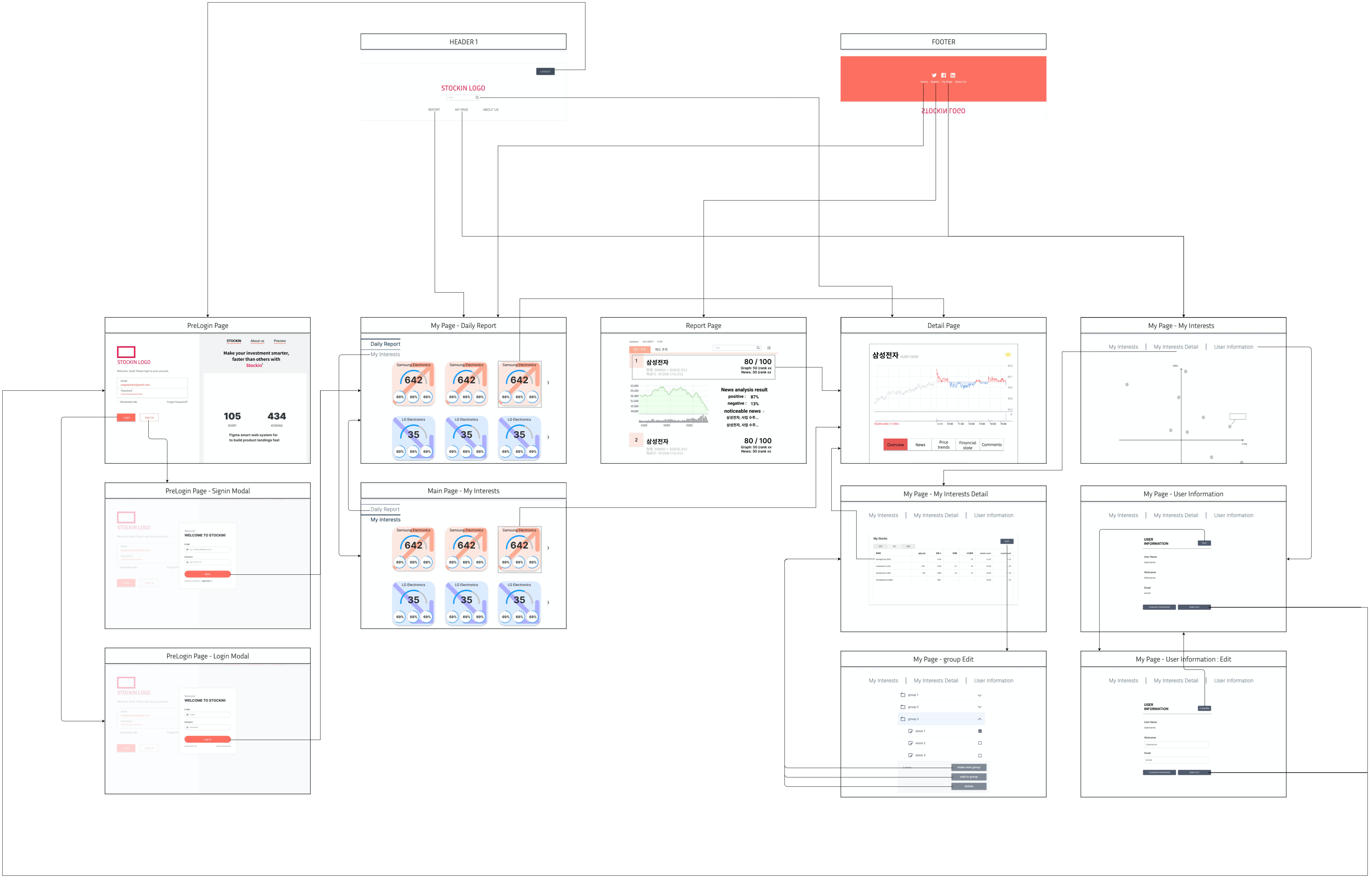
- HEADER is composed of HEADER 1 and HEADER 2.
- HEADER 1 is displayed when user is at the top of the page as a default.
- HEADER 2 is displayed, when user scrolls down from the top page.
- If the user clicks on the logo image, he/she is navigated to Main Page.
- If the user clicks on Report button, he/she is navigated to Report Page.
- If the user clicks on My Page button, he/she is navigated to My Page.
- If the user clicks on About Us button, he/she is navigated to AboutUs Page.
- If the user clicks on Logout button, he/she is navigated to Prelogin Page.
- If the user enters some text on the search input, related results appear on the bottom.
- If the user clicks on one of the results, he/she is navigated to Detail Page of the corresponding stock.
- If the user clicks on the logo image, he/she is navigated to Main Page.
- If the user clicks on Report button, he/she is navigated to Report Page.
- If the user clicks on My Page button, he/she is navigated to My Page.
- If the user clicks on Logout button, he/she is navigated to Prelogin Page.
- If the user enters some text on the search input, related results appear on the bottom.
- If the user clicks on one of the results, he/she is navigated to Detail Page of the
- If the user clicks on twitter icon, he/she is navigated to the twitter page of the team.
- If the user clicks on facebook icon, he/she is navigated to the facebook page of the team.
- If the user clicks on linked-in icon, he/she is navigated to the linked-in page of the team.
- If the user clicks on Home button, he/she is navigated to Main Page.
- If the user clicks on Report button, he/she is navigated to Report Page.
- If the user clicks on My Page button, he/she is navigated to My Page.
- If the user clicks on About Us button, he/she is navigated to AboutUs Page.
- Left half lets user sign in with his/her account
- If the user clicks on Login button, user is navigated to Main Page.
- If the user clicks on Sign Up button, Sign Up Modal shows up.
- Right half displays introduction of the service
- Introductory explanation of stockin' is displayed as a default.
- If the user clicks on STOCKIN button, introductory explanation of stockin' is displayed on the right side.
- If the user clicks on About us button, brief introduction of team 15 is displayed on the right side.
- If the user clicks on Preview button, peek view of the service is displayed on the right side.
- HEADER 2 is displayed on the top.
- As a default, brief report on the stock market as a whole is displayed below the header.
- Brief report of the few selected stocks is displayed as a clickable component.
- If the user clicks on Daily Report button, brief report on the stock market as a whole is displayed.
- To-rise stocks are displayed on the top row, and to-fall stocks are displayed on the bottom row.
- If the user clicks on one of the clickable components, he/she is navigated to corresponding Detail Page.
- If the user clicks on My Interests button, brief report on the selected stocks is displayed.
- To-rise stocks are displayed on the top row, and to-fall stocks are displayed on the bottom row.
- If the user clicks on one of the clickable components, he/she is navigated to corresponding Detail Page.
- FOOTER is displayed on the bottom.
- HEADER is displayed on the top.
- Right below the header, time when the information was lastly updated is displayed.
- Below the time, as a default, slightly elaborated information about to-rise stocks is displayed.
- To-rise stocks are sorted in an ascending order of ranking based on scores by ML trained model.
- If the user clicks on To-rise button, slightly elaborated information of stocks estimated to show a rise is shown.
- If the user clicks on To-fall button, slightly elaborated information of stocks estimated to show a fall is shown.
- If the user enters some text on the search input, related results appear on the bottom.
- If the user clicks on one of the results, slightly elaborated information of corresponding stock is displayed instead of sorted information of stocks in an ascending order.
- If the user clicks on the calendar icon, DatePicker popup shows up, showing current month's calendar.
- If the user clicks on a certain date, report page of the date is displayed.
- If the user clicks on the right-arrow button, next month's calendar is displayed on the popup.
- If the user clicks on the left-arrow button, previous month's calendar is displayed on the popup.
- If the user clicks on Today button, report page of today is displayed.
- If the user clicks on the following parts of a stock, he/she is navigated to Detail Page of the corresponding stock.
- name of the stock
- ranking of the stock
- graph image of the stock
- score of the stock
- news analysis result of the stock
- text 'noticeable news' of the stock
- FOOTER is displayed on the bottom.
-
HEADER is displayed on the top.
- At My Page, page scroll is disabled, thus HEADER 1 is always displayed.
- As a default, brief quadrant chart on information of stocks pre-selected is displayed.
- If the user clicks on My Interests button, brief quadrant chart on information of stocks pre-selected is displayed.
- If the user clicks on My Interests Detail button, detailed chart of pre-selected stocks is displayed.
- If the user clicks on All button, detailed chart of all the pre-selected stocks is displayed.
- If the user clicks on a button for specific group, detailed chart of the stocks in the group is displayed.
- If you click on Edit button, group manager is displayed instead of the chart.
- If the user clicks on make new group button, you can create a new group.
- If none of the checkboxes of the stocks is checked, then add to group button and delete button are deactivated.
- If the user clicks on add to group button when activated, checked stocks will be added to the group
- If the user clicks on delete button when activated, checked stocks or groups will be deleted from the list.
- If the user clicks on User Information button, brief account information of current user is displayed.
- If the user clicks on Edit button, he/she can change his/her nickname.
- If the user clicks on Change Password button, he/she can change his/her password.
- If the user clicks on Sign Out button, he/she can delete his/her account from the website.
- HEADER is displayed on the top.
- As a default, breif overview of the stock and a graph image is displayed except for the following cases:
- When navigated by clicking on the news related parts, news is displayed instead of the overview.
- When navigated by clicking on the graph related parts, history of prices of the stock is displayed instead of the overview.
- When navigated by clicking on the financial statement related parts, financial statement is displayed instead of the overview.
- If the user clicks on the star icon,
- If the star was already colored, corresponding stock is deleted from the groups.
- If the star was not colored, corresponding stock is added to the groups.
- If the user clicks on Overview button, brief overview of the stock is displayed below the graph.
- If the user clicks on News button, list of titles of news related to the stock is displayed below the graph.
- If the user clicks on the title of an article, he/she is navigated to the source of the article.
- If the user clicks on Price trends button, history of prices of the stock is displayed.
- If the user clicks on Financial state button, financial statement of the stock and scores of it with comparisons of other average stocks.
- If the user clicks on Comments button, new-comment textarea and comment list for the stock is displayed.
- Comment list is sorted in recently-created order.
- If new-comment text area is empty, submit button is disabled.
- If the user clicks on submit button when enabled, new comment of corresponding content is created.
- If the user clicks on the number buttons on the bottom of the list, the corresonding page of comment list is displayed.
- HEADER 2 is displayed on the top.
- As a default, brief information about the team and the contact info is displayed.
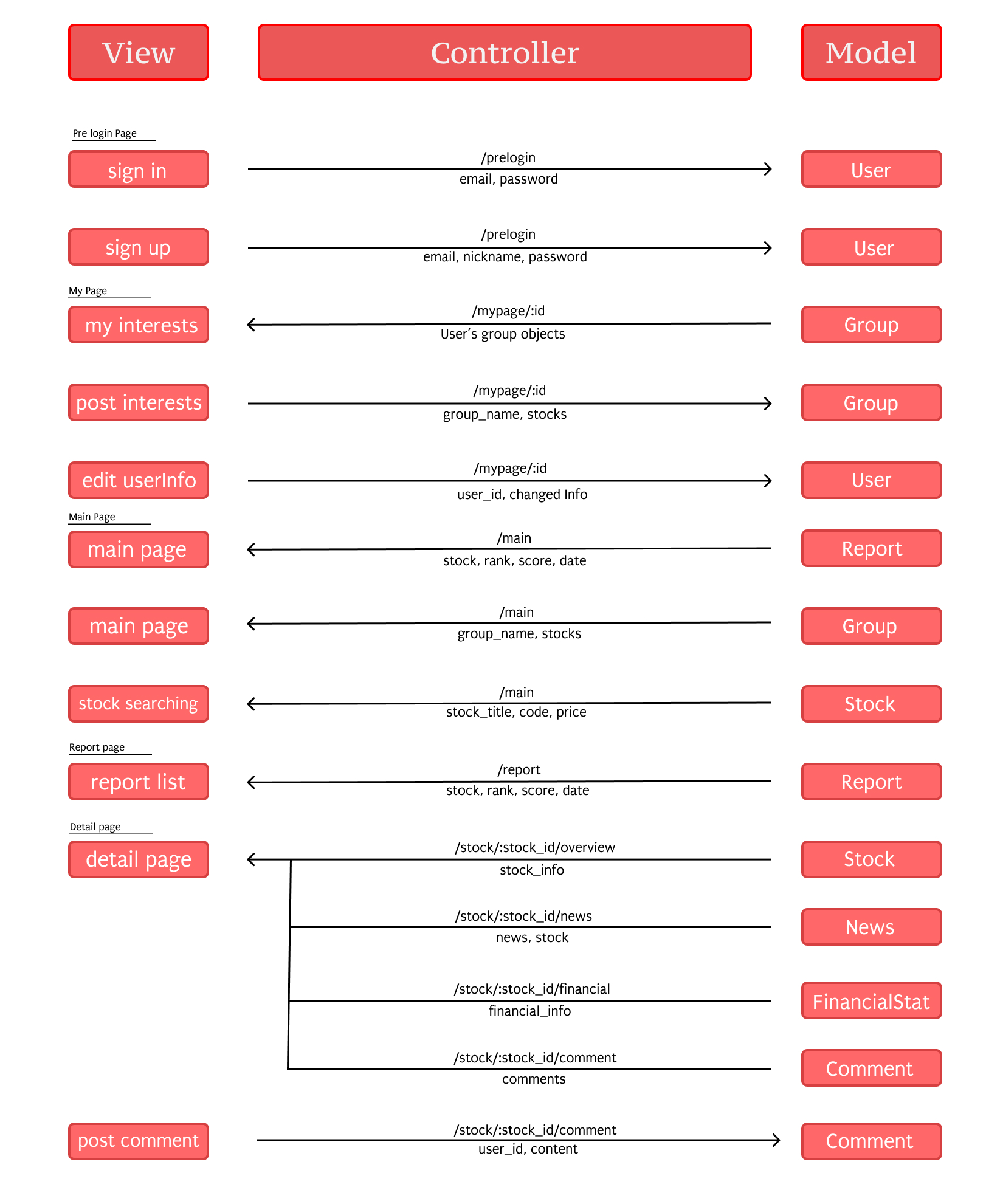
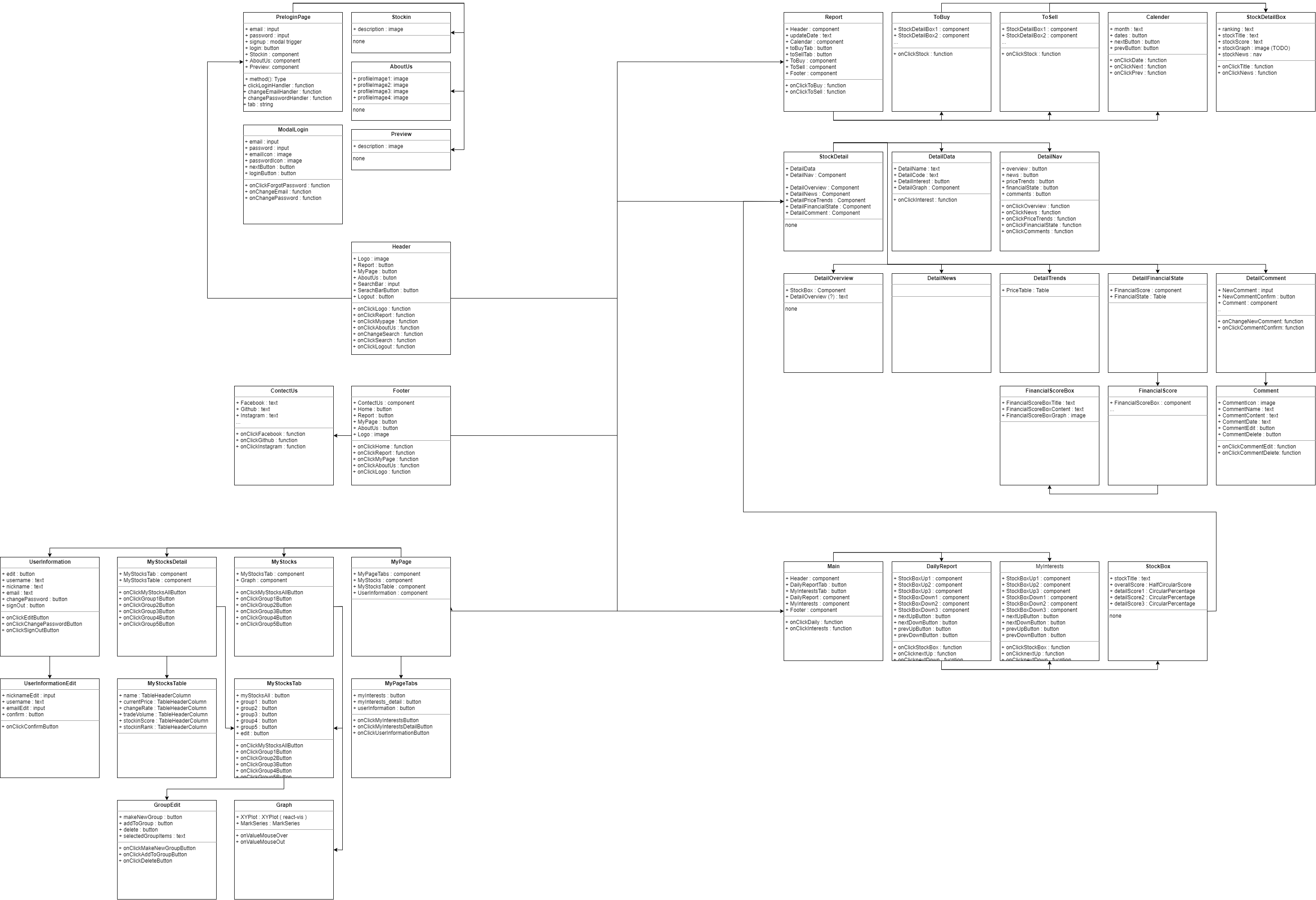
- HEADER is composed of a logo, Report, MyPage, AboutUs and Logout buttons, and a searchbox.
- Shape of HEADER is different depending on its location on the page
- If HEADER is placed at the top of the page, its size is 1440 x 112, hiding AboutUs button
- Else its size is 1440 x 400
-
FOOTER is composed of a logo, Home, Report, MyPage, AboutUs buttons and a ContactUs component.
- ContactUs displays information about service providers' contact info.
- PreloginPage is composed of email and password inputs, signup and login buttons, Stockin, AboutUs and Preview components.
- signup button triggers modal ModalLogin
- Stockin, AboutUs, Preview components display information about the service
- ModalLogin is composed of email, password and nickname inputs and nextButton and loginButton buttons.
- When nextButton is clicked, email and password inputs disappear and nickname input appears.
- Main Page is composed of HEADER and FOOTER, DailyReportTab and MyInterestsTab buttons and DailyReport and MyInterests components.
- DailyReport and MyInterests are composed of a few StockBox components, and 4 arrow buttons.
- StockBox component is composed of HalfCircularScore and CircularPercentage components, a revised version of react-circle-progressbar.
- DailyReport and MyInterests are composed of a few StockBox components, and 4 arrow buttons.
- Report Page is composed of HEADER and FOOTER, toBuyTab and toSellTab buttons and Calendar, ToBuy and ToSell components.
- If toBuyTab button is clicked, ToBuy component is displayed.
- If toSellTab button is clicked, ToSell component is displayed.
- ToBuy and ToSell components are composed of a few StockDetailBox components.
- Calendar component displays a calendar, allowing user to choose between dates.
- StockDetailBox displays various information about the stock.
- My Page is composed of MyPageTabs, MyStocks, MyStocksDetail and UserInformation.
- MyPageTabs is composed of myInterests, myInterestsDetail and userInfomation buttons.
- MyStocks is composed of MyStocksTab and Graph components.
- Further components are well displayed on the flowchart.
- MyStocksDetail is composed of MyStocksTab and MyStocksTable components.
- Further components are well displaeyd on the flowchart.
- UserInformation is composed of edit, changePassword and signOut buttons.
- Further components are well displayed on the flowchart.
- Detail Page is composed of DetailData, DetailNav, DetialOverview, DetailNews, DetailTrends, DetailFinancalState, DetailComment components.
- Each component represent a tab containing corresponding information except for DetailData and DetailNav.
- AboutUs Page is composed of AboutUs component displayed in Prelogin Page.
| Model | API | GET | POST | PUT | DELETE |
|---|---|---|---|---|---|
| User | api/users/signup |
X | Create user | X | X |
api/users/signin |
X | User login check | X | X | |
api/users/signout |
User logout | X | X | X | |
api/users/:user_id |
Get user info | X | Edit user info | X | |
| Group | api/groups/ |
Get user's group list | Create group | X | X |
api/groups/:group_id |
X | X | Update group name | Delete group | |
api/groups/:group_id/stocks |
Get user's all stock | Add stocks | X | X | |
api/groups/:group_id/stocks/:stock_id |
X | X | X | Delete stock | |
| Stock | api/stocks/ |
Get stock list | X | X | X |
api/stocks/:stock_id |
Get stock info | X | X | X | |
api/stocks/history/:stockhistory_date |
Get stock history list of date | X | X | X | |
api/stocks/history/:stockhistory_id |
Get specified stockhistory info | X | X | X | |
| News | api/news/stock/:stock_id/date/:news_date |
Get news list of specified date | X | X | X |
api/news/:news_id |
Get news info | X | X | X | |
| Report | api/reports/date/:report_date |
Get report list of specified date | X | X | X |
api/reports/date/:report_date/stock/:stock_title |
Get report of specified stock & date | X | X | X | |
| FinancialStat | api/financialstats/stock/:stock_id |
Get financial statement of specified stock | X | X | X |
- POST
- request form :
{“email”: string, "nickname": string, “password": string} - response form :
{“email”: string, "nickname": string, “password": string} - KeyError : status 400
- Success : status 201
- request form :
- NotAllowedMethod : status 405
- POST
- request form :
{“email”: string, "nickname": string, “password": string} - response form :
{“email”: string, "nickname": string, “password": string} - KeyError : status 400
- Success : status 201
- request form :
- NotAllowedMethod : status 405
- GET
- Success : status 204
- AuthenticateError : status 401
- NotAllowedMethod : status 405
- GET
- response form :
{“email”: string, "nickname": string, “password": string} - Success : status 200
- response form :
- PUT
- require form :
{“email”: string, "nickname": string, “password": string} - response form :
{“email”: string, "nickname": string, “password": string} - KeyError : status 400
- Success : status 201
- require form :
- AuthenticateError : status 401
- NotAllowedMethod : status 405
- GET
- response form(list) : each element :
{“id”: id, “user”: string, “name”: string} - Success : status 200
- response form(list) : each element :
- POST
- request form :
{“name”: string} - response form :
{“id”: id, “user”: string, “name”: string} - KeyError : status 400
- Success : status 204
- request form :
- AuthenticateError : status 401
- NotAllowedMethod : status 405
- PUT
- request form :
{“name”: string} - response form :
{“id”: id, “user”: string, “name”: string} - KeyError : status 400
- Success : status 204
- request form :
- DELETE
- NotFound : status 404
- Success : status 204
- AuthenticateError : status 401
- NotAllowedMethod : status 405
- GET
- response form(list) : each element :
{“id”: id, “title”: string} - Success : status 200
- response form(list) : each element :
- POST
- request form :
{“id”: string} - response form :
{“id”: id, “title”: string} - KeyError : status 400
- Success : status 201
- request form :
- AuthenticateError : status 401
- NotAllowedMethod : status 405
- DELETE
- NotFound : status 404
- Success : status 204
- AuthenticateError : status 401
- NotAllowedMethod : status 405
- GET
- response form : list : each element :
{“id”: id, “title”: string, “code”: string, “sector”: string, “price”: integer, “highest_price”: integer, “lowest_price”: integer, “trade_volume”: integer, “trade_value”: integer, “start_price”: integer, “yesterday_price”: integer, “amount”: integer, “is_kospi”: boolean} - Success : status 200
- response form : list : each element :
- AuthenticateError : status 401
- NotAllowedMethod : status 405
- GET
- response form :
{“id”: id, “title”: string, “code”: string, “sector”: string, “price”: integer, “highest_price”: integer, “lowest_price”: integer, “trade_volume”: integer, “trade_value”: integer, “start_price”: integer, “yesterday_price”: integer, “amount”: integer, “is_kospi”: boolean} - Success : status 200
- response form :
- AuthenticateError : status 401
- NotAllowedMethod : status 405
- GET
- response form :
[{“id” : id, “score”: int}, {“id” : id, “score”: int}, .......] - Success : status 200
- response form :
- AuthenticateError : status 401
- NotAllowedMethod : status 405
- GET
- response form(list) : each element :
{“id”: id, “title”: string, “code”: string, “sector”: string, “price”: integer, “highest_price”: integer, “lowest_price”: integer, “trade_volume”: integer, “trade_value”: integer, “start_price”: integer, “yesterday_price”: integer, “amount”: integer, “is_kospi”: boolean, “date”:date(“%Y-%m-%d”), “updown” : integer} - Success : status 200
- response form(list) : each element :
- AuthenticateError : status 401
- NotAllowedMethod : status 405
- GET
- response form(list) : each element :
{“id”: id, “title”: string, “code”: string, “sector”: string, “price”: integer, “highest_price”: integer, “lowest_price”: integer, “trade_volume”: integer, “trade_value”: integer, “start_price”: integer, “yesterday_price”: integer, “amount”: integer, “is_kospi”: boolean, “date”:date(“%Y-%m-%d”), “updown” : integer} - Success : status 200
- response form(list) : each element :
- AuthenticateError : status 401
- NotAllowedMethod : status 405
- GET
- response form(list) : each element :
{“id”: id, “title”: string, “code”: string, “sector”: string, “price”: integer, “highest_price”: integer, “lowest_price”: integer, “trade_volume”: integer, “trade_value”: integer, “start_price”: integer, “yesterday_price”: integer, “amount”: integer, “is_kospi”: boolean, “date”:date(“%Y-%m-%d”), “time” : time(%H-%m-%s), “title”: string, “content”:text} - Success : status 200
- response form(list) : each element :
- AuthenticateError : status 401
- NotAllowedMethod : status 405
- GET
- response form :
{“id”: id, “title”: string, “code”: string, “sector”: string, “price”: integer, “highest_price”: integer, “lowest_price”: integer, “trade_volume”: integer, “trade_value”: integer, “start_price”: integer, “yesterday_price”: integer, “amount”: integer, “is_kospi”: boolean, “date”:date(“%Y-%m-%d”), “time” : time(%H-%m-%s), “title”: string, “content”:text} - Success : status 200
- response form :
- AuthenticateError : status 401
- NotAllowedMethod : status 405
- GET
- response form(list) : each element :
{“id”: id, “title”: string, “code”: string, “sector”: string, “price”: integer, “highest_price”: integer, “lowest_price”: integer, “trade_volume”: integer, “trade_value”: integer, “start_price”: integer, “yesterday_price”: integer, “amount”: integer, “is_kospi”: boolean, “date”:date(“%Y-%m-%d”), “rank”: integer, “stockin_score”: integer, “news_analysis_result”: integer, “content”:text} - Success : status 200
- response form(list) : each element :
- AuthenticateError : status 401
- NotAllowedMethod : status 405
- GET
- response form :
{“id”: id, “title”: string, “code”: string, “sector”: string, “price”: integer, “highest_price”: integer, “lowest_price”: integer, “trade_volume”: integer, “trade_value”: integer, “start_price”: integer, “yesterday_price”: integer, “amount”: integer, “is_kospi”: boolean, “date”:date(“%Y-%m-%d”), “rank”: integer, “stockin_score”: integer, “news_analysis_result”: integer, “content”:text} - Success : status 200
- response form :
- AuthenticateError : status 401
- NotAllowedMethod : status 405
- GET
- response form :
{“id”: id, “title”: string, “code”: string, “sector”: string, “price”: integer, “highest_price”: integer, “lowest_price”: integer, “trade_volume”: integer, “trade_value”: integer, “start_price”: integer, “yesterday_price”: integer, “amount”: integer, “is_kospi”: boolean, “quarter”: date(“%Y-%m-%d”), “sales”: integer, “operating_profit”: integer, “net_income”: integer, “operating_margin”: float, “net_profit_margin”: float, “roe”: float, “debt_ratio”: float, “quick_ratio”: float, “reserve_ratio”: float, “eps”: integer, “per”: float, “bps”: integer, “dyr”: float, “dpr”: float} - Success : status 200
- response form :
- AuthenticateError : status 401
- NotAllowedMethod : status 405
Break down each user story described in your requirements document into programming tasks. Determine the difficulty of each task, and try to estimate the number of developer-days that the tasks should take. Try to also determine dependencies among tasks. Then, you should list all of the tasks to be done in the current sprint, a preliminary assignment of tasks to people in the group, estimates of the time for each task, dependencies between tasks, and a preliminary division into sprints (e.g., which features are implemented in the first sprint, second sprint, and so on). The plan should be designed to get some prototype system running as quickly as possible and then growing towards to the full project over a sequence of sprints. Please pay extra attention to the dependency relationships between tasks; you will almost certainly run into the situation where one bit isn't done but everything else is waiting for it. In that case, you want to know exactly where resources need to go, and how urgent each bit is (hint: NOT proportional to its size or importance in the whole system).
Try to identify the major risks for the project in general and the plan in particular. Explain what the risks are and discuss how you plan to mitigate them.
| Page | Feature | Difficulty | Sprints | Challenges | Assignees |
|---|---|---|---|---|---|
| Pre-login | sign in | 1 | 2 | Woo0, Junhyeok | |
| Pre-login | sign up | 1 | 2 | Woo0, Junhyeok | |
| Pre-login | forget password | 3 | 4 | Daun, G1 | |
| Pre-login | about stockin | 0.5 | 5 | Daun, G1 | |
| Main | load stocks by ranking | 3 | 5 | Woo0, Daun | |
| Main | load stocks in interests | 3 | 5 | Woo0, Daun | |
| Report page | load stocks by ranking | 2 | 4 | G1, Junhyeok | |
| Detail page | load stock detail | 1.5 | 4 | G1, Junhyeok | |
| Detail page | make graph | 3 | 4 | Woo0, G1 | |
| Detail page | add stock to interests | 1 | 3 | Daun, Junhyeok | |
| Detail page | add or delete comments | 2 | 3 | Daun, G1 | |
| My page | load Interests' information | 2 | 3 | G1, Junhyeok | |
| My page | edit group | 3 | 5 | Daun, G1 | |
| My page | edit user information | 1 | 3 | Woo0, Junhyeok | |
| About Us page | about stockin | 0.5 | 5 | Junhyeok | |
| Header | search stocks | 2 | 3 | Woo0, G1 | |
| set up an ML model | 5 | 3,4 | Daun, Junhyeok | ||
| train model | 4 | 3,4 | Daun, Junhyeok | ||
| set up an ML pipeline | 5 | 3,4 | Daun, Junhyeok |
- Dependencies
-
load stocks by rankingdepends onML tasks -
make graphdepends onML tasks
-
- Risks
- ML does not show high performance
We can try completing service with low-performance model and work on performance simultaneously
- Our IP might be banned from the API source
We should try to limit calls from API to a certain amount
-
Unit testing
Every component, reducer, and module should be tested automatically. We will test frontend(react, redux) with Jest and Enzyme, and backend(django) with python unit test. These tests should reach 80% coverage. -
Functional testing
Every API should be tested. We will test frontend(react, redux) with Jest and Enzyme, and backend(django) with python unit test. These tests should reach 80% coverage. -
Acceptance & integration testing
All user stories should be covered. We will use travis CI for integration test.