Android Mobile Application
REQUIREMENTS
The purpose of this mobile application is to provide users with a daily positive experience through various forms of media, such as news, music and images. This app is intended for people who want to start their day off in a happy mood, hence the app name Happyness (NOTE: not a typo).
ARCHITECTURE
There are multiple user interfaces on this app that are responsible for the various actions of the user. The details are as follows:
-
About UI
The About UI provides the user with instructions on how to use the app. This is advisably the first place that users should go in order to understand what the purpose of the app is and how to use it. There is a drop down menu on the page with the different UIs listed as options (Music, News, Quote and Feedback). Once the user selects one of them, a small description of the UI will be displayed. Any changes or improvements that need to be made should be made in the HelpPage.java class.
-
News UI
The News UI provides the user with links to positive news websites or sections in news websites that only feature positive news. Any changes or improvements that need to be made should be made in the NewsPage.java class.
-
Quote UI
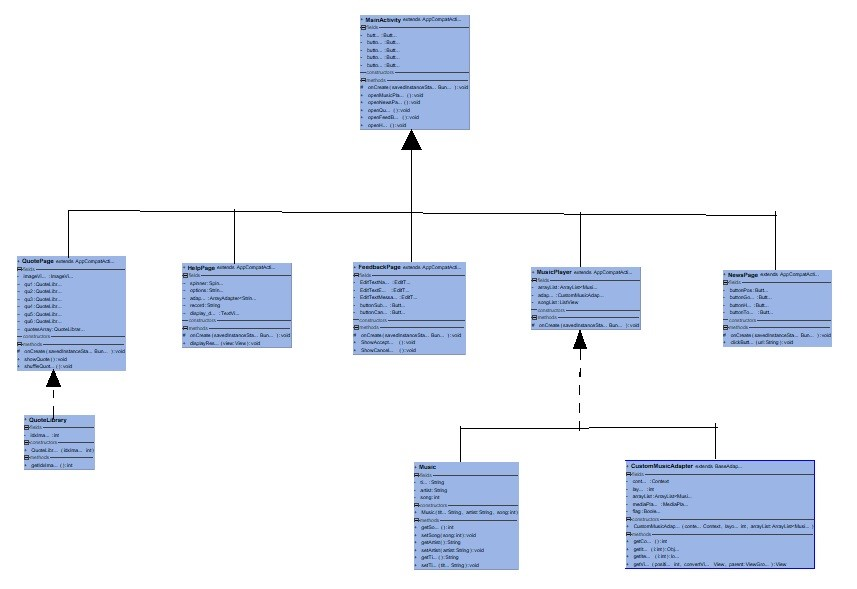
The Quotes UI provides the user with a random positive quote (in the form of an image, an image of a quote) everyday in hopes of increasing positive feelings. There are two classes responsible for this UI. The Quotes library is where all the images are stored (so any new images will be added here). The QuotePage.java class is responsible for randomizing and displaying the image (any modifications to the output/functionality of the UI should be made here).
-
Feedback UI
The Feedback Page allows the user to send the developers possible improvements or simply comments about the app. The user must enter their name, email address and the comments that they have. If they choose to send the feedback, they may press the send feedback button or if they wish to cancel feedback they may click the cancel button. Any changes or improvements that need to be made should be made in the FeedbackPage.java class.
-
Music UI
The Music Page is where users can listen to a list of 5 recommended songs that have an upbeat, positive message. There are three classes responsible for this UI. The MusicPlayer.java class is the main class that has the list of songs that will be played. If you are to add a song to the list, this is where you would do it. The CustomMusicAdapter.java class is responsible for the functioning of the music player interface, It is responsible for the display of the title and artist, and the functioning of the play, pause and stop button. The Music.java class is responsible for the getter and setter methods (get song name, set song ne etc). If developers want to add a certain variable (ex: song duration), then the setter and getter methods of song duration would be added here.
CLASS DIAGRAM: The class diagram for the application is as follows:
BUILD INSTRUCTIONS: Running the Application
This application was designed using android studio. The best way to run this app for optimal usage is to download the files onto the Android Studio Software as run it from there. Instructions are as follows
-
Download/Install Android Studio (https://developer.android.com/studio)
-
Open the AppProject file on Android Studio.
-
Next, there are two ways you can visualize your the application as a user
A. Using an external device
-
Plug in your device to your computer/laptop using an USB connector.
-
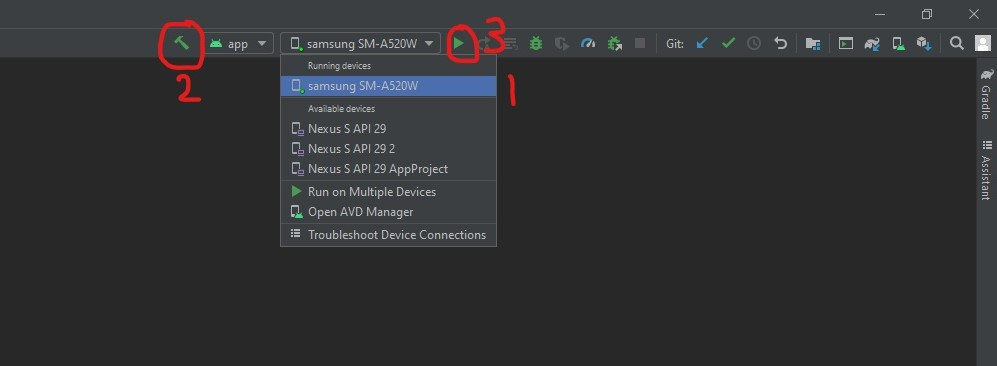
Select the devices tab on the top bar of the screen

-
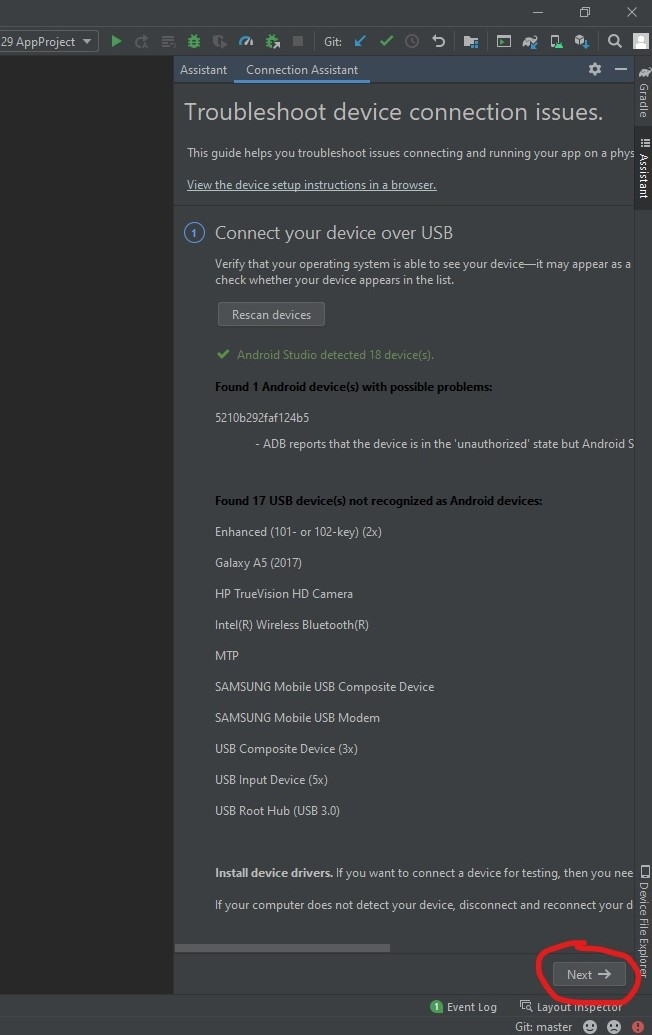
When the device has been identified, click next
-
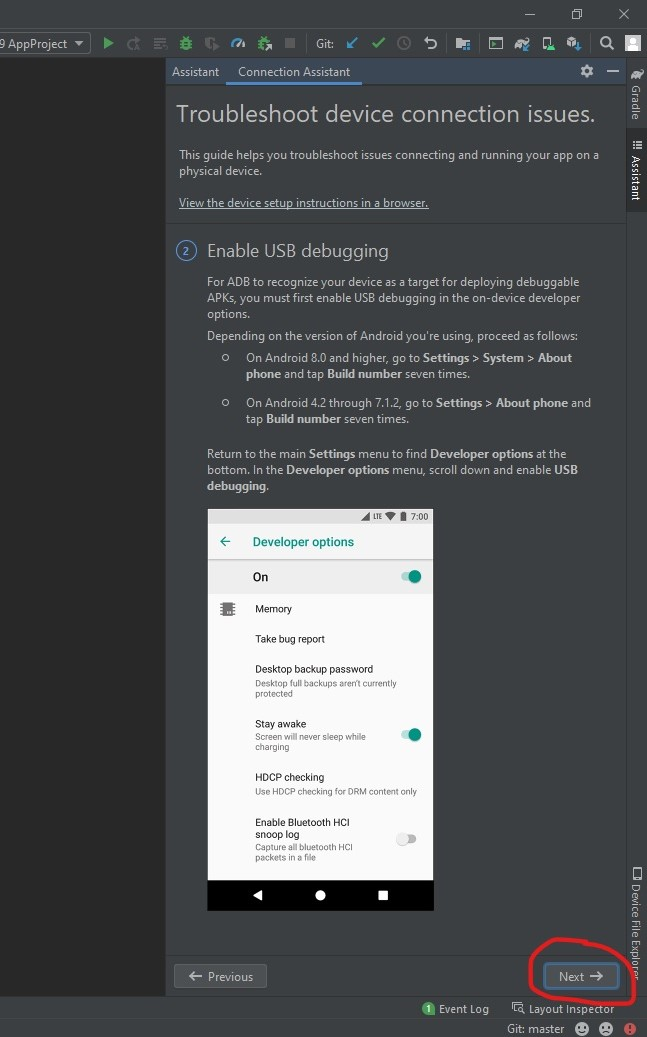
It will then prompt you to turn on developer mode on your phone (follow the instructions noted as everyone might be different)
-
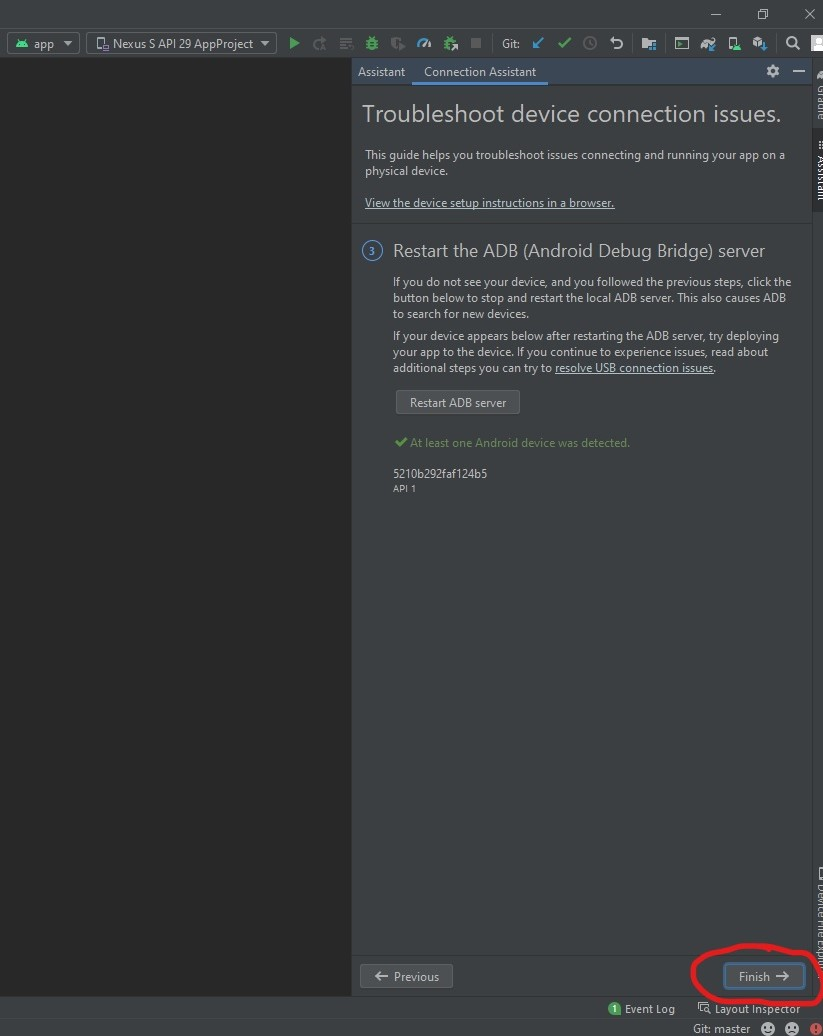
After you have turned on developer mode, click next and finish on the device setup page
-
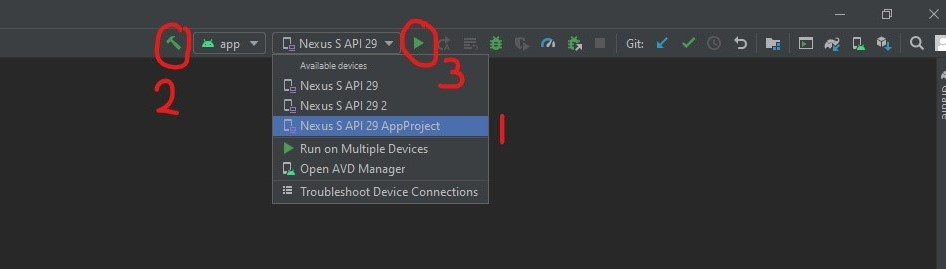
After you have completed all that, slect your device on the top bar of the screen. Then click on the hammer icon to compile the program. Finally, click the green triangle icon to run the application. IMPORTANT: Make sure you select the correct device to compile to
B. Using an android emulator
-
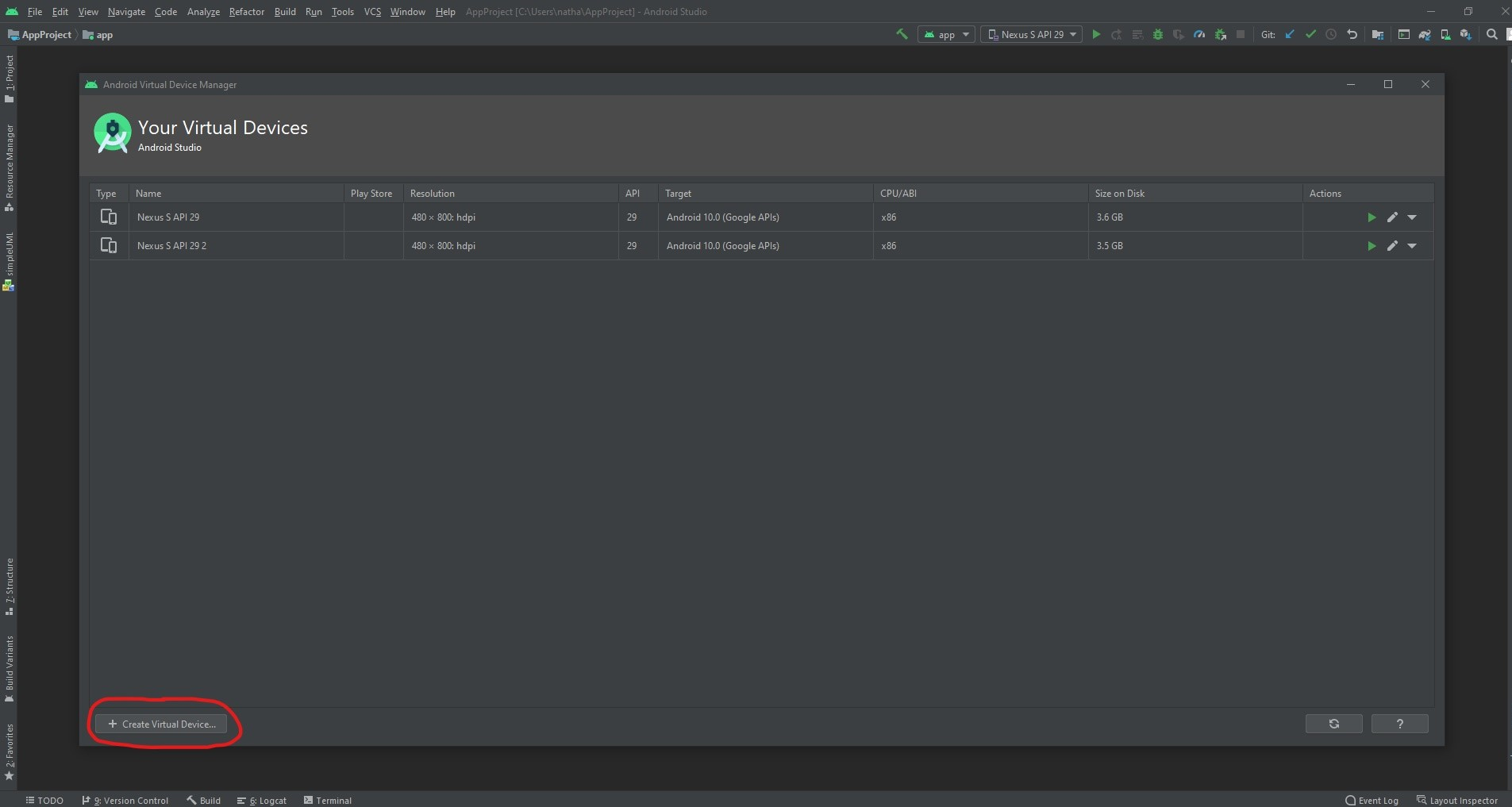
Click on AVD Manager on the top right of the Android Studio window (as shown in the following image).

-
Then in the opened window, click on create Virtual Device.
-
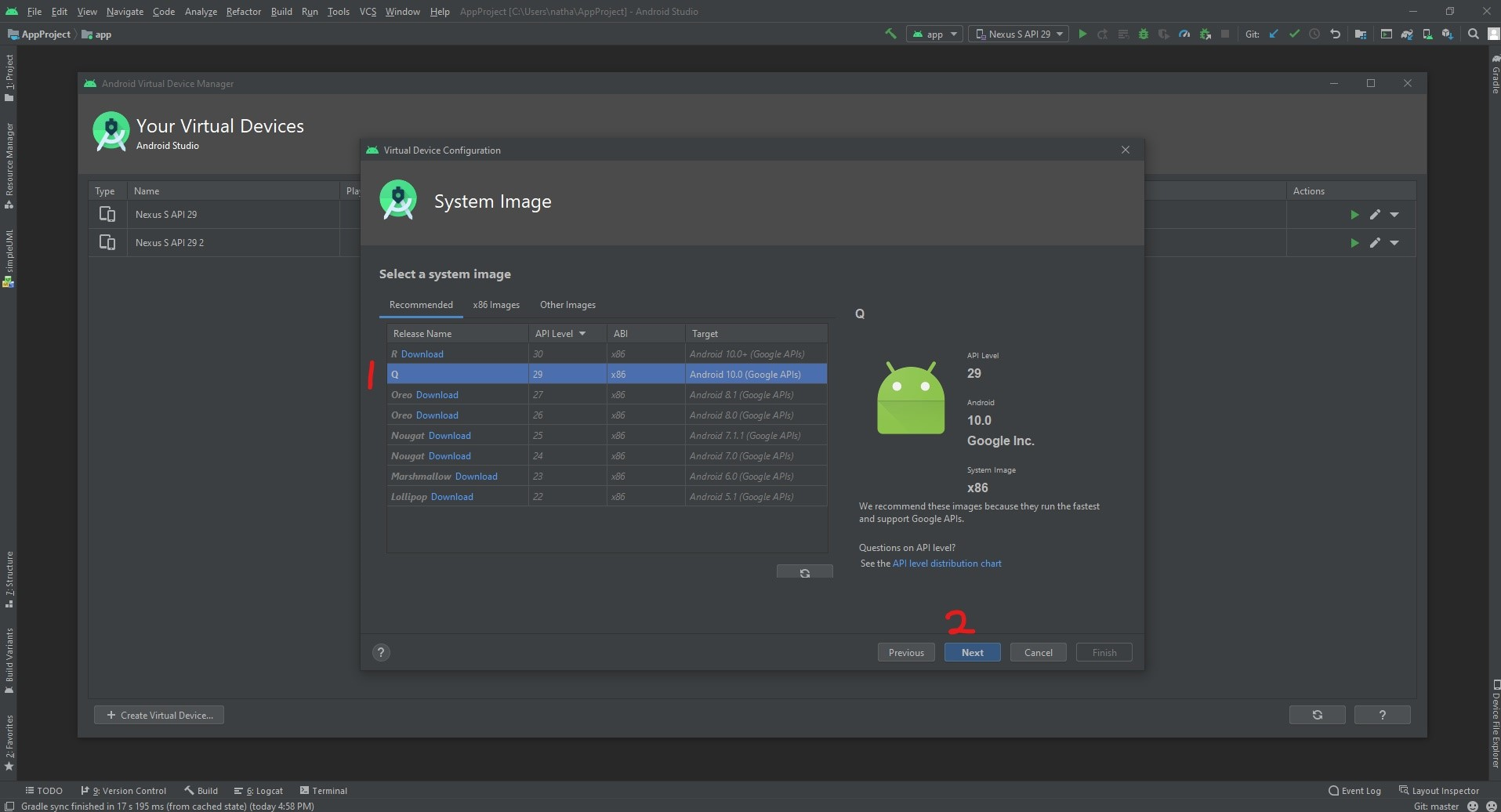
Choose one of the options provided for you and click next. (recommended that you pick a basic model)

-
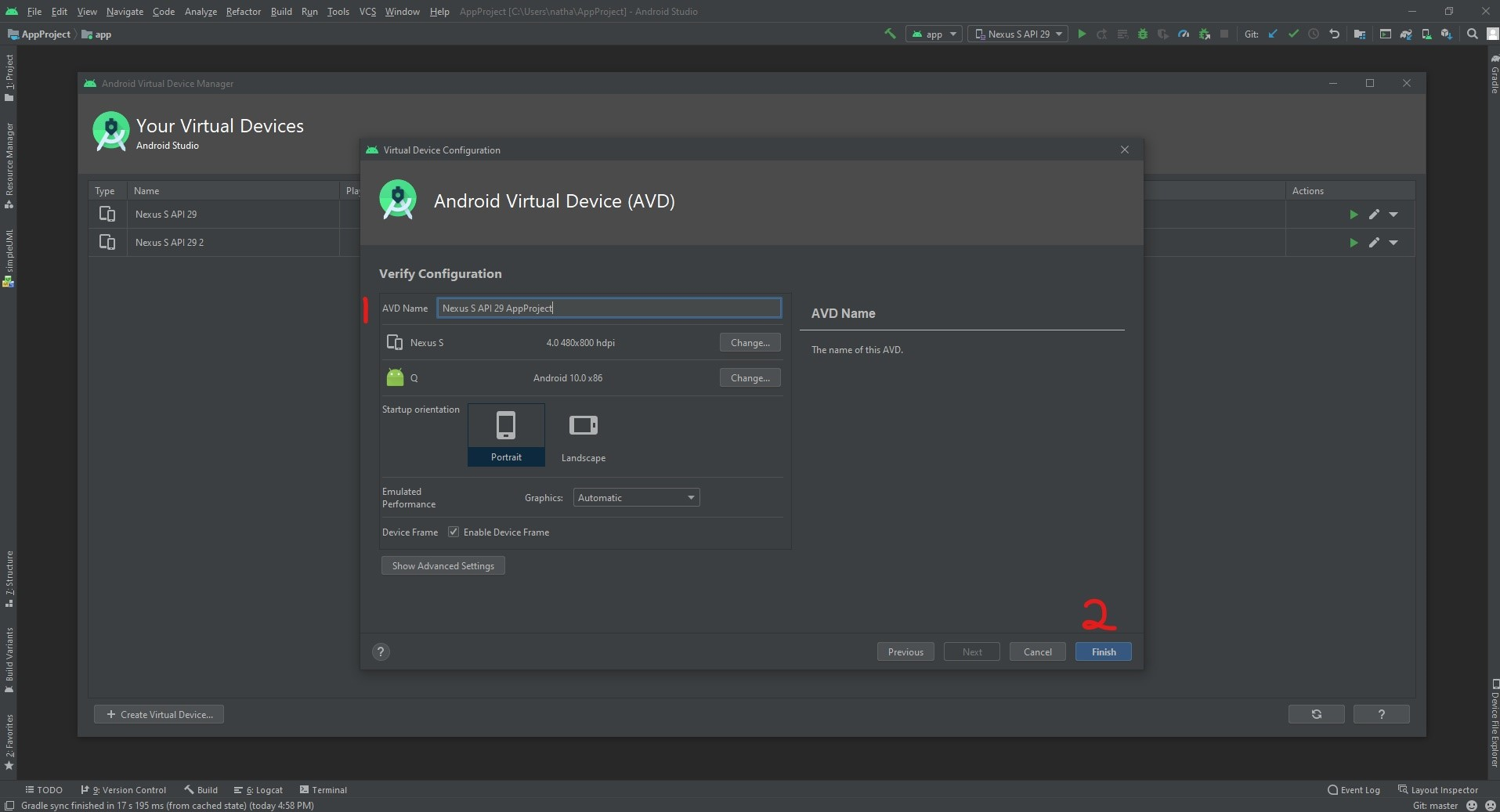
Finally, choose your API level, a name for your AVD and hit Finish
-
After you have completed all that, slect your device on the top bar of the screen. Then click on the hammer icon to compile the program. Finally, click the green triangle icon to run the application. IMPORTANT: Make sure you select the correct device to compile to
-
Possible Improvements that could be made to the app
- The user isn't able to play a new song without clicking the stop button on the old song first (user must click stop on current song before playing new one)
- Allow the user to download the song onto their phone
- Song list must be updated manually (possible ways to improve this/ make it automatic)
- A way to get the news stories onto the app (i.e. not just the link to the pages)