Automate your entire browser. Control Google Workspace without context-switching. One prompt, complete execution.
People use ChatGPT, Gemini, or Claude for everyday tasks:
- Research Topics — Deep dives across multiple sources
- Write Emails — Professional drafts and responses
- Create Documents — Essays, reports, proposals
- Build Spreadsheets — Data analysis and visualizations
- Schedule Tasks — Calendar management and reminders
Recently, Gemini Pro launched AI in Google Workspace (Docs, Sheets, etc.), which is great for single-file revisions—but it lives in isolation. It can't access your research, your Slack context, your browser tabs, or other workspace apps simultaneously.
Imagine this workflow:
- Research quantum computing breakthroughs on Google Scholar
- Switch to Google Docs, paste content, ask AI to format it
- Copy the link, switch to Gmail, paste the link, ask AI to draft a professional email to your professor
- Send
That's three app-switches, manual copy-paste, and multiple AI prompts. With access to only one context at a time.
A browser copilot that doesn't chat with you—it acts for you.
Single Prompt:
"Research quantum computing breakthroughs from 2025,
create a summary doc with key findings, and email it to
my professor with a professional note."

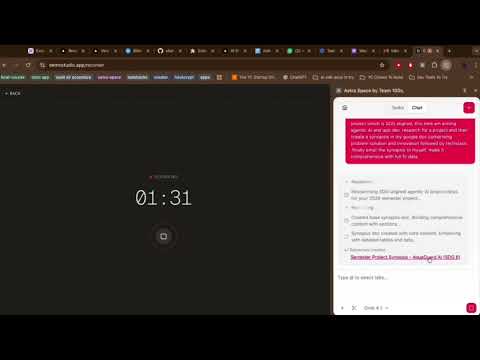
Astra handles everything. In under 2 minutes.
No tab-switching. No copy-pasting. No fragmented workflows.
Watch Astra Space in action:

| Component | Purpose | Technology | Port |
|---|---|---|---|
| Frontend | Chrome Extension UI with tab context injection | React 19 + TypeScript + Vite | 5173 (dev) |
| Backend API | AI orchestration with MCP tool integration | Express.js + TypeScript + Vercel AI SDK | 3001 |
| MCP Server | Google Workspace automation (100+ tools) | Python + FastMCP | 8000 |
Primary Flow (Chat v2 - Planner-Executor Pattern with Think Tool):
User Message (@tabs, snapshots)
  ↓
Frontend extracts tab content (Readability + Turndown)
  ↓
PLANNING PHASE (xai/grok-4.1-fast-reasoning)
  → 'think' tool streams reasoning to frontend
  → Decomposes task into actionable steps
  → Identifies required workspace tools
  ↓
EXECUTION PHASE (same model, filtered tools)
  → Executes planned tool sequence
  → MCP tools handle workspace automation (100+ tools)
  → displayToFrontend shows progress
  → showURLToFrontend shares created resources
  ↓
Frontend renders results + reasoning + resource links
Why This Works:
- Planner ensures accuracy: Think tool breaks down complex requests before execution
- Executor stays focused: Only relevant tools are activated per task
- Transparent reasoning: Users see the AI's internal planning in real-time
- 50% cheaper: Single model handles planning + execution vs separate models
- 90% accurate: Focused tool access = fewer hallucinations
Learn more: Read Anthropic's engineering deep-dive on how the think tool enables extended reasoning in AI systems.
| Capability | Traditional AI | Astra Space |
|---|---|---|
| Context | Single conversation | Your entire browser + Workspace |
| Execution | Suggests actions | Performs actions autonomously |
| Integration | One app at a time | Cross-app orchestration |
| Precision | Abstract prompts | @tag specific tabs for context |
✅ Browser Automation
- Navigate to any URL
- Click buttons, links, and form fields
- Type into search boxes and input fields
- Extract content from any webpage
- Capture screenshots for visual context
✅ Google Workspace Mastery
- Draft and send emails (Gmail)
- Create, edit, format documents (Google Docs)
- Build charts, formulas, pivot tables (Google Sheets)
- Design presentations (Google Slides)
- Manage calendars and events (Google Calendar)
- Organize files and folders (Google Drive)
- Collect form responses (Google Forms)
- Plan tasks and reminders (Google Tasks)
- Search across workspace (Google Search)
✅ Context Injection
- Tag Chrome tabs with
@mention (@YouTube,@LinkedIn,@ResearchPaper) - AI extracts exact content as clean markdown (zero hallucination)
- Attach screenshots and images directly
- No ambiguity about what context AI sees
✅ Transparency
- See AI's internal reasoning in real-time
- Collapse/expand thought process
- Clickable links to created resources
- Progress updates as workflows execute
- Node.js 18+ (for backend & frontend)
- Python 3.10+ (for MCP server)
- Chrome browser (latest version recommended)
- Google Account with Workspace access
- API Keys: OpenAI or Anthropic for LLM access
cd astra-space

# Backend
cd backend && npm install
cd ../

# Frontend
cd frontend && npm install
cd ../

# MCP Server
cd workspace-mcp && python -m venv .venv
source .venv/bin/activate  # or .venv\Scripts\activate on Windows
pip install -e .
cd ../Use the environment configuration file attached in the Google Form submission. All required API keys and credentials are provided there.
After retrieving the config:
Backend (backend/.env):
PORT=3001
OPENAI_API_KEY=sk-...        # From Google Form config
# Optional: ANTHROPIC_API_KEY=sk-ant-...
Workspace MCP (workspace-mcp/.env.oauth21):
# Google OAuth credentials from config file
GOOGLE_OAUTH_CLIENT_ID=xxxxx.apps.googleusercontent.com
GOOGLE_OAUTH_CLIENT_SECRET=GOCSPX-xxxxx
GOOGLE_OAUTH_REDIRECT_URI=http://localhost:8000/auth/callback
Refer to .env.example files in each component directory for detailed descriptions of each variable.
# Terminal 1: Backend API
cd backend && npm run dev

# Terminal 2: MCP Server (in .venv)
cd workspace-mcp && python main.py

# Terminal 3: Frontend Dev Server
cd frontend && npm run dev- Open
chrome://extensions - Enable Developer mode (top right)
- Click Load unpacked
- Select
frontend/distfolder - Pin the extension to your toolbar
- Press
Cmd+Shift+Y(Mac) orCtrl+Shift+Y(Windows/Linux) to open the side panel
- Open the Astra side panel
- Type:
"What is the weather today?" - You should see:
- Reasoning stream ("Breaking down your request...")
- Execution ("Checking weather API...")
- Results with formatted response
cd backend
npm install

# Create .env file with required keys
cp .env.example .env
# Edit .env and add your API keys

# Start development server (watches for changes)
npm run dev

# Server runs on http://localhost:3001
# Check health: curl http://localhost:3001/health
Available Endpoints:
POST /api/chat-v2— Primary endpoint (single-stage think tool pattern)POST /api/chat— Legacy endpoint (planner-executor pattern)
Environment Variables:
OPENAI_API_KEY— OpenAI API key for GPT-4o mini, GPT-5 modelsANTHROPIC_API_KEY— Anthropic API key (optional, for Claude models)PORT— Server port (default: 3001)
See backend/README.md for detailed API documentation.
cd frontend
npm install

# Start Vite dev server (hot reload enabled)
npm run dev

# Server runs on http://localhost:5173
# Build for production
npm run build  # Creates optimized dist/ folder
Loading as Chrome Extension:
- Build:
npm run build - Go to
chrome://extensions - Enable Developer mode
- Load unpacked → select
dist/folder - Extension now installed and reloadable
Keyboard Shortcut:
Cmd+Shift+O(Mac) to open Astra side panelCtrl+Shift+O(Windows/Linux)
Key Features:
- Tab Selector: Type
@in chat to tag Chrome tabs - Snapshot Tool: Capture screen regions as context
- Streaming UI: Real-time message rendering with reasoning
See frontend/README.md for detailed extension development guide.
cd workspace-mcp

# Create Python virtual environment
python -m venv .venv
source .venv/bin/activate  # or .venv\Scripts\activate on Windows

# Install dependencies
pip install -e .

# Configure Google OAuth (required for workspace access)
# See workspace-mcp/README.md for detailed OAuth setup instructions
# Quick: Set GOOGLE_OAUTH_CLIENT_ID and GOOGLE_OAUTH_CLIENT_SECRET in .env

# Start server
python main.py

# Server runs on http://localhost:8000
# Verify: curl http://localhost:8000/mcp
MCP Tools Available (100+):
- Gmail: Send, draft, search emails
- Google Docs: Create, edit, format documents
- Google Sheets: Build spreadsheets, add charts, formulas
- Google Calendar: Schedule events, manage calendars
- Google Drive: Organize files, create folders
- Google Slides: Design presentations
- Google Forms: Collect responses
- Google Tasks: Plan and organize
- Google Chat: Message users
- Custom Search: Web search integration
See workspace-mcp/README.md for complete tool reference and OAuth setup.
Chrome MCP is an optional enhancement that provides advanced browser automation capabilities through the Model Context Protocol. It enables AI-powered control of Chrome tabs, content extraction, network monitoring, and visual interactions.
What Chrome MCP Adds:
- Advanced Browser Control: Navigate, click, fill forms, scroll
- Network Monitoring: Capture API requests/responses
- Content Analysis: AI-powered semantic search within pages
- Visual Debugging: Screenshots and element inspection
Installation Steps:
-
Download Chrome Extension
Get the latest release from: https://github.com/hangwin/mcp-chrome/releases
-
Install MCP Chrome Bridge Globally
# Using npm
npm install -g mcp-chrome-bridge

# Using pnpm (recommended)
pnpm config set enable-pre-post-scripts true
pnpm install -g mcp-chrome-bridge

# Verify installation
mcp-chrome-bridge -v
-
Load Chrome Extension
- Open Chrome and navigate to
chrome://extensions/ - Enable Developer mode (toggle in top right)
- Click Load unpacked
- Select the downloaded extension folder
- Click the extension icon and press Connect
You should see the MCP configuration appear in the extension popup.
- Open Chrome and navigate to
-
Configure Backend to Use Chrome MCP
Add to your backend's MCP client configuration:
{
  "mcpServers": {
    "chrome-mcp": {
      "type": "streamableHttp",
      "url": "http://127.0.0.1:12306/mcp"
    }
  }
}
The Chrome MCP server runs on port 12306 by default.
Troubleshooting Chrome MCP:
If connection fails after clicking Connect:
-
Verify installation:
mcp-chrome-bridge -v
-
Check manifest file location:
- macOS:
/Users/[username]/Library/Application Support/Google/Chrome/NativeMessagingHosts/com.chromemcp.nativehost.json - Windows:
C:\Users\[username]\AppData\Roaming\Google\Chrome\NativeMessagingHosts\com.chromemcp.nativehost.json
- macOS:
-
Check logs:
- Logs are in the
mcp-chrome-bridgeinstallation directory underdist/logs/ - Path shown in manifest file's
pathfield
- Logs are in the
-
Fix permissions (macOS/Linux):
mcp-chrome-bridge fix-permissions
-
Use diagnostic tool:
# Identify issues
mcp-chrome-bridge doctor

# Auto-fix common problems
mcp-chrome-bridge doctor --fix

# Export diagnostic report for GitHub issues
mcp-chrome-bridge report --output mcp-report.md
Chrome MCP Tools Available:
chrome_navigate- Navigate to URLschrome_screenshot- Capture full page or viewport screenshotschrome_click- Click elements by selectorchrome_type- Type into input fieldschrome_network_capture- Monitor network requestschrome_content_analysis- AI-powered content extractionchrome_semantic_search- Search page content semantically- And 20+ more browser automation tools
See Chrome MCP Documentation for complete API reference.
# Required
PORT=3001
OPENAI_API_KEY=sk-proj-...

# Optional
ANTHROPIC_API_KEY=sk-ant-...
GOOGLE_OAUTH_CLIENT_ID=...
GOOGLE_OAUTH_CLIENT_SECRET=...# Google OAuth Configuration
GOOGLE_OAUTH_CLIENT_ID=xxxxx.apps.googleusercontent.com
GOOGLE_OAUTH_CLIENT_SECRET=GOCSPX-xxxxx
GOOGLE_OAUTH_REDIRECT_URI=http://localhost:8000/auth/callback
# Optional: Tool tier selection
# Affects which Google Workspace tools are available (core, extended, complete)
TOOL_TIER=completeSee .env.example files in each component directory for detailed explanations.
After installation, verify all components are working:
# 1. Backend running
curl http://localhost:3001/health
# Expected: 200 OK response

# 2. MCP Server running
curl http://localhost:8000/mcp
# Expected: 200 OK with MCP protocol info

# 3. Frontend dev server running
curl http://localhost:5173
# Expected: 200 OK

# 4. Extension loaded in Chrome
# Check chrome://extensions shows "Astra" extension as "Enabled"

# 5. Keyboard shortcut working
# Press Cmd+Shift+O to open Astra side panelBackend (Express API):
cd backend
npm run dev

# Changes auto-reload via tsx watch
# Check http://localhost:3001 for health status
# Modify /src/routes/chat-v2.ts for primary endpoint changes
Frontend (Chrome Extension):
cd frontend
npm run dev

# Vite hot reload enabled—changes reflect in extension
# After major changes, reload extension in chrome://extensions
# To load for real device: npm run build first
MCP Server (Python):
cd workspace-mcp
source .venv/bin/activate

python main.py
# Changes require manual server restart

# To test MCP tools directly:
curl -X POST http://localhost:8000/mcp \
  -H "Content-Type: application/json" \
-d '{"jsonrpc":"2.0","method":"tools/list","id":1}'The system supports multiple AI models. To change the model used for reasoning:
Backend: Edit backend/src/routes/chat-v2.ts
const finalResponseStreamResult = streamText({
  model: gateway("xai/grok-4.1-fast-reasoning"), // Change this line
  // ... rest of config
});
Supported Models (add API keys as needed):
xai/grok-4.1-fast-reasoning(Preferred - Grok 4.1)gpt-5-codex(OpenAI GPT-5 Codex)
Symptoms: Backend shows "MCP server unreachable" error
Solutions:
- Verify MCP server is running:
curl http://localhost:8000/mcp - Check port 8000 isn't blocked by firewall
- Ensure backend can access
http://localhost:8000(not127.0.0.1on some systems) - Restart MCP server:
python main.py
Symptoms: @tab shows blank content
Solutions:
- Verify you're on a standard webpage (not
chrome://,about:, or restricted sites) - Check Chrome permissions:
chrome://extensions→ Astra → Host permissions - Reload the extension and try again
- Check browser console (DevTools → Console tab) for injection errors
Symptoms: Extension missing from chrome://extensions
Solutions:
- Build the extension:
cd frontend && npm run build - Go to
chrome://extensions→ Developer mode (toggle on, top right) - Load unpacked → select
frontend/distfolder - Verify files exist in
dist/(side_panel.js, background.js, snipping-overlay.js) - Check DevTools for errors (🎯 Extensions tab → Errors)
Symptoms: Invalid API key or Authentication failed
Solutions:
- Verify
.envfile exists inbackend/directory - Check API key format:
- OpenAI: starts with
sk-proj- - Anthropic: starts with
sk-ant-
- OpenAI: starts with
- Generate a new key from respective dashboards
- Restart backend:
npm run dev
Symptoms: Error: listen EADDRINUSE :::3001
Solutions:
# Find and kill process using port 3001
lsof -i :3001
kill -9 <PID>

# Or change backend port in .env
PORT=3002 # Use different portSymptoms: CORS policy: Cross-origin request blocked
Solutions:
- Backend CORS already configured for local dev
- Verify backend is running on
http://localhost:3001 - Verify frontend
.envor config points to correct backend URL - For production, configure CORS in
backend/src/index.ts
# Build
npm run build

# Output in dist/ ready for Node.js hosting
# Deploy to your server (Vercel, Heroku, AWS, etc.)
npm start# Build
npm run build
# Upload dist/ folder to Chrome Web Store
# See https://developer.chrome.com/docs/webstore/publish/# Option 1: Docker
docker build -t astra-mcp .
docker run -p 8000:8000 astra-mcp
# Option 2: Standalone Python server
python main.py --host 0.0.0.0 --port 8000Instead of expensive reasoning models (Opus 4.5, Gemini 3 Pro), we implemented Anthropic's think tool approach:
- Model's internal reasoning streams to frontend in real-time
- Users see transparent thought process (no black box)
- Cost reduced by 50% compared to dedicated reasoning models
- Results remain 90% accurate despite lower cost
Traditional MCP integrations dump all 100+ tools into context at once. We dynamically filter:
- Planner identifies which tools are needed
- Executor receives only relevant tools
- Accuracy: 50% → 90% (less context noise)
- Cost: 70% reduction (fewer tokens)
We control your actual Chrome browser, not just APIs:
- Navigate to URLs
- Click buttons and links
- Type into forms
- Extract content from pages
- Capture screenshots
This means automation isn't limited to apps with APIs—if you can do it in Chrome, Astra can automate it.
The @mention system lets you tag specific tabs:
- Write
@ResearchPaperor@SlackThread - Astra extracts exact content using Readability + Turndown
- Converts messy web pages to clean markdown
- No ambiguity. No hallucination. Just the context AI needs.
Competitors like OpenAI's Atlas and Perplexity's Comet want you to switch browsers entirely. We meet you where you are:
- One-click install as Chrome extension
- Works with your existing profile, bookmarks, and extensions
- No friction. No browser switching. Just supercharge your current workflow.
🚀 Enhanced Browser Automation
- Full Chrome DevTools Protocol integration for deeper browser control
- Autonomous navigation across complex web applications
- Form-filling and multi-page workflows
🚀 Multi-Model Support
- Gemini 3 Flash (Google's new fast model)
- GPT-5 Codex (enhanced code understanding)
- GPT-5 (latest reasoning capabilities)
- Model auto-selection based on task complexity
🚀 Extended Integrations
- Slack, Notion, Asana integration via additional MCP servers
- Custom webhook support for third-party apps
- Self-hosted workspace tools
🚀 Advanced Features
- Scheduled automation (cron-like workflows)
- Multi-step approval workflows
- Team collaboration and shared automation
🚀 Performance
- Local caching of frequently used tools
- Parallel tool execution
- Offline mode for basic tasks
- Backend Setup Guide — Express API and endpoint documentation
- Frontend Setup Guide — Chrome extension development
- MCP Server Guide — Workspace tools and OAuth configuration
Built with ❤️ for AH 26
Astra Space: One prompt. Complete execution.