
Hotshot is your goto app for all day needs at IITG. Be it ordering food, sending images to stationary or just checking out shops it does it all. With support for refund along with pre-payment, Hotshot boosts hassle free payments with QR authentications. User Friendly UI, easy to order and secure checkouts are the corner stones of this Project.
Our team devoted a significant amount of time to discussing and refining various ideas before ultimately settling on our app's models, user interface (UI), and routes. Our primary emphasis throughout the process was on ensuring the app would effectively cater to the needs and preferences of both users and shopkeepers and facilitate seamless interactions between the two.
- Light/dark mode toggle
- Pre-Payment
- Filters (currently-open, top picks)
- Order history
- QR scanner for authentication
- Unique QR generator
- Add to favourites
- Real-time shop updates
- Search functionality
- Check weather the stock is in stock
- Mobile number verification
Client: Flutter
Server: Node, Express, Firebase
Database: MongoDB
External API Used: Google Auth, Razorpay, Multer, jsonwebtoken, qrcode-reader, qrcode, jimp, cloudinary, streamifier.
https://hotshot-a109.onrender.com
Clone the project
git clone https://github.com/ptayal76/hotshot.gitGo to the project directory
cd hotshotGo to the backend directory
cd serverInstall dependencies
npm installStart the server
npm starthttps://drive.google.com/file/d/1FGVDnvV_6aKKeRuzYzPucPQ5ruBIlh4N/view?usp=share_link
https://documenter.getpostman.com/view/25646091/2s93CHtaUP
MongoDB Database URL
MONGO_URLJSON Web Token Key
JWT_SECRazorpay Key ID
RZP_KEY_IDRazorpay Secret Key
RZP_SEC_KEYPort
PORTCloud
CLOUDNAMEAPI key
APIKEYAPI Secret
APISECREThttps://drive.google.com/file/d/1bhynKPLm0KE7RNo0_wtXCfXOwMYqvK2F/view?usp=share_link
https://drive.google.com/file/d/13qHRBbO3oiyhE6q_nr27PHbNbQ6b-tex/view?usp=share_link
https://drive.google.com/file/d/1r7F55DGd65kcgt5FlxQb2V3dFXqgHFWT/view?usp=share_link
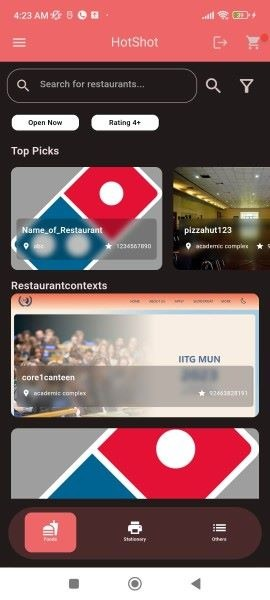
Once you click on customer sign in if you are not a registered user app will redirect to google auth registration. From there, you can choose your email id to register. Once you are registered, you'll see a home page.
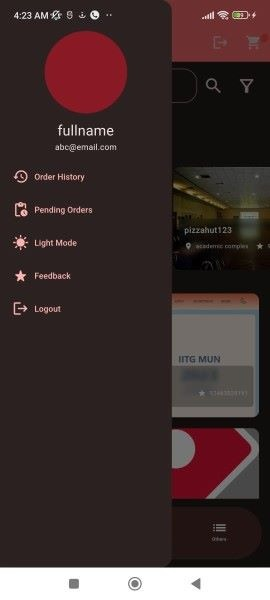
The top left corner has a sidebar containing user details, order history, pending orders, Light/Dark mode, feedback, and logout options.
The top right corner consists of the logout button and user cart. In the user cart, you'll see all the orders the user adds.
Also, there is a search bar and other filter options for restaurants. There you see a top picks section containing the top-rated restaurants and all other restaurants in restaurantcontexts.
A bottom navigation bar allows users to search shops based on their categories.
Here you cannot order from closed restaurants (black and white). Although you can visit it. Other you can select, and it goes to the restaurant's page.
The top of the page contains Restaurant details: Name, Opening-closing time, location, and call details of the shopkeeper. There is also an option for the user to rate the restaurant, and also user can add this restaurant to its favorite list.
All dishes are displayed, which are available on the restaurant's menu. Users can add or subtract any dish any number of times to order, and these orders will be added to the user's cart.
In the user cart, all orders of the user are displayed .here all orders are segregated based on the restaurant. For every order, a checkout page is available for the user through which it is directed to the payment page. In the cart also, there is a feature to increase or decrease the number of dishes.
Razorpay Payment Interface is integrated in the app when user proceeds on Buy Now at the CheckOut Screen. Shop Owner will have to fill RazorPay Merchant Credentials while registering on the app. On this interface page, the user fills it's bank details and gets the payment done. After payment is made, the order removes from the user's cart, and when the shopkeeper accepts the order, it comes to the user's pending orders and the shopkeeper's accepted order.
Every order has five possible status: paymentpending, responsepending, accepted, rejected, completed.
paymentpending: if an order is in the user's cart, it's simply a paymentpending order.
responsepending: if payment is completed, but the shop owner hasn't responded, then it's a responsepending, and it removes from the user's cart.
accepted: after the order comes to pending orders of the shop owner, it can respond accepted or not accepted. If the owner chooses accepted, it moves to accepted orders of the shop owner and pending orders of the user.
rejected: if the shop owner rejects it, the order moves to reject orders of owner and user.
completed: If an order is accepted by the shop owner and collected by the user after scanning QR, the order moves from pending orders to the user's order history, and the status becomes completed. Also, on the shopkeeper's side, it moves to order history and gets completed.
Once the order comes in pending orders of the user, there will be an option for QR generation, which contains order-id. When the user visits the shop to collect the order, the shopkeeper scans the QR, and if QR is valid, the status updates to completed.
Once you click customer sign-in, it redirects to google auth if you are not registered. After you are signed in with Google Auth, a registration form appears for the shopkeeper to fill in its details. Once the form is submitted home screen of the owner appears. Please wait for a while after Clicking Submit, as it takes a while to upload the picture.
On the owner's home screen, the owner can also see a side drawer like a user where the owner can see profile, order history, pending orders, insights, change mode to the light mode or dark mode, feedback for the app, and a logout option.
In the top right corner is an icon for the owner's profile. A scan QR option is available for scanning orders of users. A toggle button is provided to update the shop's open or close status. An add item button is always provided for adding any new item to its menu. Below it, all items in the menu are displayed.
A bottom navbar is provided for changing the screen to the accepted orders page or current orders page.
On this page, the owner can see all current orders whose responses are pending.
On this page, the owner can see all accepted orders whose responses are pending.
- @vd-coder
- @ayushavi1
- @pratyush2105
- @ptayal76
- @hardikroongta8
- @shashical
- @cheekuag
- @DevvvvvShah
- @Rasesh-Srivastava
- @RaghavDoda
If you have any feedback, please reach out to us at dawravaibhav@gmail.com
| Color | Hex |
|---|---|
| Theme Color | #EF6669 |
Please handle the app patiently, don't press any button twice and wait for further screen to load.