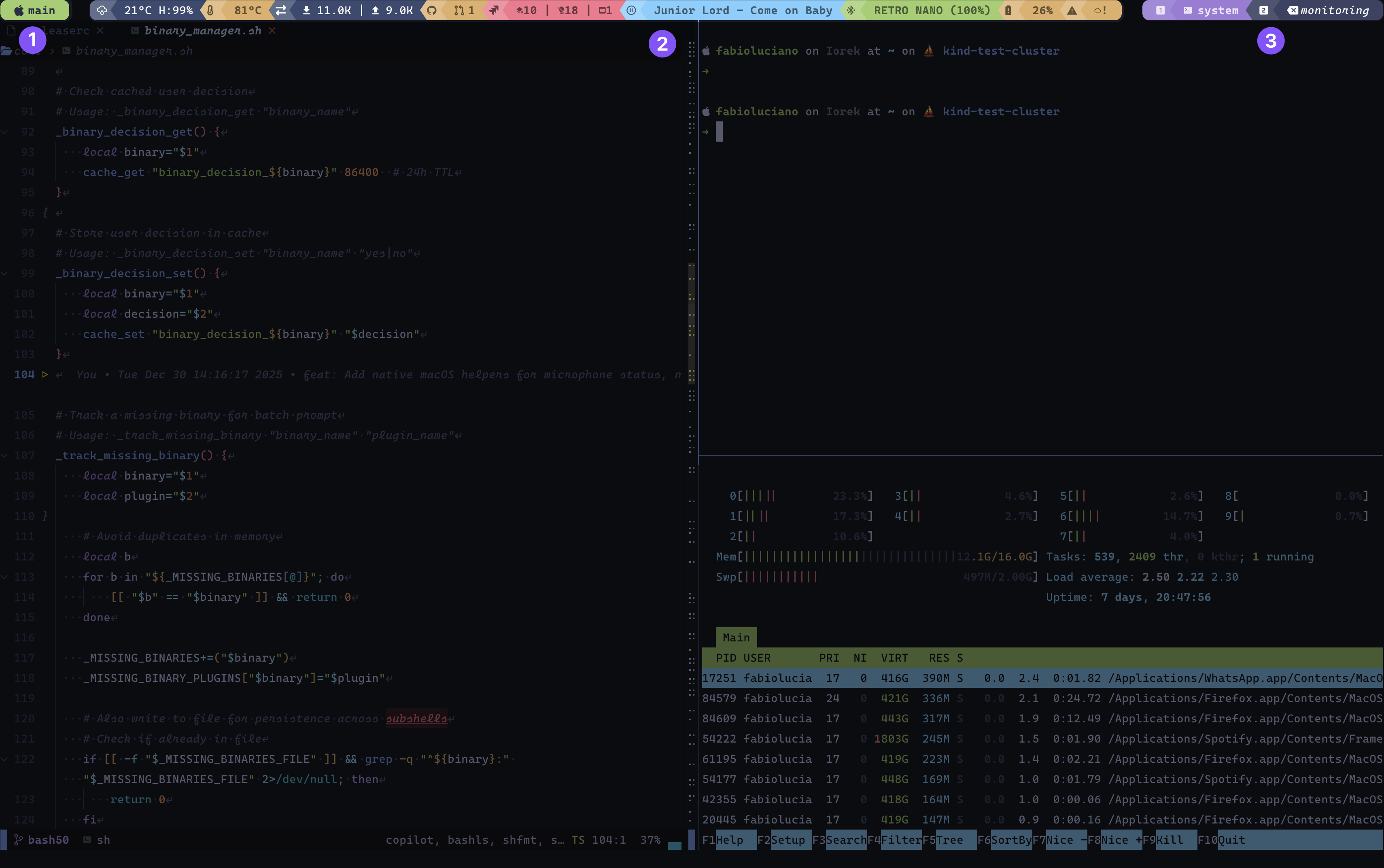
① Session – Current tmux session name with mode-aware icon (changes on prefix/copy mode)
② Plugins – Modular status indicators with health-based colors (cpu, memory, git, datetime, etc.)
③ Windows – Window list with index icons, names, and state indicators (active, zoomed, activity)
42 Plugins • 40 Themes • Infinite Possibilities




Transform your tmux status bar into a powerful, beautiful, and intelligent command center
|
Choose from 40 carefully crafted themes with 68 variants including Catppuccin, Dracula, Monokai, Nord, Tokyo Night, and more. Every theme supports automatic color variants (light/lighter/dark/darker) for perfect contrast. Smart multi-layer caching, Stale-While-Revalidate (SWR) lazy loading, and optimized background rendering ensure minimal overhead even with dozens of plugins active. Returns stale data immediately while refreshing in background - never blocks on slow API calls or external commands. |
42 production-ready plugins covering system monitoring, development tools, productivity, media control, and more. Mix and match to create your perfect setup. Contract-based plugin system with strict separation of concerns. Create your own plugins, themes, and helpers with ease. |
Add to your ~/.tmux.conf:
# PowerKit plugin
set -g @plugin 'fabioluciano/tmux-powerkit'

# Basic configuration
set -g @powerkit_plugins "datetime,battery,cpu,memory,git,hostname"
set -g @powerkit_theme "catppuccin"
set -g @powerkit_theme_variant "mocha"

# Initialize TPM (keep at bottom)
run '~/.tmux/plugins/tpm/tpm'
Then press prefix + I to install.
For faster download (~1.5 MB), use shallow clone:
git clone --depth 1 https://github.com/fabioluciano/tmux-powerkit.git ~/.tmux/plugins/tmux-powerkitAdd to ~/.tmux.conf:
run-shell ~/.tmux/plugins/tmux-powerkit/tmux-powerkit.tmuxSee Installation Guide for more options (tarball, full clone).
Add to flake.nix:
{
  inputs.tmux-powerkit.url = "github:fabioluciano/tmux-powerkit";
}
Add to configuration.nix or home.nix:
programs.tmux = {
  enable = true;
  plugins = [{
    plugin = inputs.tmux-powerkit.packages.${pkgs.system}.default;
    extraConfig = ''
      set -g @powerkit_plugins "datetime,battery,cpu,memory,git"
      set -g @powerkit_theme "catppuccin"
      set -g @powerkit_theme_variant "mocha"
    '';
  }];
};
For non-flake install, add to your configuration.nix or home.nix:
let
  tmux-powerkit = pkgs.callPackage (pkgs.fetchFromGitHub {
    owner = "fabioluciano";
    repo = "tmux-powerkit";
    rev = "main";  # or pin to a specific commit
    sha256 = "";   # nix will provide correct hash on first build
  } + "/default.nix") {};
in {
  programs.tmux = {
    enable = true;
    plugins = [ tmux-powerkit ];
    extraConfig = ''
      set -g @powerkit_plugins "datetime,battery,cpu,memory,git"
      set -g @powerkit_theme "catppuccin"
      set -g @powerkit_theme_variant "mocha"
    '';
  };
}# Choose your separator style
set -g @powerkit_separator_style "rounded" # or normal, flame, pixel, honeycomb
# Enable spacing between elements
set -g @powerkit_elements_spacing "both"
# Customize update interval
set -g @powerkit_status_interval "5"
# Make it transparent
set -g @powerkit_transparent "true"That's it! Reload tmux and enjoy your new status bar.
Monitor every aspect of your system in real-time:
| Plugin | Description | Highlights |
|---|---|---|
battery |
Battery level with charge state | Shows charging status, time remaining, health indicators |
cpu |
CPU usage with per-core support | Thresholds, multi-core detection, platform-specific |
memory |
RAM usage and availability | Multiple formats (percentage, usage, available) |
disk |
Disk usage by mount point | Configurable thresholds, multiple drives |
loadavg |
System load average | 1/5/15 minute averages, per-core normalization |
temperature |
CPU temperature | macOS (osx-cpu-temp), Linux (hwmon) |
fan |
Fan speed monitoring | Dell SMM, ThinkPad, generic hwmon, macOS |
gpu |
GPU utilization | NVIDIA, AMD, Intel, macOS support |
iops |
Disk I/O operations | Read/write operations per second |
brightness |
Screen brightness | Linux only (sysfs, brightnessctl, light, xbacklight) |
uptime |
System uptime | Human-readable format |
hostname |
System hostname | Color-coded by environment |
Stay connected and informed:
| Plugin | Description | Features |
|---|---|---|
netspeed |
Upload/download speed | Real-time bandwidth monitoring |
wifi |
WiFi SSID + signal strength | Signal quality indicators |
vpn |
VPN connection status | Detects active VPN tunnels |
ping |
Network latency | Configurable host, threshold alerts |
external_ip |
Public IP address | Cached with configurable TTL |
ssh |
SSH session indicator | Shows when connected via SSH |
weather |
Weather from wttr.in | Location-based, customizable format |
Control your media experience:
| Plugin | Description | Platform |
|---|---|---|
volume |
System volume level | macOS only |
brightness |
Screen brightness | Linux only |
nowplaying |
Current music track | Music.app, Spotify (macOS) |
audiodevices |
Active audio output device | macOS (SwitchAudioSource) |
camera |
Camera usage indicator | macOS (lsof) |
microphone |
Microphone mute status | macOS (osascript) |
bluetooth |
Bluetooth status + devices | macOS (blueutil), Linux (bluetoothctl) |
Supercharge your development workflow:
| Plugin | Description | Features |
|---|---|---|
git |
Git branch + status | Modified files, branch info, repo state |
github |
GitHub notifications | PRs, issues, notifications (gh CLI) |
gitlab |
GitLab merge requests | MRs, todos (glab CLI) |
bitbucket |
Bitbucket pull requests | PR count via API |
jira |
Jira assigned issues | Issue count via API |
kubernetes |
K8s context + namespace | Current context and namespace |
terraform |
Terraform workspace | Active workspace indicator |
cloud |
Cloud provider profile | AWS/Azure/GCP active profile |
cloudstatus |
Cloud service status | Service health monitoring |
packages |
Pending system updates | brew, apt, yum, pacman support |
Boost your productivity:
| Plugin | Description | Features |
|---|---|---|
datetime |
Date and time | 15 format presets, fully customizable |
timezones |
Multiple timezones | Display multiple zones simultaneously |
pomodoro |
Pomodoro timer | Work/break phases, keybindings |
bitwarden |
Bitwarden vault status | Lock status, quick access |
smartkey |
Custom environment variables | Display any env var or command output |
Track your investments:
| Plugin | Description | Source |
|---|---|---|
crypto |
Cryptocurrency prices | CoinGecko API |
stocks |
Stock prices | Yahoo Finance API |
PowerKit comes with 40 beautiful themes and 68 variants, each carefully designed for optimal readability and aesthetics
| Tokyo Night night • storm • day |
Catppuccin mocha • macchiato • frappe • latte |
Dracula dark |
| Nord dark |
Gruvbox dark • light |
Rose Pine main • moon • dawn |
| Material default • ocean • palenight • lighter |
Solarized dark • light |
GitHub dark • light |
| Ayu dark • mirage • light |
Night Owl default • light |
Moonlight default |
Plus Monokai, Cobalt2, SynthWave '84, Horizon, Iceberg, Snazzy, Spacegray, Molokai, Vesper, Poimandres, Flexoki, Slack, and more!
- ✅ Automatic color variants - Each base color generates 6 variants (light/lighter/lightest/dark/darker/darkest)
- ✅ Smart health mapping - Plugin states automatically map to theme colors
- ✅ Transparent mode - All themes support transparent backgrounds
- ✅ Consistent contrast - Automated foreground color selection for perfect readability
# Tokyo Night - Night variant
set -g @powerkit_theme "tokyo-night"
set -g @powerkit_theme_variant "night"

# Catppuccin - Mocha variant
set -g @powerkit_theme "catppuccin"
set -g @powerkit_theme_variant "mocha"

# Dracula
set -g @powerkit_theme "dracula"
set -g @powerkit_theme_variant "dark"
See all themes: Themes Documentation
Choose from 9 beautiful separator styles to customize your status bar appearance:
| Style | Right | Left | Unicode |
|---|---|---|---|
| normal | E0B0/E0B2 | ||
| rounded | E0B4/E0B6 | ||
| slant | E0B8/E0BA | ||
| slantup | E0BC/E0BE | ||
| trapezoid | E0C8/E0CA | ||
| flame | E0C0/E0C2 | ||
| pixel | E0C4/E0C6 | ||
| honeycomb | E0CC/E0CD | ||
| none | - | - | - |
# Configure separator style
set -g @powerkit_separator_style "rounded"

# Different style for edge separators
set -g @powerkit_edge_separator_style "flame"

# Add spacing between elements
set -g @powerkit_elements_spacing "both" # false, true, both, windows, pluginsEvery plugin is highly customizable. Example with the battery plugin:
# Battery plugin options
set -g @powerkit_plugin_battery_warning_threshold "30"
set -g @powerkit_plugin_battery_critical_threshold "15"
set -g @powerkit_plugin_battery_icon ""
set -g @powerkit_plugin_battery_icon_charging ""
set -g @powerkit_plugin_battery_cache_ttl "5"
set -g @powerkit_plugin_battery_show_only_on_threshold "false"set -g @powerkit_plugin_cpu_warning_threshold "70"
set -g @powerkit_plugin_cpu_critical_threshold "90"
set -g @powerkit_plugin_cpu_show_cores "false"
set -g @powerkit_plugin_cpu_icon ""set -g @powerkit_plugin_git_icon ""
set -g @powerkit_plugin_git_show_branch "true"
set -g @powerkit_plugin_git_show_files "true"
set -g @powerkit_plugin_git_max_length "30"set -g @powerkit_plugin_netspeed_interface "auto" # or eth0, wlan0, etc.
set -g @powerkit_plugin_netspeed_icon_up ""
set -g @powerkit_plugin_netspeed_icon_down ""
set -g @powerkit_plugin_netspeed_format "both" # up, down, bothChoose from 15 preset formats or create your own:
set -g @powerkit_plugin_datetime_format "preset_1"  # %Y-%m-%d %H:%M:%S
set -g @powerkit_plugin_datetime_format "preset_7"  # %I:%M %p
set -g @powerkit_plugin_datetime_format "preset_12" # %a %b %d
# Or custom format
set -g @powerkit_plugin_datetime_format "%Y-%m-%d %A"PowerKit includes powerful interactive helpers with keybindings:
# Built-in keybindings (all customizable)
set -g @powerkit_options_key "C-e"          # View all options
set -g @powerkit_keybindings_key "C-y"      # View keybindings
set -g @powerkit_theme_selector_key "C-r"   # Theme selector
set -g @powerkit_cache_clear_key "C-d"      # Clear cache

# Plugin-specific keybindings
set -g @powerkit_plugin_bitwarden_keybinding_unlock "C-b u"
set -g @powerkit_plugin_bitwarden_keybinding_lock "C-b l"
set -g @powerkit_plugin_pomodoro_keybinding_start "C-p s"
set -g @powerkit_plugin_pomodoro_keybinding_pause "C-p p"PowerKit includes several interactive helpers:
- Options Viewer (
prefix + C-e) - Browse all configuration options - Keybindings Viewer (
prefix + C-y) - View all active keybindings - Theme Selector (
prefix + C-r) - Interactively switch themes - Cache Manager (
prefix + C-d) - Clear plugin cache - Bitwarden Selector - Quick password access
- Audio Device Selector - Switch audio outputs
PowerKit uses a contract-based architecture with strict separation of concerns:
┌─────────────────────────────────────────────────────────────────┐
│                         POWERKIT CORE                            │
│  Lifecycle • Cache • Options • Datastore • Theme Loader         │
└───────┬──────────────────────┬──────────────────┬───────────────┘
        │                      │                  │
        ▼                      ▼                  ▼
┌──────────────┐      ┌─────────────────┐   ┌─────────────┐
│   PLUGINS    │      │    RENDERER     │   │   THEMES    │
├──────────────┤      ├─────────────────┤   ├─────────────┤
│ • Data       │─────▶│ • Colors        │◀──│ • Color     │
│ • State      │      │ • Icons         │   │   Palette   │
│ • Health     │      │ • Separators    │   │             │
│ • Context    │      │ • Formatting    │   │             │
└──────────────┘      └─────────────────┘   └─────────────┘
- Plugins provide data and semantics (state, health, context)
- Renderer handles all UI decisions (colors, icons, formatting)
- Themes define color palettes only
- Core orchestrates the lifecycle and manages caching
This architecture ensures:
- ✅ Plugins never decide colors or formatting
- ✅ Themes are purely declarative
- ✅ Rendering is consistent across all plugins
- ✅ Easy to extend without breaking existing code
Learn more: Architecture Documentation
# Single line layout (default)
set -g @powerkit_bar_layout "single"

# Double line layout (session on top, plugins on bottom)
set -g @powerkit_bar_layout "double"PowerKit supports flexible element ordering with automatic centered layout:
# 2-element orders (auto-expanded with windows):
set -g @powerkit_status_order "session,plugins"  # Standard: session+windows LEFT, plugins RIGHT
set -g @powerkit_status_order "plugins,session"  # Inverted: plugins LEFT, windows+session RIGHT

# 3-element orders enable CENTERED layout:
set -g @powerkit_status_order "session,windows,plugins"  # session LEFT, windows CENTER, plugins RIGHT
set -g @powerkit_status_order "plugins,windows,session"  # plugins LEFT, windows CENTER, session RIGHT
set -g @powerkit_status_order "session,plugins,windows"  # session LEFT, plugins CENTER, windows RIGHT
Any element in the middle position will be automatically centered in the status bar.
PowerKit uses Stale-While-Revalidate caching for optimal performance:
# Enable lazy loading (default: true)
set -g @powerkit_lazy_loading "true"

# Stale multiplier: how many times the TTL before data is considered "too old"
# Example: TTL=300s, multiplier=3 → data up to 900s old can be returned while refreshing
set -g @powerkit_stale_multiplier "3"
How it works:
- Fresh data (within TTL): Returns cached data immediately
- Stale data (within TTL × multiplier): Returns stale data immediately, refreshes in background
- Too old data (beyond TTL × multiplier): Blocks and refreshes synchronously
This ensures your status bar never hangs waiting for slow API calls or network requests.
PowerKit makes it easy to create custom plugins. Here's a minimal example:
#!/usr/bin/env bash
POWERKIT_ROOT="${POWERKIT_ROOT:-$(cd "$(dirname "${BASH_SOURCE[0]}")/../.." && pwd)}"
. "${POWERKIT_ROOT}/src/contract/plugin_contract.sh"
plugin_get_metadata() {
metadata_set "id" "my_plugin"
metadata_set "name" "My Plugin"
metadata_set "description" "What this plugin does"
}
plugin_declare_options() {
declare_option "icon" "icon" "" "Plugin icon"
declare_option "cache_ttl" "number" "60" "Cache duration"
}
plugin_collect() {
# Collect your data
local value="42"
plugin_data_set "value" "$value"
}
plugin_get_content_type() { printf 'dynamic'; }
plugin_get_presence() { printf 'always'; }
plugin_get_state() { printf 'active'; }
plugin_get_health() { printf 'ok'; }
plugin_render() {
local value=$(plugin_data_get "value")
printf '%s' "$value"
}
plugin_get_icon() {
printf '%s' "$(get_option 'icon')"
}Learn more: Developing Plugins
Themes are simple color definitions:
#!/usr/bin/env bash
declare -A THEME_COLORS=(
    # Status bar
    [statusbar-bg]="#1a1b26"
    [statusbar-fg]="#c0caf5"

    # Session
    [session-bg]="#7aa2f7"
    [session-fg]="#1a1b26"

    # Windows (variants auto-generated)
    [window-active-base]="#7aa2f7"
    [window-inactive-base]="#3b4261"

    # Health states (variants auto-generated)
    [ok-base]="#9ece6a"
    [info-base]="#7dcfff"
    [warning-base]="#e0af68"
    [error-base]="#f7768e"
)
The system automatically generates 6 color variants (light/lighter/lightest/dark/darker/darkest) for each base color!
Learn more: Developing Themes
| Resource | Description |
|---|---|
| Installation Guide | Detailed setup instructions |
| Quick Start | Get started in 5 minutes |
| Configuration Reference | All configuration options explained |
| Plugin Documentation | Detailed docs for all 42 plugins |
| Theme Gallery | Preview all themes and variants |
| Developing Plugins | Create your own plugins |
| Developing Themes | Create custom themes |
| Architecture | Understanding the contract system |
| API Reference | Core APIs and utilities |
A fully documented configuration file with all available options is maintained at:
wiki/assets/powerkit-options.conf
📥 Download powerkit-options.conf
Use this file as a reference or copy the options you need to your ~/.tmux.conf. Every option includes descriptions, valid values, and defaults.
- tmux 3.0 or higher
- Bash 5.0 or higher (5.1+ recommended for optimal performance)
- TPM (Tmux Plugin Manager)
- Nerd Font (recommended for icons)
Note for macOS users: macOS ships with Bash 3.x. Install a modern version with
brew install bash.
| Version | Features Used |
|---|---|
| 5.0+ | $EPOCHSECONDS, $EPOCHREALTIME, ${var,,}, ${var^^} |
| 5.1+ | assoc_expand_once (performance optimization) |
- ✅ macOS (Intel & Apple Silicon)
- ✅ Linux (Ubuntu, Debian, Fedora, Arch, and more)
- ✅ FreeBSD (limited testing)
- ✅ WSL (Windows Subsystem for Linux)
set -g @powerkit_plugins "datetime,hostname"
set -g @powerkit_theme "tokyo-night"
set -g @powerkit_separator_style "rounded"set -g @powerkit_plugins "git,github,kubernetes,terraform,cpu,memory,datetime"
set -g @powerkit_theme "dracula"
set -g @powerkit_plugin_git_show_files "true"
set -g @powerkit_plugin_kubernetes_show_namespace "true"set -g @powerkit_plugins "cpu,memory,disk,loadavg,temperature,fan,netspeed,datetime"
set -g @powerkit_theme "gruvbox"
set -g @powerkit_theme_variant "dark"
set -g @powerkit_plugin_cpu_show_cores "true"
set -g @powerkit_plugin_netspeed_format "both"set -g @powerkit_plugins "pomodoro,datetime,timezones,bitwarden,git,battery"
set -g @powerkit_theme "catppuccin"
set -g @powerkit_theme_variant "mocha"
set -g @powerkit_plugin_timezones_zones "UTC,America/New_York,Europe/London"We welcome contributions! Here's how you can help:
- 🐛 Report bugs - Open an issue with details
- 💡 Suggest features - Share your ideas
- 📝 Improve documentation - Fix typos, add examples
- 🔌 Create plugins - Share your custom plugins
- 🎨 Design themes - Create beautiful color schemes
- 💻 Submit PRs - Fix bugs or add features
- Fork the repository
- Create a feature branch (
git checkout -b feature/amazing-feature) - Commit your changes (
git commit -m 'Add amazing feature') - Push to the branch (
git push origin feature/amazing-feature) - Open a Pull Request
# Validate syntax
bash -n src/**/*.sh

# Run shellcheck
shellcheck src/**/*.sh

# Test render
POWERKIT_ROOT="$(pwd)" ./bin/powerkit-render

# Test specific plugin
POWERKIT_ROOT="$(pwd)" ./bin/powerkit-plugin battery
See: Development Guide
PowerKit is built on the shoulders of giants:
- Powerline - Original inspiration
- tmux - The best terminal multiplexer
- TPM - Tmux Plugin Manager
- All theme creators for their beautiful color schemes
- The tmux community for continuous feedback and support
PowerKit is released under the MIT License.
See LICENSE for full details.
- 🐛 Bug Reports: GitHub Issues
- 📖 Documentation: Wiki
- ⭐ Show Support: Star this repository!
Made with ❤️ by @fabioluciano
If PowerKit improves your tmux experience, please consider starring the repo! ⭐