
Swaylock-effects is a fork of swaylock which adds built-in screenshots and image manipulation effects like blurring. It's inspired by i3lock-color, although the feature sets aren't perfectly overlapping.
This repository (hboetes/swaylock-effects) is a fork of mortie/swaylock-effects, via jirutka/swaylock-effects, both of which are now unmaintained.
The following bugs were found and fixed during a code audit of the inherited codebase:
pam.c: shadowedpam_statusvariable — the inner loop redeclaredpam_status, shadowing the outer variable. As a result,pam_end()and the finalexit()always receivedPAM_SUCCESSregardless of the actual authentication result.loop.c: unsaferealloc()inloop_add_fd()— assigningrealloc()directly toloop->fdsmeant a failed allocation would setloop->fdsto NULL while leaking the old allocation, followed immediately by a NULL dereference write.cairo.c: uncheckedmalloc()incairo_surface_duplicate()— the result was passed directly tomemcpy()without a NULL check.effects.c: uncheckedmalloc()ineffect_blur()— the scratch buffer was passed directly toblur_once()without a NULL check.effects.c:--effect-customremoved — this feature compiled and loaded user-supplied C files as lock screen effects at runtime, invokingcc(1)from within the lock screen process. It had no known users and has been removed along with--time-effects.
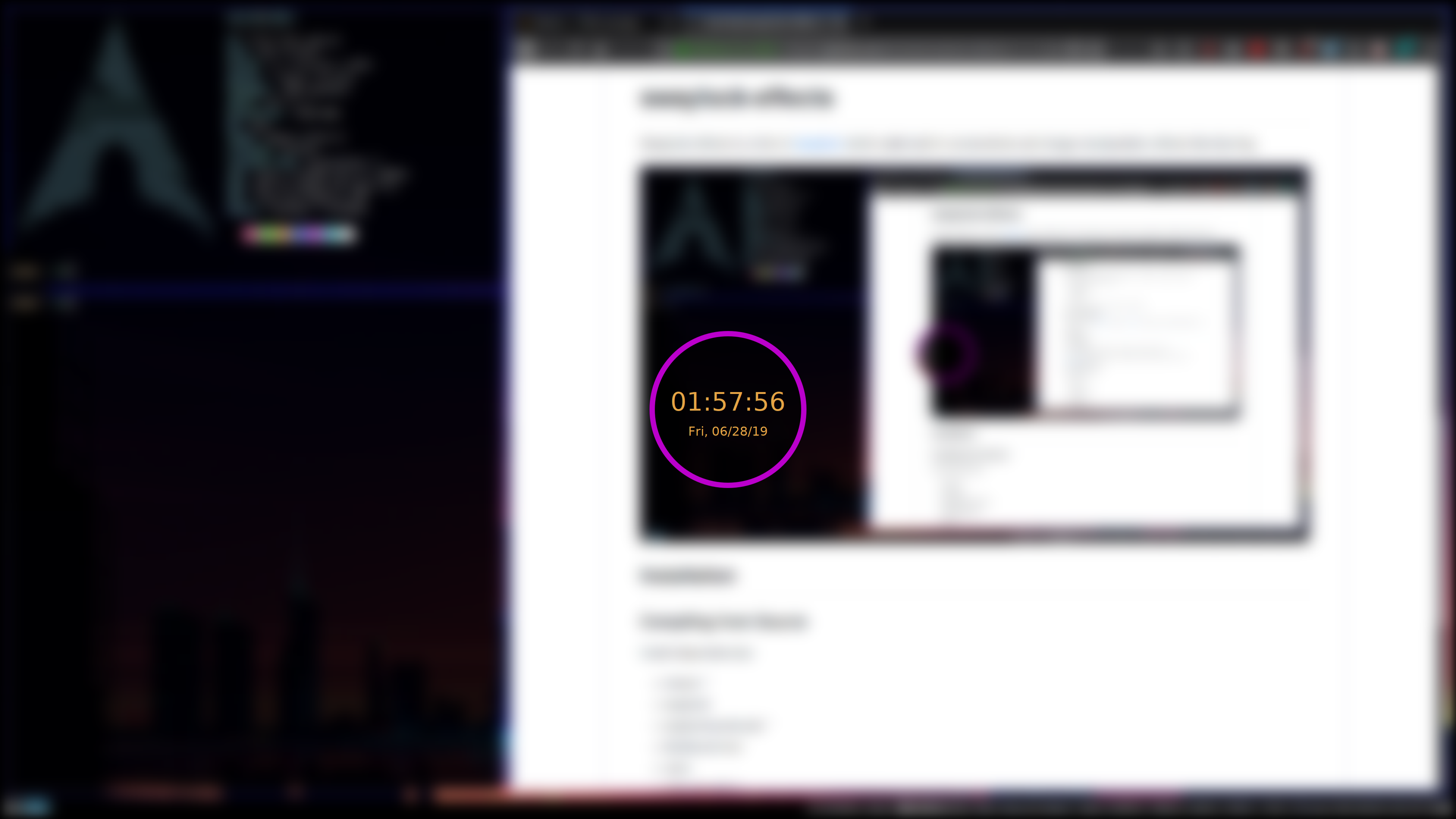
swaylock \
    --screenshots \
    --clock \
    --indicator \
    --indicator-radius 100 \
    --indicator-thickness 7 \
    --effect-blur 7x5 \
    --effect-vignette 0.5:0.5 \
    --ring-color bb00cc \
    --key-hl-color 880033 \
    --line-color 00000000 \
    --inside-color 00000088 \
    --separator-color 00000000 \
    --grace 2 \
    --fade-in 0.2
The main new features compared to upstream swaylock are:
--screenshotsto use screenshots instead of an image on disk or a color--clockto show date/time in the indicator- Use
--indicatorto make the indicator always active - Use
--timestrand--datestrto set the date/time formats (using strftime-style formatting)
- Use
--submit-on-touchto use your touchscreen to submit a password. If you can unlock your device with anything else than your password, this might come helpful to trigger PAM's authentication process.--grace <seconds>to set a password grace period, so that the password isn't required to unlock until some number of seconds have passed.- Used together with
--indicator, the indicator is always shown, even in the grace period. - Used together with
--indicator-idle-visible, the indicator is only visible after the grace period. - By default, a key press, a mouse event or a touch event will unlock
during the grace period. Use
--grace-no-mouseto not unlock as a response to a mouse event, and--grace-no-touchto not unlock as a response to a touch event.
- Used together with
--fade-in <seconds>to make the lock screen fade in.--indicator-image <path>to display an image inside the indicator.--text-clear <string>,--text-caps-lock <string>,--text-ver <string>, and--text-wrong <string>to change the texts displayed inside the indicator.-p, --fingerprintto unlock with a fingerprint scanner via fprintd.-P, --fingerprint-on-demandfor external fingerprint scanners that time out after ~2 minutes. Press ESC or C-u to activate the scanner after locking.--image <path>now accepts a directory, picking a random image file from it.- Various effects which can be applied to the background image
--effect-blur <radius>x<times>: Blur the image (thanks to yvbbrjdr's fast box blur algorithm in i3lock-fancy-rapid)--effect-pixelate <factor>: Pixelate the image.--effect-scale <scale>: Scale the image by a factor. This can be used to make other effects faster if you don't need the full resolution.--effect-greyscale: Make the image greyscale.--effect-vignette <base>:<factor>: Apply a vignette effect (range is 0-1).--effect-compose <position>;<size>;<gravity>;<path>: Overlay another image.
New feature ideas are welcome as issues (though I may never get around to implement them), new feature implementations are welcome as pull requests :)
Install dependencies:
- meson *
- wayland
- wayland-protocols *
- libxkbcommon
- cairo
- gdk-pixbuf2 **
- pam (optional)
- fprintd (optional: fingerprint support)
- scdoc (optional: man pages) *
- git *
- openmp (if using a compiler other than GCC)
*Compile-time dep
**Optional: required for background images other than PNG
Run these commands:
meson setup build
meson compile -C build
sudo meson install -C build
Check meson_options.txt for build options. So for example, if you want to build with fingerprint support, use meson setup build -Dfingerprint=enabled
On systems without PAM, you need to suid the swaylock binary:
sudo chmod a+s /usr/local/bin/swaylock
Swaylock will drop root permissions shortly after startup.
--effect-blur <radius>x<times>: Blur the image.
<radius> is a number specifying how big
the blur is, <times> is a number which specifies essentially how high quality the blur is
(i.e how closely the effect will resemble a true gaussian blur).
--effect-pixelate <factor>: Pixelate the image.
<factor> is the amount of pixelation; a value of 10 will make each 10x10 square of pixels
the same color.
--effect-scale <scale>: Scale the image by a factor.
This effect scales the internal buffer. This has a few uses:
- Use
--effect-scalein combination with--scalingto create a zoom effect:--effect-scale 1.1 --scaling center - Speed up other effects by making the resolution smaller: with
--effect-scale 0.5 --effect-blur 7x5 --effect-scale 2, swaylock-effect needs to blur only 1/4 as many pixels.
--effect-greyscale: Make the displayed image greyscale.
--effect-vignette <base>:<factor>: Apply a vignette effect.
Base and factor should be between 0 and 1.
--effect-compose "<position>;<size>;<gravity>;<path>": Overlay another image to your lock screen.
<position>: Optional. The position on the screen to put the image, as<x>,<y>.- Can be a percentage (
10%,10%), a number of pixels (20,20), or a mix (30%,40). - A negative number indicates that number of pixels away from the right/bottom instead of
from the top/left;
-1,-1would be the bottom right pixel. - Default:
50%,50%.
- Can be a percentage (
<size>: Optional. The size of the image on the screen, as<w>x<h>.- Can be a percentage (
10%x10%), a number of pixels (20x20), or a mix (30%x40). - If the width is
-1, the width is figured out based on the height and aspect ratio. - If the height is
-1, the height is figured out based on the width and aspect ratio. - Default: The size of the image file.
- Can be a percentage (
<gravity>: Optional. Determine which point of the image is placed at<position>.- Possible values:
center,north,south,west,east,northwest,northeast,southwest,southeast. - With a
<gravity>ofnorthwest,<position>gives the location of the top/left corner of the image; withsoutheast,<position>controls the bottom/right corner,centercontrols the middle of the image, etc. - Default:
centerif no<position>is given; otherwise, intelligently decide a gravity based on position (10,10-> northwest,-10,10-> northeast, etc).
- Possible values:
<path>: The path to an image file.
This command requires swaylock-effects to be compiled with gdk-pixbuf2. It supports all image formats gdk-pixbuf2 supports; on my system, that's png, jpeg, gif, svg, bmp, ico, tiff, wmf, ani, icns, pnm, qtif, tga, xbm and xpm.
To make swaylock-effect easy to start from your window manager you could write a wrapper script, and add it to your PATH, something like this:
#!/bin/zsh

case "$1" in
    now)
        grace=0
        fade=0
        ;;
    *)
        grace=10
        fade=5
    ;;
esac

swaylock \
    --clock \
    --effect-vignette 0.5:0.5 \
    --fade-in $fade \
    --fingerprint \
    --indicator-caps-lock \
    --indicator-radius 100 \
    --indicator-thickness 7 \
    --inside-color 00000088 \
    --key-hl-color 880033 \
    --line-color 00000000 \
    --ring-color bb00cc \
    --separator-color 00000000 \
    --image $HOME/Wallpapers/lockscreen \
    --grace $grace