Download → Double-Click Install → Ready to Use - No Configuration Needed

🍎🪟 Native Desktop App · One-Click Setup · Ready Out of the Box
CBbot is an AI-native agent OS that specializes in coding and task automation with seamless integration both locally and in the cloud.
Key Features:
- ✅ SOTA AI Coding Agent: Built-in powerful AI coding capabilities supporting the best global models
- ✅ Easy Installation: Download DMG, drag to Applications - that's it!
- ✅ Auto Configuration: No manual configuration file editing required
- ✅ Safe Sandbox Environment: Docker-based isolation protects your sensitive files and main system from prompt injection and other security risks
- ✅ Extensible Skill System: Pre-loaded skills library with compatibility for open-source domain skills
- Operating System: macOS 10.15 (Catalina) or higher
- Chip: Apple Silicon (M1/M2/M3/M4) or Intel
- Memory: 6GB or more recommended
- Disk Space: At least 10GB available
- Internet: Required for AI features
- Operating System: Windows 10 (64-bit) or Windows 11
- Architecture: x64 (Intel/AMD)
- Memory: 8GB or more recommended
- Disk Space: At least 10GB available
- Internet: Required for AI features
|
🍎 macOS (Apple Silicon) ⬇️ Download CBbot.dmg M1/M2/M3/M4 chips |
🍎 macOS (Intel) ⬇️ Download CBbot.dmg Intel x86_64 |
|
🪟 Windows ⬇️ Download CBbot-Setup.exe Windows 10/11 (x64) |
|
Docker Desktop is essential for running CBbot. If you already have it installed, skip to Step 2.
Download and Install:
- Visit Docker website: https://www.docker.com/products/docker-desktop
- Click Download for Mac
- Choose based on your Mac chip:
- Apple Silicon (M1/M2/M3/M4) → Select ARM64 version
- Intel Chip → Select AMD64 version
- Double-click the
.dmgfile to install - Drag Docker icon to Applications folder
Start Docker:
- Open Launchpad, find Docker icon
- Click to launch (first launch requires password)
- Wait for Docker icon (whale) in menu bar
- Click whale icon, ensure it shows Docker Desktop is running
Download and Install:
- Visit Docker website: https://www.docker.com/products/docker-desktop
- Click Download for Windows
- Run the
Docker Desktop Installer.exefile - Follow the installation wizard:
- Check "Use WSL 2 instead of Hyper-V" (recommended)
- Complete the installation and restart if prompted
Start Docker:
- Open Docker Desktop from Start Menu
- Accept the service agreement if prompted
- Wait for Docker to start (you'll see a whale icon in system tray)
- Ensure the status shows Docker Desktop is running
Configure WSL Integration:
- Open Docker Desktop settings (gear icon)
- Navigate to Resources → WSL integration
- Enable the following options:
- ✅ "Enable integration with my default WSL distro"
- ✅ Toggle "Ubuntu" (or your preferred Linux distribution)
- Click "Apply & restart"
- Wait for Docker to restart
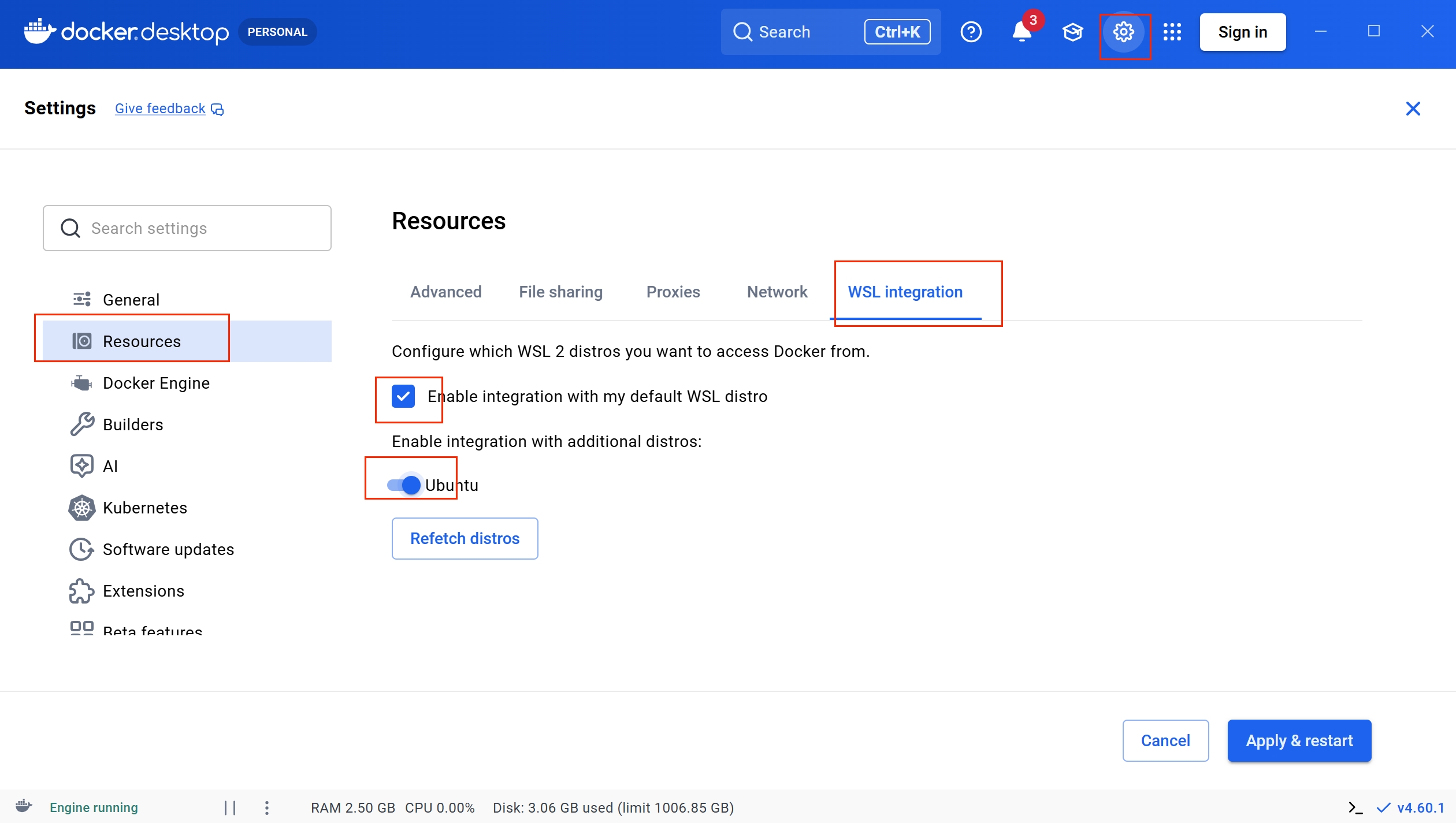
Configure WSL integration as shown in the settings panel above
Configure WSL Network Proxy (Optional but Recommended):
Step 1: Create .wslconfig file
- Open File Explorer
- Navigate to your user directory:
C:\Users\<your_username> - Create a new text file and name it
.wslconfig(note: no file extension)
Step 2: Edit .wslconfig file
- Right-click the
.wslconfigfile - Select "Open with Notepad"
- Enter the following content:
[wsl2]
memory=3GB
autoMemoryReclaim=gradual
networkingMode=mirrored
dnsTunneling=true
firewall=true
autoProxy=true- Save the file (Ctrl+S)
- Restart WSL by running in PowerShell:
wsl --shutdown - Restart Docker Desktop
💡 Note: This configuration enables automatic proxy detection and improves network compatibility for CBbot in WSL environments.
Enable WSL 2 (if not already installed):
- Open PowerShell as Administrator
- Run:
wsl --install - Restart your computer
- Launch Docker Desktop again and configure WSL integration as above
- Download CBbot from Releases Page
- Double-click the
CBbot.dmgfile - Drag CBbot to Applications folder
- Done!
- Download CBbot from Releases Page
- Run the
CBbot-Setup.exefile - Follow the installation wizard:
- Choose installation directory (default recommended)
- Accept the license agreement
- Complete the installation
- Done!
- Open Applications and click CBbot
- First launch: Click "Open" if asked
- Wait for services to start (30-60 seconds)
- Find CBbot in Start Menu or Desktop shortcut
- Right-click and "Run as administrator" (first launch only)
- Wait for services to start (30-60 seconds)
- CBbot will open in your default browser
Get Your Key:
- Visit CodeBanana
- Log in → Click avatar → "CBbot Key"
- Copy your Key
Bind Key:
- Paste your Key in CBbot startup screen
- Click "Bind"
- Done! CBbot is ready to use
Join our community for support, discussions, and updates!


🚀 飞书群 CBbot交流群 |
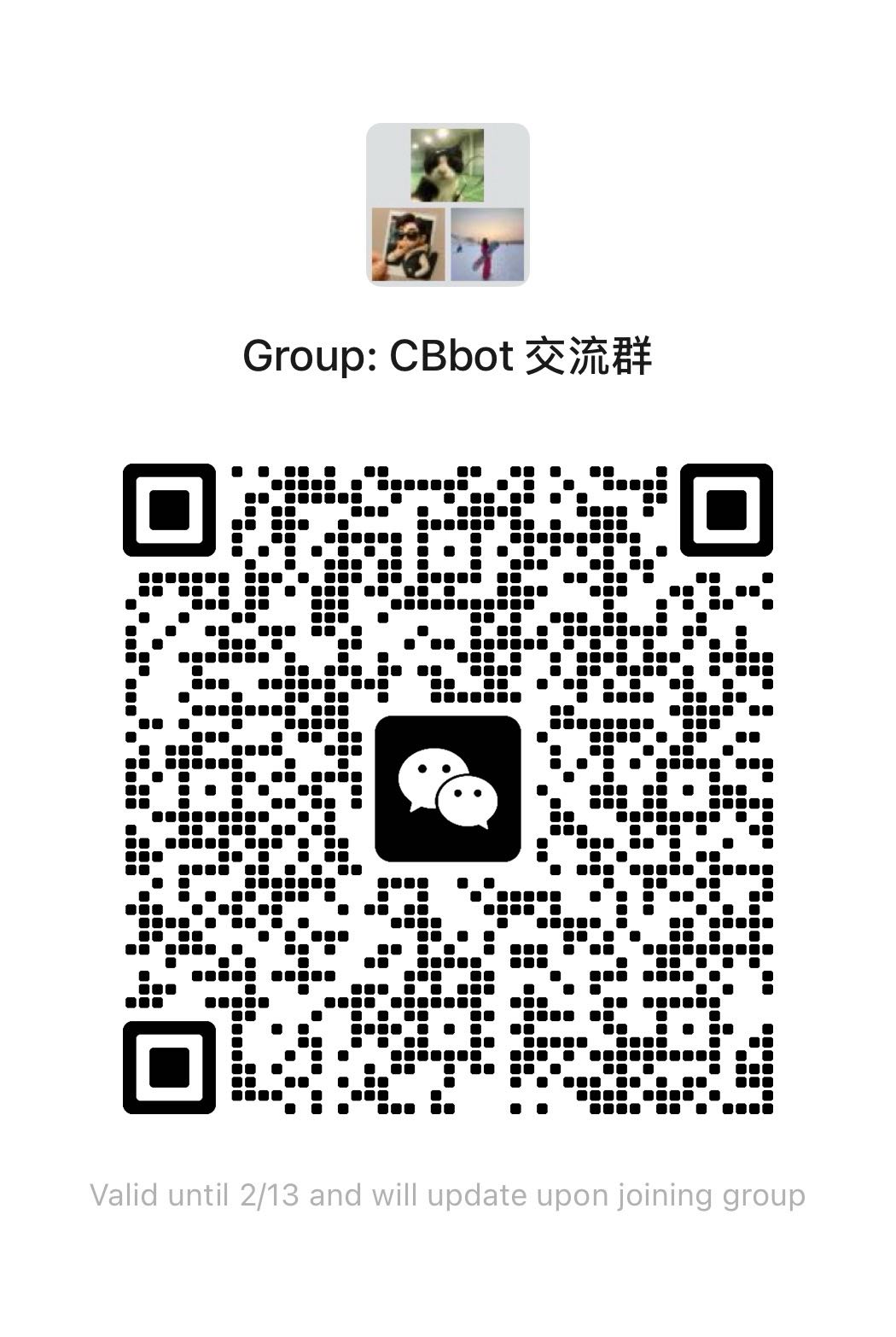
💬 微信群 CBbot 交流群 |
🚀 Get help, share ideas, and connect with other developers!
💡 获得帮助、分享想法、与其他开发者交流!
- Pay-as-you-go based on usage
- Linked via CBbot Key
- Costs: API calls + model usage
Monitor usage at CodeBanana dashboard
Using Overseas AI Models:
If you're using international AI models (OpenAI, Anthropic, etc.), we recommend enabling VPN global proxy for stable connections.
Setup:
- Enable VPN with global proxy mode
- Restart CBbot after VPN is connected
- Verify connection is stable
💡 Tip: Local models and domestic services work without VPN.
To enable Feishu bot functionality:
- Open CBbot application
- Go to "Settings" → "Bot Configuration" → "Feishu"
- Enter your App ID and App Secret
- Click "Save" and restart service
To enable Telegram bot functionality:
- Open CBbot application
- Go to "Settings" → "Bot Configuration" → "Telegram"
- Enter your Bot Token and Username
- Click "Save" and restart service
To enable Discord bot functionality:
- Open CBbot application
- Go to "Settings" → "Bot Configuration" → "Discord"
- Enter your Bot Token
- Click "Save" and restart service
💡 Tip: All configurations are done through CBbot's graphical interface - no manual configuration file editing required!
CBbot automatically uses the right skill for your task:
Documents: docx, pptx, xlsx, pdf
Automation: macos-automation, custom skills
Usage Example:
- "Create presentation" → Uses pptx skill
- "Analyze Excel data" → Uses xlsx skill
- "Send email" → Uses macos-automation
No need to specify skills - CBbot picks the right one!
Add Your Own:
Contribute to skills/ directory. See codebanana-skill-guide for details.
CBbot won't start:
- Check Docker Desktop is running
- Ensure 8GB+ memory available (Windows) / 6GB+ (macOS)
- Restart Docker and CBbot
Can't access interface:
- Wait 1-2 minutes for startup
- Check CBbot shows "Running"
- Restart CBbot if needed
Key binding failed:
- Check Key has no extra spaces
- Verify network connection
- Get new Key from CodeBanana
Git install fails:
- Check network connection
- Restart CBbot to retry installation
Black screen on launch:
- Docker is starting up
- Quit CBbot (⌘+Q), wait for Docker, relaunch
Permission denied:
- Enter password when prompted
- Allow required installations
Docker not detected:
- Install from Docker website
- Launch and wait for "running" status
- Restart CBbot
"Access denied" or permission errors:
- Run CBbot as Administrator (right-click → "Run as administrator")
- Ensure Windows Defender isn't blocking CBbot
- Check antivirus software exceptions
WSL 2 installation issues:
- Open PowerShell as Administrator
- Run:
wsl --install --distribution Ubuntu - Restart computer and try again
Docker Desktop won't start:
- Enable Hyper-V in Windows Features
- Update Windows to latest version
- Restart Docker Desktop service
Firewall blocking connections:
- Add CBbot to Windows Firewall exceptions
- Allow Docker Desktop through firewall
- Check corporate firewall settings
Installation fails:
- Disable antivirus temporarily during install
- Run installer as Administrator
- Install to default directory (avoid paths with spaces)
Drag CBbot from Applications to Trash, then empty Trash.
- Open Settings → Apps → Apps & features
- Search for CBbot
- Click CBbot → Uninstall
- Follow the uninstall wizard
Alternatively:
- Open Control Panel → Programs and Features
- Find CBbot in the list
- Right-click → Uninstall
This project is licensed under the MIT License - see the LICENSE file for details.
Happy Coding! 🎉
Made with ❤️ by the CodeBanana team