Home
- Introduction
- System requirements
- Installation
- Concepts
- Integration steps
- Methods Available in IndoorLocationManager
- FAQs
The Indoor Location Service and Outdoor Location Service differ significantly. This is because most Outdoor Location Services rely on GPS and other Global Navigation Satellite Systems (GNSS), which are obstructed by buildings' roofs and walls. Consequently, GPS is not a suitable solution for our case study in terms of accuracy. To attain indoor location services, we utilize MistSDK, which employs BLE technology for indoor positioning, wayfinding systems, proximity notification, and other features.
MistSDKDR - Mist Software Development Kit Dead Reckoning.
By leveraging Mist's 16 vBLE antenna array Access point, Mist SDK facilitates an indoor blue dot experience. With this SDK, you will have the ability to determine the user's location and deliver proximity-based notifications utilizing Mist's patented vBeacon technology.
Why the word Dead Reckoning?
MistSDK employs a dead reckoning technique to compute the user's current location. It does so by using their previous location and extrapolating it based on known and estimated speeds over elapsed time. This implies that DR is devised to make use of all available location data that a user had when connected and continues to function as though the client is connected, even when facing disconnections or interruptions in the connection.
Important features offered by our Mist SDK:
- Indoor Location,
- Providing the coordinates in the map for your app to draw the blue dot location of the device.
- Virtual Beacon Notification.
- A beacon, which is not physically present, but a virtual one. A virtual beacon that is added on the web portal and known by your app through the SDK. It provides notifications when the device is near the location of the virtual beacon.
- Virtual Zone notification.
- Zones are defined on the Mist portal as areas within a map. The SDK provides notifications on going into a zone.
- Wayfinding Path Information
- Wayfinding paths are defined on the Mist portal. The SDK provides the coordinate information from the current blue dot to the nearest point in the paths, through the shortest path to a given coordinate in the same map. This information can be used by the app to draw the shortest route a user can take to a destination.
-
Hardware Requirements:
- Mist Access Point with vBLE support (AP) - very important - Mist uses an AP with 16 vBLE Antennas to get the position of device in the floor.
- iOS Mobile Device: Since the iOS Simulator doesn’t have Bluetooth support, it will not work properly. We need a physical device with BLE support for application testing and development with the SDK.
-
Software Requirements:
- Xcode: 12 or later.
- iOS deployment Target: 15.0 or later.
- Access to Mist Account
- Mobile SDK secret
- Org ID
Follow the steps to integrate Cocoa-Pod in the Xcode project or [Refer CocoaPods Getting Started guide]:
-
Open the terminal and change directory to your project folder, and create and initialize Podfile using the commands below.
$ cd ./project_folder_path- If pod not installed, run the below command
$ sudo gem install cocoapods
- If pod not installed, run the below command
-
Initilize project
$pod init- this will create a folder and required files in the project directory
-
Open the Podfile created and add the package to the target section in the pod file.
source 'https://github.com/CocoaPods/Specs.git' source 'https://github.com/mistsys/mist-vble-ios-sdk.git' platform :ios, '14.0' target 'MyApp' do #Pods for MyApp pod 'MistSDK', '4.0.0' end -
Go back to the terminal and Run the command in your project directory to complete the SDK installation with Cocoapods.
$pod install -
Open <<projectname>>.xcworkspace and build. This way, you can get the benefit of the pod and its installed packages.
-
Add import MistSDK in swift OR #import <MistSDK/MistSDK.h> in Objective c to get started.
Note: Incase Mist SDK DR version is not compliant with bitcode. You need to set BitCode -> Enable = No in the build setting of your XCode Project.
Once you have your Swift package set up, adding MistSDK as a dependency is as easy as adding it to the dependencies value of your Package.swift.
dependencies: [ .package(url: "https://github.com/mistsys/mist-vble-ios-sdk.git", from: "4.0.0") ]
- For the latest SDK version, download the MistSDK.framework
- Drag and drop the MistSDK.framework in the project file.
- In your Xcode project file add MistSDK.framework to Targets > General > Framework, Libraries and Embedded contents > select Embed and Sign.
- Add `import MistSDK in swift OR #import <MistSDK/MistSDK.h> in Objective c .
There are some of the important steps to be configured initially to get started with an SDK
- App Permissions.
- Mobile SDK token.
- Org ID
- Floor Plan - (MistMap)
- Position Access Points (APs) in the floor plan
And the following are necessary on the need basis,
- Way-finding Paths
- Virtual Beacons
- Zones
- App Wakeup
To proceed, our SDK gathers certain sensitive information, which is deemed necessary. For instance, the SDK leverages Bluetooth to scan for BLE devices and use motion sensor data. Therefore, it is crucial to provide sufficient permissions to begin. These permissions include:
- Bluetooth Permission:
- Privacy - Bluetooth Always Usage Description.
- Bluetooth access required to scan Mist AP Beacon.
- Privacy - Bluetooth Always Usage Description.
- Motion Sensor Permission:
- Privacy - Motion Usage Description
- Motion sensor data is used to provide a more accurate indoor location estimate.
- Privacy - Motion Usage Description
To provide those permissions open info.plist in a source code mode and add the following snippet.
<key>NSBluetoothAlwaysUsageDescription</key>
<string> Bluetooth access required to scan Mist AP Beacon. </string>

<key>NSMotionUsageDescription</key>
<string> Motion sensor data is used to provide a more accurate indoor location estimate. </string>
Now we are done with adding permissions. The next step is to create a Mobile SDK token to enroll the device in the Mist Cloud.
In-order to run the MistSDK in background, you have to enable below capabilities in the project under 'Signing & Capabilities'
-
Background Modes
- Uses Bluetooth LE accessory
- Background processing

Mobile SDK token is the secret key which can be created from the Mist portal. This key authenticates an SDK instance and identifies that it belongs to a specific organization in the Mist cloud.
Why is this Mobile SDK token for?:
Mist provides the solution for indoor location services. With the Mobile SDK token we ensure that SDK instances are only used for specific organizations in the Mist cloud.
Token Creation Steps:
- To create a Mobile SDK token, you should have registered with the Mist portal
- Go to Organization --> Mobile SDK as,
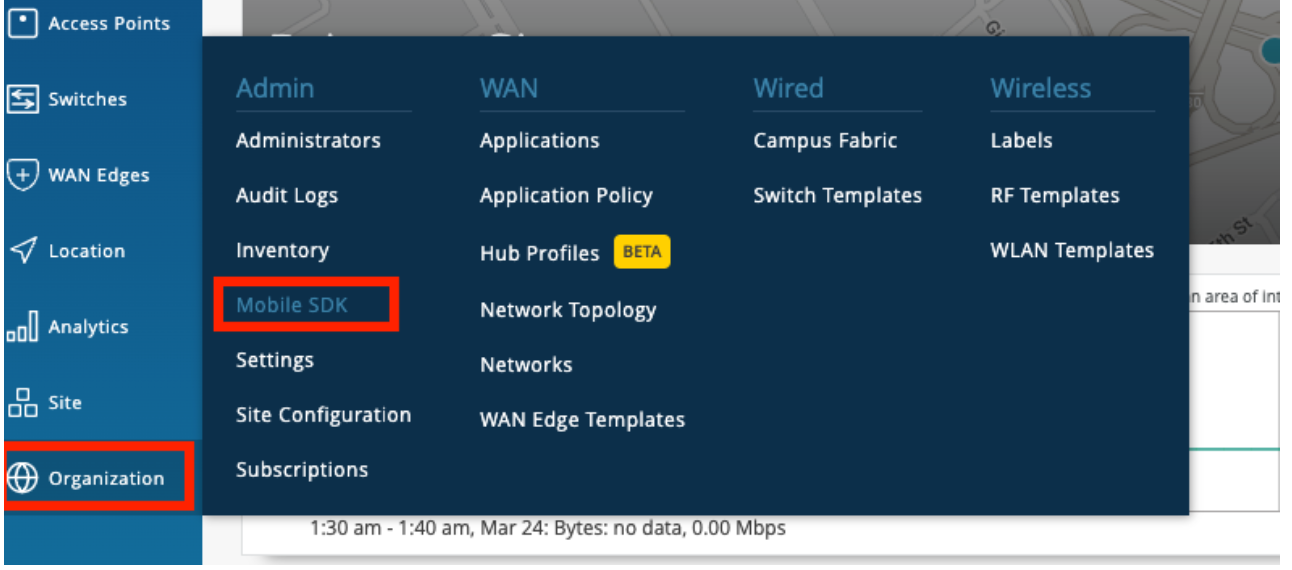
- Create a new invitation. It will ask for the organization name and once you give the name and hit save, you will get your token, Refer the image for better understanding.


The Org ID is a unique identifier that links an SDK instance to a specific organization in the Mist cloud. It ensures that all operations and data are associated with the correct organization.
Steps to Find Your Org ID :
- Open the Mist Portal.
- Navigate to Organization > Admin > Settings from the left menu.

- Locate the Organization ID displayed near the top of the page.
- Click the copy button to copy the Org ID.
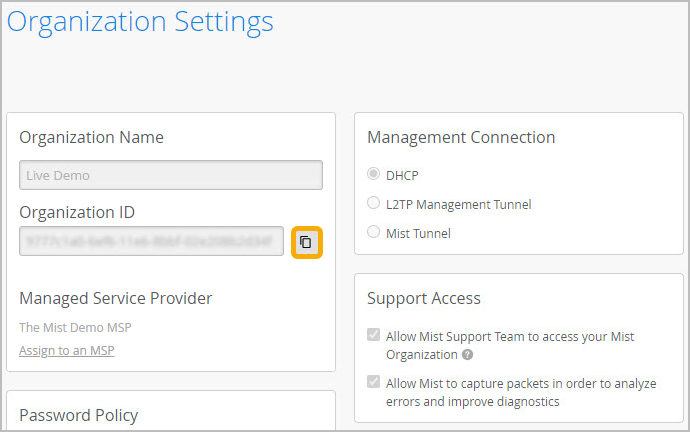
Note: The Org ID is generated by Juniper Mist and cannot be modified.
- Our goal is to provide indoor location services. This requires a map, specifically a floor plan.
- In the Mist portal, we can upload the floor plans. We call these the MistMaps.
Maps Supported
- Mist Map: Map Type (jpeg, png, gif)
- Micello
- Jibestream
Conversion from Mist Coordinates to other maps Jibestream:
jibestreamX = (mistX1000)/mmpp
jibestreamY = (mistY1000)/mmpp
Where mmpp is MilliMeterPerPixel which is specific to map and will be provided by jibestream itself
How to add the Floor Plan in Mist Portal:
- Go to Location--> Live View – here it will show all of the existing floorplans, if there are none then it will tell you to add the floorplan with a button.
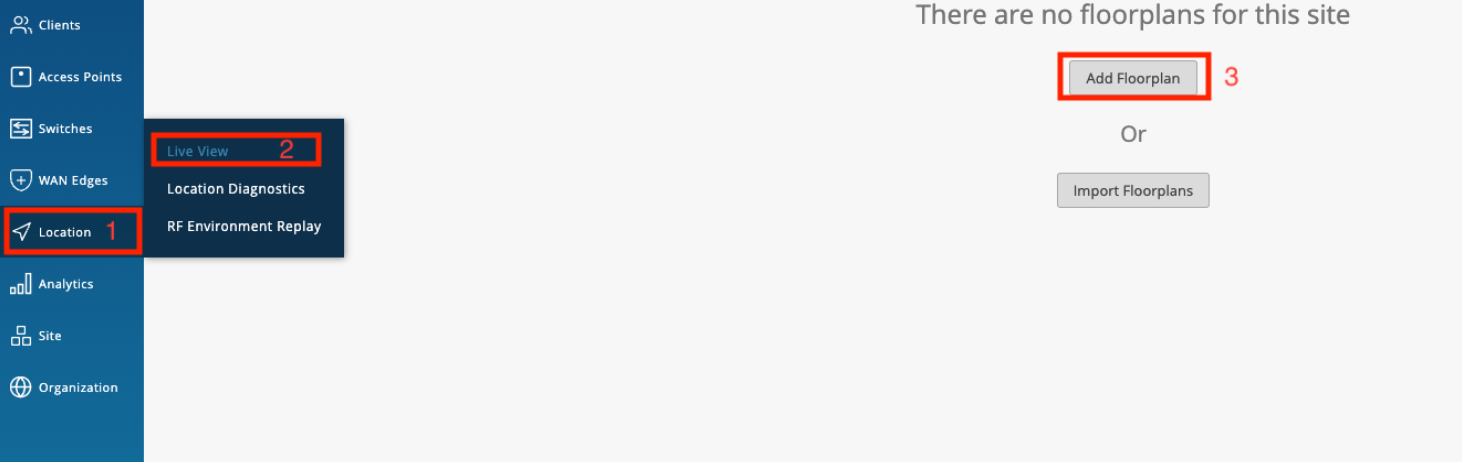
- To add a floor plan, click on the "Add FloorPlan" or "Import FloorPlan" button based on your requirements. You will be prompted to provide a name for the floor. Once you have entered the name, press "Enter", and you will be asked to upload the floor plan image. Simply drag and drop the image into the designated area and click on the "Upload" button.
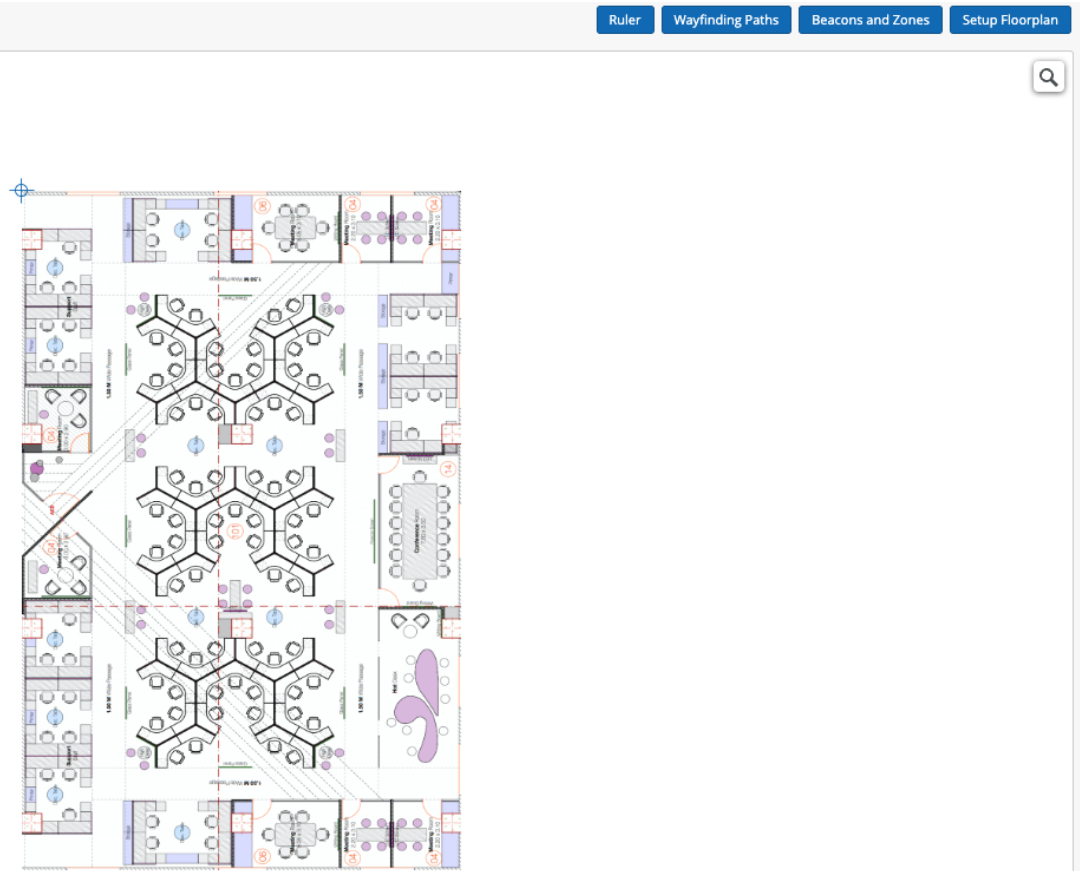
- The final step in configuring the floor plan is to add the PPM (Pixels per meter) value. This indicates the distance in meters that each pixel on the floor plan represents.
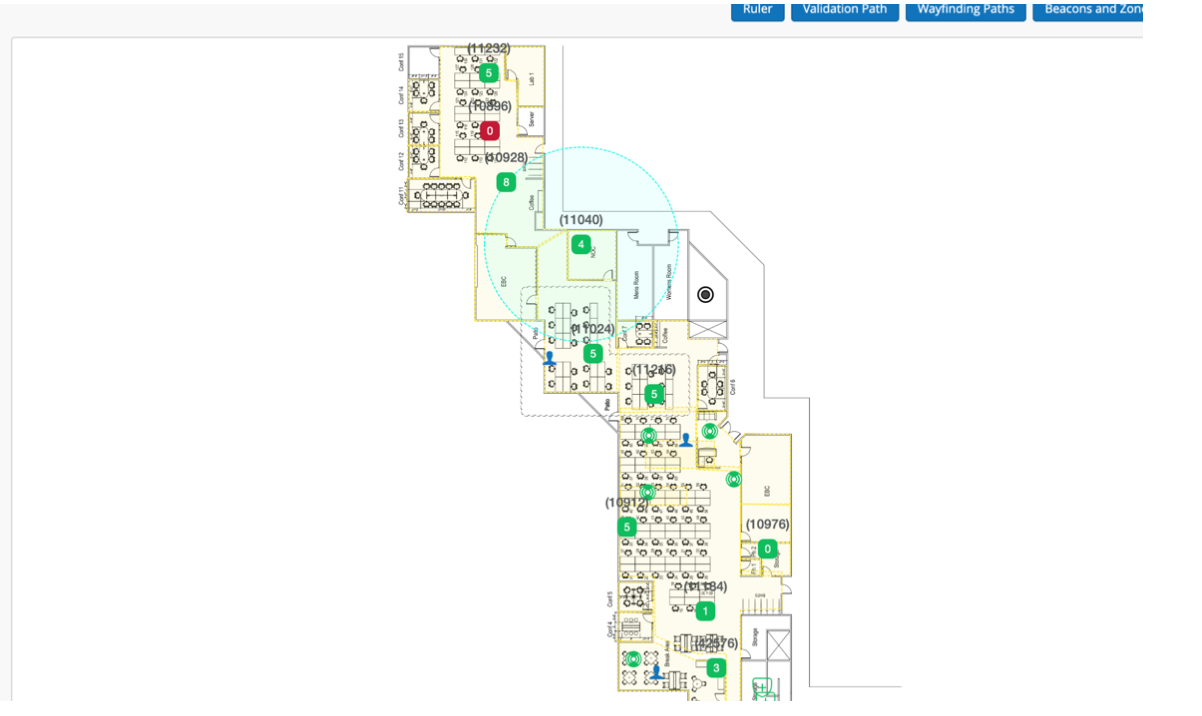
Positioning the AP in the Mist Portal exactly as it is in the real world is crucial. Failing to do so will result in an inaccurate Mist Point.
How to position APs in the floor plan in the Mist Portal
Go to Location -> Live View -> Setup Floorplan, from here you can see the list of APs that are claimed to that site and move them around to whereever you want.
This is one of the examples of floor plan with AP installed.
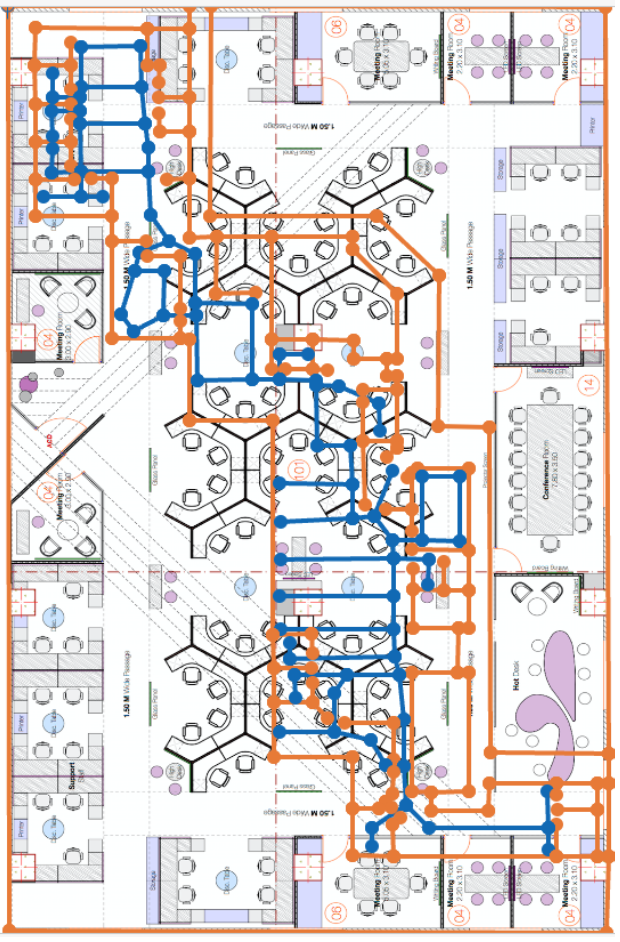
Wayfinding paths can be created to help the location estimate gravitate towards the paths drawn out. The wayfinding paths can also be used by your app to draw the shortest route for wayfinding. To generate the path, we can use the Mist portal and define the route directly on the map. For that
- Go to Location -> Live View -> Choose the floor plan
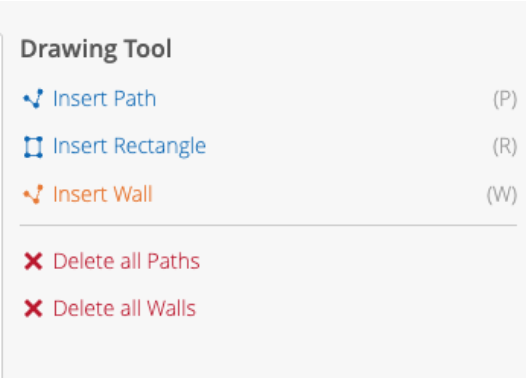
- Click the Wayfinding paths button

- You will see the Following options
- Draw paths in areas where there will be people walking and moving through; be sure to draw paths in every area where you intend to utilize the SDK clients. Make sure that all path segments are connected to each other.
for more [https://www.mist.com/documentation/adding-wayfinding-paths/]
vBeacons are a Mist-patented technology that enables the provision of proximity-related information. The advantage of vBeacons is that they can be placed anywhere on the floor plan without concerns about battery life or relocation issues. Similar to real beacons, ranging APIs can be used for vBeacons. It’s important to note that these do not act as stand-ins for real beacons and are only for proximity-related notification information. Meaning that placing these vBeacons on your floorplan will not help increase accuracy.
To add the vBeacons,
- Go to Location->Live View-> select the floor plan->click the Beacons and Zones

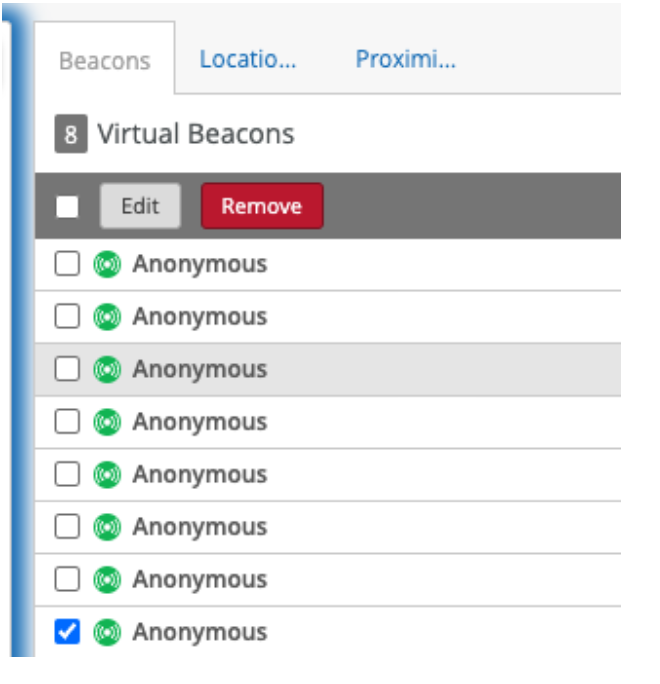
- Now the user can create and move the vBeacon wherever he wants. All the Green circles are vBeacons
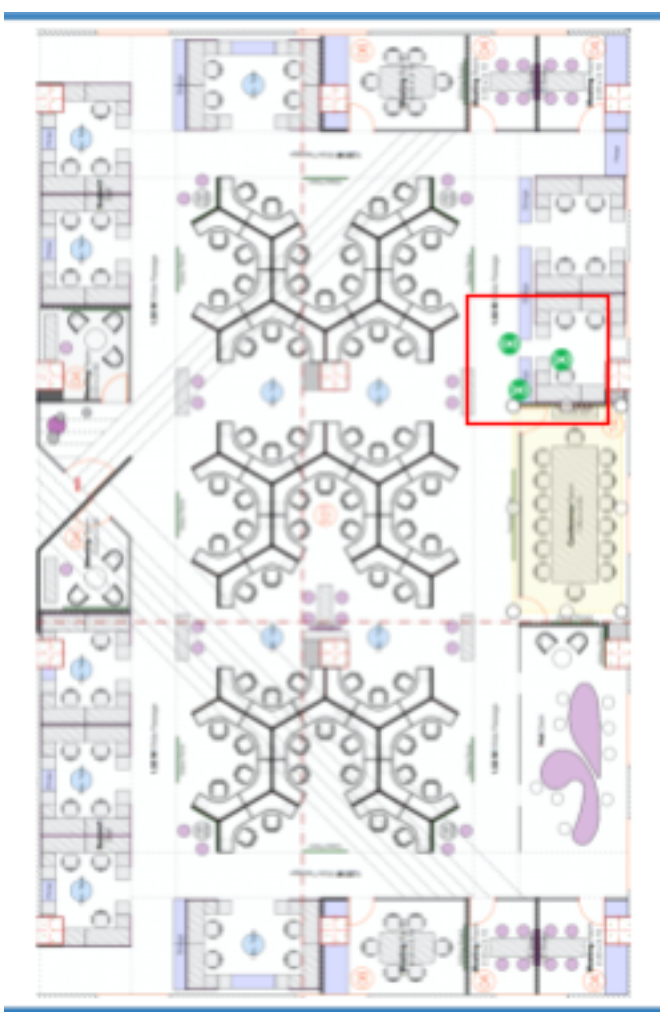
- Furthermore, we have the flexibility to customize the beacon according to your requirements. If you wish to remove a beacon, you can choose the "Remove" option, or if you want to make any modifications to the beacon, you can select the "Edit" option.
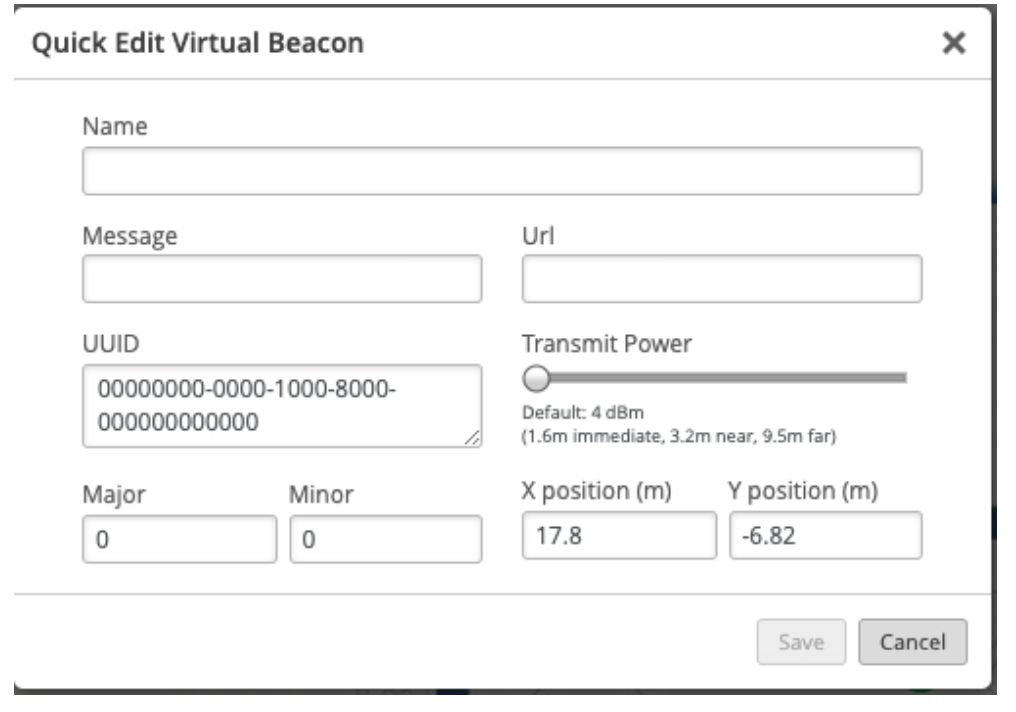
- If you intend to edit a beacon, you should fill the necessary details in the edit popup and save the changes. On the other hand, if you wish to delete a beacon, simply click the "Delete" button.
- A zone is a customized area defined on the Mist map that enables notifications to be sent to provide location-specific information to customers. We can send notifications when a user enters the specified zone in the Mist portal.
- To add zones, Go to Location->Live View-> select the floor plan->click the Beacons and Zones.
- And click add location Zone and drag the area on the floor plan to create the zone.
- Refer the highlighted area in the image for the zone.
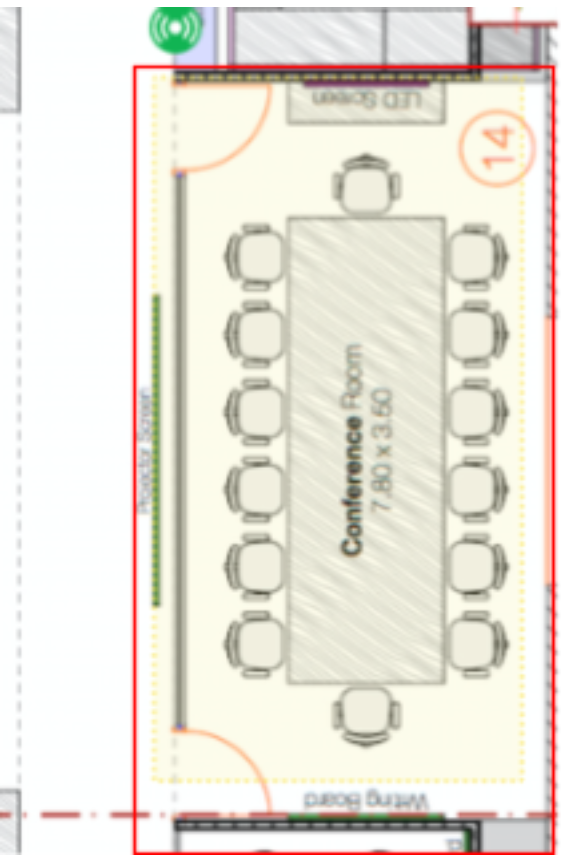
As same as virtual beacons, we have options to edit and delete the zones.
App wakeup refers to the act of bringing the app back to an active state when it enters the range of a registered beacon. This feature is primarily related to the app itself and not the Mist SDK. However, you can initiate the SDK in the background when you receive the callback in the killed state and utilize it for analytics purposes instead of navigation or location.
For wakeup we are using the Apple CLBeaconRegion API using iBeacon in iOS. Apple had a method didEnterRegion and didExitRegion delegate methods in Core Location package to handle such a scenario better. For Android we are using ALTBeacon to achieve AppWakeup.
-
Import the Mist SDK into your Swift file where you plan to use it.
import MistSDK -
Create a Mist.Configuration object with your Mist Organization ID (orgId) and SDK token (sdkToken). Optionally, you can provide a unique clientUUID, set a logLevel, and enable or disable logs.
let sdkConfig = Mist.Configuration(orgId: <OrgId>,
                                   sdkToken: <Mobile SDK Token>
                                   clientUUID: <ClientId>,  // Optional
                                   logLevel: <LogLevel>,    // Optional
                                   enableLog: <true/false>) // Optional
To use default configuration:
let sdkConfig = Mist.Configuration.default((orgId: <OrgId>, sdkToken: <Mobile SDK Token>)
Log levels:
The names of the different Log levels and their description are given below.logLevel Description DEBUG The DEBUG log level should be used for information that may be needed for diagnosing issues and troubleshooting or when running application in the test environment for the purpose of making sure everything is running correctly. INFO The standard log level indicating that something happened, the application entered a certain state. ERROR The log level that should be used when the application hits an issue preventing one or more functionalities from properly functioning. WARNING The log level that indicates that something unexpected happened in the application, a problem, or a situation that might disturb one of the processes. VERSBOSE Very detailed information, intended only for development. -
Initialize the
IndoorLocationManagerThe
IndoorLocationManageris responsible for handling location updates. You need to get the shared instance of this manager.let mistManager = IndoorLocationManager.shared
-
Start the location SDK.
Start the location SDK with the
start(with:delegate:)method. This will initialize the SDK and begin location tracking. You will also need to assign a delegate to handle the location updates.mistManager.start(with: sdkConfig, delegate: self)
Parameter Description sdkConfigThe configuration object containing Mist credentials ( orgId,sdkToken) and optional settings likeclientUUID,logLevel, andenableLogdelegateThe object (typically your view controller) that implements the IndoorLocationDelegateprotocol to handle events such as location updates and errors -
Once we have done all the steps, we will be able to get all the required parameters in the respective events under
didReceive(event: Mist.Event).To handle all the MistSDK events efficiently, you need to override the
didReceive()method and manage the incoming events using aswitchstatement withcaseconditions.func didReceive(event: Mist.Event) { switch event { case .eventName(): // handle event here
The following are the list of events:
MistEvent
Sub Events Description OnReceivedClientInfo Event for client information when enrolment successful or client name has been updated from SDK OnReceivedAllMaps Event for all sites maps data OnMapUpdate Event for current map data OnUpdateVirtualBeaconList Event for all Virtual Beacons for the current map OnRelativeLocationUpdate Event for current mist point OnEnterZone Event when the client enters the zone OnExitZone Event when the client exits the zone OnRangeVirtualBeacon Event when the client is in the range of a VirtualBeacon OnError Event for any error occurred OnMessage Event for current sdk status Example
    func didReceive(event: Mist.Event) {
    switch event {
    case .onReceivedClientInfo(let client):
        debugPrint(">>> onReceivedClientInfo UUID => \(client.deviceId ?? "-")")

    case .onReceivedAllMaps(let maps):
        debugPrint(">>> onReceivedAllMaps \(maps.count)")

    case .onMapUpdate(let map):
        guard let url = map.url, let mapUrl = URL(string: url) else { return }
        currentMap = map
        delegate?.didUpdateMap(mapUrl)
        debugPrint(">>> onMapUpdate \(map.name ?? "-")")

    case .onUpdateVirtualBeaconList(let vBeacons):
        debugPrint(">>> onUpdateVirtualBeaconList \(vBeacons.count)")

    case .onRelativeLocationUpdate(let relativeLocation):
        guard let map = currentMap, let ppm = map.ppm else { return }
        let location = CGPoint(x: relativeLocation.x * ppm, y: relativeLocation.y * ppm)
        debugPrint(">>> didUpdateRelativeLocation x = \(location.x) y = \(location.y) lat = \(relativeLocation.lat), lon = \(relativeLocation.lon)")
        delegate?.didUpdateLocation(location)

    // ZONE - Notification
    case .onEnterZone(let zone):
        debugPrint(">>> didEnterZone \(zone.name!)")
    case .onExitZone(let zone):
        debugPrint(">>> didExitZone \(zone.name!)")

    // VirtualBeacon - Notification
    case .onRangeVirtualBeacon(let vBeacon):
        debugPrint(">>> didRangeVirtualBeacon \(vBeacon.name!)")

    case .onError(let error):
        debugPrint(">>> didErrorOccur = \(error.localizedDescription)")

    default:
        break
    }
- User can handle these events inside didReceive delegate from SDK.
-
onReceivedClientInfo:
When a client successfully completes enrollment or updates their name, you can retrieve their updated information. This ensures that the most current client details are available, reflecting any recent changes. to get such a info add
onReceivedClientInfocase onReceivedClientInfo(MistSDK.Mist.Client)
Mist.Client
Property Datatype Description name String? The name of the client. orgId String? The organization ID associated with the client. orgName String? The organization name associated with the client. deviceId String? The device ID of the client. -
onReceivedAllMaps:
To obtain all site maps, simply add
onReceivedAllMapsevent to access all maps and sites. This event returns us maps for all sites in the entire organization.case onReceivedAllMaps([MistSDK.Mist.Map])
Mist.Map
Property Datatype Description id String? The ID of the map. name String? The name of the map. siteId String? The site ID associated with the map. orgId String? The organization ID associated with the map. type String? The type of the map. locked Bool? Indicates whether the map is locked. originX Double? The x-coordinate origin of the map. originY Double? The y-coordinate origin of the map. width Double? The width of the map. height Double? The height of the map. ppm Double? The pixels per meter ratio of the map. widthM Double? The width of the map in meters. heightM Double? The height of the map in meters. createdTime Int64? The timestamp of when the map was created. modifiedTime Int64? The timestamp of when the map was last modified. url String? The URL of the map. thumbnailUrl String? The URL of the map thumbnail. wayFindingPath MistSDK.Mist.Path? The path data for wayfinding on the map. wallPath MistSDK.Mist.Path? The path data for walls on the map. siteSurveyPath [MistSDK.Mist.Path]? The path data for site survey on the map. wayfinding MistSDK.Mist.Wayfinding? Information about wayfinding on the map. latlngBr MistSDK.Mist.LatlngBr? The bottom-right latitude and longitude coordinates of the map. latlngTl MistSDK.Mist.LatlngTl? The top-left latitude and longitude coordinates of the map. drInternal MistSDK.Mist.DRInternal? Internal data related to DR geoRefParamsv2 MistSDK.Mist.GeoRefParamsV2? Georeferencing parameters for the map. orientation Int? The orientation of the map. occupancyLimit Int64? The occupancy limit of the map. intendedCoverageAreas [[String : String]]? The intended coverage areas of the map. -
onMapUpdate:
To get the current map data, simply add
onMapUpdateevent to retrieve the latest map information.- This event will be triggered in the following situations.
- initially when the mobile receives relative location.
- When the current floor plan has been changed (if the user moves from one floor to another).
case onMapUpdate(MistSDK.Mist.Map)
- This event will be triggered in the following situations.
-
onUpdateVirtualBeaconList:
To get all Virtual Beacons for the current map, simply add
onUpdateVirtualBeaconListevent to retrieve the complete beacon data.case onUpdateVirtualBeaconList([MistSDK.Mist.VirtualBeacon])
Mist.VirtualBeacon
Property Datatype Description orgId String? The organization ID associated with the virtual beacon. siteId String? The site ID associated with the virtual beacon. mapId String? The map ID associated with the virtual beacon. vbId String? The ID of the virtual beacon. vbUUID String? The UUID of the virtual beacon. vbMajor Int? The major value of the virtual beacon. vbMinor Int? The minor value of the virtual beacon. power Int? The power of the virtual beacon. powerMode String? The power mode of the virtual beacon. message String? A message associated with the virtual beacon. createdTime Int64? The timestamp of when the virtual beacon was created. modifiedTime Int64? The timestamp of when the virtual beacon was last modified. tagId String? The tag ID associated with the virtual beacon. name String? The name of the virtual beacon. url String? The URL associated with the virtual beacon. position MistSDK.VBeaconPosition? The position information of the virtual beacon. additionalInfo MistSDK.Mist.AdditionalInfo? Additional information about the virtual beacon. -
onRelativeLocationUpdate:
To get the current relative position on the map, simply add
onRelativeLocationUpdateevent to retrieve the data. This event will get triggered, when relative postions of the client is updated.case onRelativeLocationUpdate(MistSDK.Mist.Point)
Mist.Point
Property Datatype Description map MistSDK.Mist.Map The map associated with the point. x Double The x-coordinate of the point. y Double The y-coordinate of the point. lat Double The latitude of the point. lon Double The longitude of the point. latency Int64 The latency associated with the point. heading Double The heading (direction) of the point. speed Double The speed associated with the point. hasMotion Bool Indicates whether the point has motion. -
onEnterZone:
To receive zone notifications onEnter, add this
onEnterZoneif you want to monitor when the client moves into a particular zone area.case onEnterZone(MistSDK.Mist.Zone)
-
onExitZone:
To receive zone notifications onExit, add
onExitZoneevent if you want to monitor when the client moves out of a particular zone area.case onExitZone(MistSDK.Mist.Zone)
Mist.Zone
Property Datatype Description name String? The name of the zone. timestamp String? The timestamp associated with the zone. origin String? The origin of the zone. level Int? The level of the zone. recipient String? The recipient of the zone. recipientId String? The ID of the recipient of the zone. userId String? The ID of the user associated with the zone. zoneId String? The ID of the zone. mapId String? The ID of the map associated with the zone. siteId String? The site ID associated with the zone. orgId String? The organization ID associated with the zone. clientType String? The type of client associated with the zone. isRandom Bool? Indicates if the zone is random. zonePosition MistSDK.ZonePosition? The position information of the zone. trigger MistSDK.Mist.ZoneTrigger? The trigger associated with the zone. time String? The time associated with the zone. sinceTime String? The since time associated with the zone. timeEpoch Int64? The epoch time associated with the zone. sinceTimeEpoch Int64? The epoch time since associated with the zone. sessionId String? The session ID associated with the zone. duration Int64? The duration associated with the zone. -
onRangeVirtualBeacon:
To receive notifications when the client is within the range of a Virtual Beacon, add
onRangeVirtualBeaconevent to monitor proximity.case onRangeVirtualBeacon(MistSDK.Mist.VirtualBeacon)
-
onError:
To receive notifications when the SDK faces any issues, add
onErrorevent. This event will get triggered, if the SDK faces any error rather than getting any positive response. And it will help us by giving us two values.case onError(let error)
ErrorType
Error Description invalidSDKToken The SDK token provided is incorrect or invalid. sdkNotStarted The SDK was not started. notConnected MistSDK is not connected to the cloud. authorizationFailure Authorization failure. clientEnrollmentFailed There was an error in Client Enrollment. clientUpdationFailed Failed to save client name unableToGetClientDetails There was an error in fetching client details. mapGraphDataNotAvailable Map data not available. noBleFound MistSDK is stopped. No vBLE Beacon found. noBleBeaconFound PreCheck - No Mist BLE Beacon found.
-
And finally we call the stop method to stop the sdk:
Swift:
mistManager.stop()
start(with:delegate:)stop()getWayfindingPath(to:)saveClient(name:)getClientInformation()clientUUID
-
This method will start the MistSDK.
-
Usage:
mistManager.start(with: sdkConfig, delegate: self)
-
This method will stop MistSDK.
-
It doesn’t take any arguments and won’t return anything.
-
Usage:
mistManager.stop()
-
This method will return a list of nodes to be traversed when we want to draw the path towards the destination.
-
This is also the instance method, so invocation should be via instance of class only..
-
We should pass the destination - (an object of type MistSDK.MistPosition) as an argument.
-
It will return a sequence of nodes to be traversed in an array format of type
[MistSDK.Mist.Node]. -
Usage:
let nodes = mistManager.getWayfindingPath(to: MistPosition.init(x: 10, y: 10))
-
This method saves the client information to the Mist server (the client is the current user in the session).
-
The user can send their name to the server via this method. The SDK will invoke the API to update the username on the server. After this process, the user can be easily found on the map using this name.
-
It takes the name as a parameter.
-
Usage:
mistManager.saveClient(name: "<username>")
-
It fetches the client information from the server.
-
To get the client information, subscribe to
didReceive(event: Mist.event)and usecase onReceivedClientInfo(let client) -
Usage:
mistManager.getClientInformation()
-
This variable will give us the current Mist User UUID from the server.
-
Usage:
let mistUUID = mistManager.clientUUID