QuickLabel displays specified tags as labels next to map objects.
It’s ideal for mappers who want quick visual feedback for quality checks, tagging consistency, or data completeness.
After installation, you can open the label customization dialog via View > QuickLabel or the default shortcut Command+Shift+L. You can assign a different shortcut in the JOSM preferences.
Note: In early versions, the menu was located under Data.
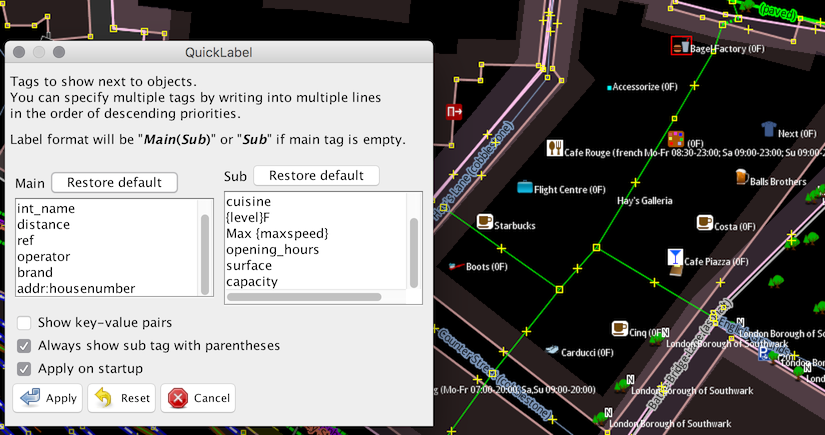
You can set "main" and "sub" tags. You can specify multiple tags by entering them on separate lines, in order of descending priority.
Your customization is applied by clicking "Apply" button. It may take a few seconds for custom labels to appear. You can switch to JOSM's usual mode by clicking "Reset" button.
Tags placed between curly braces ("{" and "}") are replaced with values of corresponding tags.
- If a line
{level}Fis applied to an object withlevel=3tag, its label will be3F. - If a line
s={smoking} w={wheelchair}is applied to a restaurants withwheelchair=yes, smoking=notags, its label will bes=no w=yes. - If a line
{fire_hydrant:type}/{ref}is applied to a fire hydrant withfire_hydrang:type=underground, ref=221-14tags, its label will beunderground/221-14. - A line like "{fire_hydrant:type}/{ref}" will not match an object that has a "fire_hydrant:type" tag but no "ref" tag.
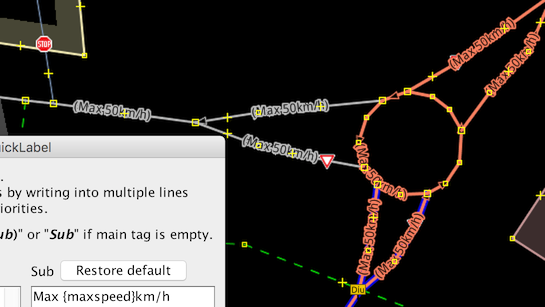
There are some options.
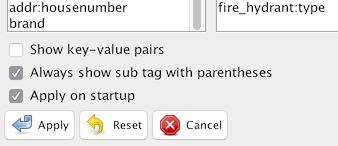
| Off | On |
|---|---|
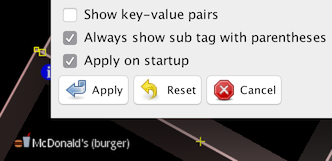 |
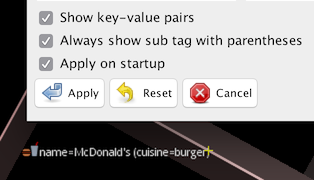 |
- You want to complete
cuisinetags of all restaurants in your town - You care more about the
surfacethan thecapacityof parking areas - You review roads' details by comparing surface, sidewalks and maxspeed values
- You want to focus on multilingual tags by temporarily prioritizing
name:*tags
- Maripo GODA goda.mariko@gmail.com
- OSM ID: maripogoda
- License: GPL v2 (as JOSM)