Via Wizard is a powerful, GUI-based tool designed to streamline the creation and simulation of PCB vias. It leverages Ansys AEDT (via pyedb) to generate high-fidelity simulation models directly from a user-friendly interface.
-
Visual Editor: View and edit layer properties (Thickness, Dk, Df, Conductivity).
-
Import/Export: Load and save stackups using XML format.
-
Excel Integration: Paste stackup data directly from Excel into the application.
-
2D Visualization: Real-time visual representation of the layer stackup.
-
DogBone Void Customization: Customize the void shape for differential pairs on reference layers.
- -1: Default antipad size.
- 0: No void created.
- >0: Rectangular void with specified width.


- Customizable Geometries: Define hole diameter, pad size, and antipad size.
- Material Selection: Choose from standard materials like Copper, Gold, or Aluminum.
- Backdrill Settings: Configure backdrill parameters (Depth, Stub, To Layer) for signal integrity optimization.
- Fill Via Support: Enable "Fill" for backdrilled vias with custom dielectric properties (Dk, Df). The fill via is automatically created and placed with the specified backdrill diameter and material.
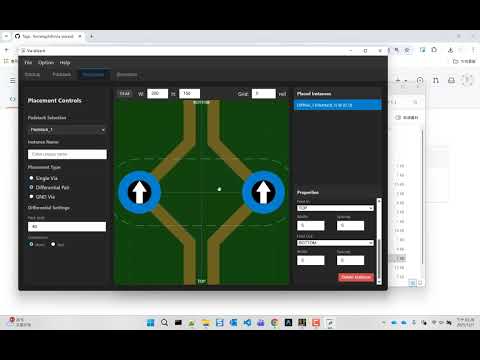
- Canvas Editor: Interactively place vias on a virtual PCB canvas.
- Placement Modes:
- Single Via: Place individual signal vias.
- Differential Pair: Place differential pairs with configurable pitch and orientation.
- Diff Pair w/ GND: Place differential pairs with surrounding ground vias.
- GND Via: Place grounding vias.
- Grid System: Snap-to-grid functionality for precise alignment.
- Property Table: View and edit instance properties in a structured table with collapsible sections for better organization.
- Advanced Fan-out Control: Configure fan-out geometry for differential pairs, including turn angles (e.g., 45 degrees), straight lengths, and radii.
- Dynamic Sorting: Placed instances are automatically sorted alphabetically for easy management.
- Optimized UI: The "Placed Instances" panel is optimized for better visibility of properties.
- Smart Copy/Paste: Copy and paste instances with automatic name incrementing (e.g.,
Via_1->Via_2) to ensure unique naming. - Ruler Tool: Measure distances on the canvas using the Right Mouse Button. Displays Length, dx, and dy with non-overlapping labels.
- Copper Pour Visualization: Visualize the clearance/void around traces (Feed In/Out Pour) directly on the canvas.
- Differential Pair Feed Spacing: Explicit control over feed line spacing for differential pairs, ensuring accurate visualization and export.
- AEDB Generation: Export your entire design (stackup, padstacks, placed instances) to an Ansys AEDB project (
.aedb). - Version Control: Specify the target AEDB version (default: 2024.1).
- Automated Modeling: The tool automatically handles the creation of materials, layers, padstacks, and vias in the AEDB file.
- Component Creation: Automatically groups vias into components based on naming convention (
component.pin) for easier integration in Ansys.
- Python: Version 3.10 or higher.
- Ansys AEDT: Installed and licensed (Version 2024.1 or newer recommended).
- Dependencies:
pywebview: For the GUI window.pyedb: For interacting with Ansys EDB.
- Run the installation script:
Double-click
install.bator run it from the command line:This script will set up the virtual environment and install all necessary dependencies.install.bat
-
Start the Application: Run the
main.pyscript to launch the GUI.python main.py
-
Workflow:
- Stackup Tab: Define your board layers. You can load
stack.xmlas a starting point. - Padstack Tab: Create padstack definitions referencing the layers from your stackup.
- Placement Tab: Select a padstack and place instances on the canvas.
- Simulation Tab: Enter the desired AEDB version and click Export to AEDB.
- Stackup Tab: Define your board layers. You can load
-
Output: The tool will generate a
.jsonfile of your project and a corresponding.aedbfolder in the same directory.
main.py: Application entry point. Initializes thepywebviewwindow.api.py: Contains theViaWizardAPIclass, bridging the JavaScript frontend and Python backend.modeling.py: Core logic for generating the Ansys EDB model from the project data.gui/: Contains the frontend assets (index.html,app.js,style.css).stack.xml: Default stackup configuration file.
MIT License