Required Hardware
The MagicFrame has the following three main components:
- A display,
- A picture frame,
- A single-board computer (SBC).
I used the 15'' LCD display of an old laptop - the Acer Aspire E5-571. Instructions for opening/disassembling the laptop and replacing (in this case removing) the display can usually be found on YouTube. Handle the LCD panel carefully once it is out of its housing.
💡 Tip: Remove the internal hard drive from the now obsolete laptop and put it in a case to function as an external hard drive!
🌳 Tip: Do the right thing and appropriately recycle the remains of the old laptop instead of throwing it in the trash.
The back of the LCD panel usually has a sticker with the model name (red arrow in the screenshot below). Use Panelook.com to find the model. In my case, it was the B156XW04 V7:
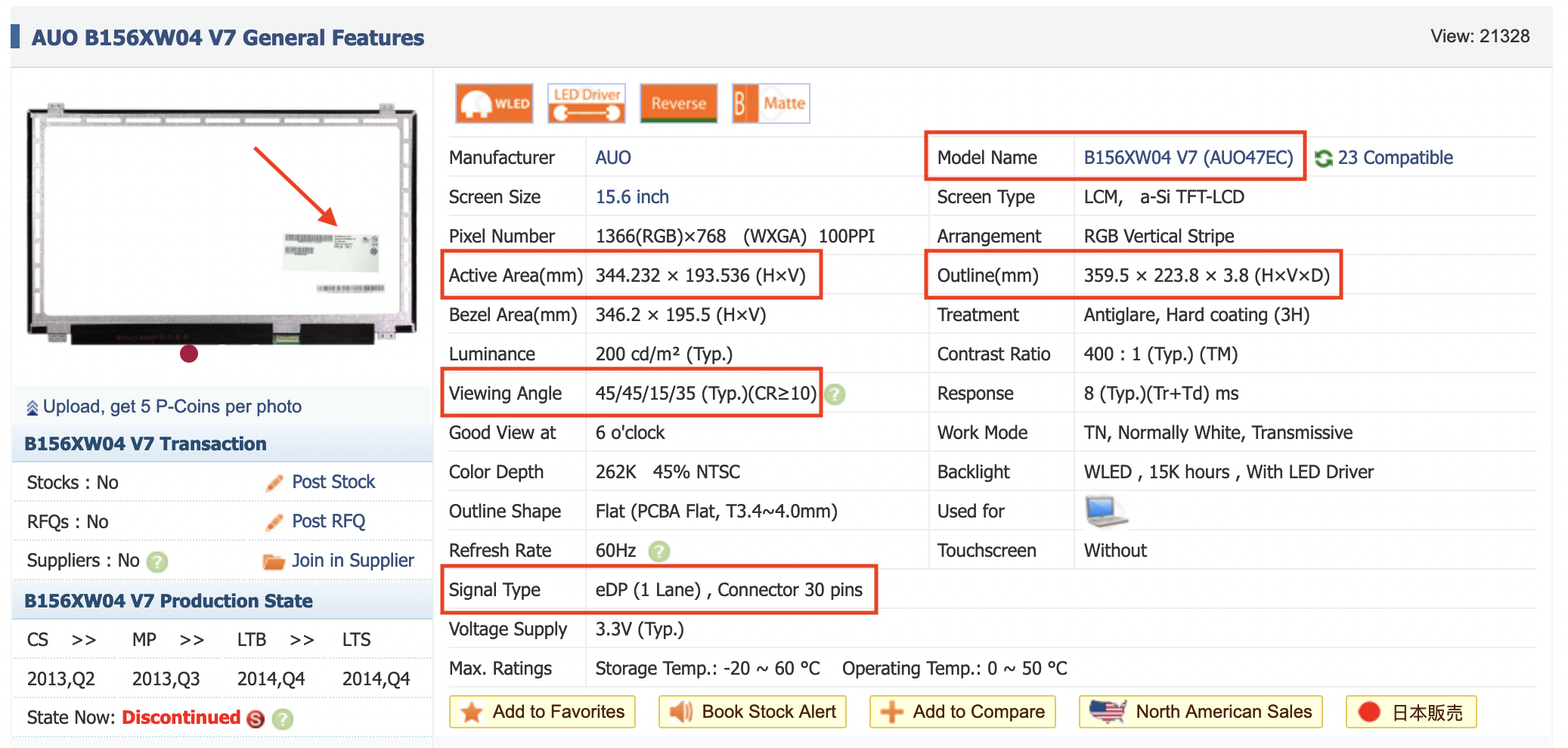
Note down the key information (red rectangles in the screenshot).
Next, we have to find an LCD controller board. The best place to find this is AliExpress - just search for the appropriate panel model name and double-check the specifications (in my case the pixel area of 1366x768, and a signal type of eDP with a 30-pin connector). These controller boards come with the required cable to connect the display panel and have an HDMI port as input. Some have a remote control in addition to the "keyboard" with push buttons as you would expect from an external monitor.
Before moving forward, we want to check that the display works as expected. Most of these controller boards require 12V DC power from a DC coaxial connector to operate, but make sure to check the specifications with the manufacturer.
⚠️ Note: Get a proper power supply with stable power delivery. Phone chargers are not appropriate for this.
Plugging in power should turn on the display. Verify that the HDMI port works!