
A personal GUI + TUI music visualizer written in Rust.
New keyboard input buttons implemented: Z, X, C and Arrow keys.
Added Example visualizer and minimal Snake game.
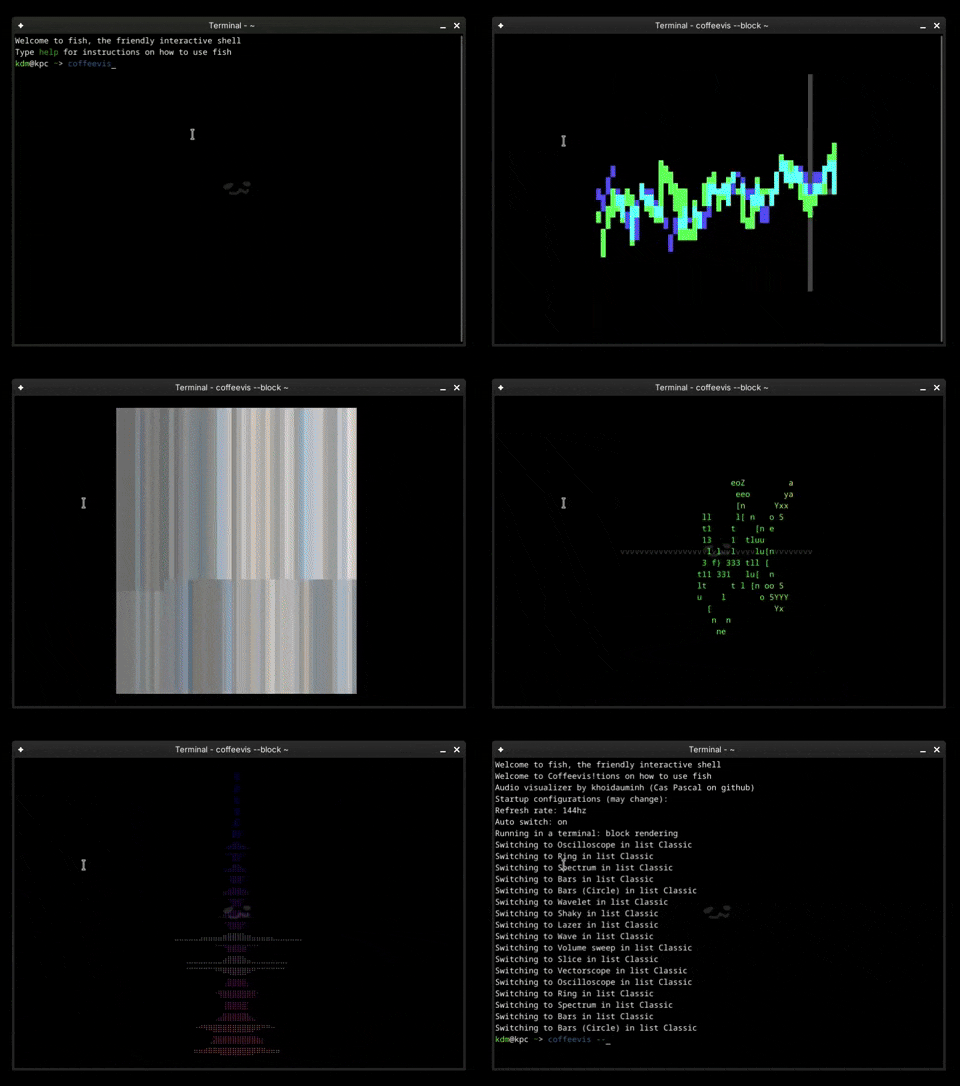
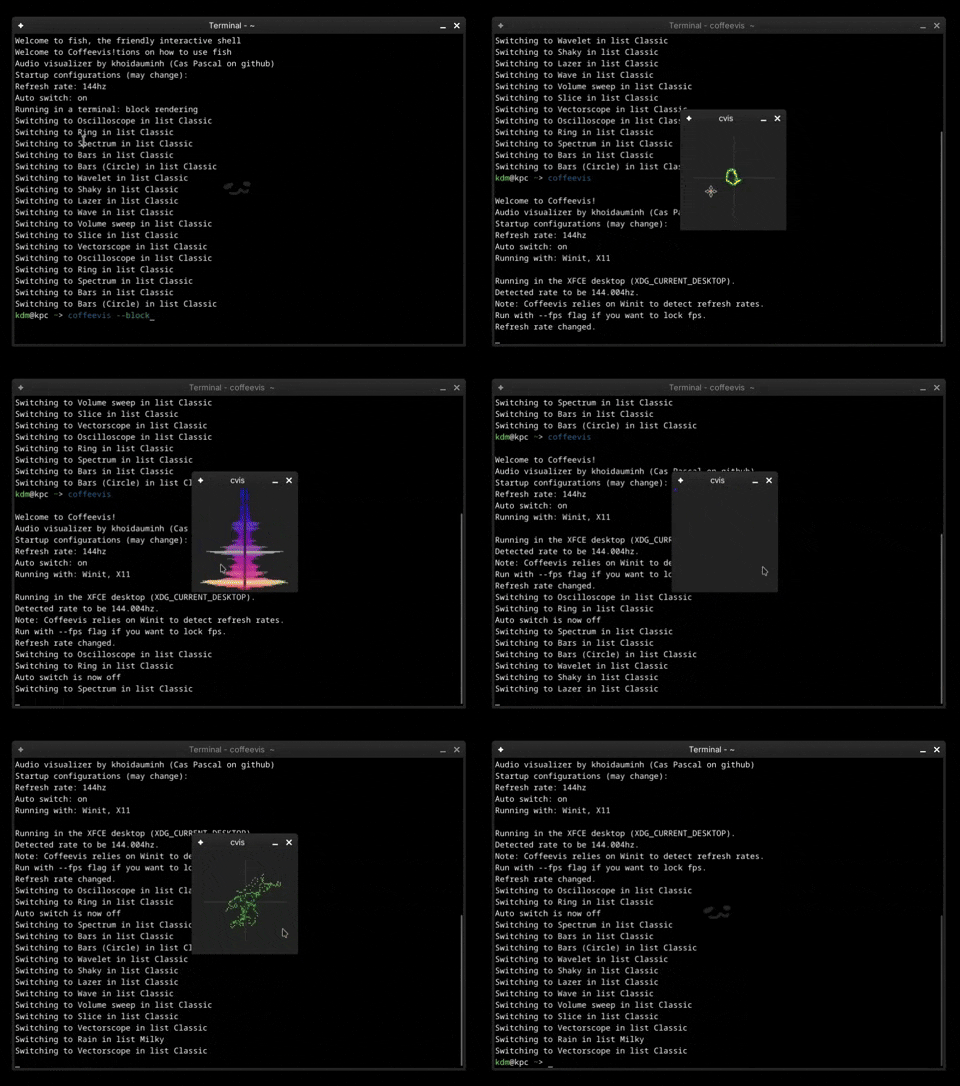
Coffeevis works on Linux. Windows support is being planned.
cargo install coffeevis
As of Cpal 0.17, only the ALSA host is supported, it is advised to install pipewire-alsa or pulseaudio-alsa in your system.
Upon launch coffeevis will grab your default audio source, use an audio
config tool to direct your desired source to coffeevis (e.g. pavucontrol).
Below is a simple config file for Pipewire. This creates a source that captures the current default system audio:
# ~/.config/pipewire/pipewire.conf.d/loopback.conf
context.modules = [
    {   name = libpipewire-module-loopback
        args = {
            audio.position = [ FL FR ]
            capture.props = {
                stream.capture.sink = true
                media.class = "Stream/Input/Audio"
                node.name = "desktop_capture"
                node.description = "Desktop Audio Capture"
            }
            playback.props = {
                media.class = "Audio/Source"
                node.name = "desktop_source"
                node.description = "Desktop Audio Source"
            }
        }
    }
]
On Wayland, Winit supports automatic vsync, therefore custom fps setting is not supported.
On other platforms, Coffeevis relies on user specified fps. The default fps is 60.
Coffeevis does not remember settings and does not generate config files.
To get around this, make a user script that runs coffeevis with flags
E.g:
#!/bin/bash

/path/to/coffeevis --fps 60 --no-auto-switch --size 40x40
To force Coffeevis to run in Xwayland, unset WAYLAND_DISPLAY
WAYLAND_DISPLAY= coffeevis
Coffeevis supports temporary options at launch
| Option | Value(s) | Description |
|---|---|---|
| --ascii --block --braille |
run in the terminal | |
| --no-auto-switch | disable automatic visualizer switching | |
| --size | 80x80 | set resolution in window mode |
| --scale | 2 | upscale in window mode |
| --fps | 60 | set refresh rate (by default coffeevis will try to query your monitor's refresh rate) |
| --resize | allow resizing in window mode | |
| --max-con-size | 50x50 | set maximum resolution in terminal mode |
| --vis | spectrum | launche coffeevis with the specified visualizer |
| --effect | crt | blank out every other horizontal line to simulate CRT effect |
| --effect | interlaced | (default) interlace fields together to make the visualizer appear smoother (the number of fields is the scale value) |
| --effect | none | rendering is scaled and presented as is |
On Wayland, coffeevis cannot set itself on top so you will have to rely on an external tool. For example, on KDE Plasma, you can use the window rules feature.
When input is quiet, the visualizer will try to amplify the input so that the visualizers don't become boring.
Coffeevis prints text directly to stdout, rendering may be heavy depending on your terminal.
A terminal with GPU-accelerated support is recommended (i.e Alacritty, Kitty, Wezterm, ...)
A maximum resolution is built into the console mode (default: 50x50). Coffeevis will render in the center of the screen if terminal dimensions are larger than the limit.
It looks the smoothest when you're in a dark room with low monitor brightness. But don't do that lol
"fast" is an aggressive feature that:
- disables most color blendings.
- sets the default rendering effect to none.
- disables some checks in drawing code.
- changes some util code.
May break visualizers.
| Key | Description |
|---|---|
| n | iterate forward through visualizers (wraps around) |
| b | iterate backward (wraps around) |
| q | exit |
| \ | toggle auto switching (default: ON, 8 seconds) |
| Key | Description |
|---|---|
| . | toggle between ascii rendering, block rendering and braille rendering |
| 9 / 0 | decrease/increase maximum resolution |
| 7 / 8 | decrease/increase fps by 5 (default: 60) |
| 1 .. 6 | change fps to 10 ... 60 respectively |
See visualizers/misc/example.rs for an example.
Please don't look at my code. No I'm not hiding anything in there it's all garbage code idk how to do gpu programming so it's all cpu code uh uhhh