This is a tiny, single-stage USB Mass Storage bootloader for the STM32MP135. When the board powers on, it can enumerate as a flash drive on your computer, so you can write SD-card images directly with simple tools like dd—no TF-A, U-Boot, or complex setup required. Programs can then be loaded and executed immediately, making it easy to experiment, modify, or add new functionality without navigating a multi-stage boot chain. It works on the eval board as well as my simpler custom board.
Features include:
- Boot Linux: Load kernel and DTB into RAM and execute it
- Write to SD card from USB via Mass Storage Class, like a flash drive
- Load any other program from SD card to DDR and execute it
- Set image or solid color on LCD display; control backlight; read touch (CTP)
- Command line with tab completion and "up arrow" history
- Super simple, hackable code: <3k lines of code plus ST HAL
- Single stage, small (<160 kB), fits into SYSRAM/SRAM
- All features optional and easily removed
-
Insert the SD card into the slot.
-
Connect
CN12(PWR_IN), the USB-C port to the right of the screen, to a powered USB hub. (Consult this photo for connector labels.) -
Connect
CN10, the Micro USB left of the screen, to a desktop computer, which will enumerate as a serial port (e.g./dev/ttyACM0on Linux, orCOM20on Windows). -
Connect
CN7, the USB-C port on the lower left corner of the screen, to a host computer. This port will be used to transfer the data via Mass Storage.
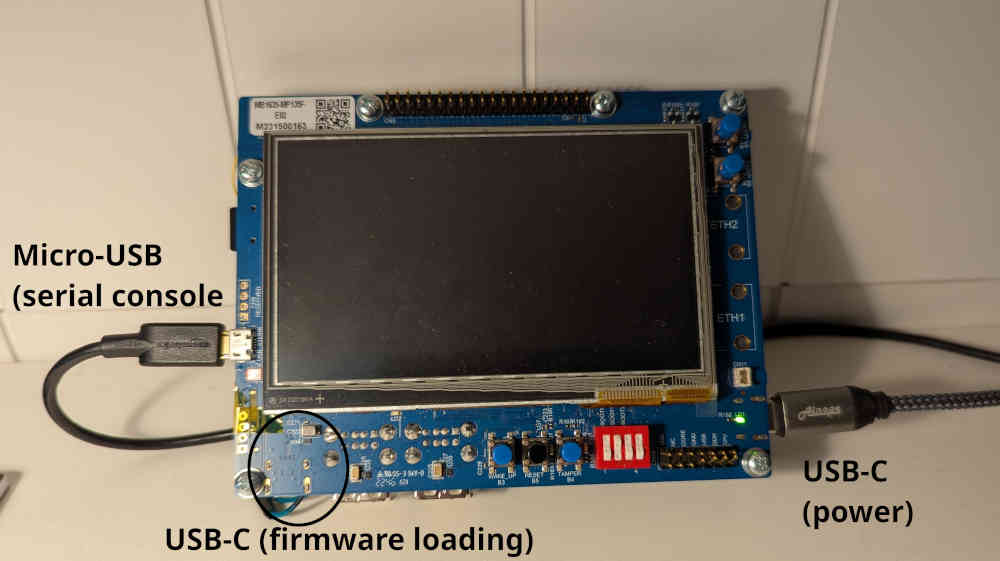
-
To compile the program, just run Make:
cd msc_boot
make CFLAGS_EXTRA=-DEVB
If everything goes well, it should print which binaries were included in the generated SD card image:
File                      LBA      Size       Blocks
-------------------------------------------------------
main.stm32                128      116736     228
blink.bin                 640      12800      25
Make note of the
LBAaddress of theblink.binprogram (640), and the number of blocks (25). You'll use these with theload_sdcommand in the next section. -
The initial boot can be done with USB-C with DIP switch set to
BOOT = 000(see below for initial boot alternatives):STM32_Programmer_CLI.exe -c port=usb1 -w scripts/flash.tsv -
In the serial console (115200 baud, no parity), the prompt (
>) should be displayed. Writehelpand press Enter to get a list of available commands.
The bootloader enumerates as a USB flash drive. Use dd (on Windows, get
it from here) to write the SD card image:
dd if=build/sdcard.img of=/dev/sdc # on Linux
dd if=build/sdcard.img of=\\.\E:   # on Windows
⚠ WARNING: This will erase all data on the target device, so double-check that it is the newly-enumerated SD card and contains no important files.
After writing the SD card, open the serial console (115200 baud) and load a
program into DDR using the load_sd command, then execute it with jump:
> load_sd 25 640 0xc0008000
> jump 0xc0008000
This runs the blink program: it just blinks the red led, and prints a message to
UART4. Success! (Note that 0xc0008000 is the hardcoded program start location,
which can be changed in the linker script test/blink.ld.)
To run other programs, generate an SD card image containing the bootloader and the program. For example, the blink SD image was created with:
python3 scripts/sdimage.py build/sdcard.img build/main.stm32 build/blink.bin
The script prints a table of where each program is installed on the SD card. Use
the shown block number and size with load_sd and jump to load and run any
program.
Running Linux on 32-bit Arm is no different from other "bare-metal" programs: you load it into memory together with any optional parameters and jump to it. Do not allow yourself to be misled into thinking it's some kind of a difficult, mystical process---the kernel will run so long as a few conditions are satisfied:
- DTB is loaded in memory and register
r2points to that address - DDR initialized, MMU and caches disabled, interrupts off, SVC mode
- Allow non-secure access to peripherals used by the kernel (clocks, DDR, etc.)
- Init program provided, e.g. from a simple filesystem
This bootloader takes care of all of these details. Use the bootloader command
two to load both the kernel and DTB into RAM and jump to it.
An example Linux distribution that works with this bootloader is provided in this repository. (Make sure that the Linux kernel does not do any secure monitor calls, since this bootloader is nonsecure only.) See this blog post for a more in-depth explanation on how to put together a complete Linux system that runs on the STM32MP135 evaluation board.
Several flags control the build process, depending on what features are desired
in the final executable. Pass them to make via the CFLAGS_EXTRA=-D<flag>
mechanism as shown above. The <flag> can be one of:
EVB: Define this to run bootloader on eval board. This enables STPMIC1 support and sets appropriate LCD display parameters.
Other features can be disabled just by removing them from the main() function:
- Remove command line support by removing
cmd_init()andcmd_poll(). - Remove the blinking by removing
blink(). - Remove USB support by removing
usb_init(). - Remove SD card support by removing
sd_init().
The initial download as explained above requires the STM32CubeProgrammer, which implements the custom DFU (Device Firmware Upgrade) protocol used by ST. There are other ways to load this program onto the STM32MP135 that do not require the STM32CubeProgrammer:
-
Use a separate computer to copy the image (
build/sdcard.img) directly to the beginning of the SD card, re-insert the card into the board, setBOOT = 101(SD card boot), and press the reset button. -
Alternatively: Use the UART bootloader (
BOOT = 000, "serial boot") with the provided Python script to write the bootloader directly into SYSRAM:python3 scripts/uart_boot.py -c COM20 -f build/main.stm32 -
Or even: Use JTAG (
BOOT = 100, "engineering boot"):JLinkGDBServer.exe -device STM32MP135F -if swd -port 2330 arm-none-eabi-gdb.exe -q -x scripts/load.gdb
- Build Linux for STM32MP135 in under 50 Lines of Makefile
- SD card on bare-metal STM32MP135
- Unsecuring STM32MP135 TrustZone
- Linux Bring-Up on a Custom STM32MP135 Board
- USB Bring-Up on a Custom STM32MP135 Board
- STM32MP135 Flashing via USB with STM32CubeProg
- Boot STM32MP135 Over UART With Python
Questions, bug reports, and bring-up notes are welcome—feel free to open a GitHub issue if something isn't clear or if you run into hardware issues on your own STM32MP135 board. Even simple questions help improve the documentation.
Small, focused pull requests are also appreciated. Please follow the general
style of the existing code and keep features optional so the bootloader stays
small and easy to understand. Run static code analysis via make check before
committing changes.
Jakob Kastelic (Stanford Research Systems)