A complete visual overhaul for Home Assistant inspired by the Fallout universe (Pip-Boy aesthetic).
This is a fork of the Transparent Blue theme by JOHLC.
Repository: https://github.com/jrx-code/hassio-transparent-fallout
| Default (Green) |
|---|
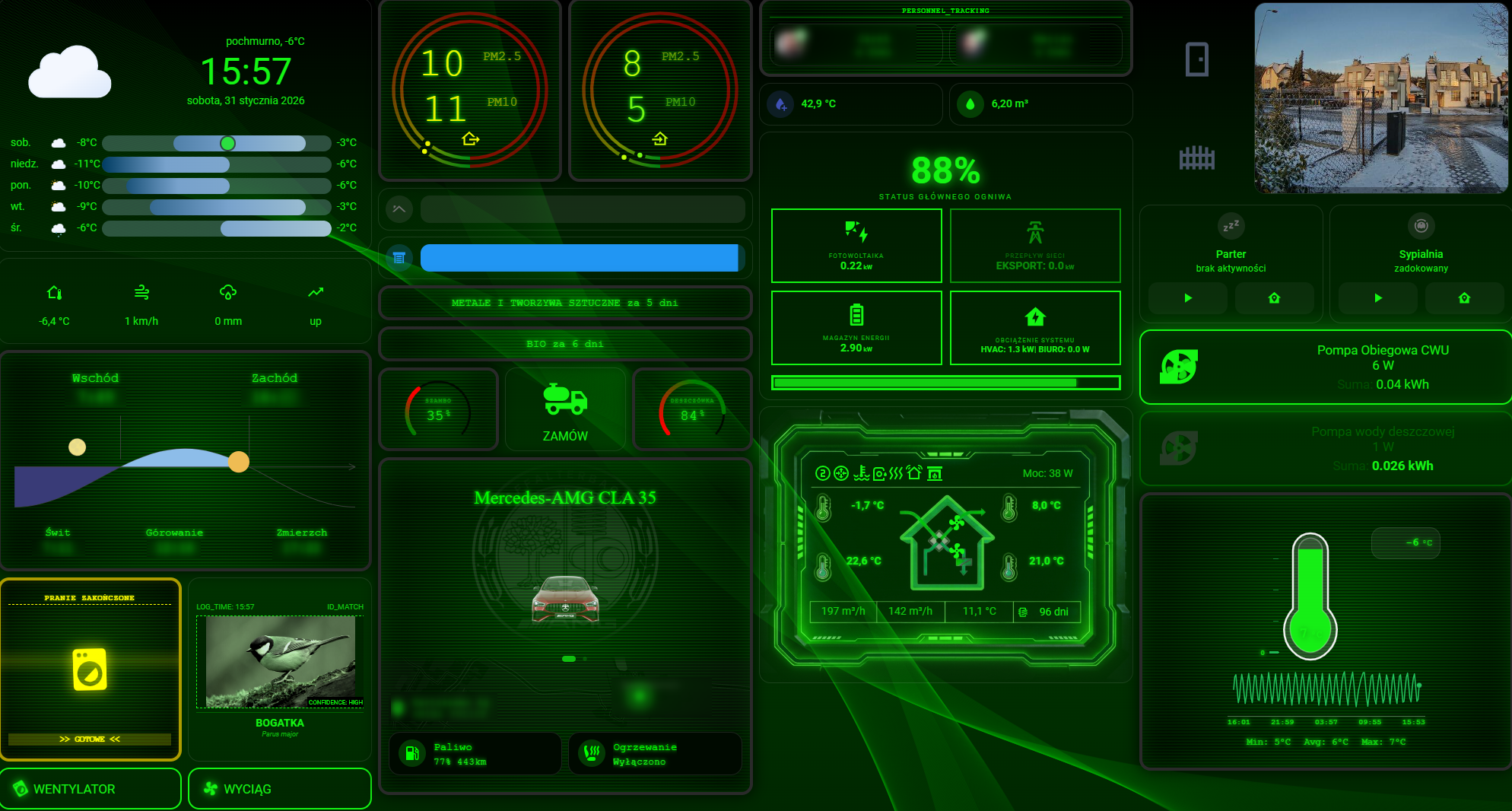 |
| Amber | Blue | Light |
|---|---|---|
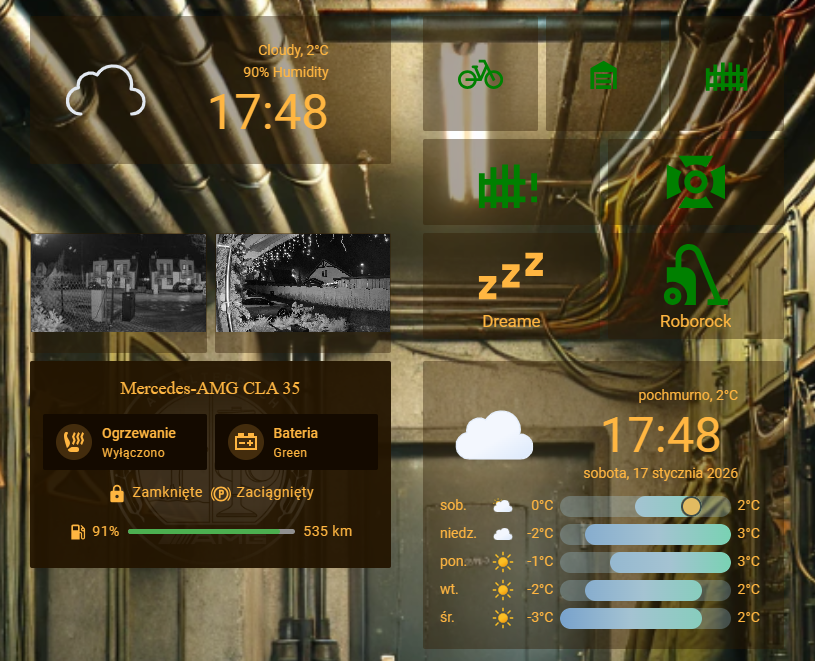 |
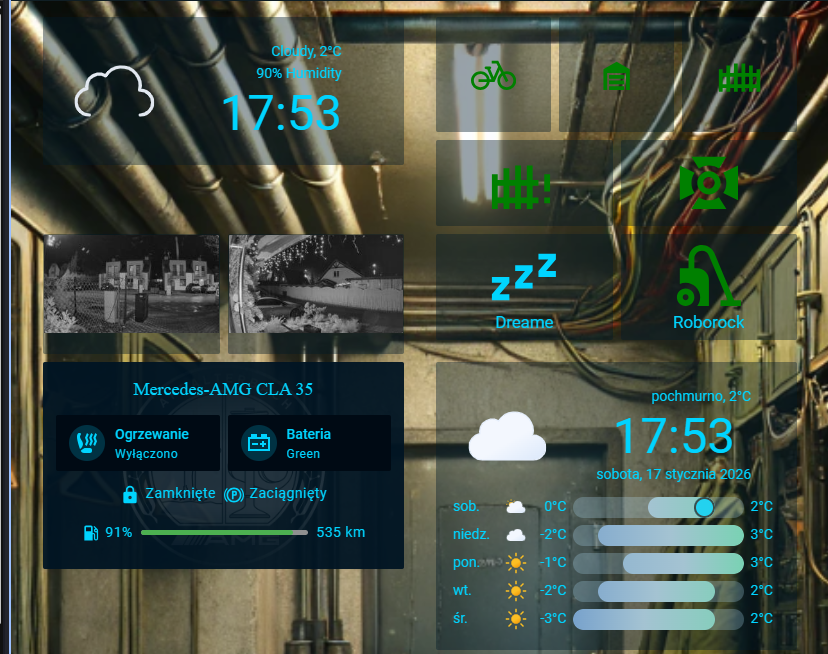 |
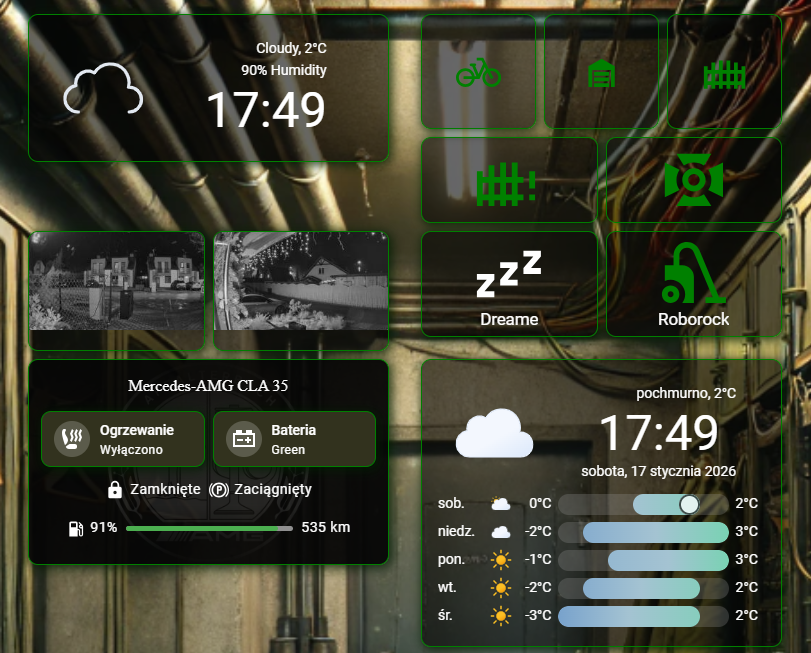 |
This project offers four Fallout-inspired theme variants for Home Assistant, each with unique color palettes and atmospheric backgrounds. All themes feature semi-transparent dark backgrounds optimized for "monitor glow" effects and support custom wallpapers. The repository also includes a Python toolchain for generating consistent AI artwork for dashboards.
- Default (Green) - Classic Pip-Boy phosphor green (
#14F514) - Amber - Warm amber/sepia tones (
#FFB641) for a vintage CRT monitor feel - Blue - Neon cyan (
#00D4FF) inspired by Nuka-Cola Quantum - Light - Experimental light mode variant with customizable icon colors
File: transparent-fallout.yaml
Classic Pip-Boy aesthetic with phosphor green display.
- Primary Color: Phosphor Green (
#14F514) - used for active states, text, and icons. - Backgrounds: Semi-transparent dark green layers (
rgba(0, 40, 0, ...)) optimized for "monitor glow" effects. - Fonts: Configured to match terminal aesthetics (requires system font support or custom CSS injection).
- Wallpaper: Supports local background injection (default placeholder:
/local/fallout-bg.jpg).
File: transparent-fallout-amber.yaml
Warm amber/sepia theme resembling vintage CRT monitors or candlelight terminals.
- Primary Color: Phosphor Amber (
#FFB641) - warm amber for all active elements. - Backgrounds: Semi-transparent dark brown/sepia layers (
rgba(45, 25, 0, ...)) creating a warm glow. - Wallpaper:
/local/fallout-amber-bg.jpg
File: transparent-fallout-blue.yaml
Neon cyan theme inspired by Nuka-Cola Quantum and sci-fi terminals.
- Primary Color: Neon Blue (
#00D4FF) - bright cyan for futuristic aesthetic. - Backgrounds: Semi-transparent dark blue layers (
rgba(0, 25, 40, ...)) with cool tones. - Wallpaper:
/local/fallout-blue-bg.jpg
File: transparent-fallout-light.yaml
Experimental light mode variant with extensive customization options.
- Icon Color: Customizable (default:
#bdddcb) - Backgrounds: Dark semi-transparent layers
- Note: Work in progress - may have visual inconsistencies.
The repository includes scripts to automate the maintenance of dashboard assets.
A Python utility for generating Midjourney/DALL-E prompts for new rooms.
- Input:
room-manifest.txt(list of rooms). - Template:
prompt.txt(Fallout-style aesthetic definition). - Output:
output_prompts.txt(Ready-to-use prompts). - Usage:
python3 generate_prompts.py
The assets/ directory (structure flattened in root for this repo) contains rendered graphics for floorplans and rooms.
Naming Convention: Kebab-case English (e.g., server-cabinet.png, garage-zs.png).
| Category | Examples |
|---|---|
| Levels | level01.png, level02.png, townhouse.png |
| Tech | servers.png, recuperator.png, pv.png |
| Living | master-bedroom.png, kitchen-1.png |
| Exterior | garage-zs.png, gate-01.png |
This is a custom repository, so you need to add it manually to HACS.
- Open HACS in Home Assistant.
- Go to Frontend.
- Click the 3 dots in the top right corner and select Custom repositories.
- Paste the repository URL:
https://github.com/jrx-code/hassio-transparent-fallout - Select category: Theme.
- Click Add.
- Now search for Transparent Fallout in the HACS Frontend tab and install it.
- Restart Home Assistant.
For advanced users or contributors.
- Go to your Home Assistant
themesdirectory:cd /config/themes/ - Clone the repository:
git clone https://github.com/jrx-code/hassio-transparent-fallout.git transparent-fallout
- Add the following to your
configuration.yaml(if not already present):frontend: themes: !include_dir_merge_named themes
- Restart Home Assistant.
After installation (via HACS or Manual):
- Go to your Profile (click your user icon in the sidebar bottom left).
- Under Theme, select one of:
- Transparent Fallout (green)
- Transparent Fallout Amber
- Transparent Fallout Blue
- Transparent Fallout Light
Each theme expects a corresponding background image in /config/www/:
/local/fallout-bg.jpg- Default green theme/local/fallout-amber-bg.jpg- Amber theme/local/fallout-blue-bg.jpg- Blue theme
You can use any Fallout-themed wallpaper or generate your own using AI tools (Midjourney, DALL-E, Stable Diffusion).
- Added Amber theme variant (
transparent-fallout-amber.yaml) - Added Blue theme variant (
transparent-fallout-blue.yaml) - Updated Light theme with customizable icon colors (
#bdddcb) - Fixed YAML indentation issues across all themes
- Added preview images for all theme variants in
previews/directory - Updated README with comprehensive theme descriptions
- Initial public release
- Classic green Pip-Boy theme
- Python automation tools for AI art generation
MIT License (inherited from upstream).