


A comprehensive Home Assistant integration that brings Cloudflare Workers AI capabilities to your smart home, including Text-to-Speech, Speech-to-Text, and Conversation (LLM) with full device control for the Assist pipeline.
⚠️ Early Development Notice This integration is in early development. While core features are functional, you may encounter bugs or unexpected behavior. Please report any issues on GitHub. Feedback and contributions are welcome!
- 🗣️ Text-to-Speech (TTS) - 4 high-quality voice models with 40+ voice options
- 🎙️ Voice Selection - Choose from dozens of voices for Aura models (NEW in v0.2.0)
- 🌍 Language Selection - Select language for MeloTTS (6 languages) (NEW in v0.2.0)
- 📊 Real-time State Tracking - Monitor conversation processing stages and device actions (NEW in v0.2.0)
- 🎤 Speech-to-Text (STT) - 4 advanced STT models
- 💬 Conversation (LLM) - 4 powerful language models with full device control
- 🎮 Device Control - Full Home Assistant device control via voice with 22 built-in tools
- 🎨 Smart Color Control - Natural language color changes ("set the light to the color of the sky")
- 🏠 Area-Based Control - Control all devices in a room at once
- ⚙️ Easy Configuration - Simple setup through Home Assistant UI
| Model | Name | Language | Provider |
|---|---|---|---|
@cf/deepgram/aura-2-en |
Aura 2 English | English | Deepgram |
@cf/deepgram/aura-2-es |
Aura 2 Spanish | Spanish | Deepgram |
@cf/deepgram/aura-1 |
Aura 1 | Multi-language | Deepgram |
@cf/myshell-ai/melotts |
MeloTTS | Multi-language | MyShell.ai |
| Model | Name | Provider |
|---|---|---|
@cf/openai/whisper |
Whisper | OpenAI |
@cf/openai/whisper-large-v3-turbo |
Whisper Large V3 Turbo | OpenAI |
@cf/openai/whisper-tiny-en |
Whisper Tiny English | OpenAI |
@cf/deepgram/nova-3 |
Deepgram Nova 3 | Deepgram |
All models support full device control via function calling:
| Model | Name | Parameters | Provider |
|---|---|---|---|
@hf/nousresearch/hermes-2-pro-mistral-7b |
Hermes 2 Pro | 7B | NousResearch |
@cf/meta/llama-4-scout-17b-16e-instruct |
Llama 4 Scout | 17B (16 experts) | Meta |
@cf/meta/llama-3.3-70b-instruct-fp8-fast |
Llama 3.3 70B Fast | 70B | Meta |
@cf/mistralai/mistral-small-3.1-24b-instruct |
Mistral Small 3.1 | 24B | MistralAI |
Before installing this integration, you need:
- Cloudflare Account - Sign up at cloudflare.com
- Workers AI Access - Enable Workers AI in your Cloudflare account
- API Token - Create an API token with Workers AI permissions:
- Go to Cloudflare Dashboard
- Click "Create Token"
- Use "Edit Cloudflare Workers" template or create custom token
- Ensure it has
Workers AIpermissions
- Account ID - Found in your Cloudflare dashboard URL or account settings

Or manually:
- Open HACS in Home Assistant
- Click on "Integrations"
- Click the three dots in the top right corner
- Select "Custom repositories"
- Add this repository URL:
https://github.com/jonasmore/Cloudflare-Workers-AI-Home-Assistant-Integration - Select category: "Integration"
- Click "Add"
- Find "Cloudflare Workers AI" in HACS
- Click "Download"
- Restart Home Assistant
- Download the latest release from GitHub Releases
- Extract the
custom_components/cloudflare_workers_aifolder - Copy it to your Home Assistant
config/custom_componentsdirectory - Restart Home Assistant
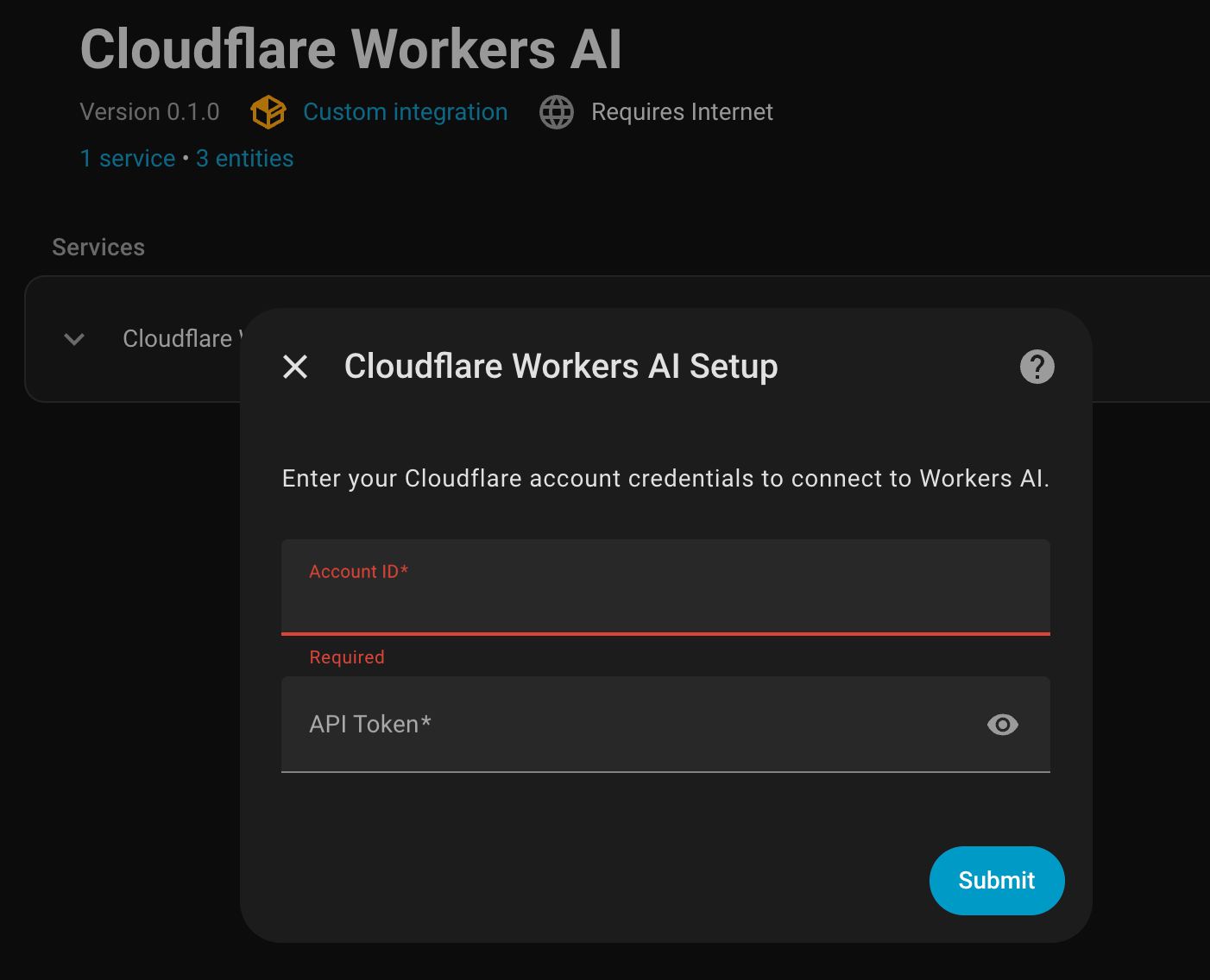
- Go to Settings → Devices & Services
- Click + Add Integration
- Search for "Cloudflare Workers AI"
- Enter your credentials:
- Account ID: Your Cloudflare account ID
- API Token: Your Cloudflare API token
- Click Submit
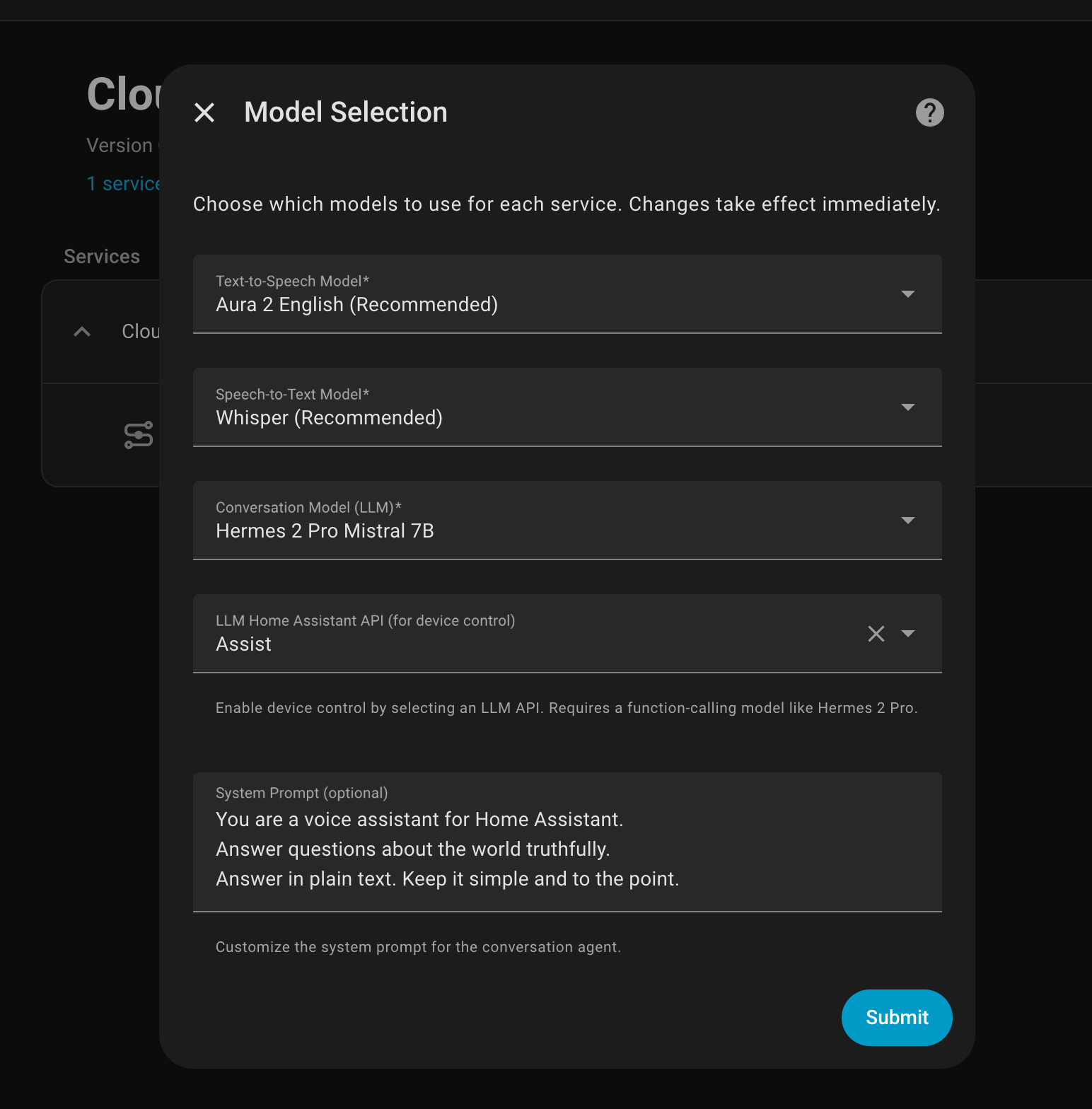
After initial setup, configure which models to use:
- Go to Settings → Devices & Services
- Find "Cloudflare Workers AI" integration
- Click Configure
- Select your preferred models:
- TTS Model: Choose from 4 text-to-speech models
- STT Model: Choose from 4 speech-to-text models
- LLM Model: Choose from 4 conversation models (all with device control)
- Click Submit
Customize your TTS experience with voice and language options:
Voice Selection (Aura Models):
- Aura 2 EN: 40 English voices including luna, mars, zeus, athena, apollo, and more
- Aura 2 ES: 10 Spanish voices including aquila, sirio, diana, celeste, and more
- Aura 1: 12 voices including angus, asteria, orion, perseus, and more
Language Selection (MeloTTS):
- English, Spanish, French, Chinese, Japanese, Korean
How to Configure:
- Select your TTS model and click Submit
- Reopen Configure to see voice/language options for your selected model
- Choose your preferred voice or language
- Click Submit to save
Note: Voice/language options appear dynamically based on your selected TTS model. If you change the TTS model, submit and reopen the configuration to see the appropriate options.
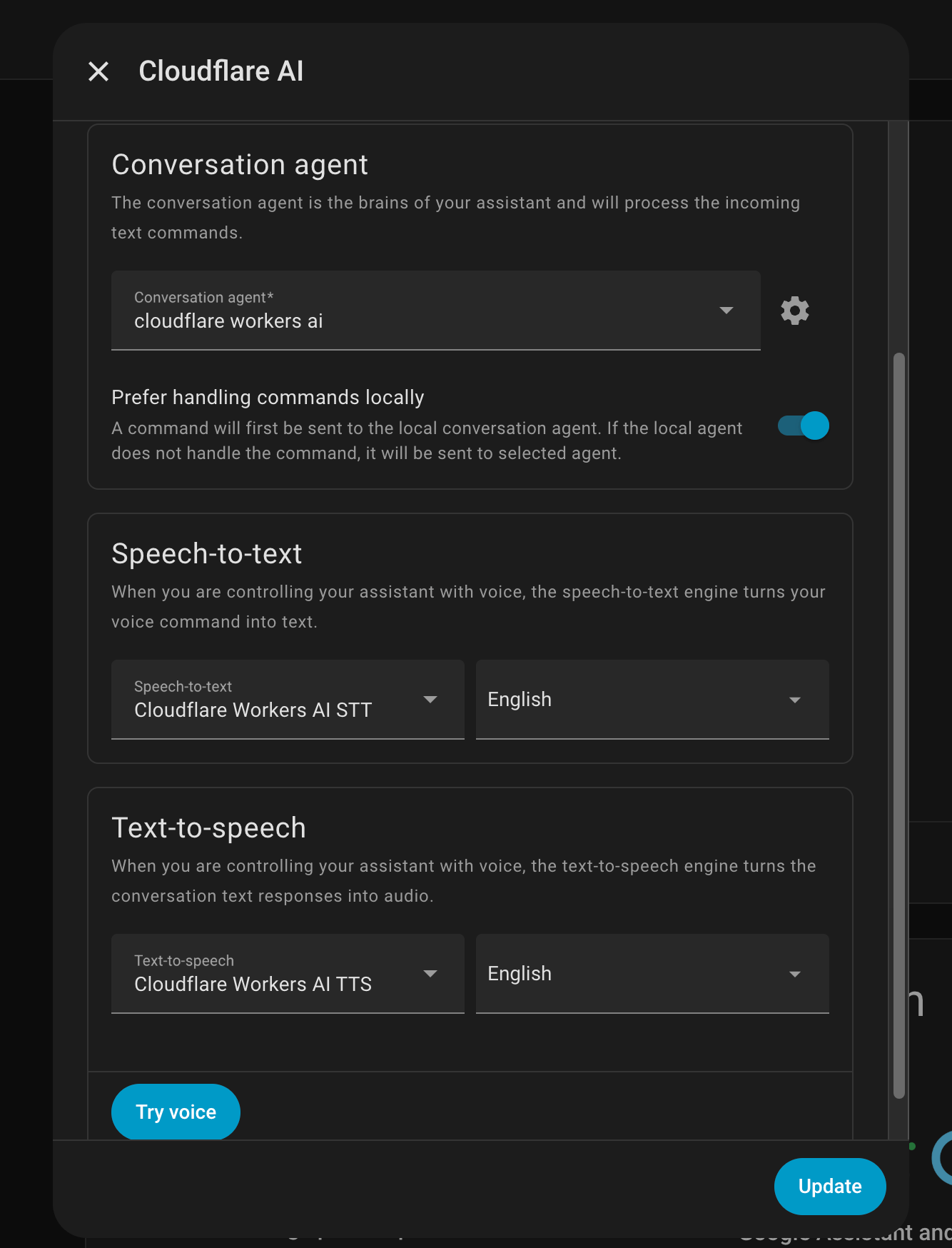
- Go to Settings → Voice Assistants → Assistants
- Click + Add Assistant or edit an existing one
- Configure the assistant:
- Name: Give it a descriptive name (e.g., "Cloudflare AI Assistant")
- Language: Select your preferred language
- Conversation agent: Select "Cloudflare Workers AI"
- Speech-to-text: Select "Cloudflare Workers AI STT"
- Text-to-speech: Select "Cloudflare Workers AI TTS"
- Wake word: Choose a wake word engine (optional)
- Click Create to save your assistant
- Go to Settings → Voice Assistants → Expose
- Select the entities you want to control via voice:
- Toggle switches, lights, and other devices
- Choose specific entities or entire domains
- Click Save
Now you can use voice commands like:
- "Turn on the kitchen light"
- "Set the table to red"
- "Turn off all lights in the living room"
- "Change the bedroom light to the color of the sky"
- "What's the temperature in the living room?"
Use in automations or scripts:
service: tts.speak
target:
  entity_id: tts.cloudflare_workers_ai_tts
data:
  message: "Hello, this is a test message"
media_player_entity_id: media_player.living_roomConfigure in the Assist pipeline:
- Go to Settings → Voice Assistants
- Click on your assistant or create a new one
- Under Speech-to-Text, select "Cloudflare Workers AI STT"
Configure in the Assist pipeline:
- Go to Settings → Voice Assistants
- Click on your assistant or create a new one
- Under Conversation Agent, select "Cloudflare Workers AI"
Monitor what your voice assistant is doing in real-time! The conversation entity now shows its current state:
States you'll see:
idle- Ready and waiting for inputprocessing- Started processing your requestwaiting for LLM- Waiting for AI response from Cloudflaregenerating response- Creating the final responseexecuting: HassTurnOn on 'kitchen light' (1/2)- Performing device control actionserror- Something went wrong
This provides excellent visibility for debugging and understanding your voice assistant's behavior. You can view the state in:
- Developer Tools → States →
conversation.cloudflare_workers_ai - The conversation entity card in your dashboard
"Turn on the kitchen light"
"Turn off the bedroom fan"
"Open the garage door"
"Set the table light to red"
"Change the living room to blue"
"Make the bedroom light the color of the sky"
"Turn on all lights in the living room"
"Turn off everything in the kitchen"
"Set all lights upstairs to warm white"
"Set the living room light to 50% brightness"
"Turn on the TV in the bedroom"
"Play music in the kitchen"
The integration provides 22 built-in tools for device control:
- Device Control: HassTurnOn, HassTurnOff
- Light Control: HassLightSet (color, brightness)
- Media Control: HassMediaUnpause, HassMediaPause, HassMediaNext, HassMediaPrevious
- Volume Control: HassSetVolume, HassSetVolumeRelative, HassMediaPlayerMute, HassMediaPlayerUnmute
- Media Search: HassMediaSearchAndPlay
- Climate Control: (via HassTurnOn/Off)
- Fan Control: HassFanSetSpeed
- Vacuum Control: HassVacuumStart, HassVacuumReturnToBase
- Timer Control: HassCancelAllTimers
- Communication: HassBroadcast
- Lists: HassListAddItem, HassListCompleteItem
- Information: GetDateTime, GetLiveContext, todo_get_items
Error: "Failed to connect to Cloudflare API"
Solutions:
- Verify your Account ID is correct
- Check that your API Token has Workers AI permissions
- Ensure your Cloudflare account has Workers AI enabled
- Check your internet connection
Solutions:
- Ensure LLM Home Assistant API is set to "Assist"
- Use a function calling model (Hermes 2 Pro, Llama 3.3, Llama 4 Scout, or Mistral Small)
- Verify entities are exposed in Settings → Voice Assistants → Expose
- Use exact device names as they appear in Home Assistant
- Check Home Assistant logs for detailed error messages
Solutions:
- Ensure audio format is supported (WAV, OGG)
- Check microphone quality and audio levels
- Try Whisper Large V3 Turbo for better accuracy
- Verify language settings match your speech
- Entity Names: Use simple, clear names for your devices (e.g., "kitchen light" instead of "kitchen_ceiling_light_1")
- Aliases: Add aliases to entities for more natural voice commands
- Areas: Organize devices into areas for area-based control
- Model Selection:
- Use Hermes 2 Pro for fastest device control
- Use Llama 3.3 70B for best accuracy
- Use Whisper Large for best STT accuracy
- Expose Carefully: Only expose entities you want to control via voice
Cloudflare Workers AI has usage limits based on your plan:
- Free Plan: 10,000 neurons per day
- Paid Plans: Higher limits based on your subscription
Monitor your usage in the Cloudflare dashboard. For detailed pricing information, see the Cloudflare Workers AI Pricing.
Contributions are welcome! Please:
- Fork the repository
- Create a feature branch
- Make your changes
- Submit a pull request
- Issues: GitHub Issues
- Home Assistant Community: Community Forum
This project is licensed under the MIT License - see the LICENSE file for details.
- Cloudflare Workers AI for providing the AI models
- Home Assistant for the amazing smart home platform
- Inspired by OpenAI Conversation and other LLM integrations
Star ⭐ this repository if you find it useful!