This is a single page browser app with a continuous What's Playing display and is compatible with BluOS devices.
I purposely made it simple with no controls or buttons and easily visible across the room. Its not intended to be a controller. For that you continue to use the BluOS app.
I run it on an old Android tablet I had lying around to create a dedicated display for my Bluesound NODE.
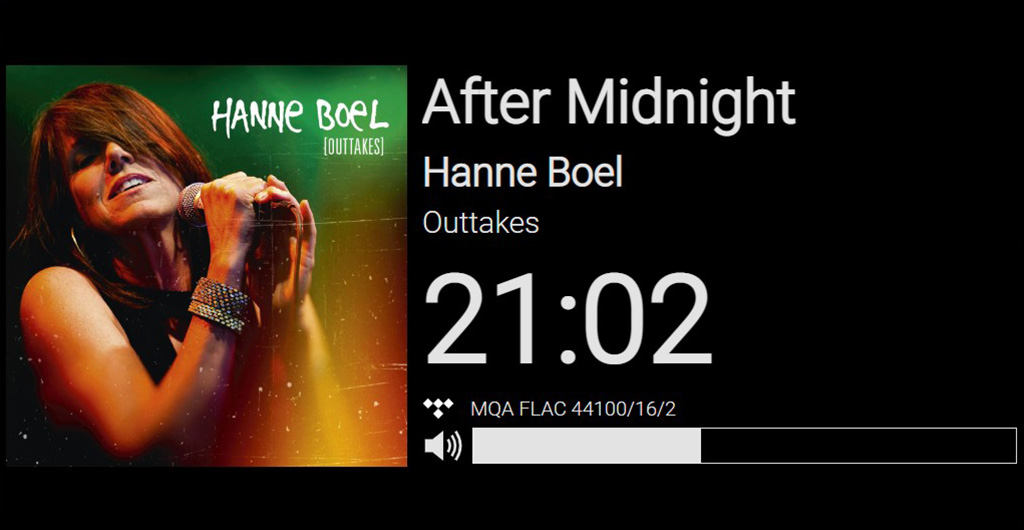
It shows the current title, artist, album and cover art along with the quality and format. It also includes the current time of day:
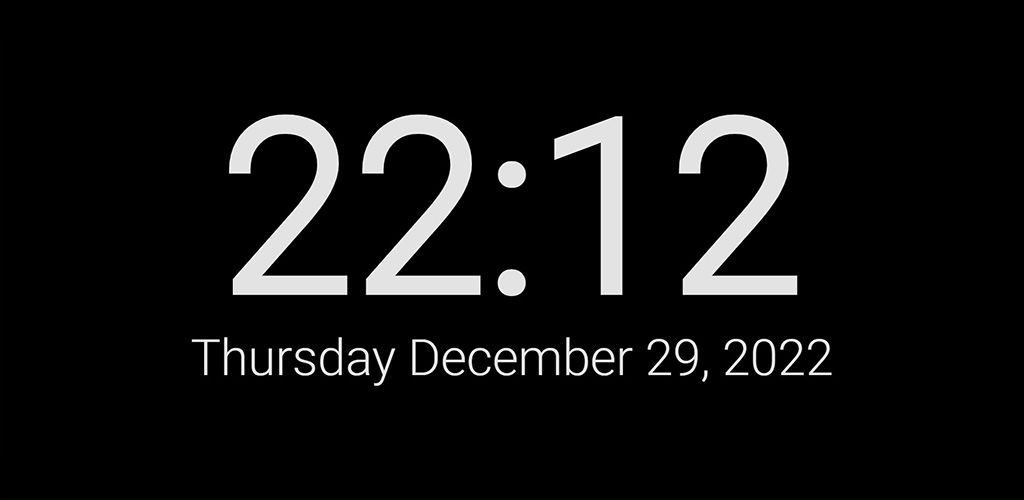
When nothing is playing it's a clock:
By integrating with my DialServer project you can use a Surface Dial as a wireless volume control for your BluOS device. This requires you to run DialServer either on its own or on the same box you are using to serve up BluView. I'm currently doing this using a Raspberry Pi and an old Android tablet running BluView for the display. They are not connected other than via WiFi.
To make this work, follow the install instructions at https://github.com/jaymarnz/dialserver and then configure BluView with the IP address of your DialServer. That's it!
Functions support by the Surface Dial integration are:
| Click (short press and release) | Mute or unmute. If paused it will unmute and resume playing |
| Long press (hold until action occurs) | Pause or resume playing |
| Rotate | Increase or decrease volume |
It runs entirely within your browser and there is no data sent or stored anywhere else. It saves its configuration data in your browser's local storage. Configuration data is the local IP address of your streamer and the optional wireless volume control IP address if you use that feature.
There are no dependencies. Simply copy dist/index.html to somewhere your browser can open it. The simplest is to put it on the device itself and open it in the browser with file://<path-to-the-file>/index.html
To download the file from GitHub:
- https://raw.githubusercontent.com/jaymarnz/bluview/master/dist/index.html
- Right-click in the browser and save-as
index.html
You can also download with: wget https://jaymarnz.dev/bluview/index.html
If you already have a webserver on your local network you can host index.html and that's all you need to do. (eg. RPi, Quadra, PC, Laptop, NUC, NAS, basically anything that can run a simple webserver). See below about why hosting remotely is troublesome.
If you want to have an icon within your browser you can copy the icon png files from the dist folder to the same location you put the index.html file. This is optional and isn't used if you run it as a kiosk (see below).
If you don't have a local webserver you can download it on Android and iOS but it's not obvious how to then open the local on-device index.html file in a browser. Particularly on iOS where both Safari and Chrome won't open a local file. Here's what I've found works:
- Put index.html in Google Drive or on the phone itself
- Navigate to the index.html file either within Google Drive or using the Files app
- Click on the file's menu and choose Open with -> Chrome
- Install Microsoft Edge (it seems it might be the only mainstream browser on iOS that will open local html files)
- Put index.html in One Drive, Google Drive or download locally
- Use the files app to navigate to the file
- Click and hold on the index.html file and choose Share -> Edge
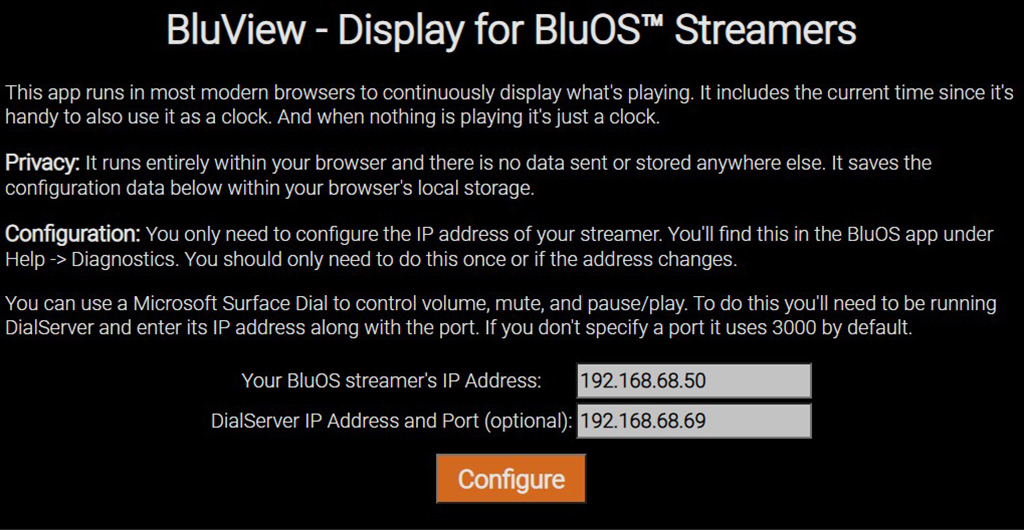
The first time you open the page it will show a configuration screen. All you need to do is enter the IP address of your player. You'll find it in the BluOS app under Help -> Diagnostics. You usually only need to do this once but if for some reason the IP address changes you can get back to the configuration screen by touching or clicking anywhere on the clock screen when nothing is playing. This is also where you can enter the IP address and port of an optional wireless Surface Dial Server (https://github.com/jaymarnz/dialserver)
In some browsers you can make the page full-screen (eliminates the web address and other headers so it's just the web page). I recommend using it this way.
Another option is to enable the fullscreenButton in the blueview.js config. This adds a familar fullscreen icon to the top right of each page.
That works on my old Android tablet along with using the Developer Options->Keep Awake to keep the screen on. But the Samsung OneUI still imposes a display timeout maximum of 30 minutes after which it dims the display. I've read this is fixed in a later release of OneUI but my tablet is too old.
So, I've tried a few kiosk apps. I've been using Fully Kiosk Browser for a long time but I find that the Fully app locks up periodically and stops responding to touch or buttons and the tablet has to be restarted.
Recently I've started using Kiosk Browser Lockdown. It works well and meets my needs. Time will tell if it too will require the tablet to be restarted periodically. However, it has lots of configuration options and is designed to fully lockdown the device so carefully go through all the settings to make sure you don't lock yourself out of being able to exit or adjust settings.
iOS has a kiosk mode built-in. It's called Guided Access and is enabled in Settings -> Accessibility -> Guided Access
I thought I could just create a public website and provide the link. I did and you'll find it at https://jaymarnz.dev/bluview but it might not work without making a few changes to settings in your browser. That's because in newer browser versions remote sites can't access local resources (your player) by default. If your device is running one of these newer browsers then it will fail to connect to the player and you'll get an error on the configuration screen.
Using a different browser than Chrome might work without any changes but I haven't tried that.
However, for a dedicated display device where you don't mind making two Chrome security settings changes this will work on Windows and Linux. However, you might not be able to do this on Android or iOS (see above for local install on those).
-
Allow insecure content from https://jaymarnz.dev. You need to allow this because the BluOS API doesn't support https. By default, secure sites served over https can't call insecure API's. But I can't serve the site over http because access to the local network is blocked unless the page is served via https.
Addjaymarnz.devto the "Allowed to show insecure content" section:chrome://settings/content/insecureContent?search=site+settings -
Disable local preflights. I'm not certain but I think BluOS gets confused when it receives preflight OPTIONS with a newly introduced private network access control request and it returns a 501 error (which is ok). But the next non-preflight (the actual API call) fails with a 400. I wasn't able to figure out how to get this to work without disabling preflights for private network resources. But unfortunately, this setting applies to all websites so I don't recommend doing this on a PC you use for general web browsing.
Disable this flag:chrome://flags/?search=preflight#private-network-access-send-preflights
For more info: https://developer.chrome.com/blog/private-network-access-preflight/