As music providers have enabled music to become more personalised and widely available, listening to songs has become a part of my daily routine. I often create playlists for different moods and genres, from hip hop to lo-fi to acoustic. However each time I create a playlist, it takes time for me to order the songs so that there are smooth transitions between each track. Another aspect of music I enjoy is rediscovering old songs as it brings back nostalgia. Using Spotify’s API, I decided to develop an algorithm to sort tracks in order to optimise the flow of songs in a playlist. I also pulled through and sorted my top twenty songs in any given period from my Spotify data, so I could ‘rewind time’ and bring back old memories. To optimise your Spotify playlist please follow the steps below.
For more information on the process please refer to the following article: https://medium.com/@afibannor/spotify-playlist-optimisation-and-discovering-your-music-history-4e2b1fbc5c29
Before we start you first need to access the Spotify API. To do this you start by setting up a Spotify Developer account following the link below.
https://developer.spotify.com/dashboard/
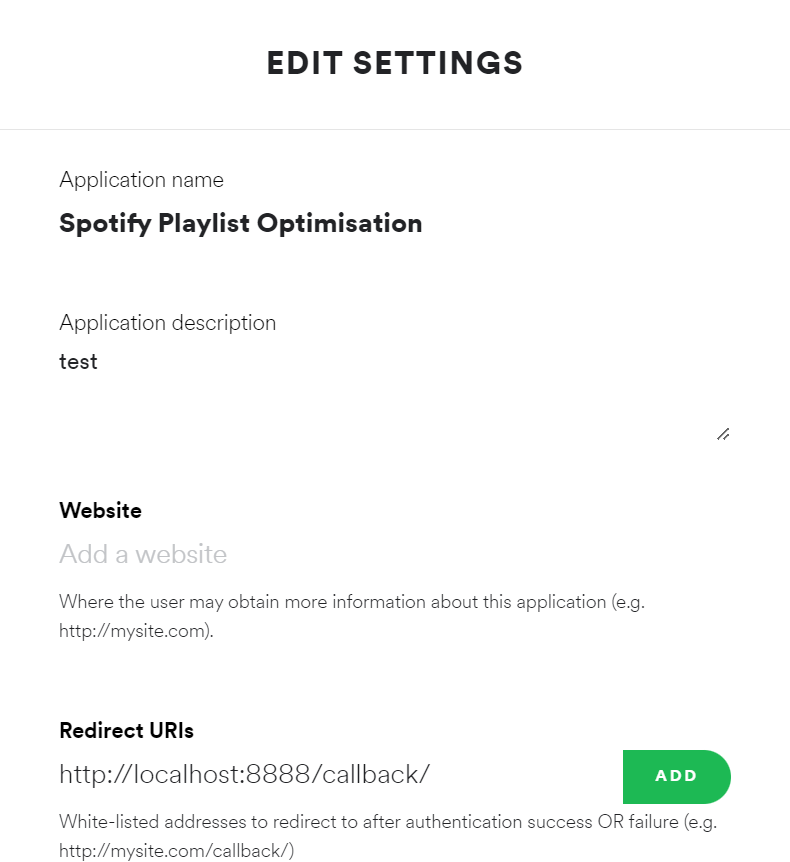
Here you can create a project and retrieve the client ID and client secret. You also need to set up a redirect URI to access the API. Click Edit Settings and set the redirect URI to http://localhost:8888/callback/. When calling the API in Python you will be redirected to sign into your Spotify Developer account.
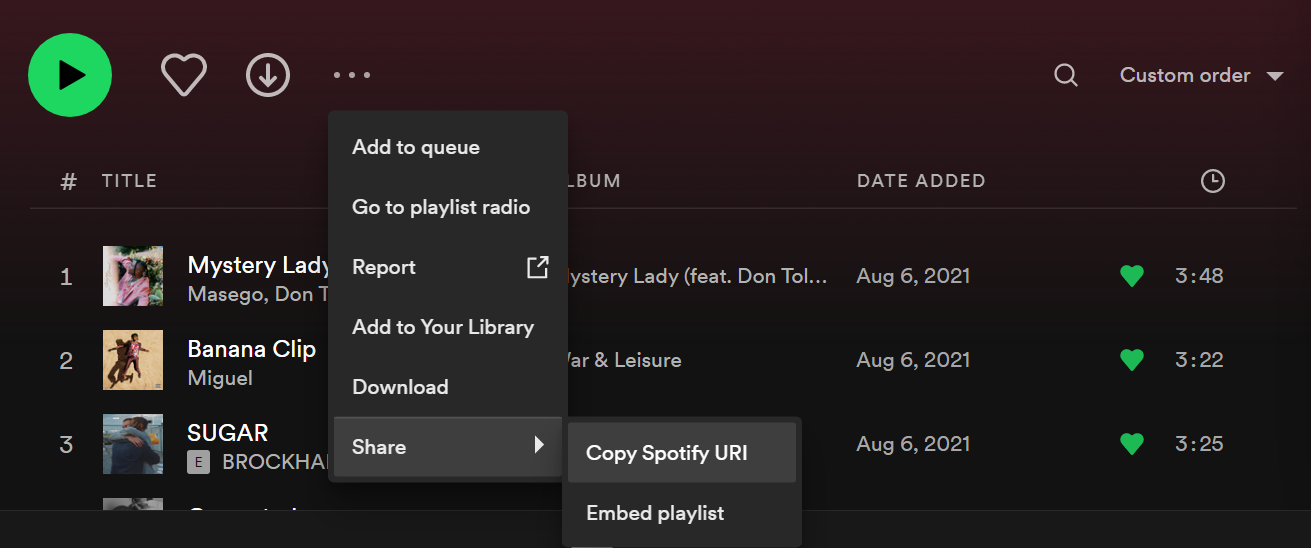
In Spotify Desktop, search for the playlist you would like to reorder and click the three dots under the playlist name. Click the Ctrl button your keyboard and click share. You can then copy the Spotify URI of the playlist
First change the creator and username variables to the playlist creator username and your Spotify username respectively. If you are reordering your own playlist, the creator and username will be the same. Lastly in the final function, create_ordered_playlist, update the Spotify URI to the URI of the playlist you would like to reorder. Please note you may be redirected to sign into your Spotify Developer account. You will now be able to run sp_playlist_optimisation.py to optimise the order of any playlist!
To begin your music rewind journey, you first need to access your Spotify history. This can be retrieved by requesting your Extended Streaming History via Spotify’s Customer Service here.
https://support.spotify.com/us/article/data-rights-and-privacy-settings/
You will receive your data in json files, you can store this in a local folder on your computer.
To run sp_rewind.py update the username to your Spotify username. Update dir_path to the file path of the folder where your Spotify history data is stored. Then in the final function, rewind_time, enter the start and end date of the period you would like to go back to in the following format, yyyy-mm-dd. Please note that you cannnot select a period outside of your listening history i.e. before you began using your Spotify account or after the date you received your data.