
IconSense is a powerful VSCode extension that allows developers to preview, manage, and explore icons directly in their code. It supports images, SVGs, CSS icon fonts, and advanced features like tree-shaking, icon picking, and CSS-to-SVG conversion.
- Open VS Code.
- Go to Extensions → Search for
IconSense. - Click Install.
- Reload VS Code if necessary.
| Setting | Description | Default |
|---|---|---|
iconSense.autoScanCss |
Automatically scan all CSS files in the workspace | true |
iconSense.autoOpenIconPickerPanel |
Automatically open the Icon Picker panel | true |
iconsense.debug.showIconIndex |
Show icon index numbers for debugging | false |
iconSense.scanHtml |
Scan HTML files | true |
iconSense.scanCss |
Scan CSS files | true |
iconSense.scanJsTs |
Scan JS/TS files | true |
iconSense.scanPhp |
Scan PHP files | false |
Tip: You can configure settings via VS Code Settings or directly in settings.json
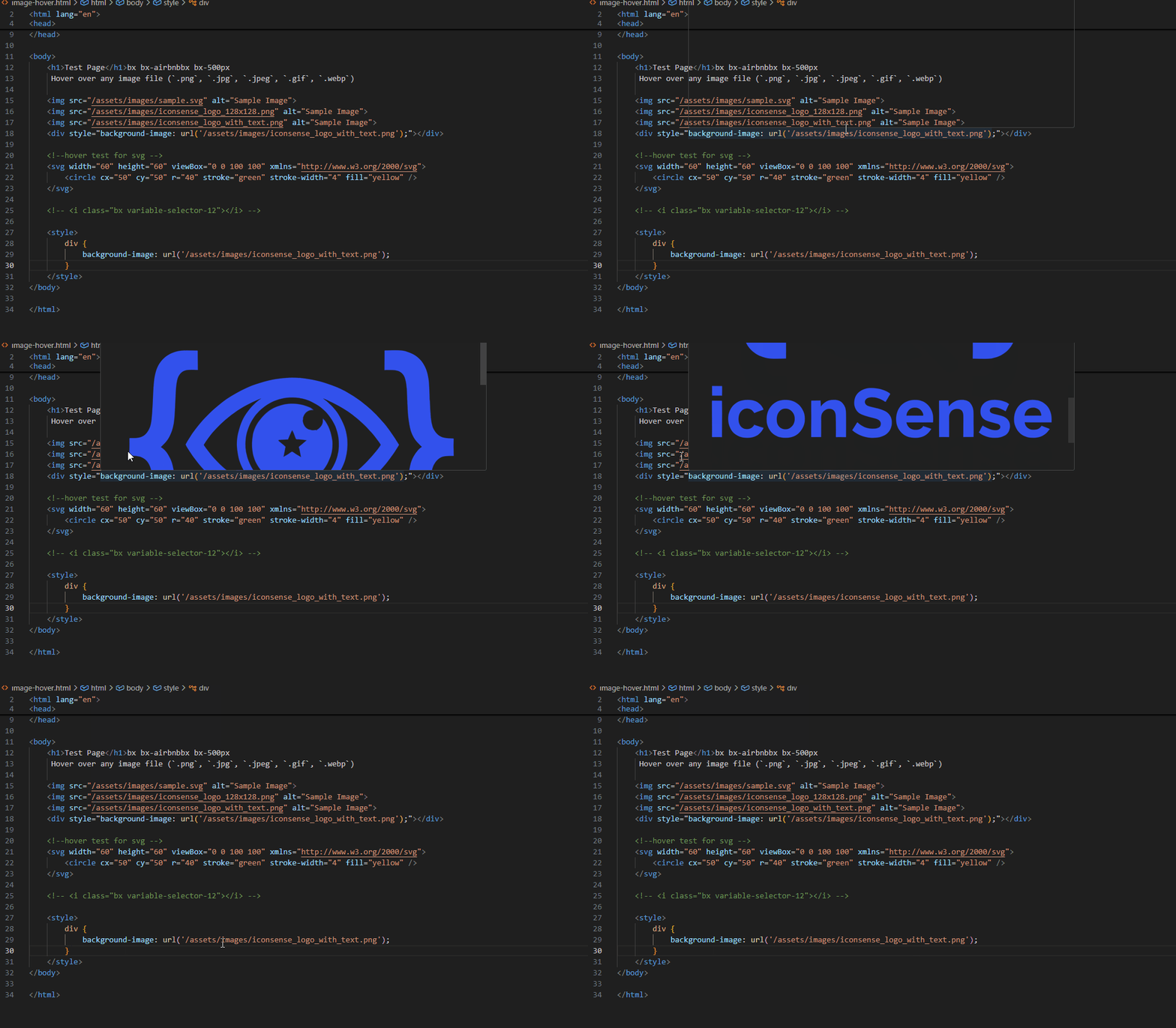
- Hover over any image file (
.png,.jpg,.jpeg,.gif,.webp) to instantly see an inline preview. - File Size and Dimensions are displayed alongside the preview.
- Example:
Preview: 450 KB | 128x128 px
- Preview
<svg>...</svg>blocks directly in your code. - Converts SVGs to base64 for instant rendering.
- Useful for inline SVGs in HTML, Vue, React, or plain JS files.
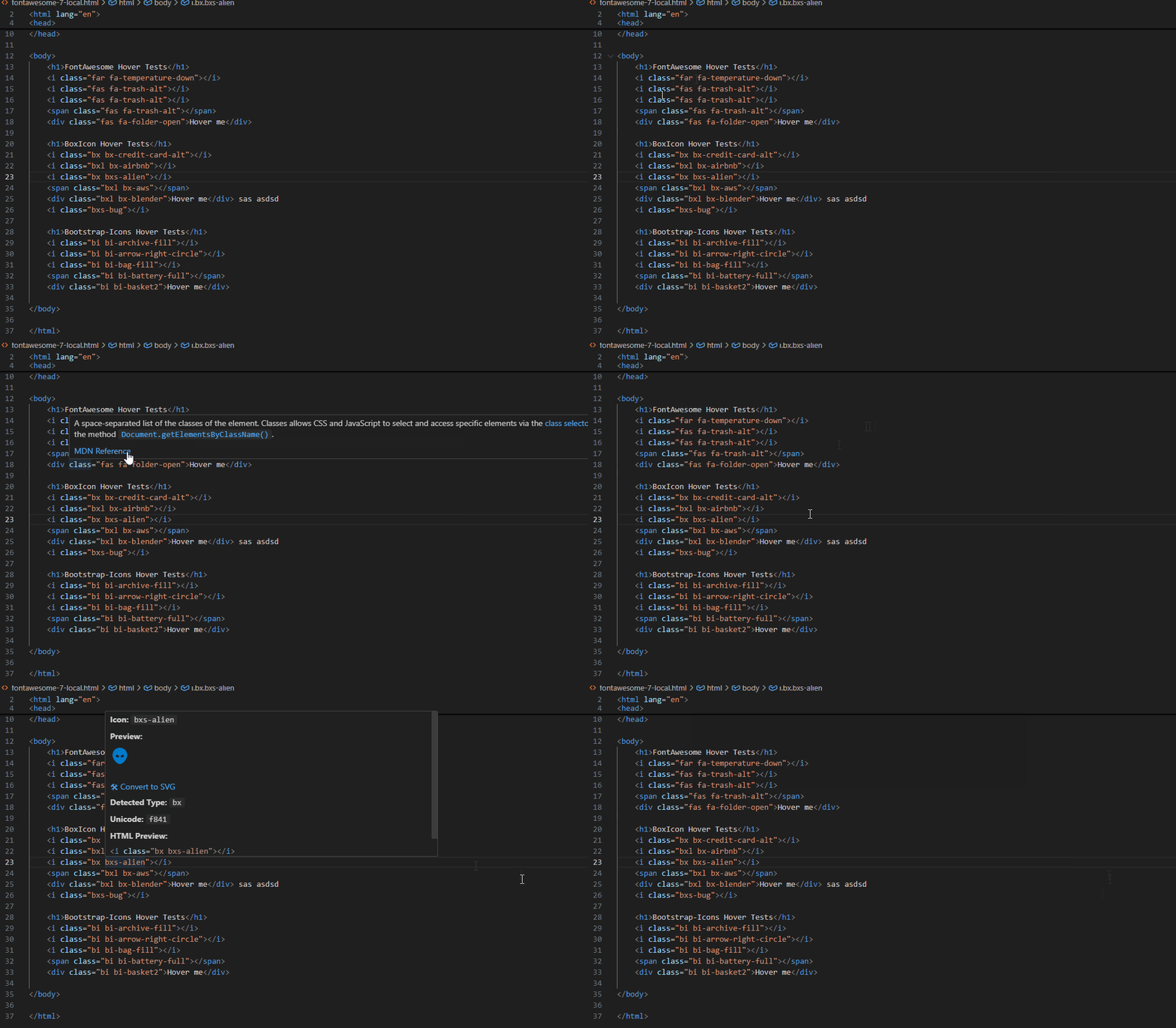
- Detect icons from local CSS files or remote CDN sources automatically.
- Supports Font Awesome (FA4-FA7), Bootstrap Icons, BoxIcons, and other popular icon fonts.
- Hover to preview icons in your code, including aliases and sibling groups.
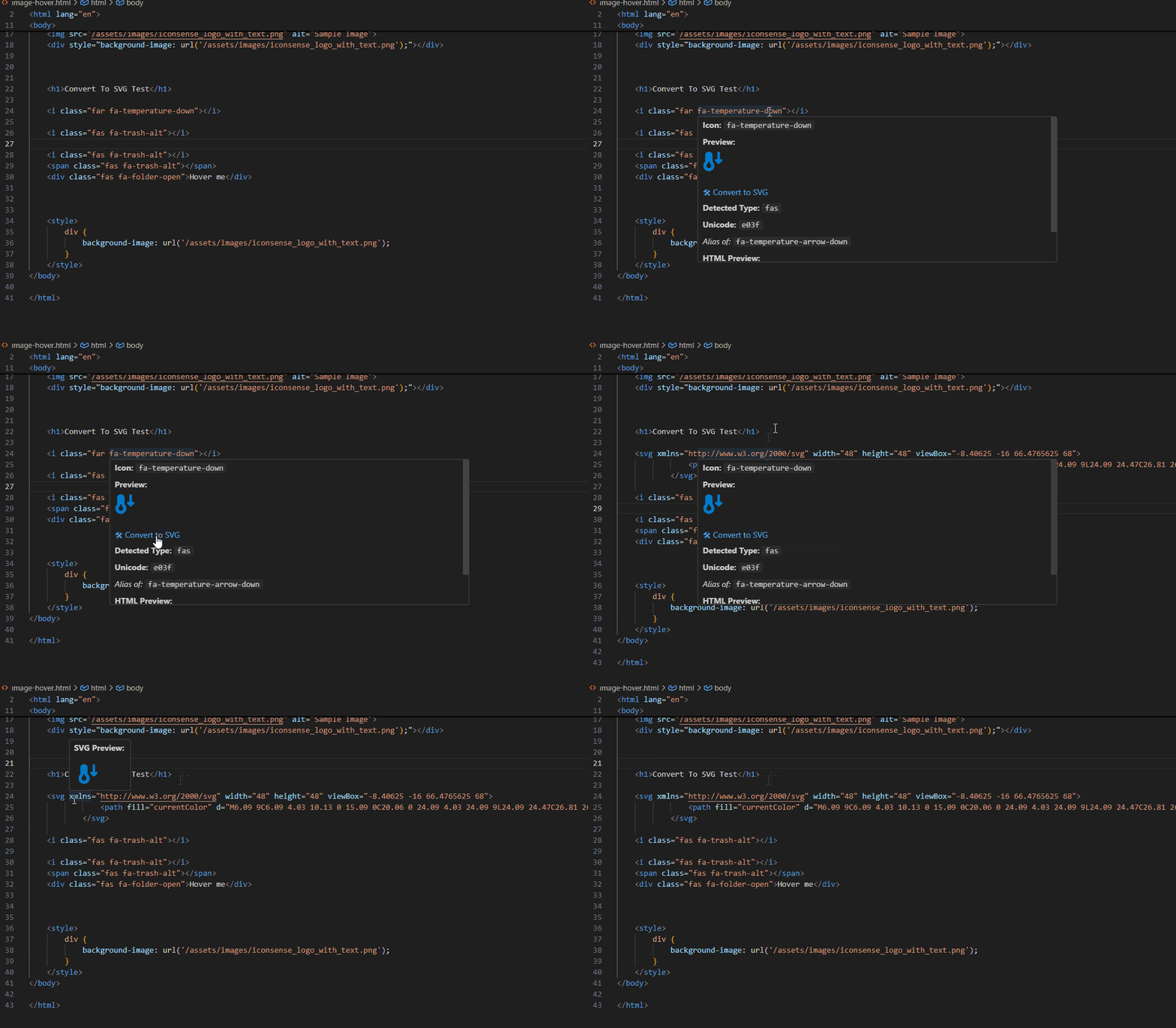
- Convert any detected CSS icon into an SVG instantly.
- Ideal for custom projects where you want vector icons.
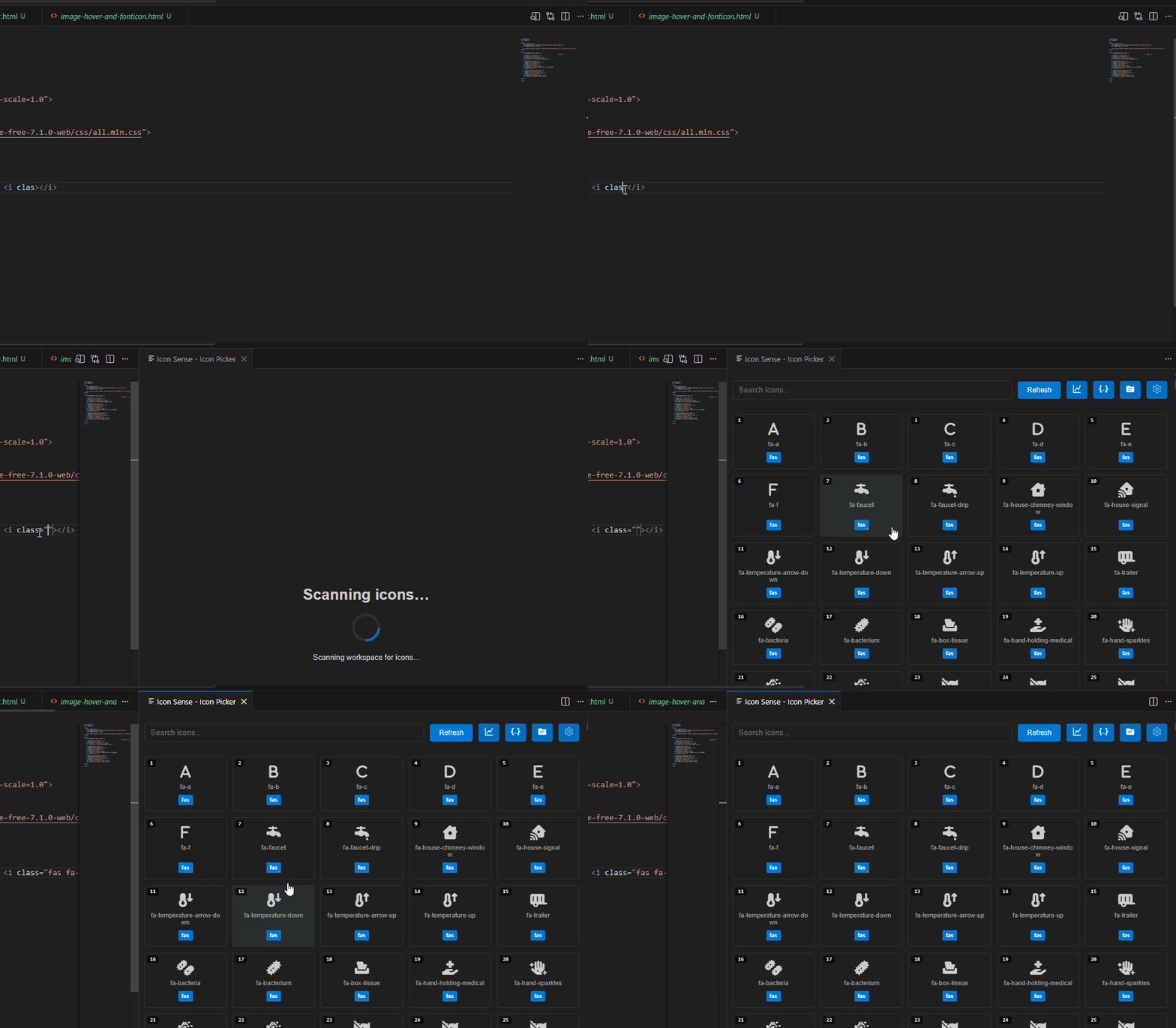
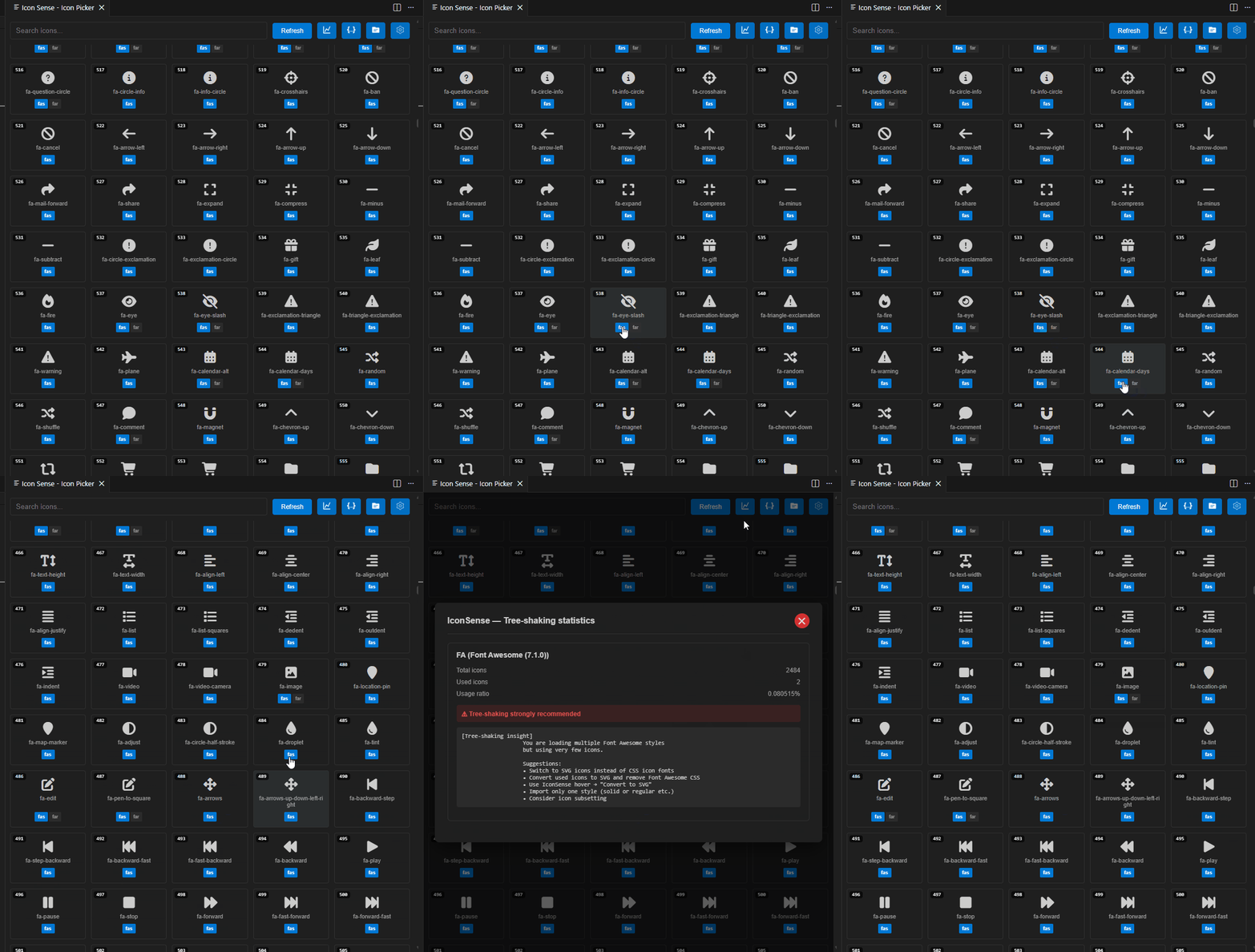
- Browse, search, and select icons visually from the sidebar panel.
- Multiple variations of each icon are supported.
- Copy SVG, Unicode, or CSS class names with one click.
- Icon Picker Preview
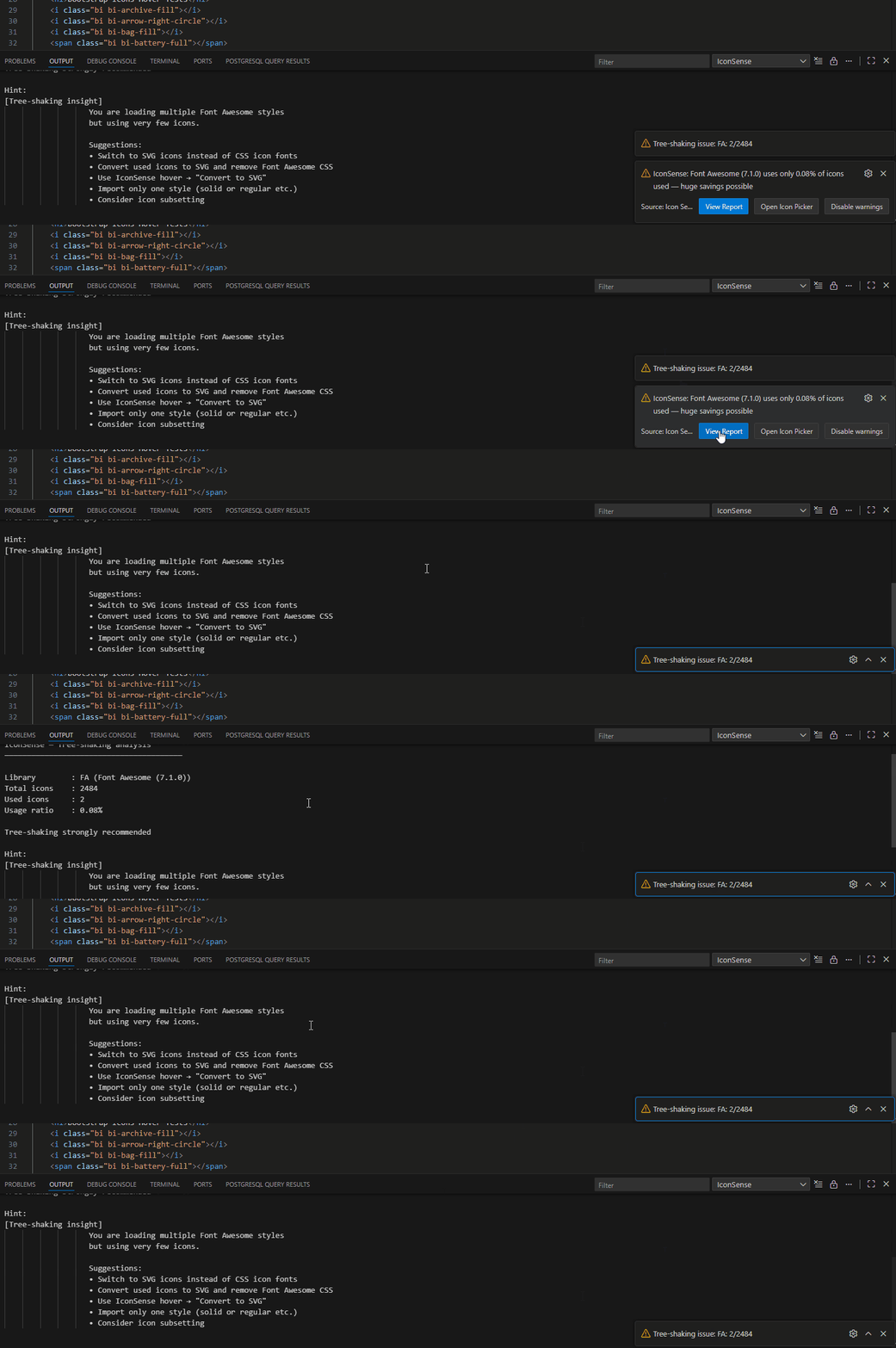
- Detect unused icons in your project.
- Generate reports to safely remove unused icons and reduce bundle size.
- Works seamlessly with Vue, Nuxt, React, Next.js, and plain HTML projects.
- Inline previews speed up development.
- Works efficiently in large projects with caching and batch processing.
- Supports offline previews for local CSS and images.
- Auto-detect icon prefixes (FA, Bootstrap, Boxicons).
- Resolves alias icons and groups sibling icons.
- Handles different icon variations and font types automatically.
- Open any CSS, HTML, Vue, or React file.
- Hover over an image, SVG code, or CSS icon class to see a live preview, dimensions, and file size.
- Open the Icon Picker Panel from the sidebar to browse icons visually.
- Click Convert to SVG for any CSS icon to use as a vector.
- Use tree-shaking reports to clean up unused icons.
- Standalone font-icon scanning and Icon Picker for files opened outside the project.
- Image hover preview for standalone files, including SVGs.
- Hover preview for internet-sourced images, with dimension and file size info (if
remoteImageInfois enabled). - Fixes for preview issues in Nuxt, Vue, React, and Next.js projects.
- Some icon libraries ship multiple CSS files using different font files, but reuse the same unicode values across those fonts.
Example: Boxicons
- When using both:
- boxicons.min.css
- boxicons-brands.min.css
You may encounter incorrectly rendered icons. Why this happens boxicons.min.css contains the following rule:
.bx,
[class*=' bx'],
[class^='bx'] {
    font-family: boxicons !important;
}
The selector:[class^=bx]
matches any class starting with bx, including:
<i class="bx-airbnb"></i>
<i class="bxl bx-airbnb"></i>- As a result: boxicons-brands icons are forced to use the boxicons font Many unicode values (\f104, etc.) exist in both fonts The browser renders the wrong glyph. (e.g. accessibility instead of Airbnb).
This behavior is caused by overly broad selectors combined with !important. Recommended Fix (Boxicons) Modify the following selector in boxicons.min.css:
-.bx, [class*=" bx"], [class^=bx]
+.bx- This limits the font override to only the intended base icons and prevents brand icons from being overridden.
This issue is not specific to IconSense. It can occur in any project where multiple CSS files from the same provider are used The problem is more common with locally bundled CSS CDN builds often mitigate this via different selector strategies or load order
- CDN vs Local Usage This issue is much more likely when using local CSS files. When using CDN versions of icon libraries: CSS files are often better isolated Selector scopes are usually less aggressive Load order is typically well-tested Conflicting font-family overrides are far less common. For this reason, the probability of encountering this issue with CDN usage is very low, though not impossible.
MIT License © Mehmet Coskun
- FlatIcon Integration - Soon, FlatIcon support will be added, allowing you to search and use FlatIcon icons directly within VS Code.
- SVG Icon Panel with Iconify - A dedicated icon panel and management interface for SVGs will be provided via Iconify integration.
- Image Preview for http or https links.
- Email: info@geekymemo.com
- Email: geekymemo@gmail.com
- Instagram: @geekymemo
Or via Github: https://github.com/geekymemo/IconSense