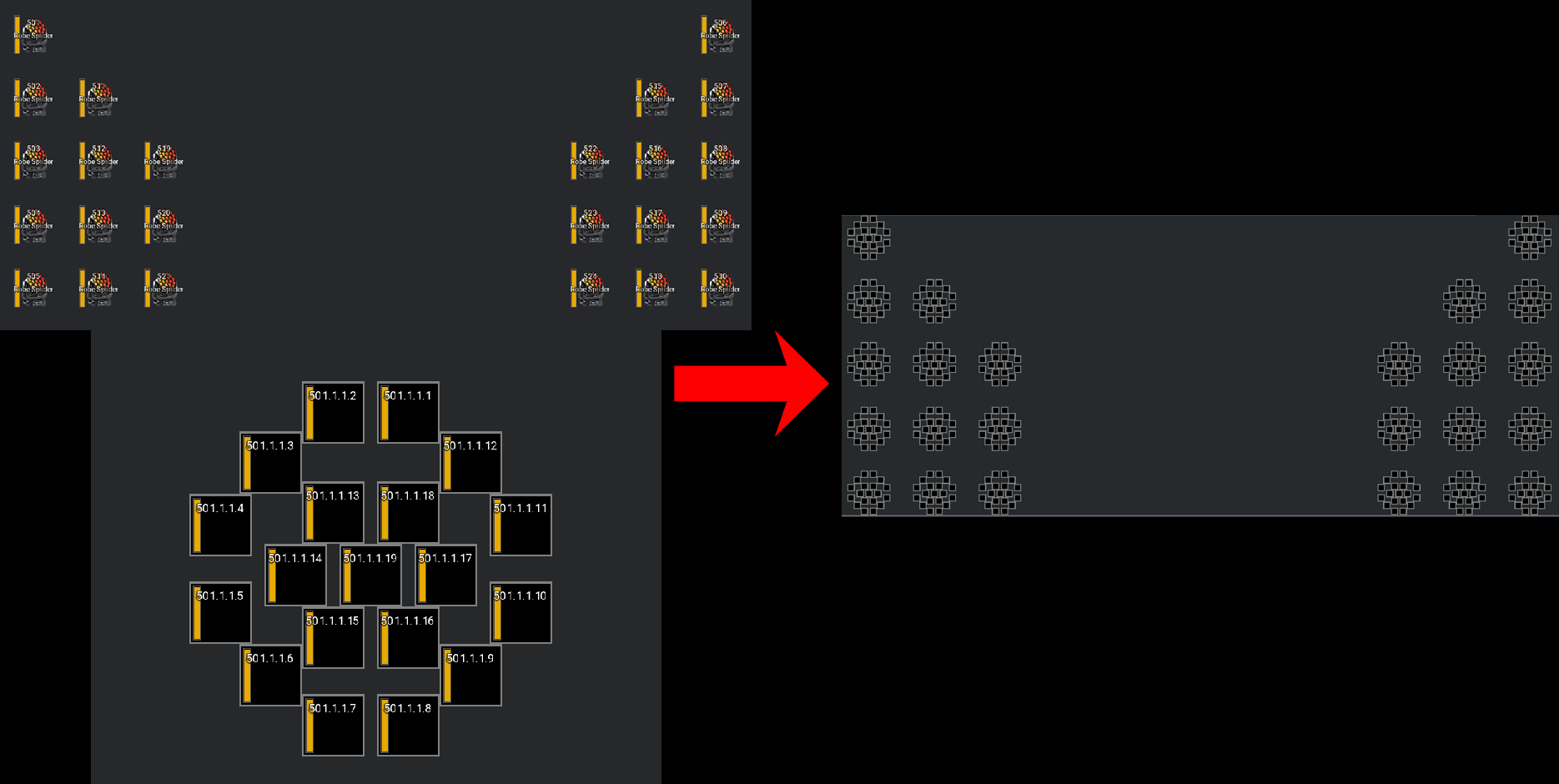
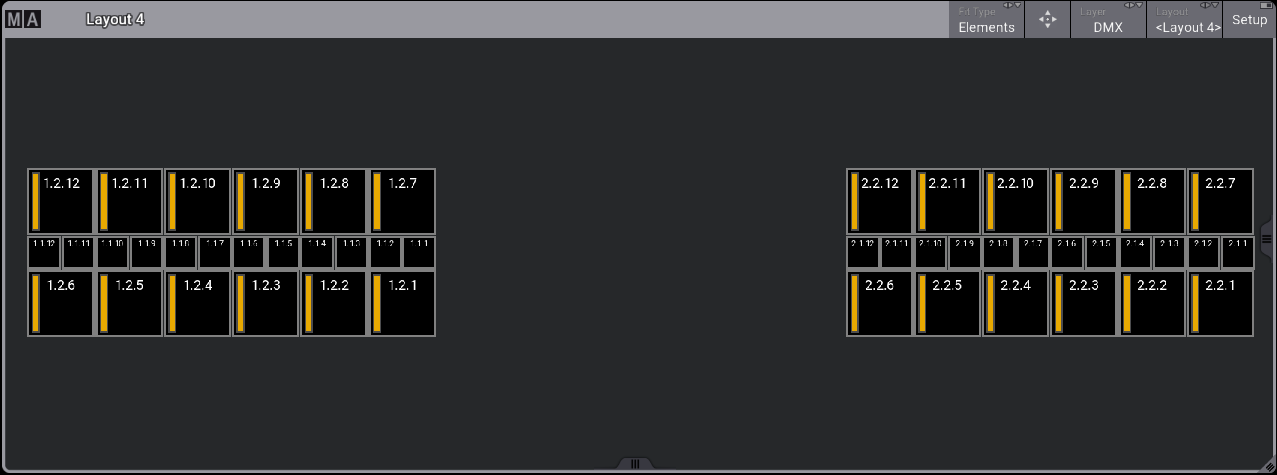
This plugin for GrandMA3 takes the main fixture instances in a layout view and replaces (by creating a new layout view) those elements with a provided subfixture template.
| Plugin Version | Date | Notes |
|---|---|---|
| May 7, 2023 | Added note about new features included in MA V1.9 | |
| February 1, 2023 | Changed note to Readme about GMA V1.8 because of incorrect information | |
| January 18, 2023 | Added note to Readme about GMA3 V1.8 | |
| V 1.1 | January 17, 2022 | Added Subfix Groups |
| V 1.0 | January 4, 2022 | Original Release |
GrandMA3 version 1.9 adds a feature which may eliminate the need for this plugin entirely! The 3D view adds a button "3D view to Selection Grid tool" which can be used to create 3D selections via any camera angle in the 3D view. It even works for subfixtures!
For more info about this feature, check out this section in the release notes: https://help2.malighting.com/Page/grandMA3/releasenotes/en/1.9#toc_header_anchor_18:~:text=To%20generate%20grid,the%20Selection%20Grid.
Start by setting up 2 layout views, one with the main fixture instances and their positions, another with the template layout with the subfixture elements you want to replace the main ones with.
Here I have an example with 2 JDC1s:
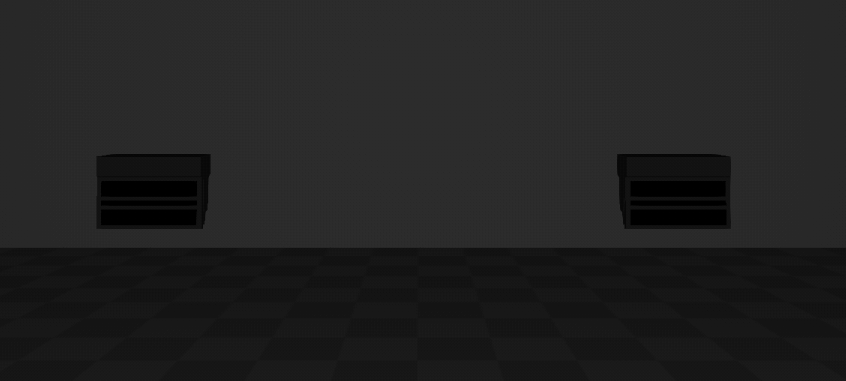 JDC1 3D View
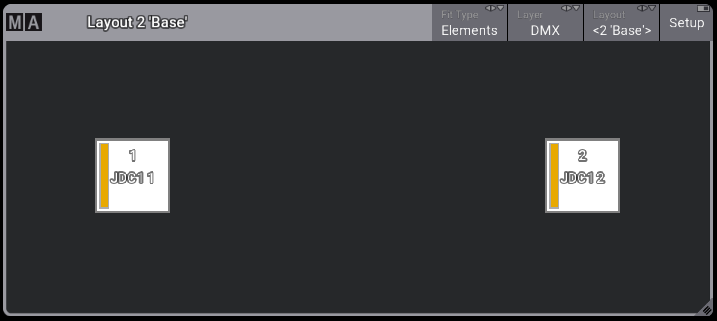 JDC1 Base Layout
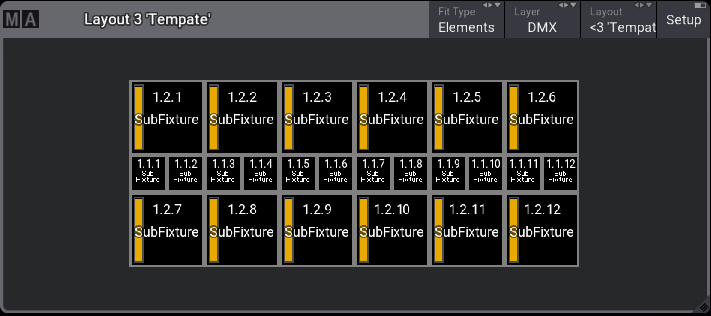 JDC1 Template Layout
The plugin will only use the selected elements in both the main and template layouts.
NOTE that this does NOT mean selected in the programmer, it means the selected elements in the layout view. You can see which elements are selected in the Edit sheet for the layout.
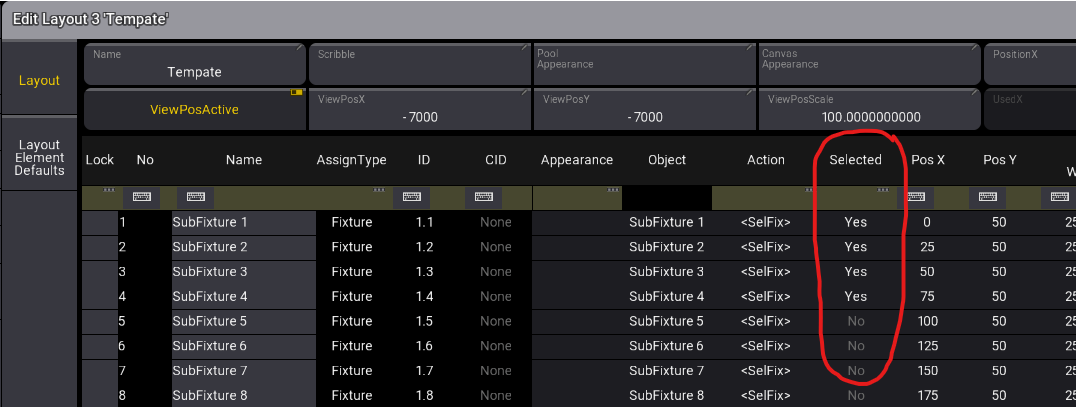
You can also select the elements while in "Setup" mode on the layout view and using the Select Tool. (Hold control while lassoing to add elements to the selection)
GMA3 V1.8 and above: The "Selected" parameter in Layouts will automatically update to the current selection in the programmer after activating Setup mode or opening the Edit sheet. Prior to 1.8, opening the Edit sheet did not automatically update the Layout's selection.
This allows for control over which elements you wish to have processed by the plugin at a given time.
For instance, you may wish to have one run of the plugin with horizontal fixtures and another run with vertical. In this case, you would run the plugin twice, once for each direction. After the first run, the plugin will merge any new elements onto the existing destination layout ONLY if overwrite_enabled=false (see parameter options below).
At the top of the plugin, there are some parameters that are user-editable. These are the settings for the plugin. Change these parameters BEFORE you run the plugin. The parameters are detailed below.
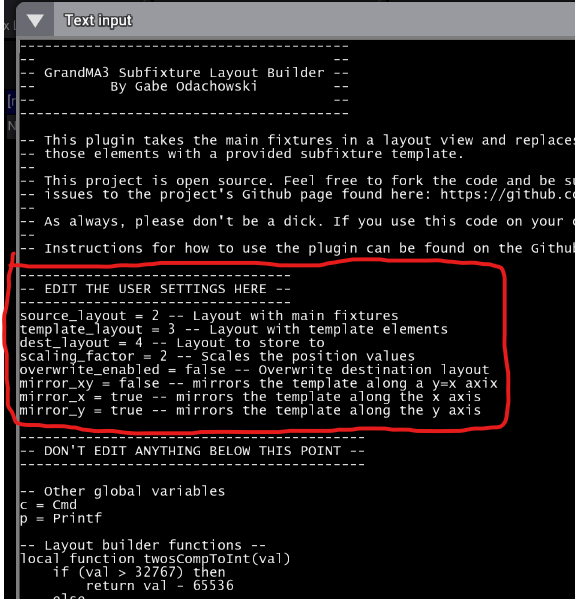
| Parameter | Description |
|---|---|
| source_layout | Layout pool number with the main fixture elements |
| template_layout | Layout pool number with the template elements |
| dest_layout | Destination layout pool number for the new elements |
| groups_pool_start | Groups pool number to start storing subfix groups (one per element in template, will overwrite existing!) |
| groups_layout | Layout to store the subfix group elements |
| groups_prefix | Prefix to go at the beginning of each group |
| scaling_factor | A multiplyer for the start position of the new elements. This is useful when the template is larger than the space between multiple main elements. |
| mirror_xy | mirrors the template along the y=x axis |
| mirror_x | mirrors the template along the x axis |
| mirror_y | mirrors the template along the y axis |
Don't edit anything except these settings as it may break the plugin!
Unless of course, if you know what you're doing :)
Run the plugin to process the new layout view.
Note that the plugin uses the regular "Assign" keyword when creating the elements so it respects your default settings. If you want the elements to look different, then you may want to change these defaults before you run the plugin.
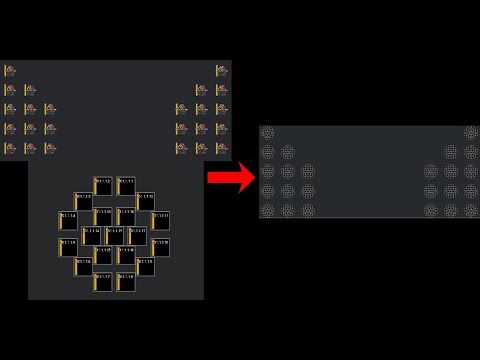
All of those instructions from above in video format:
This project is open source. Feel free to fork the project, try your own stuff, and add a pull request. Your changes might get added!
As always, please don't be a dick. If you use any of this code in your own projects, please credit the source.
If you have any issues, feel free to raise them in the "Issues" tab.