Modified Hosts file. Uses a special version of hosts file forked from https://github.com/StevenBlack/hosts
Bans ads on websites:
fmovies.to
Bans additional websites:
vk.com
behance.net
1. Find out location of your hosts file.
3. Reload hosts file.
To modify your current hosts file, look for it in the following places and modify it with a text
editor.
Mac OS X, iOS, Android, Linux: /etc/hosts folder.
Windows: %SystemRoot%\system32\drivers\etc\hosts folder.
Windows: copy hosts hosts_backup.txt
Linux + MAC OS X: cp hosts hosts_backup.txt
Windows:
- Change properties of
hostsfile.
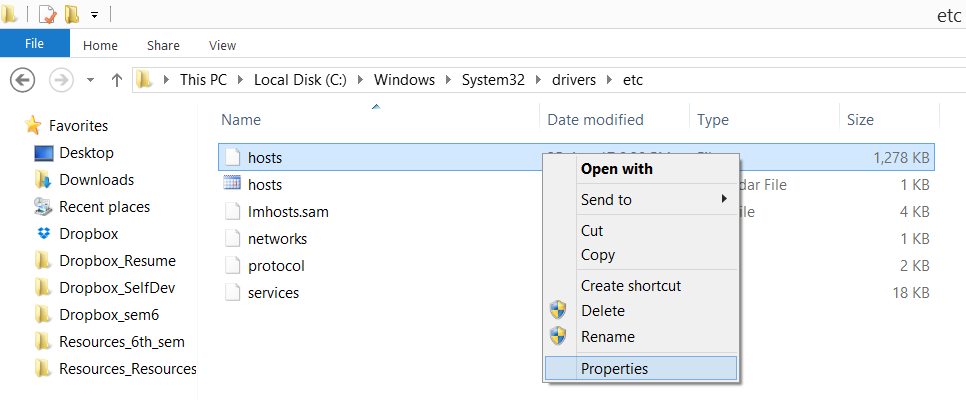
- Select
Editoption insecuritytab.
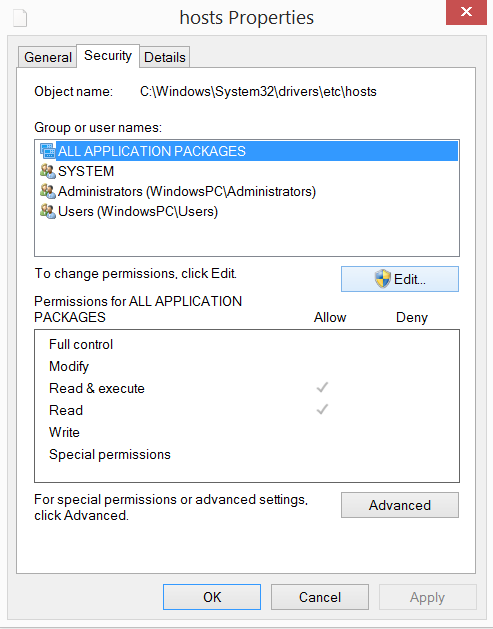
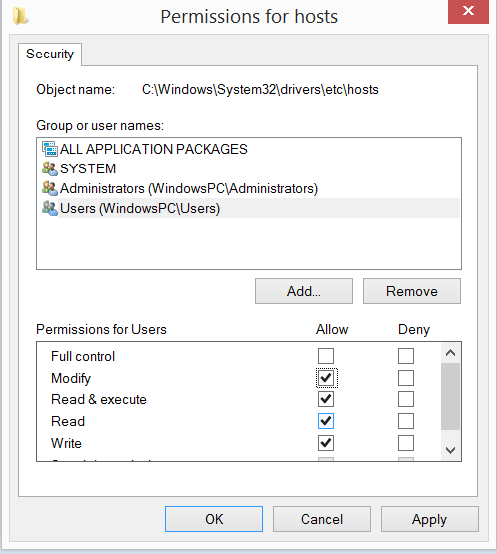
- Allow
ModifyandWriteforUsers. Select apply.
Linux + MAC OS X: ls -l hosts Gives current ownership rights.
Change them to sudo chmod +777 hosts
Windows: type hosts.txt >> hosts
Linux + MAC OS X: cat hosts.txt >> hosts
Windows: Follow Section 2.1 and revert back changes done in last step.
Linux + MAC OS X: Say old rights were 644 which means -rw-r--r-- in output of Section 2.1.
sudo chmod -777 hosts
sudo chmod +644 hosts
Your operating system will cache DNS lookups. You can either reboot or run the following commands to manually flush your DNS cache once the new hosts file is in place.
Open a Terminal and run:
sudo dscacheutil -flushcache;sudo killall -HUP mDNSResponder
makeHostsWindows.bat BATCH file will create various alternate hosts files by combining and adding the gambling, porn, and social media extensions. You need to be connected to the Internet. This file REQUIRED installed Python 3.5.x runtime environment in Windows System. Launch this file as normal user. |
|---|
Run updateHostsWindows.bat BATCH file in Command Prompt with Administrator privileges in repository directory for easy update, replace hosts file and reload DNS cache in Windows System. You need to be connected to the Internet. This file REQUIRED installed Python 3.5.x runtime environment in Windows System. |
|---|
| WARNING: Don't run these BAT files directly or from popup menu. You have been warned. |
|---|
Open a Command Prompt in directory where are files from this repository:
Windows XP: Start -> Run -> cmd
Windows Vista, 7: Start Button -> type cmd -> right-click Command Prompt ->
"Run as Administrator"
Windows 8: Start -> Swipe Up -> All Apps -> Windows System -> right-click Command Prompt -> "Run as Administrator"
Windows 10: Start Button -> type cmd -> right-click Command Prompt ->
"Run as Administrator"
and run command:
updateHostsWindows.bat
If you want to use a huge hosts file by merging hphosts (NOT INCLUDED HERE) you need to DISABLE and STOP Dnscache service before you replace hosts file in Windows Systems. You have been warned. |
|---|
Open a Command Prompt with Administrator privileges and run once commands:
sc config "Dnscache" start= disabled
sc stop "Dnscache"
Open a Terminal and run with root privileges:
Debian/Ubuntu sudo /etc/rc.d/init.d/nscd restart
Linux with systemd: sudo systemctl restart network.service
Fedora Linux: sudo systemctl restart NetworkManager.service
Arch Linux/Manjaro with Network Manager: sudo systemctl restart NetworkManager.service
Arch Linux/Manjaro with Wicd: sudo systemctl restart wicd.service
Others: Consult this wikipedia article.