- Since Unity 6 , Android: Added the Addressables for Android (com.unity.addressables.android) package. This package provides Play Asset Delivery support for Addressables.
- Play Asset Delivery Using Addressable for Unity
Add the lines below to Packages/manifest.json
for version 1.0.0
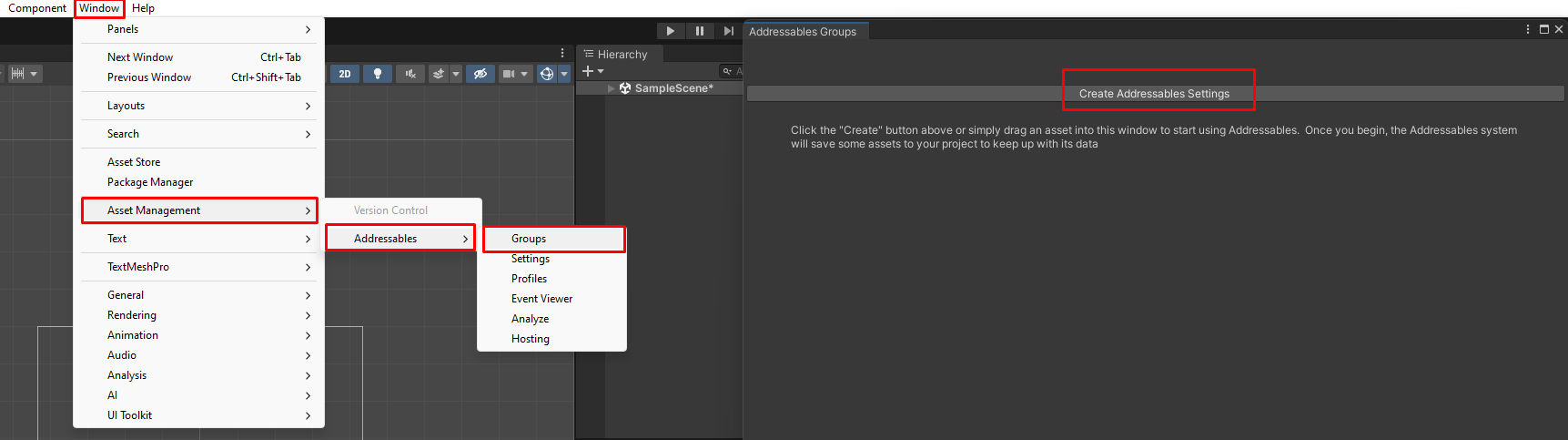
"com.pancake.play-asset-delivery": "https://github.com/pancake-llc/play-asset-delivery-addressable.git#1.0.0",- Step 1: If you have not created a setting for addressable, create it by going to menu
Window>Asset Management>Addressables>Groups>Create Addressables Settings
- Step 2: Create
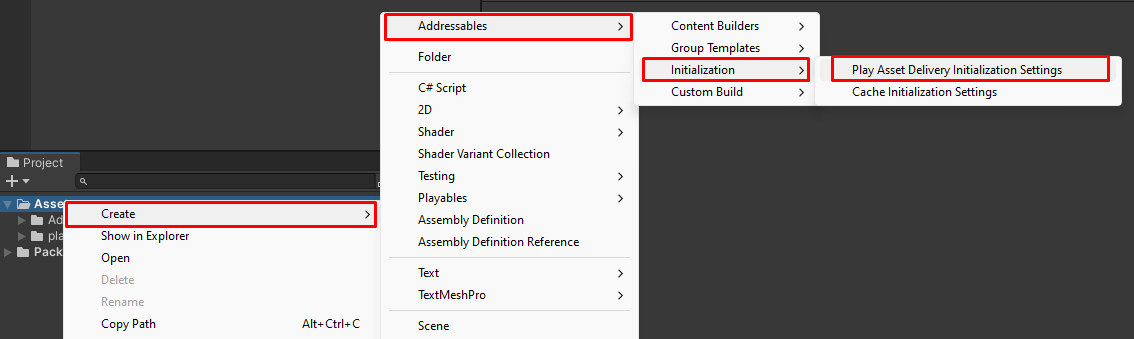
PlayAssetDeliveryInitializationSettings. Access the create menu via right click >Create>Addressables>Initialization>PlayAssetDeliveryInitializationSettings
- Step 3: Create
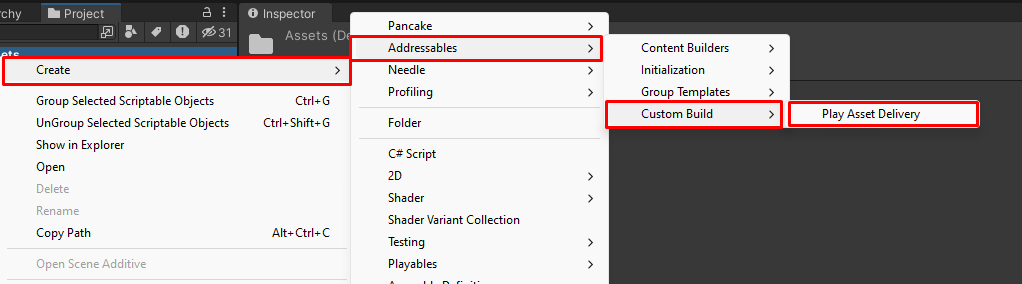
BuildScriptPlayAssetDelivery. Go to menuCreate>Addressables>Custom Build>Play Asset Delivery
-
Step 4: Create
AssetPacksContent. Truly go to menuCreate>Addressables>Group Tempaltes>Blank Group Template> Rename toAssetPackContent -
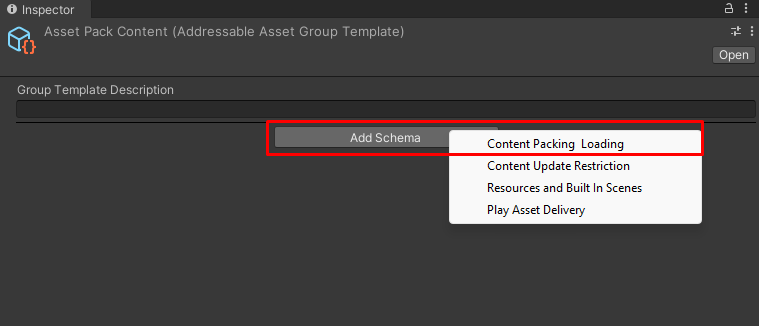
Step 5: Add Schema Content Packing Loading for AssetPackContent
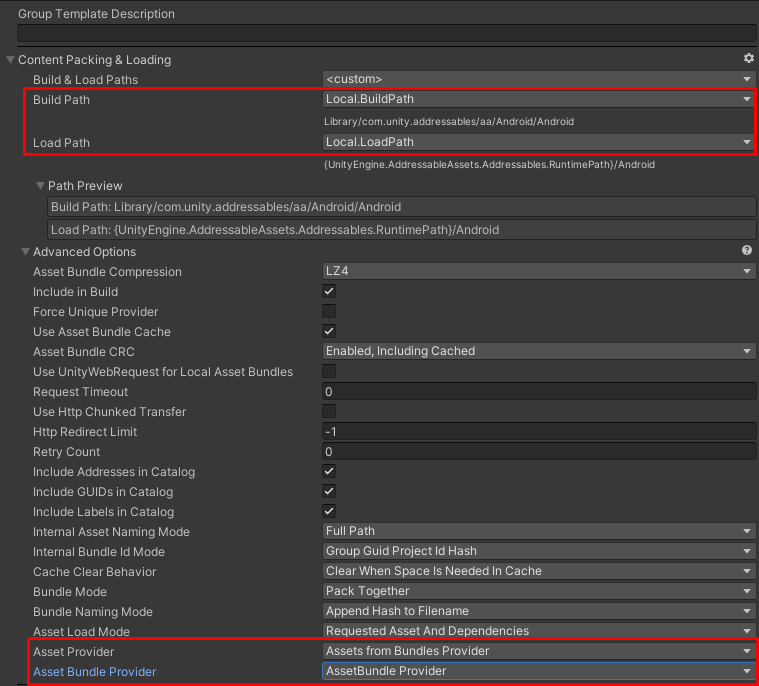
- Step 6: In Content Packing & Loading
- change
BuildPathtoLocal.BuildPath - change
LoadPathtoLocal.LoadPath - change
Asset ProvidertoAssets from Bundles Provider - change
Asset Bundle ProvidertoAssetBundle Provider
- change
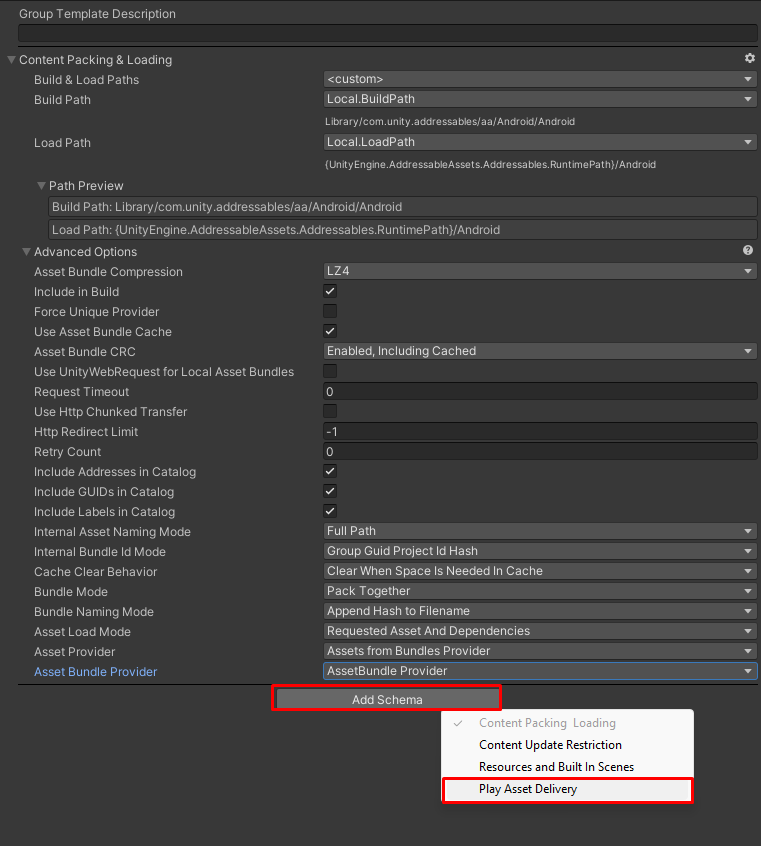
- Step 7: Add Schema Play Asset Delivery and change Asset Pack to InstallTimeContent (InstallTime).
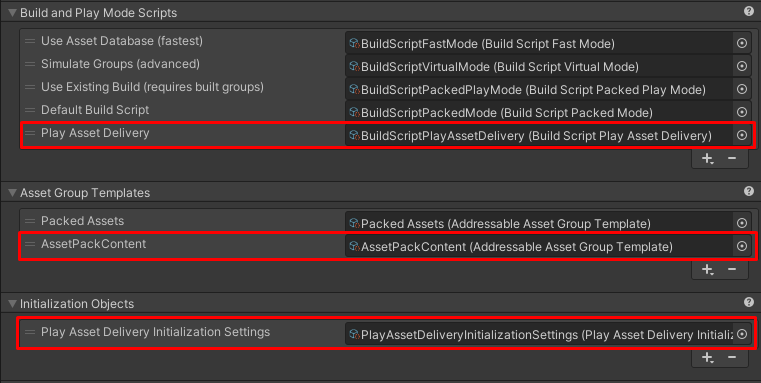
- Step 8: Open
AddressableAssetSettings- In Build and Play Mode Scripts add
BuildScriptPlayAssetDelivery - In Asset Group Templates add
AssetPackContent - In Initializatio Objects add
PlayAssetDeliveryInitializationSettings
- In Build and Play Mode Scripts add
- Step 9: Move
AssetPackContent,BuildScriptPlayAssetDelivery,PlayAssetDeliveryInitializationSettingsto folderPlayAssetDelivery/Data

- Step 10: In the Addressables window, instead of using the menu
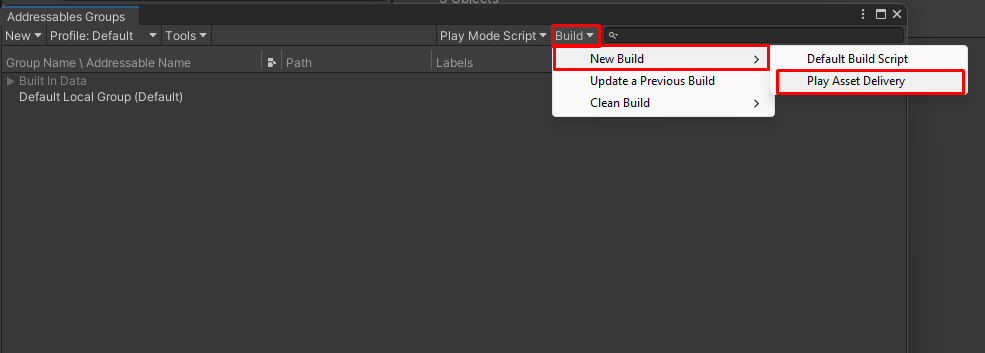
Build>New Build>Build Default Script, we now use the menuBuild>New Build>Play Asset Delivery