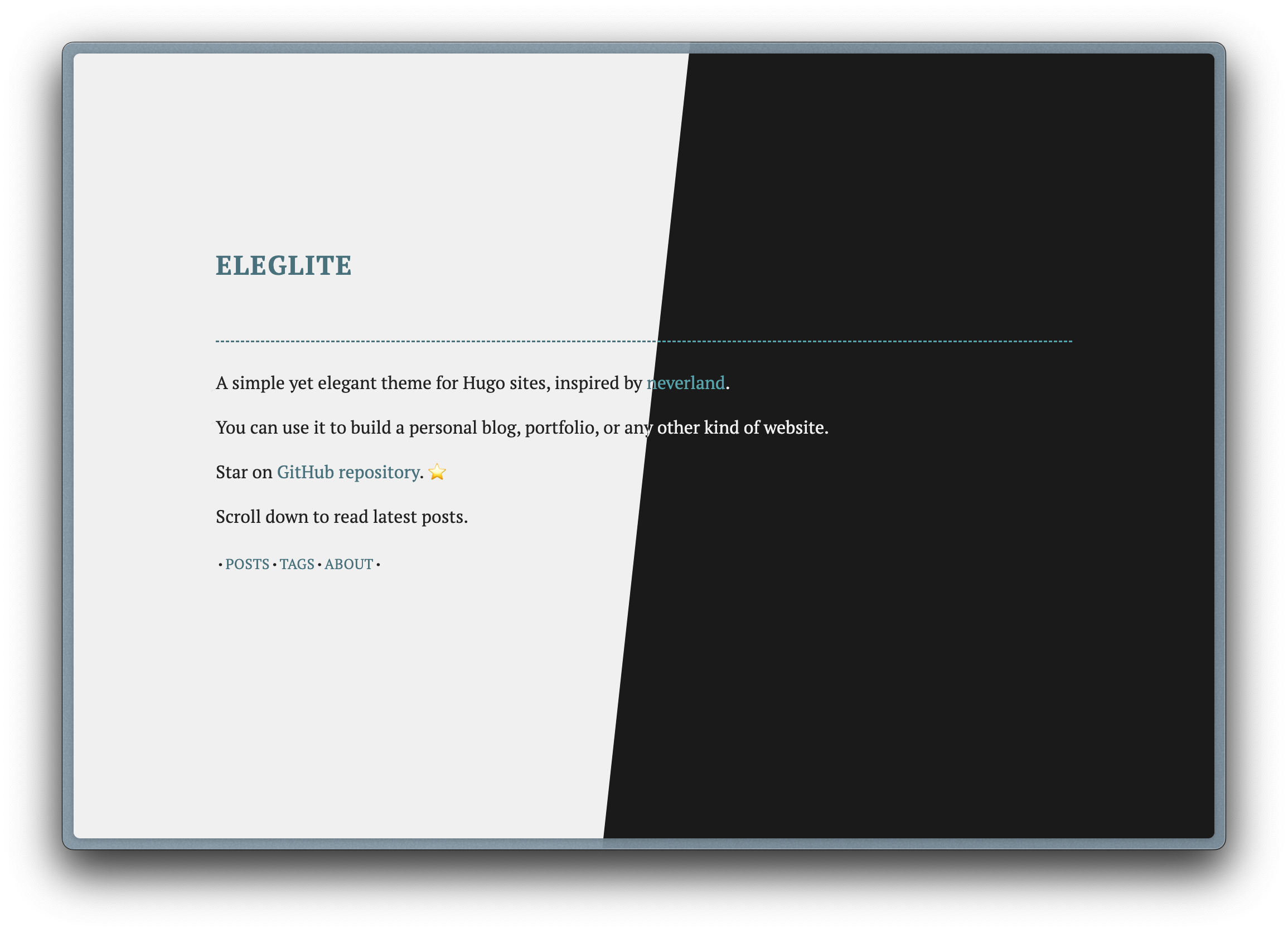
Eleglite (Elegant + Lite) is a Hugo theme crafted to bring back the simplicity and distraction-free style of the Web 1.0 era. Its design philosophy is minimal yet elegant, offering a clean and refined look for modern websites. You can view a live demo of the theme here.
As my very first front-end project, Eleglite holds a special place in my heart. I drew significant inspiration from the design of Neverland, which greatly influenced the aesthetic and functionality of this theme.
- Minimal and elegant design
- Distraction-free reading experience
- Responsive layout
- Compatible with light and dark mode
- English and Simplified Chinese language support 中文支持
- Syntax highlighting with Tango (for light mode) and Nord (for dark mode) schemes
- Add the theme as a submodule
git submodule add git@github.com:flynnoct/hugo-theme-eleglite.git themes/Eleglite - Add
theme = "Eleglite"to yourhugo.tomlfile - Enjoy! 🥳
The Eleglite theme installed using this method can be updated to the latest version later by running the git submodule update --remote.
- Download the latest zip file
- Unzip the file and rename the folder to
Eleglite - Move the folder to the
themesdirectory of your Hugo site - Add
theme = "Eleglite"to yourhugo.tomlfile - Enjoy! 🥳
The Eleglite theme installed using this method can only be updated by manually downloading the latest version of the ZIP file.
If you installed the theme via Git mentioned above, please note that all customizations you configure in this section (including but not limited to modifications to configuration files, template files, and CSS) must be made in the corresponding directories at the site level. In other words, you do not need to modify any files under themes/Eleglite. Although installing the theme via downloading ZIP file avoids the risk of losing configurations due to theme updates, I still recommend following these guidelines for better site management. The reasons for this are as follows:
- When the Eleglite theme is updated, Git will automatically merge the latest code for you. Any modifications you made to files under
themes/Eleglitewill be overwritten, which may result in the loss of your site configuration. - Hugo is designed such that configurations or content at the site level take precedence over those at the theme level. Hugo only reads configurations or content at the theme level if they are not present at the site level. Therefore, you can copy files from
themes/Elegliteto the corresponding directories at the site level to override or modify the theme’s default configurations or content. This approach makes it easier to manage your site or switch to another theme (but since Eleglite is so beautiful, you probably won’t want to switch themes 🤪).
Set _merge to shallow or deep under the [markup] section in the hugo.toml file to apply the theme’s configuration file to the entire site. Refer to the official guide for details. The specific configuration items can be found in the themes/Eleglite/hugo.toml file.
Demo of the configuration:
[markup]
_merge = 'shallow'To customize the favicons, replace the existing files in site's static directory with your own. Eleglite supports a simple single favicon.ico file, but you can also configure a set of favicon files in different sizes to better adapt to a wider range of browsers and devices.
If you prefer to use the simple mode with a single favicon.ico:
- Place the
favicon.icofile in the site’sstaticdirectory. - Add the following code to the site configuration file
hugo.toml:
[params]
  useRichFavicon = false
If you want to use a set of favicon files in different sizes:
- Refer to the sample files in the
themes/Eleglite/staticdirectory to prepare a set of favicon files in different sizes, name them according to the sample files, and place them in the site’sstaticdirectory. - Copy the
themes/Eleglite/static/manifest.webmanifestfile to the site’sstaticdirectory. - Add the following code to the site configuration file
hugo.toml:
[params]
  useRichFavicon = true
Note: The complete list of favicon files and their dimensions is as follows:
- favicon.ico
- favicon.svg
- favicon-96x96.png 96x96
- apple-touch-icon.png 180x180
- web-app-manifest-192x192.png 192x192
- web-app-manifest-512x512.png 512x512