-
Connect your USB drive to your DWAN computer.
-
In DRMIS Production, run the following transactions with the specified parameters:
-
IE 36 - Display Vehicles
- Class Type:
002 - Class:
VEH_EQUIP - Vehicle Type:
EV0309,EV0B54,EV0B68,EV0B80,EV0B82,EV0B94,EV0B97,EV0J06,EV0J07,EV0J08,EV0J31,EV0J35,EV0J36,EV0J37,EV0J38,EV0J44,EV0J46,EV0J81,EV0J82andEV0J83 - Once the transaction finishes running (may take several minutes), select all of the records, and click Settings, followed by Show/Hide Classification
- Class Type:
-
ZEIW29 - List Edit Display Notification (UDF)
- Notification status:
Outstanding,PostponedandIn process - Planning plant:
0001 - Once the transaction finishes running, add the Equipment column
- Notification status:
-
-
Export the results to Excel, and save the files to your USB drive as
ie36.csvanddepot.csv, respectively. -
In DRMIS BEx Analyzer (DRMIS BW Production), run the following transactions with the specified parameters:
- [ZPM_0EQUIPMENT_7028_Q01] VOR Tactical - MPO Disposition
- Force Element Hierarchy:
[3663] Minister of National Defenceand[REST_H] Not Assigned Force Element - Equip. Object Type:
EV0309,EV0B54,EV0B68,EV0B80,EV0B82,EV0B94,EV0B97,EV0J06,EV0J07,EV0J08,EV0J31,EV0J35,EV0J36,EV0J37,EV0J38,EV0J44,EV0J46,EV0J81,EV0J82andEV0J83 - Master Equip Index:
X - Once the transaction finishes running, right click on any table heading (e.g. Equipment Number), and click Query Properties:
-
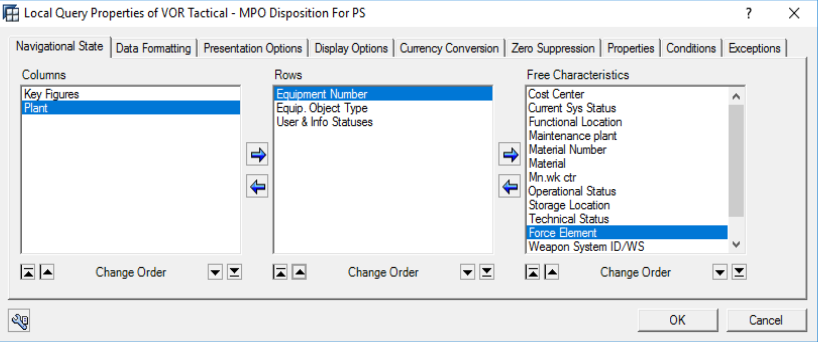
In the Navigational State tab:
- In the Columns field, right click on Key Figures and click Select Filter Value. Move all but
Qty Heldfrom Chosen Selections to Displayed Key Figures (select each and click the left arrow icon) - Move
Plantfrom Free Characteristics to Columns field - Right click on
Plantand select properties. In the properties changeDisplayfromKeytoTextand click OK - In the Rows field, move all but
Equip. Object Typeto Free Characteristics (select each and click the right arrow icon) - In the Free Characteristics field, move
Equipment NumberandUser & Info Statusesto Rows (select each and click the left arrow icon) - Rearrange the Rows field in the following order
Equipment Number,Equip. Object TypeandUser & Info Statuses
- In the Columns field, right click on Key Figures and click Select Filter Value. Move all but
-
The Query Properties must look like the following:
-

-
- Force Element Hierarchy:
- [ZPM_0EQUIPMENT_7028_Q01] VOR Tactical - MPO Disposition
-
Select all of the table headings and rows, copy and paste into a new Excel file, and save it to your USB drive as
bex.csv. -
Disconnect your USB drive from your DWAN computer and connect it to your standalone computer (e.g. Dell XPS 13).
- Goto the folder where Availability-Report-R is located
- Double click on
run.shand selectRun in Terminal. Then right click onhttp:\\###:##:##:##and selectOpen Hyperlink - Upload the files and press
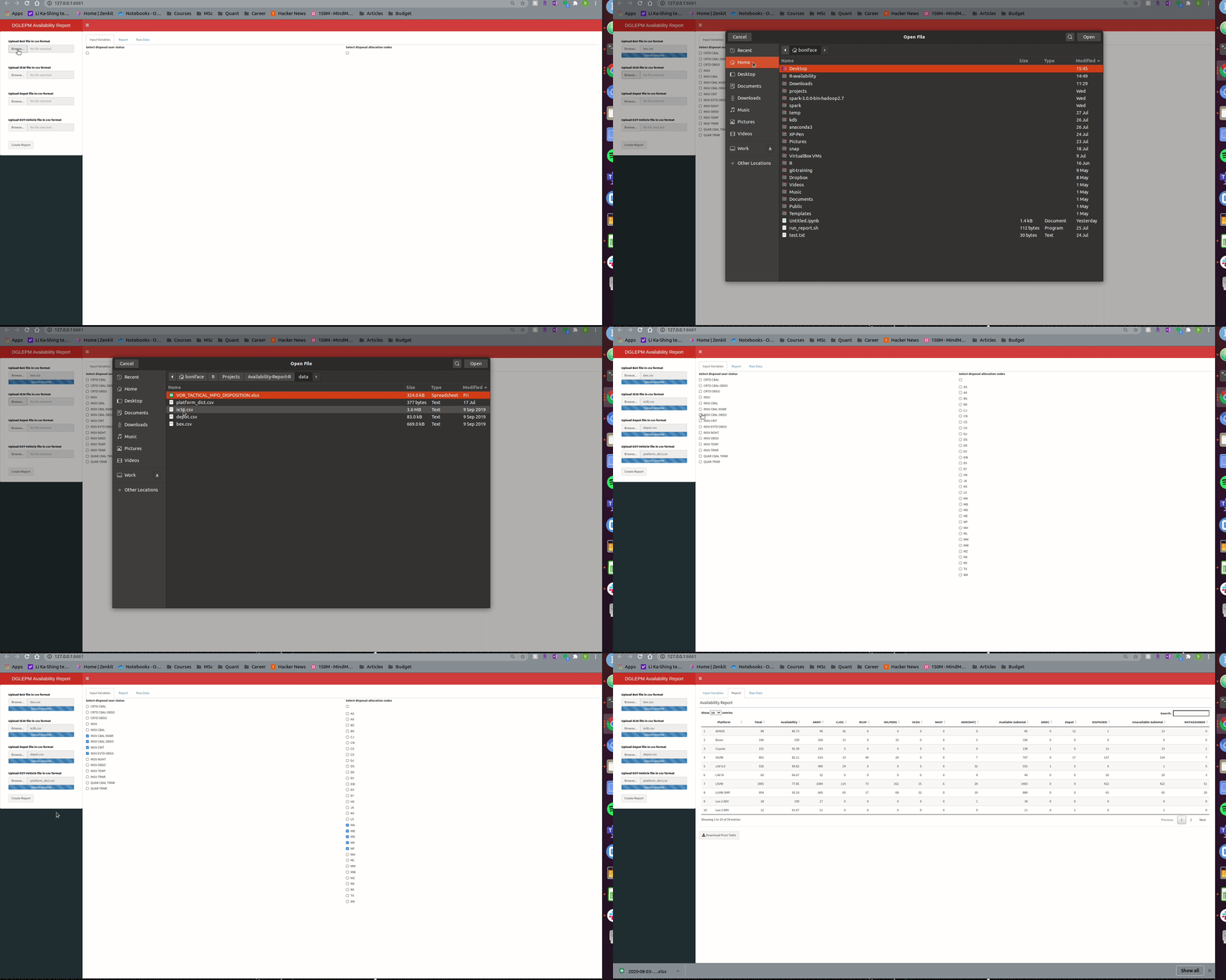
Create Report