Home
Voice commander and Google-Assistant integrated for MagicMirror
- You SHOULD have a mic and speaker which can be used for recording and playing.
- You SHOULD be able to execute below commands on terminal.
arecord -d 10 test.wav && aplay test.wavIf fails, You should find the way to use mic and speaker on your MagicMirror. But I cannot give you a help about that kind of problem.
- This module MIGHT NOT be executed on RPI Zero or RPI 1. Because scripts are written in ES6 styles and there are some dependencies of advanced node and Electron. I didn't test this on RPI Zero or 1.
all required node modules are described in package.json but you might need some pre-reqs.
sudo apt-get update
sudo apt-get upgrade
sudo apt-get install libmagic-dev libatlas-base-dev libasound2-dev sox libsox-fmt-all libttspico-utils
I think, for RPI and ATB, this is enough. But for other platform or in some cases, you may need additional reqs. In that case, See below links;
- https://github.com/TooTallNate/node-speaker
- https://github.com/endoplasmic/node-record-lpcm16
- https://www.npmjs.com/package/node-aplay
- https://github.com/Kitt-AI/snowboy
cd <Your MagicMirror Direcotry>/modules
git clone https://github.com/eouia/MMM-Assistant
cd MMM-Assistant
npm installYou need to get a JSON file for OAuth2 permissions.
https://developers.google.com/assistant/sdk/develop/grpc/config-dev-project-and-account
Create a project for MagicMirror. Enable Google Assistant API and Google Cloud Speech API.
- Login on https://console.cloud.google.com/cloud-resource-manager
- Select
CREATE PROJECTS. - Give a project name to this new project.(Google will suggest a unique name. Anyway, the name is not important. set this by anything.) And press
CREATEButton. - Now you might be in Dashboard of the newly created project. (Or select created project from your project lists)
- Go to
API Overview (API & Services > Dashboard)from Menu or Cards. - Select
ENABLE APIS AND SERVICES - Search
Google Assistant APIand dive into. - Press
ENABLE. - You need to create credentials. Go to https://console.developers.google.com/apis/credentials/oauthclient
- Set the
Configure consent screen. You need to set onlyProduct name shown to users. - Select Application Type as
otherand give the name. Now you can get oAuth. - Download your
client-secret-blahblahXXX.jsonand rename it assecret.json. Put that file inMMM-Assistantdirectory. - Then execute this on your MagicMirror terminal.(not via SSH)
cd <Your MagicMirror Direcotry>/modules/MMM-Assistant/scripts/
node google-auth.js- It will try to open the browser for getting some credential keystring. copy and paste it where the
google-auth.jsprompts. - Now, you can find
token.jsunderresourcesdirectory. Keep it safely.
-
Back to
API & Services > Dashboardagain. -
Select
ENABLE APIS AND SERVICES -
Search
Google Cloud Speech APIand dive into. -
Press
ENABLE. -
Select
Create CredentialsandService Account Key. (It's obvious to be able to usesecret.jsonagain. For safe, I'll create another key file for Google Cloud Speech) -
Set the details (anything for
service account name,Project>Ownerfor Role, anything forservice account id,JSONforkey type. After set, you can download your key file. -
It will be used in
config.stt.auth -
Tip : You can obtain keyfiles more than one if you can make another account. It could be helpful for saving money. (Google Speech API is very cheap, but not free. It allows you 60 minutes for free per month. But every recognition request is considered as minimum 15 seconds. So exactly 240 requests would be available for free. Additional request will be charged $0.006 per request. Anyway, if you create an account at the first time, about $300 for 1 year will be given freely.)
Important Step 3-1) SHOULD be done before Step 4.
This module needs 2 hotword models at least, one for activating Google-Assistant mode and the other for activating voice-commander mode.
By default, smart_mirror.umdl and snowboy.umdl universal models(.umdl)are provided. You can add or change them with your personal models(.pmdl)
Go to https://snowboy.kitt.ai/ and get .pmdl for your voice.
cd <Your MagicMirror Direcotry>/modules/MMM-Assistant
npm install --save-dev electron-rebuild && ./node_modules/.bin/electron-rebuild
It takes somewhat very long time(around 10~30 minutes).
config.txt instead.
{
  module: 'MMM-Assistant',
  position: 'bottom_left',
  config: {
    stt: {
      auth: [
        {
          projectId:'<your projectId>', //REQUIRED
          keyFilename: '<your project key file location>' //REQUIRED
        },
      ]
    }
  }
},{
module: 'MMM-Assistant',
position: 'bottom_left',
config: {
assistant: {
auth: {
keyFilePath: "secret.json", //When you want to change the location of this file, set this.
savedTokensPath: "resources/tokens.js" //When you want to change the location of this file, set this.
},
audio: {
encodingIn: "LINEAR16", //Ignore this. I think you don't need to change this.
sampleRateOut: 16000 //Ignore this. I think you don't need to change this.
}
},
snowboy: {
models: [
{
file: "resources/smart_mirror.umdl",
sensitivity: 0.5,
hotwords : "MIRROR" //One of models should be "MIRROR"
},
{
file: "resources/snowboy.umdl",
sensitivity: 0.5,
hotwords : "ASSISTANT" //One of models should be "ASSISTANT"
}
]
},
record: {
threshold: 0, //Ignore this. I think you don't need to change this.
verbose:false, //true for checking recording status.
recordProgram: 'arecord', //You can use 'rec', 'sox'. But I recommend use 'arecord'.
silence: 2.0 //Ignore this. I think you don't need to change this.
},
stt: {
auth: [{
projectId: '<your google Project ID>', //ProjectId from Google Console
keyFilename: '<your google Project Key File>'
}], //You can use multi accounts for saving money.
request: {
encoding: 'LINEAR16', //Ignore this. I think you don't need to change this.
sampleRateHertz: 16000, //Ignore this. I think you don't need to change this.
languageCode: 'en-US' //See https://cloud.google.com/speech/docs/languages
},
},
speak: {
useAlert: true, //If you want to show the text of speech, set this true. But It could be ignored by command of modules directly.
language: 'en-US', //If you want to set the default language of speech of command result, set this.
},
alias: [
{
"help :command" : ["teach me :command", "what is :command"]
}
] // You can use aliases for difficult pronunciation or easy using.
}
},- available languageCodes for STT (command recognition): See https://cloud.google.com/speech/docs/languages
- available languages for speak (response by voice):
    `en-US`   English,
    `en-GB`   Great Britain,
    `de-DE`   German,
    `es-ES`   Spanish,
    `fr-FR`   French,
    `it-IT`   Italian.
- Other language supports are not yet. (I cannot find any easy way for implements. I hope someone to help me.)
When this module is readied for listening to your voice, ding.wav will be played.
You can say smart mirror or snowboy as wakeup hotwords. (unless you customize your own .pmdl in configuration)
When hotword is detected, dong.wav will be played. Now you can converse with Google-Assistant('snowboy') or command to MagicMirror('smart mirror')
If you have some difficulty to pronounce something, you can use alias.
For other languages, I need your help.
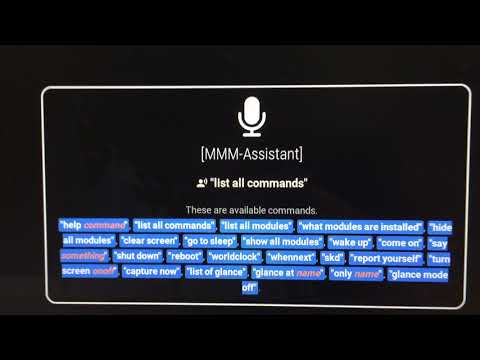
Say 'list all commands'. (Available commands depend on which modules you installed.)
See the real usage. Click below image for watching youtube clip.
- Add 'Alexa' as new assistant mode.
- Add other recognition(STT) engine. (Jasper or any other thing)
- Add other speak module (Google-translate or espeak)