Replication and synchronization
One of PeerDrive’s main features is the capability to synchronize folders and documents between multiple stores, irregardless of their actual position in the folder hierarchy.
PeerDrive uses the term replication to describe the operation of copying a document to another store while preserving its identity. This means that when replicating a document to another store both copies can be identified to be actually the same document. Given this you can later synchronize the document if it has been changed somewhere. In contrast to that, the term copying refers to a real copy operation where two independent copies of the same document are created.
To replicate a document or folder you have to use the PeerDrive browser. Just drag the object to another folder and choose ‘Replicate here’. After this the document or folder lives in both locations.
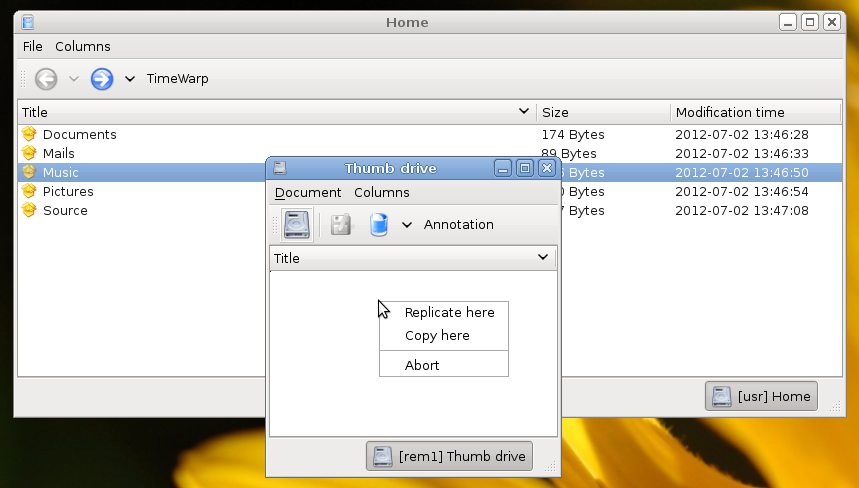
PeerDrive will detect that a document has been replicated to more than one store and if it has been changed anywhere. If the document versions are different on certain stores you may want to synchronize the document between them. Synchronization works even if the document has been moved in the folder hierarchy because the document is not identified by its path name but rather by an unique id (see Understanding PeerDrive for more information).
To synchronize common documents of two stores you can create a synchronization rule. This is done by choosing ‘Manage synchronization…’ from the PeerDrive tray icon menu:

To add a new rule choose the combination of the desired stores from the drop down menu and click ‘Add’.

Now choose the type of synchronization:
- Forward: Changes on the left store are forwarded to the right store. It is an error when a document has been changed on the right store too. In this case the synchronization will be stopped until the user resolves this error. You typically want to use this type for pure backups.
- One way sync: Just like ‘Forward’ but documents are merged if they were changed on the right store too.
- Full sync: Changes on any store are synchronized to the other one. If a document was changed on both stores it will be merged.
The synchronization will start after clicking ‘Ok’.