Behaviors is an extension for the Owlbear Rodeo VTT that allows the user to specify behavior for tokens using a block-based language similar to Scratch.
- 🧩 Block-based programming for token behaviors, inspired by Scratch
- 🏃♂️ Custom blocks for motion, looks, events, control, and more
- 💌 Send messages to tokens to trigger behavior
- 🏷️ Tag tokens to specialize behavior
- 🎵 Sound support for audio feedback during behaviors
- 🔄 Real-time execution with automatic behavior management
- 🛠️ Visual editor with drag-and-drop block interface
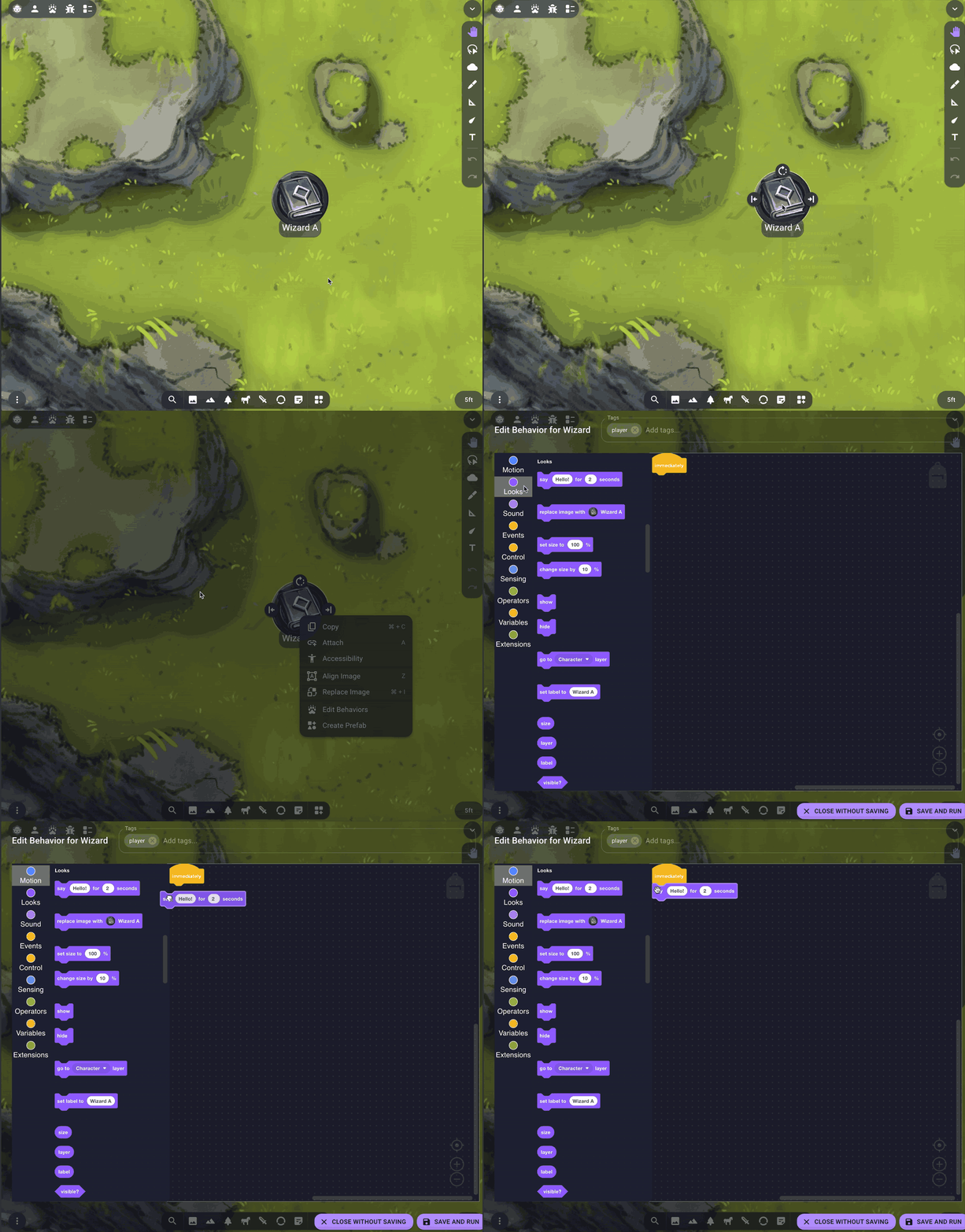
- Right-click any token on your Owlbear Rodeo map to open the context menu
- Select "Edit Behaviors" to open the visual block editor
- Drag blocks from the toolbox to create your token's behavior
- Connect blocks together to build complex behaviors
- Save your work and watch your token come to life!
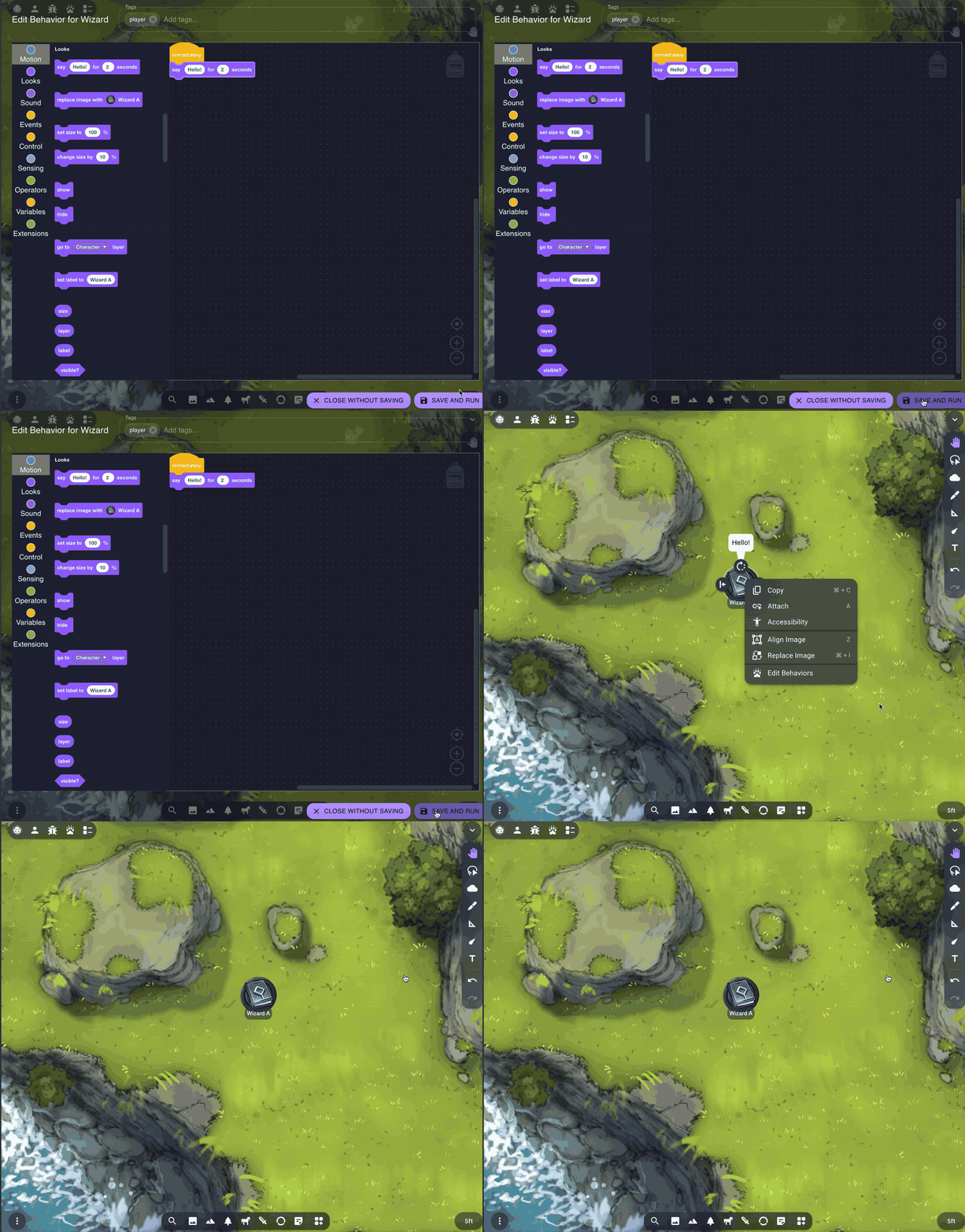
Scripts in Behaviors are built by dragging blocks together.
Here are the different kinds of blocks:
- Hat blocks: Trigger when something happens (like "when selected" or "when message received"). When the trigger occurrs, the blocks stacked underneath the hat block will run.
- Example:
- Example:
- Stack blocks: These blocks make your token do something (such as move, change appearance, or play sound). They can be stacked on top of each other, and run from top to bottom.
- Example:
- Example:
- Cap blocks: These blocks are like stack blocks, but never move on to the next block.
- Example:
- Example:
- C blocks: Some blocks are C-shaped, and contain spaces to put other blocks inside them, such as conditionals and loops.
- Example:
- Example:
- Reporter blocks: These rounded blocks output a value, and can be plugged into other blocks to alter their behavior.
- Example:
- Example:
- Boolean blocks: Like reporter blocks, these hexagonal blocks output a value, but the value is either
trueorfalse. They can be used in control flow to check conditions.- Example:
- Example:


Tokens can be labelled with tags, which are bits of text attached to a token.
- Add tags to tokens to group them or create specialized behaviors
- Drag blocks onto the tag field in tag blocks to dynamically choose or construct tags at runtime
- Edit tags from the right-click behaviors menu for an item, or enable the 'add tags' context menu button in settings to tag items in bulk.
- All tags in the scene are visible in the main Behaviors panel for easy management
- Send messages between tokens using broadcast blocks
- Broadcast messages from the main Behaviors panel as well as from behavior scripts
- Drag blocks onto the message field in message blocks to dynamically choose or construct messages at runtime
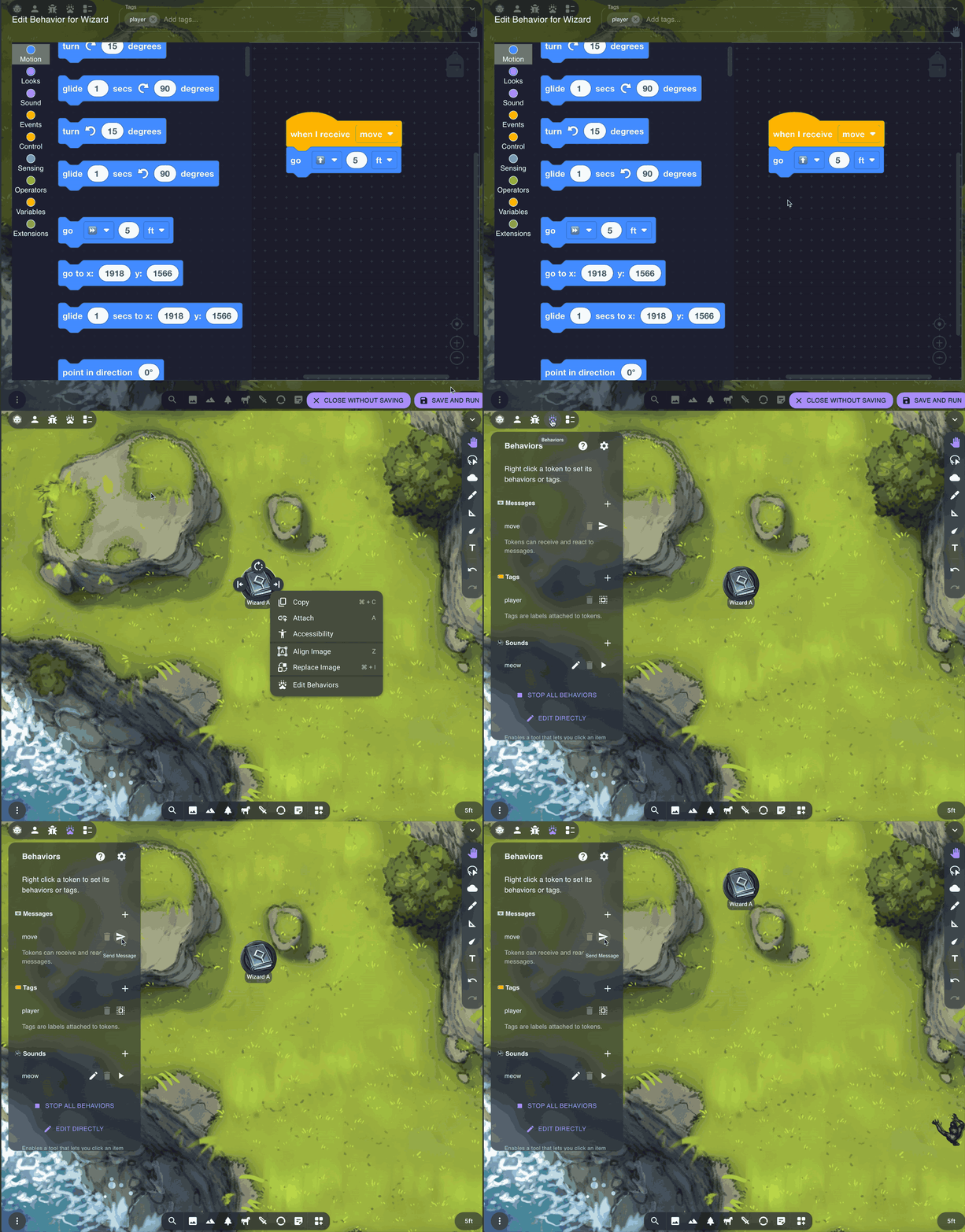
- Add sound effects through the sound management panel in the action window
- See FreeSound for a royalty-free sound effects library, or Kevin MacLeod for royalty-free music.
- Sounds are loaded from URLs. You can upload sounds to a hosting service like Jukehost to get a persistent URL for them.
- Variables accept any type of value, and can be used in place of any type of data
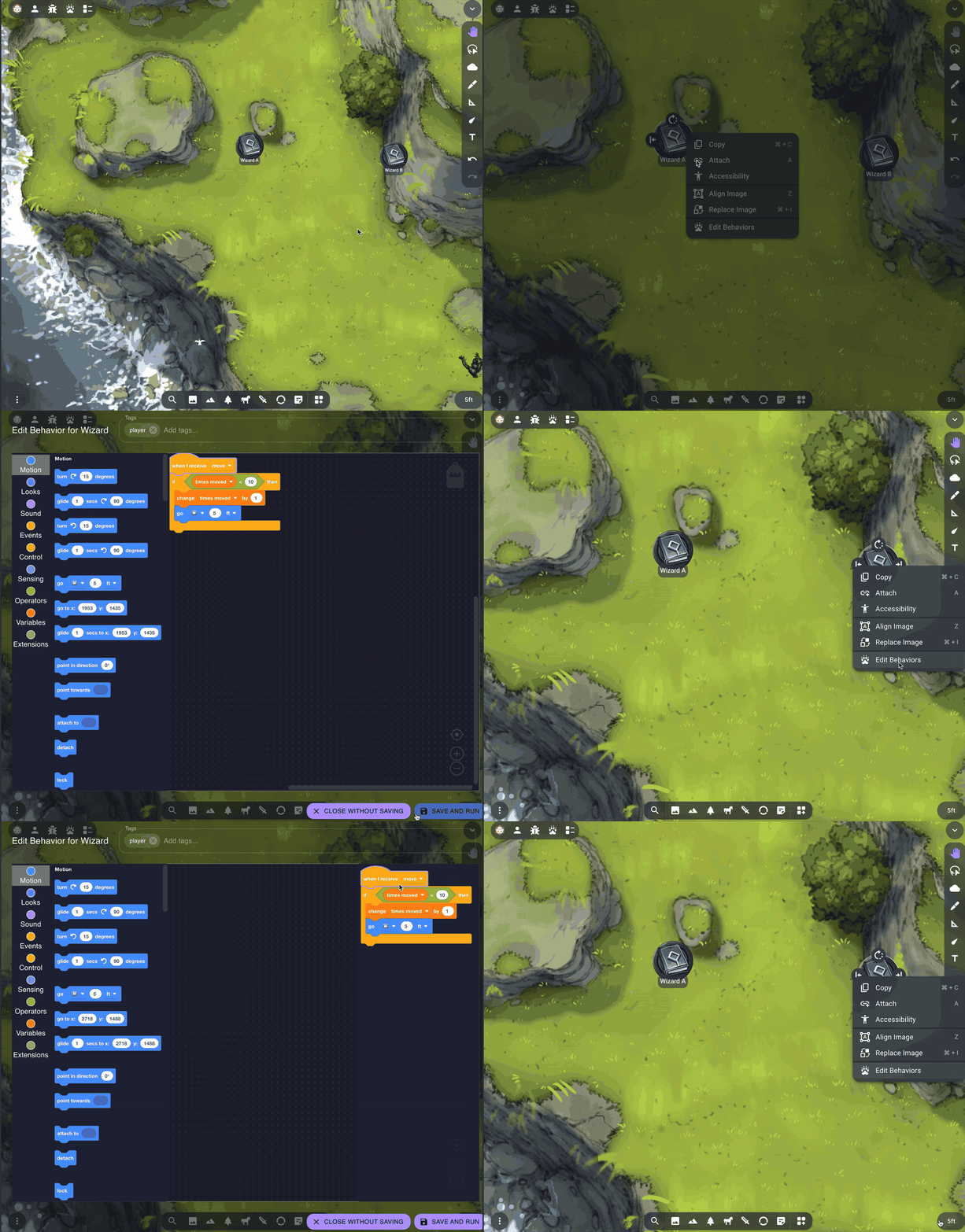
- Normal variables (variables created for a single token only) reset to an undefined value when the page is reloaded or when you save the token's behavior script
- Global variables (variables created for all tokens in a scene) reset to an undefined value when the page is reloaded
- When loading a prefab or a behavior script that references a global variable, the variable will be created if it doesn't already exist in the scene
- Move tokens smoothly with glide blocks
- Note that when players switch back to Owlbear Rodeo after being in another tab, all updates that occurred since their last visit will play forward, so your animations may appear jerky.
- In the 'go' block, the '⏩' option means to move the token in the direction it's facing. In Owlbear Rodeo, 0 degrees rotation means a token is facing up. A token will face in the direction of its rotation handle.
- 'When I am selected' blocks fire no matter who selects the token
- 'Deselect' blocks apply to all players
- The clone block produces an effect the same as if you duplicated the object in Owlbear Rodeo - editing the original will not edit the clone, and variables for the clone will be reset to their undefined state.
- Items will be considered 'touching' each other if their rectangular bounding boxes overlap.
- 'Text' type items don't support touching detection currently
- Behaviors can integrate with other extensions. Blocks for controlling other extensions are in the 'extensions' section of the block toolbox. You must have the other extension installed in order for Behaviors to integrate with it.
- The Google Sheets integration pulls the current value of a cell, not the text of the formula that produced it.
- Start simple: Begin with basic "when message received" behaviors before building complex interactions
- Test frequently: Save and test your behaviors often to catch issues early
- Use comments: Add comment blocks to document complex behaviors
- Organize blocks: Keep related blocks close together for easier reading
- Don't overwhelm Owlbear Rodeo: Running many behaviors at once (especially animations) may cause the VTT to glitch out or drop updates.
To share behavior scripts between tokens, you have a few options:
- Duplicate a token. The easy option. When you duplicate a token, its behaviors are copied.
- Copy and Paste. In the Setting menu, enable the Copy/Paste context menu buttons, then you can copy and paste behaviors between tokens.
- Backpack. You can drag scripts to the backpack icon in the top right of your block workspace to put them in your backpack, and click the backpack to open it while editing any token. Block stacks saved to your backpack are saved to your browser's local storage, so they'll persist across scenes and even rooms.
- Prefabs. To share tokens with behaviors between scenes, save the token as a prefab with the Prefabs extension. When you insert the prefab, the behaviors come with it.
If you need support for this extension you can message me in the Owlbear Rodeo Discord @Nick or open an issue on GitHub.
After checkout, run pnpm install.
This project is a Typescript app.
Icons from https://game-icons.net.
Some script examples generated with https://scratchblocks.github.io/.
This project uses pnpm as a package manager.
To install all the dependencies run:
pnpm install
To run in a development mode run:
pnpm dev
To make a production build run:
pnpm build
- Safety
- Check token total size before saving against OBR max update size (1MB?)
- Move executor to the background now that background scripts shouldn't be throttled?
- Collision system improvements
- base it on polygon overlap instead of bounding boxes? turf js?
- inset bounding boxes so barely touching corners don't trigger collisions?
- Make new tags in tags field show up in possible tags list in block immediately
- Dragging C blocks around statements in stacks like scratch does here?
- Blocks
- Control
- Advanced if with mutator from blockly (change color)
- Motion
- Pathfinding: grid based A* when not in euclidean mode
- Operators
- Substring advanced
- Extensions
- Tooltips
- Figure out auth for Google Sheets writing
- Initiative Tracker same as Pretty Sordid?
- On field change for Daggerheart, Owl Trackers
- Owl trackers: Change max value
- Kenku FM?
- dddice? get room id from metadata, call API?
- Advanced blocks for dice rollers that set the name
- Control
- tell other to? Snail Mod has it as
as (other) {...}
- tell other to? Snail Mod has it as
- Control
- Fix Blockly bug? hideIfOwnerIsInWorkspace should initialize
currentWorkspacetoownerWorkspace, and should reference itself in the loop. - Figure out multiline text inputs - https://www.npmjs.com/package/@blockly/field-multilineinput doesn't display correctly.
- Scratch parity
- Delete unused messages
- Prefabbing multiple items that use a global variable, then adding them to a scene that doesn't have that global variable, breaks - they'll each end up with a different copy of it
- For some users, glides snap the item back at the end of the glide (can't repro)
- GMG text items trigger collision updates, which causes collision blocks to fire multiple times
- Audio files played from blocks play in the executor popover, so the action doesn't know about them.
- Stacking in backpack - happens when lots of (tall?) items, only on second time opening backpack
- Sounds aren't restored when loading an item with behaviors from a prefab
- If you put a procedure definition that references itself (by using its parameters or making it recursive) in the backpack, then drag a copy of the procedure into a workspace that already has the procedure, the self-referential elements of the new copy will attach to the original definition, rather than the newly copied in one.
- solution - onchange, try to reattach to new parent?
GNU GPLv3