Functions
-
- For creating a kado job to reuse the Presto SQL.
-
- For building a schedule to execute kado jobs, which will be executed in orders, on the specific time. The execution order of jobs and execution time of schedule are decided by user.
-
- To provide a interface for user submitting a Presto SQL directly
-
- For building a chart to express the query result, this function can be active in the account page (chart builder).
-
- For building a URL link which depends on the query
-
- To check the execution status of the job
-
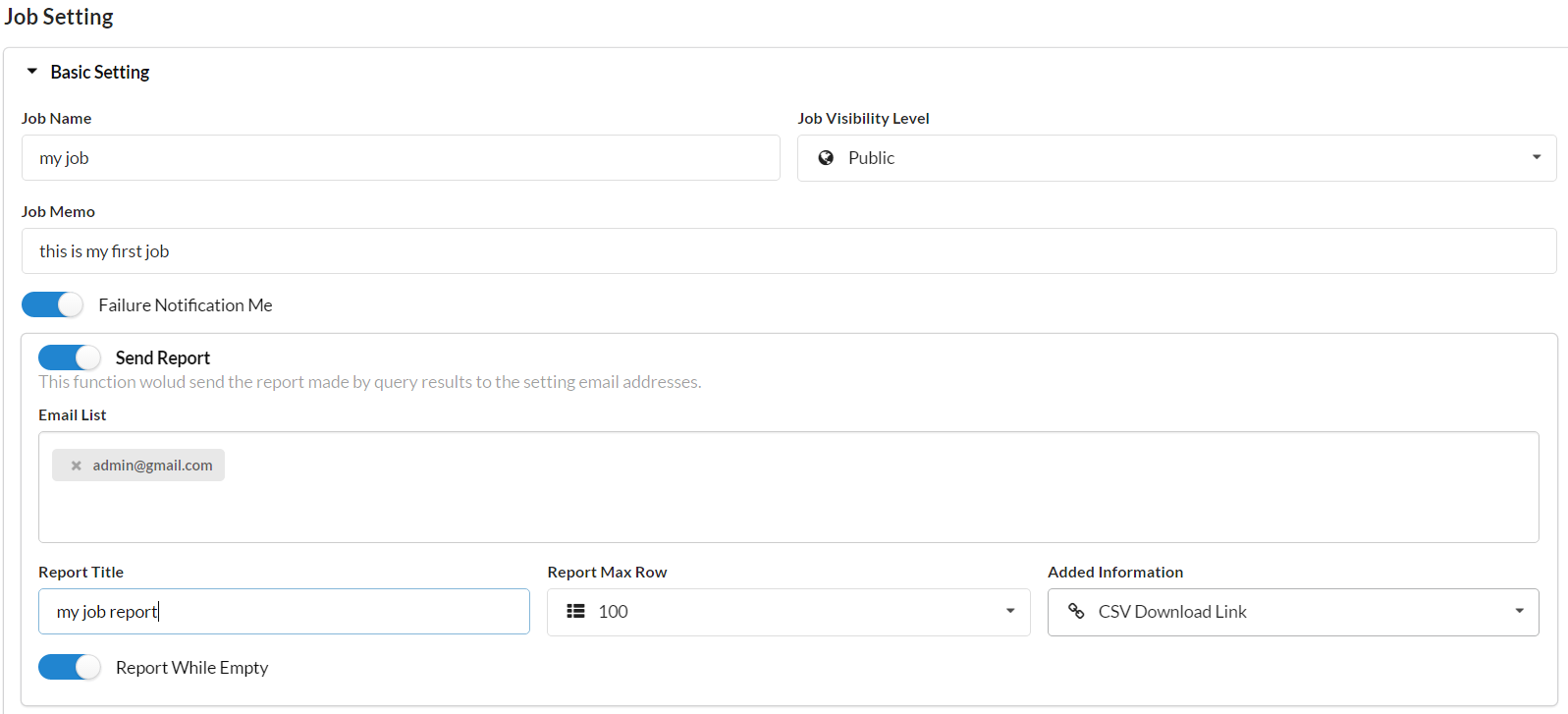
Basic Setting:Included job name、job description、job visibility level and notification
-
Job Visibility Level
- private:only could be checked by group members
- public:could be checked every one
-
Notification
- Failure Notification Me:Send a notification mail to job owner when the query failed.
-
Send Report
- Send Report:Mail the query result as a report to users
- Email list:The users who will receive the query result.
- Report Title:The title of the mail
- Report Max Row:The amounts of records in the mail
- Added Information:Attache the URL Link of the result page.
- Report While Empty:If on, the report will be sent to the users even the query result is none, vice versa.
-
Job Visibility Level
-
Result Storage:The result will be recorded in file system. The name of file will be formatted as
filename@timestamp.csv- Local:Store the results to the local machine. The directory is be decided in the kado configuration file.
- SQL Template :User can customize the template

-
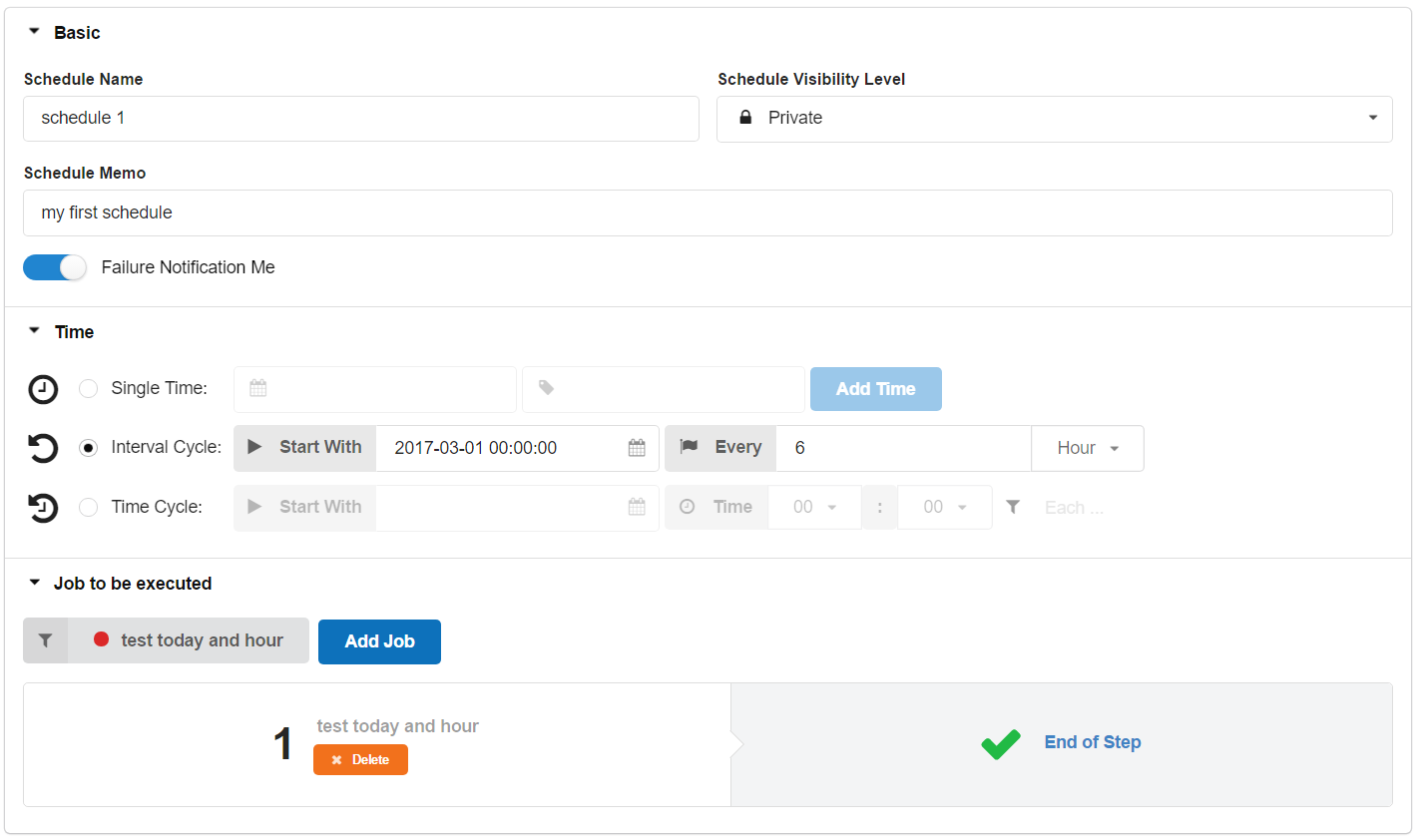
Basic:The necessary functions
-
Schedule Visibility Level
- private:only could be checked by group members
- public:could be checked every one
-
Notification
- Failure Notification Me:Send a notification mail to users when the execution of schedule is filed.
-
Schedule Visibility Level
-
Time:There are three different ways to schedule jobs.
- Single Time:For executing the jobs in the specific time
- Interval Cycle:For executing the jobs repeatedly every N minutes/hours/days
- Time Cycle:For executing the jobs repeatedly every days or on the day in week (Sun,Mon,Tue,Wed,Thu,Fri,Sat)
-
Job to be executed:To specify the jobs which will be executed in orders in this schedule.
- The Presto query which is intended be scheduled, must be created as a job in advance.
-
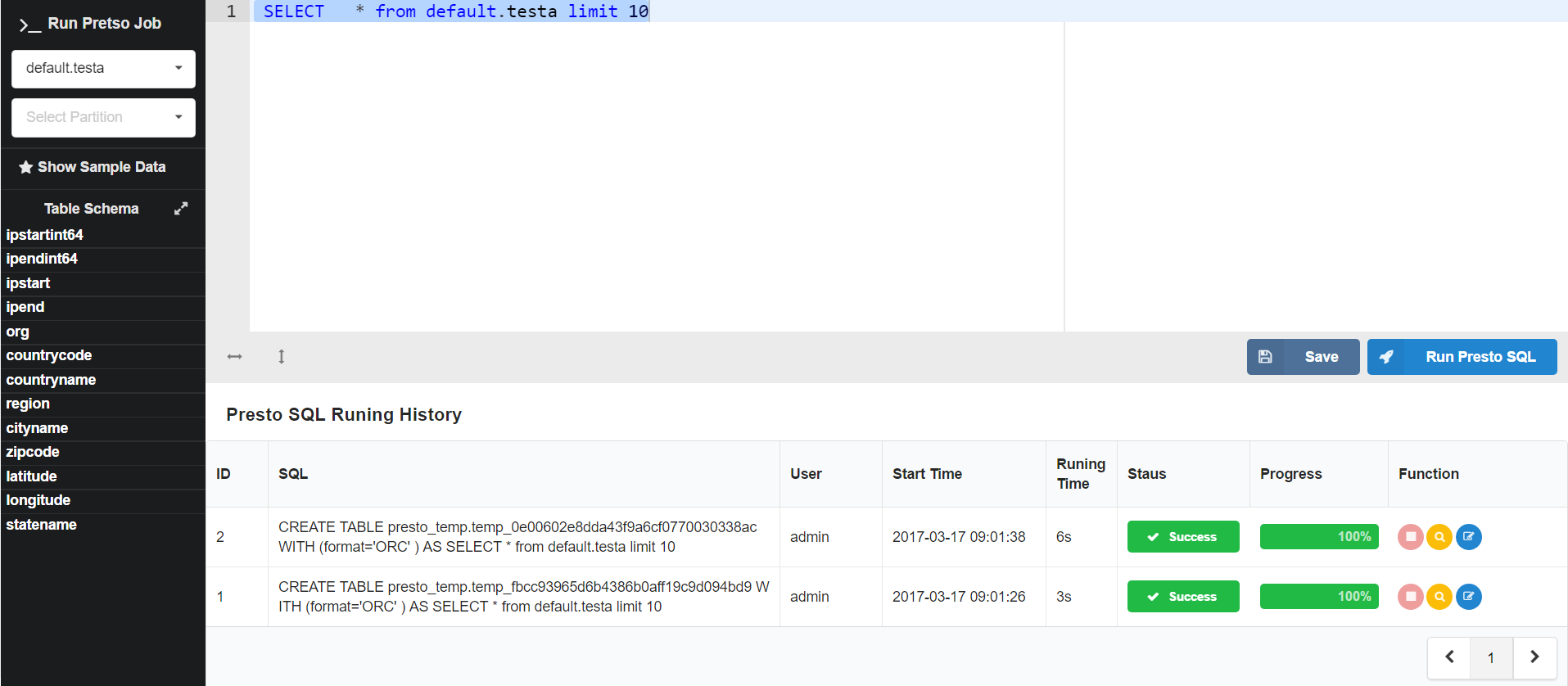
Menu at the left side:For checking the table schema.
- select table:For selecting the Presto table
- select partition:For exhibiting the partitions of the selected table.
- Show Sample Data:For exhibiting the top 100 records in the selected table
- Table Schema:For exhibiting the schema of the selected table.
-
Query (right side):For typing Presto SQL and exhibit the results.
-
The input box on the top is for typing Presto SQL,
- count(*):Please type a name after count(*) when you typing the Presto SQL, ex:select count(*) count from table
- limit:Except the admin, The default amounts of results from kado queries, which are created by other permissions, are only 100. Which means, the queries will be added "limit 100" in the end of the Presto SQL. This strategies is used to lower the pressure on Presto engine.
-
The execution progress and query result will be showed below, and it offers four utilities.
- Check the query log(After the job status being success or failed)
- Abort
- Link to the result page of this query
- Copy and past current SQL to the query input box.
-
The input box on the top is for typing Presto SQL,
-
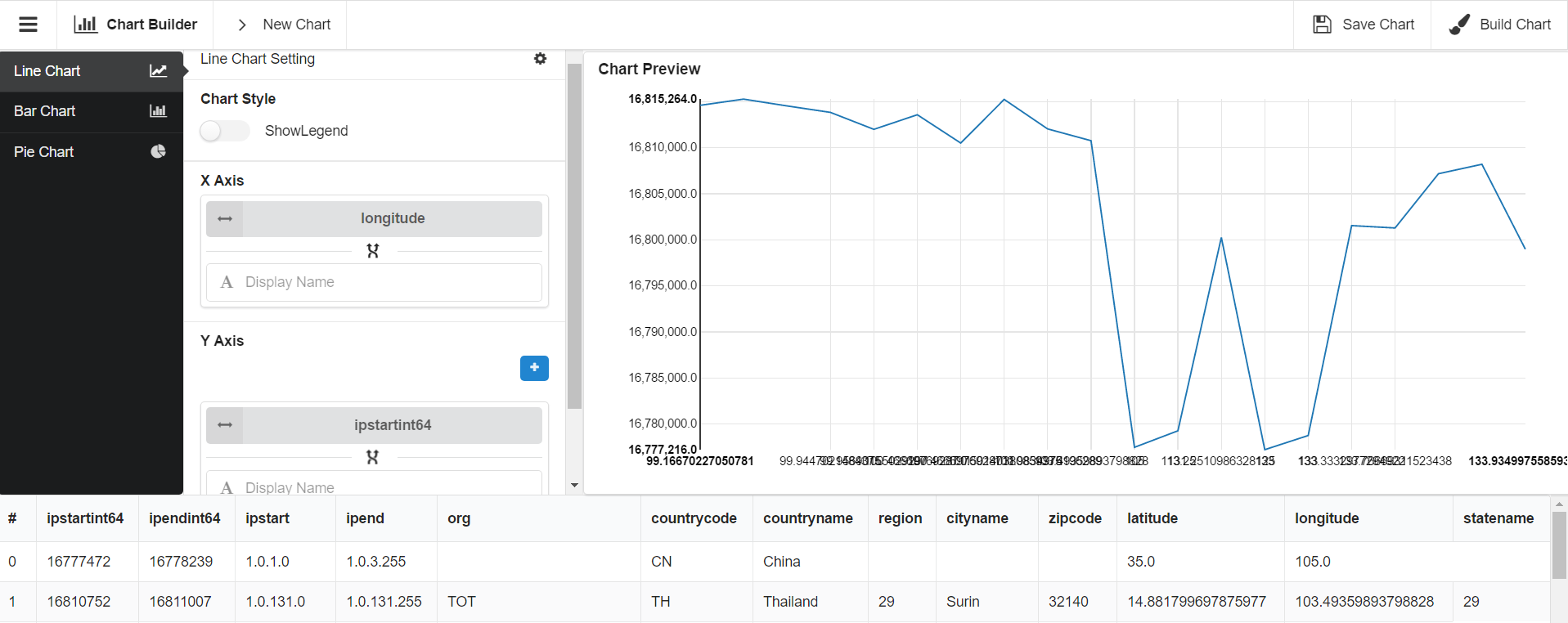
Chart Setting:
- Line Chart:Need to specify the X、Y axis, the value type of Y axis should be numeric
- Bar Chart:Need to specify the X、Y axis, the value type of Y axis should be numeric
- Pie Chart:Need to specify more than two columns to draw a pie chart
-
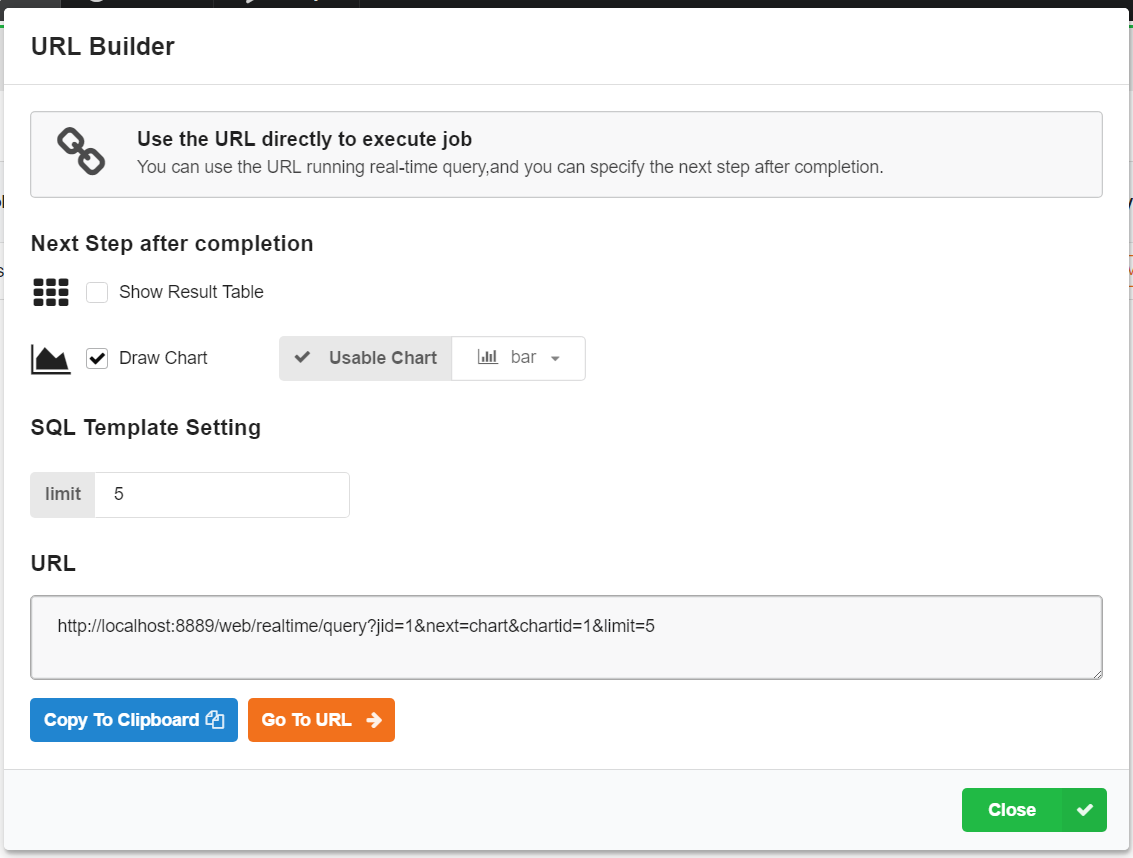
Builder Setting
- Next Step after completion
- Choose the express way of the job result
- Use SQL template
- For Identifying the parameter of SQL template in the URL link
- Next Step after completion
-
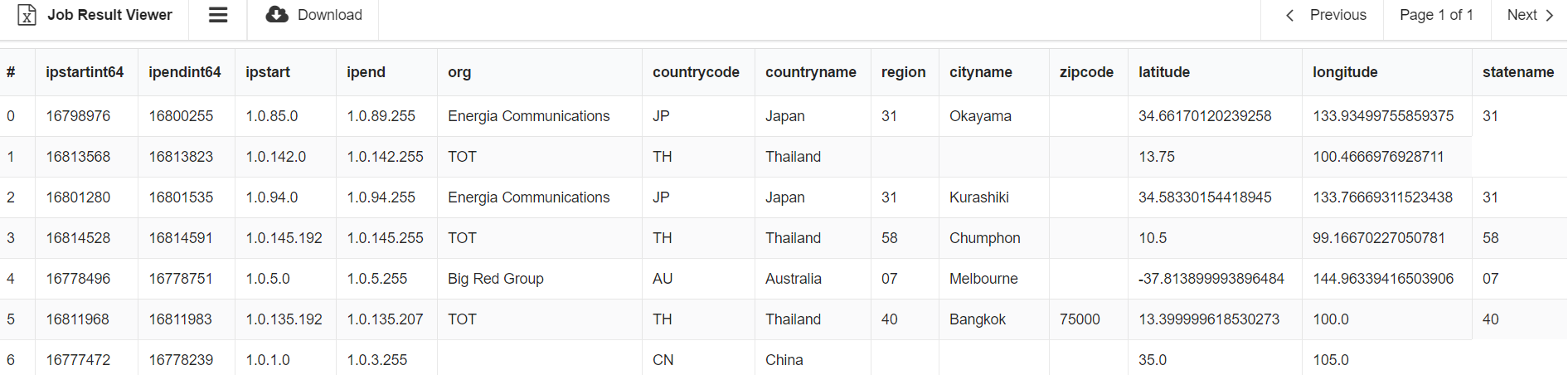
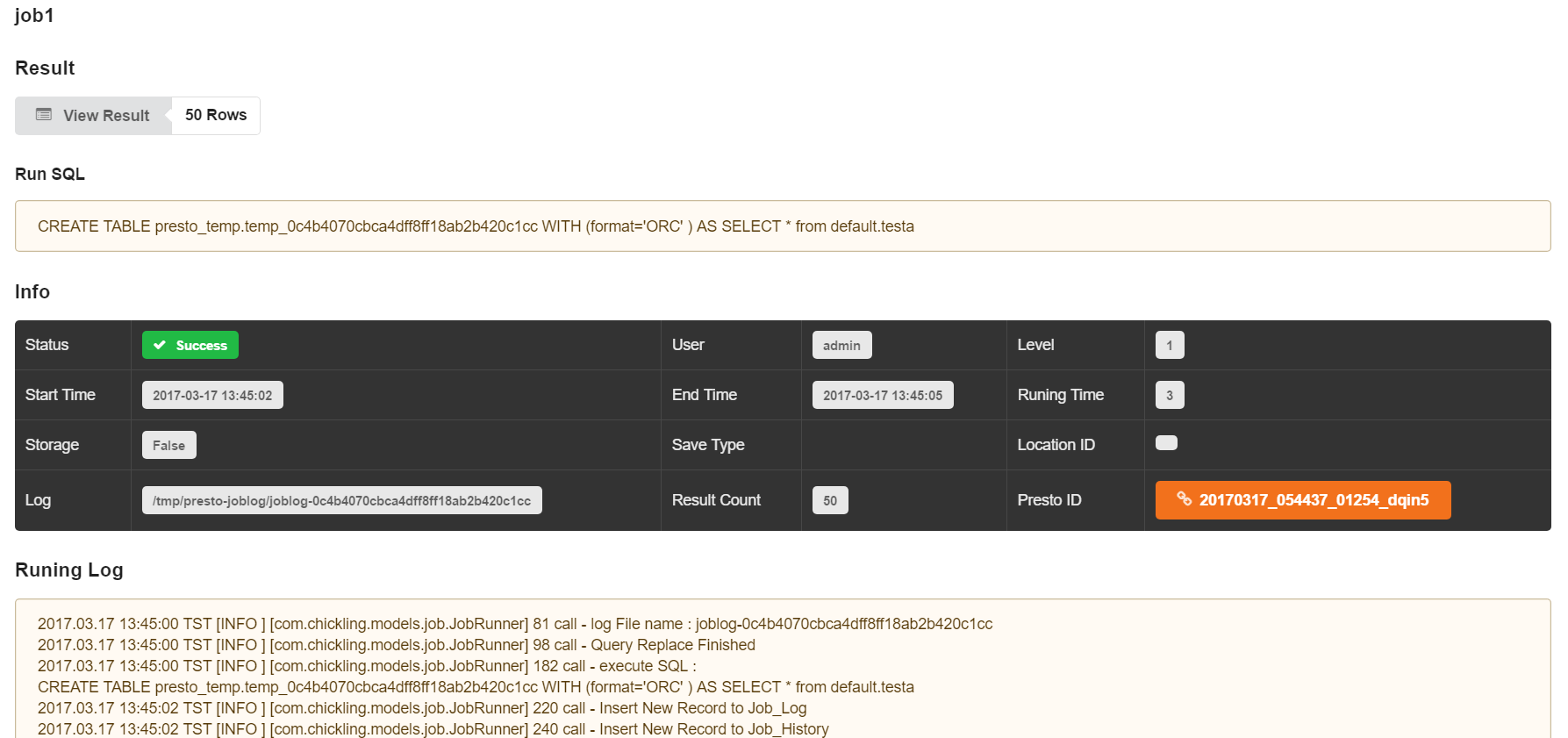
jobinfo:To show the job result
- Result:For showing the amounts of records of the job result and offering the options to express result (Table/Chart)
- Run SQL:For exhibiting the Presto SQL of the job
- info:For exhibiting the job info
- Level:The visibility level of job
- Log:The Local directory for storing job logs
- Presto ID:To link to the original web page of Presto service
- Save Type:The type of destination storage for query results
- Running Log:The progress of executing job
-
Result Viewer:To express the result in a table, and offering the