

This project records magnetic field data from a BioMed fluxgate sensor, puts GPS-disciplined timestamps on it, and uploads it to the Google Drive for further processing.
- This program was developed using .NET framework v4.5.2, and was running properly on Windows 8 and Windows 10 systems.
- System requirements for .NET framework 4.5 can be found here - https://msdn.microsoft.com/en-us/library/8z6watww(v=vs.110).aspx
- If you don't have 4.5 redistributable, you can download one from Microsoft website - https://www.microsoft.com/en-us/download/details.aspx?id=42642
- I've been using these ASUS X551 laptop to operate four synchronized stations - https://www.amazon.com/15-6-inch-Celeron-2-16GHz-Processor-Windows/dp/B00L49X8E6
Each station was built with the following:
- ASUS X551 laptop (any computer satisfying the system requirements).
- Biomed eFM3A Fluxgate magnetometer
- Garmin 18x LVC GPS (any NMEA GPS with 1 PPS output routed to pin 1, Carrier Detect)
- SerialIO SIO-U232-59 (RS232 to USB converter with +5V on DB9 pin 9)
In toder to to inteface the magnetometer, the project uses a .NET wrapper that can be found here https://github.com/lenazh/Biomed-eMains-eFM-x . The wrapper encapsulates the eFM-x API.dll functions into an object. The wrapper uses customized version of eFM-x API.dll that behaves differently from the one coming with the device (as of 01/2016).
This program stores data in Google Drive to make collaboration easy, and ensure the computer doesn't run out of space. In order to function properly, you need to first obtain the authorization credential that the program will use to log in to Google Drive.
How to obtain the secret key:
- Navigate to Google Drive API wizard https://console.developers.google.com/flows/enableapi?apiid=drive
- Click Credentials -> Create credentials -> OAuth Client ID
- Fill out the forms
- Once created, click "Download JSON"
- Save the .json file as nuri_station.json into the project folder
After the Google authorization credentials are obtained, build the sample logger project. Open the registry editor, create a key HKEY_CURRENT_USER\SOFTWARE\Budker labs\NURI Magnetometer and add two string values: cache and StationName. Set StationName to any name, and cache to the full path to an existing folder. This will let the application to start up.
Run the application. It will open the browser and prompt you to log into your Google account (where the data will be uploaded). Keep in mind that by default the logger records the magnetic field at 4ksps, so the data can add up quickly.
After logging in, build the installer project. This will add the authentication information into the installer, so you won't have to log in on target machines. It will also create the registry keys that the application needs to run.
Install the application with the installer on the computers that will be logging the data. You will be prompted to enter the station name and the cache folder. This folder is used to store temporary files and the data that couldn't be uploaded until the internet connection is available. The installer will create two shortcuts - Data Grabber and Sample Grabber.
Data Grabber is useful for long-term magnetic data recording. Sample Grabber is useful for obtaining short magnetic data samples.
Use Data Grabber for a long-term magnetic field recording. Once the recording starts, it will upload the magnetic field data into the Google Drive in hour by hour chunks. All timestamps are in the UTC timezone.
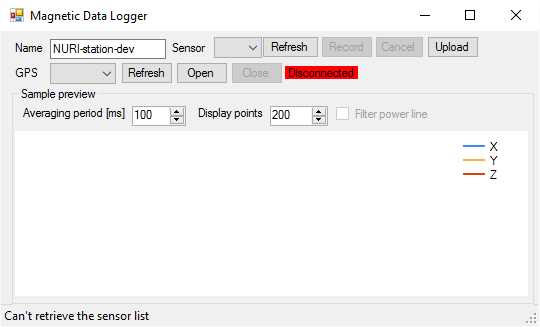
On the first run, a browser window will open with the program requesting the autorization for the Google Drive serivice. Log in with the account where you want the magnetic data to be uploaded.
Select the magnetic sensor and serial GPS from the corresponding drop-down boxes. The first available magnetometer and the serial port will be pre-selected. If the correct option doesn't appear, check if the devices are connected and the drivers are installed and click "Refresh".
After the correct GPS port is selected, click "Open" on the right of the port name. The red "Disconnected" text on the right should become green and display the current UTC time. It might take some time for the GPS to acquire the sattelites. Sometimes you need to click "Close" and "Open" again to receive the signal. If the UTC time is displayed, but the text is red, check if the 1 PPS pulse is routed to DB9 pin 1. The text will turn red if the GPS data does not arrive for over five seconds. Wait for 5-10 timestamps to arrive before recording the magnetic field so that the timestamp interpolation can work correctly.
Set the name of the station how you want it to appear in the Google Drive uploads. The name will persist between the restarts. Set the display and low-pass filter parameters in the Sample Preview box. This only affects the preview, the magnetic data is written at full rate with no filtering. Click "Record" to start recording, and "Cancel" to stop. The magnetic data will upload to Google Drive automatically once per hour. Click "Upload" to upload any cached cached data if you don't want to wait.
Use Sample Grabber for recording magnetic data samples. Once you recird a sample, you can add a title and commentary, and upload (or discard) it. All timestamps are in the UTC timezone.
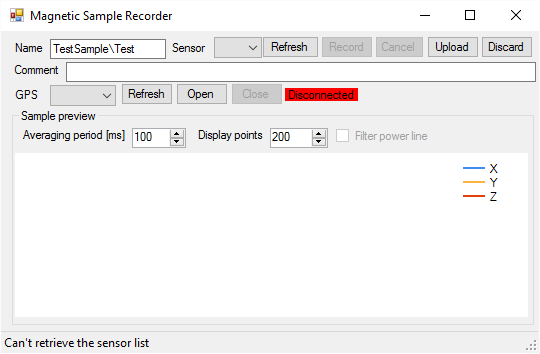
On the first run, a browser window will open with the program requesting the autorization for the Google Drive serivice. Log in with the account where you want the magnetic data to be uploaded.
Select the magnetic sensor and serial GPS from the corresponding drop-down boxes. The first available magnetometer and the serial port will be pre-selected. If the correct option doesn't appear, check if the devices are connected and the drivers are installed and click "Refresh".
After the correct GPS port is selected, click "Open" on the right of the port name. The red "Disconnected" text on the right should become green and display the current UTC time. It might take some time for the GPS to acquire the sattelites. Sometimes you need to click "Close" and "Open" again to receive the signal. If the UTC time is displayed, but the text is red, check if the 1 PPS pulse is routed to DB9 pin 1. The text will turn red if the GPS data does not arrive for over five seconds. Wait for 5-10 timestamps to arrive before recording the magnetic field so that the timestamp interpolation can work correctly.
Set the sample name and comment of how you want it to appear Google Drive uploads. If the sample name contains \, it will create nested folders and the text after the last \ becomes the file name. You can set the name and commentary before or after the recording is done. The display and low-pass filter parameters in the Sample Preview box only affect the preview, the magnetic data is written at full rate with no filtering. Click "Record" to start recording, and "Cancel" to stop. The data will append to the magnetic data buffer. Click "Discard" to clear the buffer, or "Upload" to upload the data and clear the buffer. Clicking "Record" again without uploading or discarding the data will append the data to the current buffer contents.
The stream of data from each station is partitioned into one-hour-long portions and uploaded to the Google Drive. Each portion contains X, Y and Z magnetic field data, and precision timing information in separate files. The files are put into a zip archive, and uploaded into a folder corresponding to when the data was recorded:
/MagneticFieldData/(year)/(month)/(day)/(hour)/(station name)/(data file)
The data arrives from Biomed sensors in chunks of ~300-1000 points (see the diagram). Each sensor has a single ADC that switches between X, Y, and Z channels at three times the sampling rate. Upon arrival the data from three channels is separated into raw_x, raw_y, and raw_z files, correspondingly.
The raw_x, raw_y and raw_z files are arrays of double precision floating point, separated in time by the sampling period. The X, Y, Z values with the same array index correspond to X, Y, Z components of a single vector field measurement. Because of how the device works, the vector field components are not recorded at exactly the same time. All field values are in microtesla.
The time data files describes when each chunk of data was acquired. It is structured as an array of records describing the sequence of chunks as they arrive. Each chunk description has the following structure with fields in this order (63 bytes per record):
int64_t start;          // index of the chunk data start in X, Y, Z arrays
int32_t length;         // number of points in the chunk in X, Y, Z arrays
byte valid;             // 1 if time is valid, 0 otherwise
int64_t ticks;          // performance counter value in ticks
double timestamp;       // interpolated Unix timestamp (UTC)
double latitude;        // GPS latitude
char ew;                // ASCII “E” if East, “W” if West
double longitude;       // GPS longitude
char ns;                // ASCII “S” if South, “N” if North
double speed_knots;     // GPS speed in knots
double angle_degrees;   // GPS heading in degrees
The start field is the index of where the chunk data begins in raw_x, raw_y and raw_z files (so 8 * start is the offset in bytes of the chunk start in each file). length is the number of sequential values in each X, Y, and Z arrays that arrived within this chunk. valid is set to 1 when enough data is available to interpolate the GPS time, and 0 when it’s not (for example, if GPS receiver hasn’t sent any data in the last several minutes). ticks is the value of the performance counter of the system (ticks since the system start). Typical counter frequency for the sensor stations is 2533200 Hz. timestamp is the interpolated GPS time stamp recorded at the time of the chunk arrival recorded as Unix time in UTC timezone. latitude and longitude are the sensor coordinates recorded as a floating point number. For example, 12311.12 translates into 123 degrees 11.12 minutes. speed_knots is the speed of the sensor in knots, and angle_degrees is the heading of the sensor in degrees with respect to the north. The coordinates, speed, and heading are updated once per second and are not interpolated.
DataGrabber- logs the data continuously for long periods of timeDataGrabberForm- form logic ofDataGrabber(inherits fromMagnetometerForm)
SampleGrabber- records short magnetic data samplesSampleGrabberForm- form logic ofSampleGrabber(inherits fromMagnetometerForm)MagnetometerForm- common magnetometer form logic
GDriveFolderMerge- merges folders with the same name in Google drive folder (should they appear)NURI_Station_Installer- creates installation packages for the applicationUtils- library containting the logicConfiguration- manages global configuration parameters for the applicationSettings- class storing the global configuration parameters
DataManager- data storageDatasetInfo- metadata associated with the magnetic data setsSampleDatasetInfo- metadata associated with the magnetic data sets that store short data samples (inherits fromDatasetInfo)LegacyStorage- writes the magnetic data sets to the drive in a legacy format. The format is described in Output Data Structure section. Future versions should implement some common structured data format instead.LegacySampleStorage- writes the magnetic data sets that correspond to short data samples to the drive (inherits fromLegacyStorage)UploadScheduler- schedules dataset uploads, schedules re-tries for failed uploads
DataReader- reads magnetic data files (obsolete, do not use)DatasetChunk- represents a single chunk of dataGpsDatasetChunk- represents a single chunk of data with a GPS timestamp (inherits fromDatasetChunk)Filters- transform the magnetic field data to make the real-time field preview feasibleAbstractSimpleFilter- represents a filter with one input and one output that outputs the data by raising an eventMovingAverage- running average filter with exponential decay on the input data (inherits fromAbstractSimpleFilter)Subsample- subsamples the data from the input (inherits fromAbstractSimpleFilter)RollingBuffer- stores a preset maximum number of points from the input, like an oscilloscope (inherits fromAbstractSimpleFilter)Fixtures- wrappers and factories to make unit testing feasibleGDrive- classes that work with Google Drive APIFileUploadException- the exception to raise when a file upload failed for whatever reasonGDrive- provides functions to access Google Drive files. This class is not well tested because I couldn't stub outGoogle.Apisproperly.GDrivePathHelper- converts between Google hash ID's and paths like\foo\barGPS- classes that work with the GPSSerialGps- represents a serial GPS with 1 PPS signalSerialPortWrapper- wrapper to make SerialPort from PInvokeSerialPort library implementISerialinterface
Time- time estimation and interpolation classesFifoStorage- stores a list of the last N input valuesNaiveTimeValidator- decides whether the received GPS data arrived on time or was delayed due to the operating system being busyNaiveTimeEstimator- returns absolute Unix timestamp of the event given its absolute Stopwatch counter valueLagSpikeFilter- infers whether a magnetic data chunk arrived on time or delayed due to the operating system being busy. If the chunk was delayed, replaces the actual arrival time with interpolated arrival time.
The configuration files DataGrabber.exe.config (Data Grabber) and DogeStation2.exe.config (Sample Recorder) can be found in the application installation directory. The contain the default configuration for each application. The parameters are:
DataCacheFolder- where the cached magnetic data and failed uploads are storedCredentialDirectory- where Google authorization credentials are storedMaxActiveUploads- maximum number of simultaneous Google Drive uploadsMaxRetryCount- maximum number of retries before the upload is considered to be failedMaxListResults- maximum number of files returned by Google Api queriesFilesMimeType- MIME type files are created withFoldersMimeType- MIME type directories are created withGoogleAuthUser- Google service userGoogleApplicationName- Google service application nameRemoteRoot- Google drive folder where all data will be uploadedWaitBetweenRetriesSeconds- time delay between the retriesEnableDelayBeforeUpload- enables randomized delay before the upload (reduces the race for the directory tree creation between the stations, and the number of 403 errors from Google Drive)MaxDelayBeforeUploadSeconds- maximum delay before the upload in secondsEnableFailedRetryWorker- enables the thread that retries uploading the failed filesMinDelayBetweenFailedRetriesSeconds- minimum delay between the failed upload retriesMaxDelayBetweenFailedRetriesSeconds- maximum delay between the failed upload retriesStationName- default station name (will be used if the registry entry is missing)SamplingRate- data acquisition rate of the magnetometerDataUnits- what units the data should be converted to (V or uT)ChannelNameX- X channel nameChannelNameY- Y channel nameChannelNameZ- Z channel nameChannelNameTime- time channel nameDataFileNameFormat- magnetic data file name formatTimeFileNameFormat- time file name formatZipFileNameFormat- compressed file name formatLagFilterFitPoints- magnetic data lag filter history lengthLagFilterToleranceLow- lag spikes larger than this value (in seconds) will be rejectedLagFilterToleranceHigh- Lag spikes larger than this value (in seconds) will not be rejected