- For the COMP2212: Programming Language Concepts module, a programming langauge was designed that supported the querying of CSV files and an interpreter was written.
- This programming langauge is known as CSV Query Language.
- Please refer to the COMP2212:PLC Coursework repository for more information on the project, and full documentation of the CSVQL programming langauge.
- The goal of this project was to create an IDE/Text Editor for CSV Query Language using the JavaFX framework.
- The finished application supports the creation, development and execution of CSVQL programs (as well as tables in the form of CSV/text files) in a single environment and includes highlighting for the CSVQL syntax.
- Support has also been added for Python and Java programs in order to demonstrate the versatility of the final application, with little required to provide support for further languages.
- The appplication is broken down into three sections.
- Editor
- Table Store
- Terminal
- Files that are loaded into or created in the application will be displayed as a tab in the Editor, where they can be edited and run.
- Each file present in the system is displayed in it's own tab in the Editor (just like normal text editors).
- Each Editor Tab contains a toolbar that supports the saving, editing and running (if it is a program) of the file.
- All tables loaded into the system are stored in the Table Store, and will be available for CSVQL programs when they arerun.
- The purpose of the Table Store is to be able to have CSV tables loaded into the system without requiring them to be open in the Editor when a program is being run.
- When running a CSVQL program, the program output is displayed in the Terminal.
- The Terminal contains a toolbar that supports the saving of this output to a file, or copying it to the clipboard.
Introduction.mp4
A step-by-step guide on how to run th CSVQL IDE.
- The CSVQL IDE can be run using the provided
pom.xmlfile with themavenframework. - Clone the repo and use the following command to run the application:
mvn clean javafx:run- On start-up, the application should look like this:
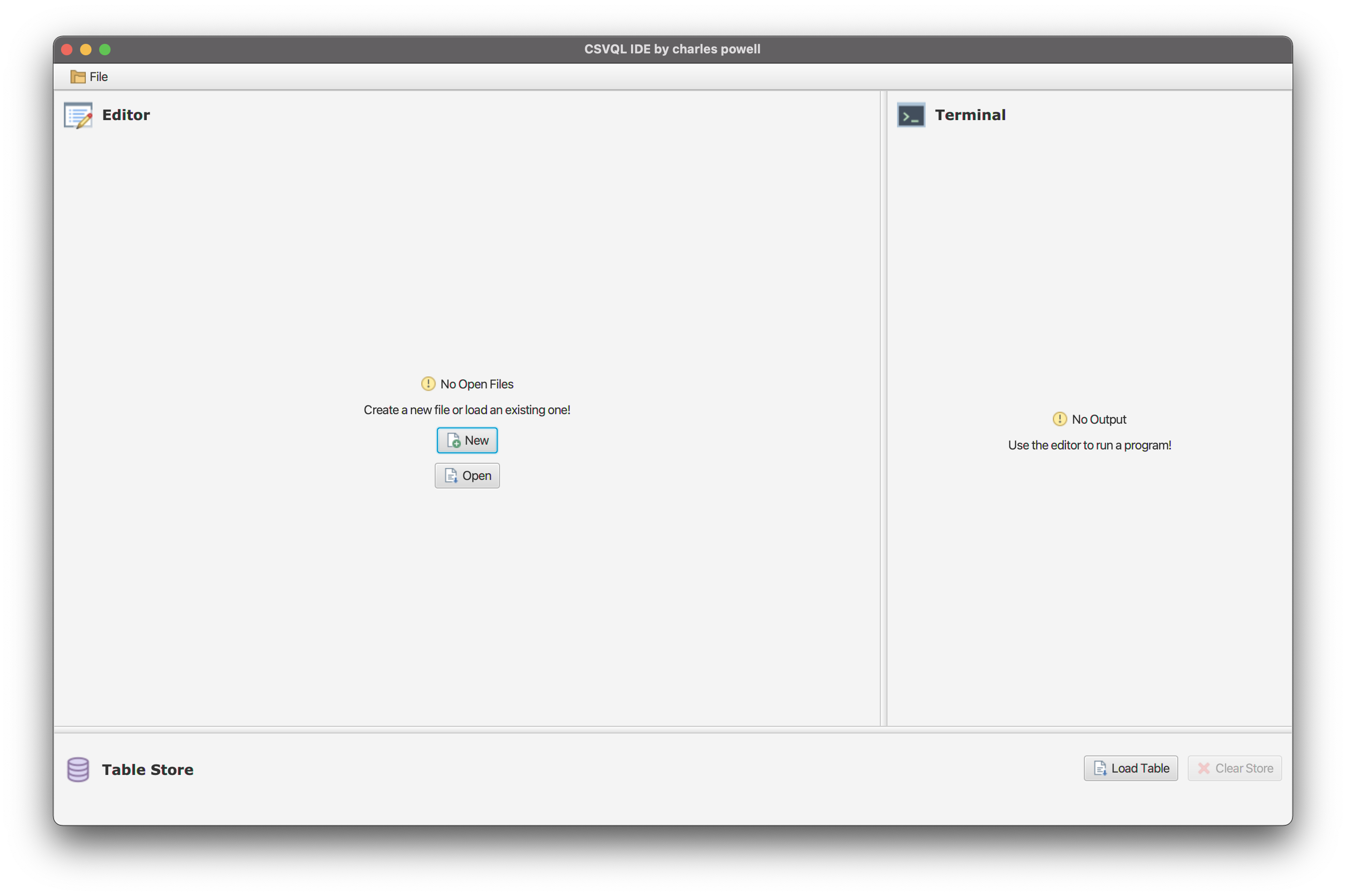
A short guide on the main features of the application.
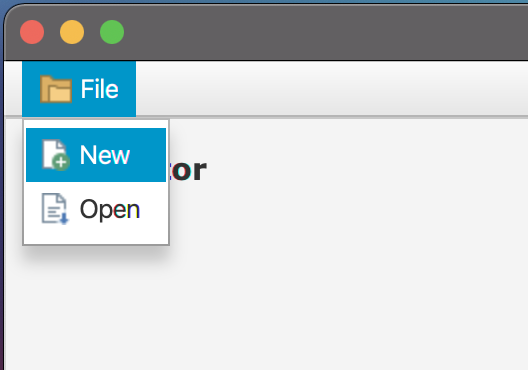
- The File menu in the Toolbar can be used to create a new file.
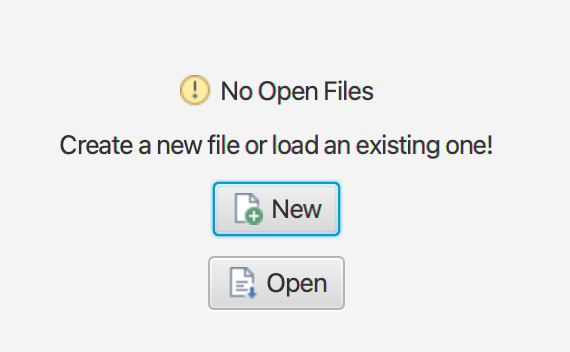
- Alterativley, when no files are open within the Editor, the New button in the center of the Editor can be used to create a new file.
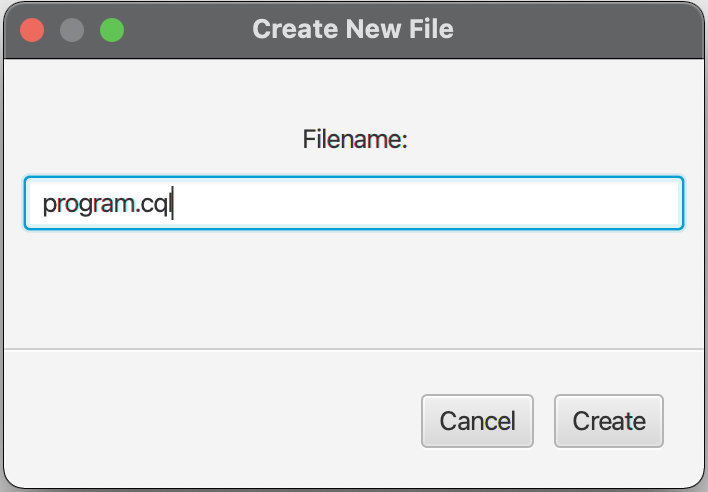
- When selected, a enter the name of the new file into the pop-up window and submit.
- A file extension must be provided, and the filetype will be derived from this extension.
- The file extensions supported by the system are as follows:
- CQL Programs:
.cql - Tables:
.csv,.txt
- CQL Programs:
- After submitting the filename a new Editor Tab will be displayed for the new file.
- If the type of file is not supported by the system, or if the provided filename is already in use, an error window is displayed and a new file is not created.
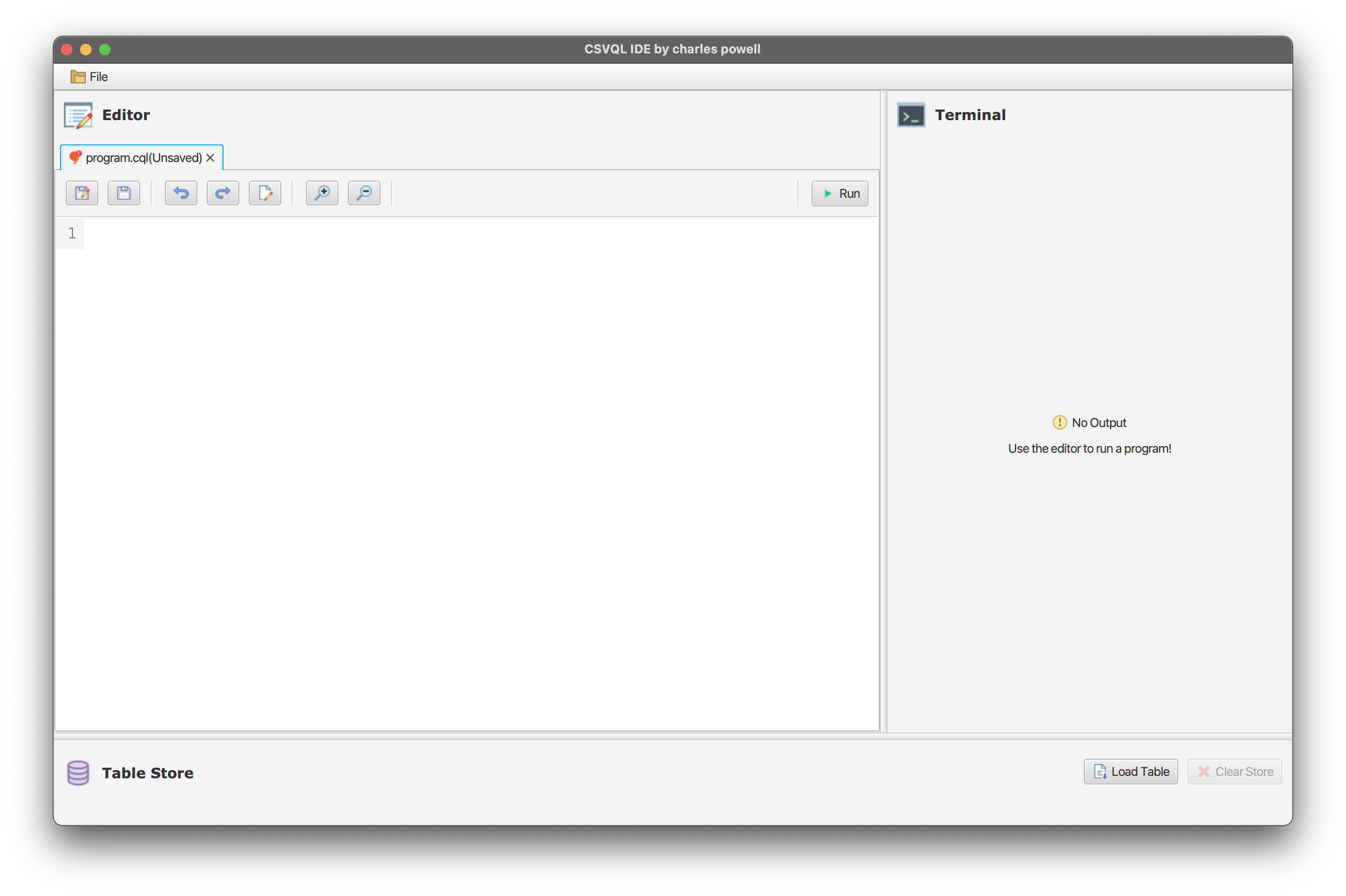
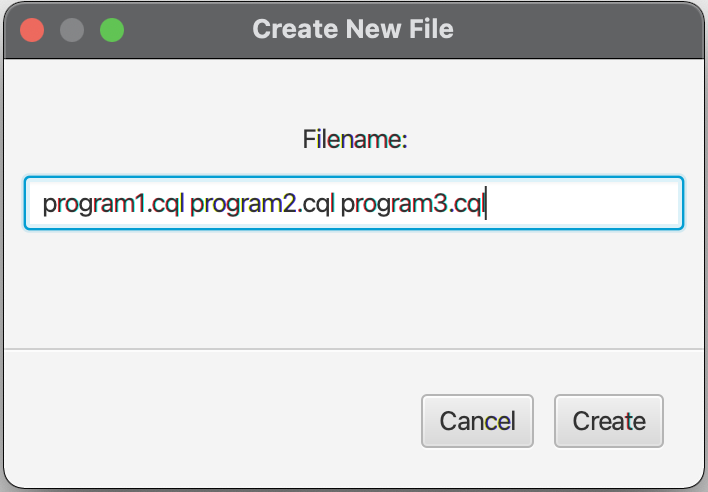
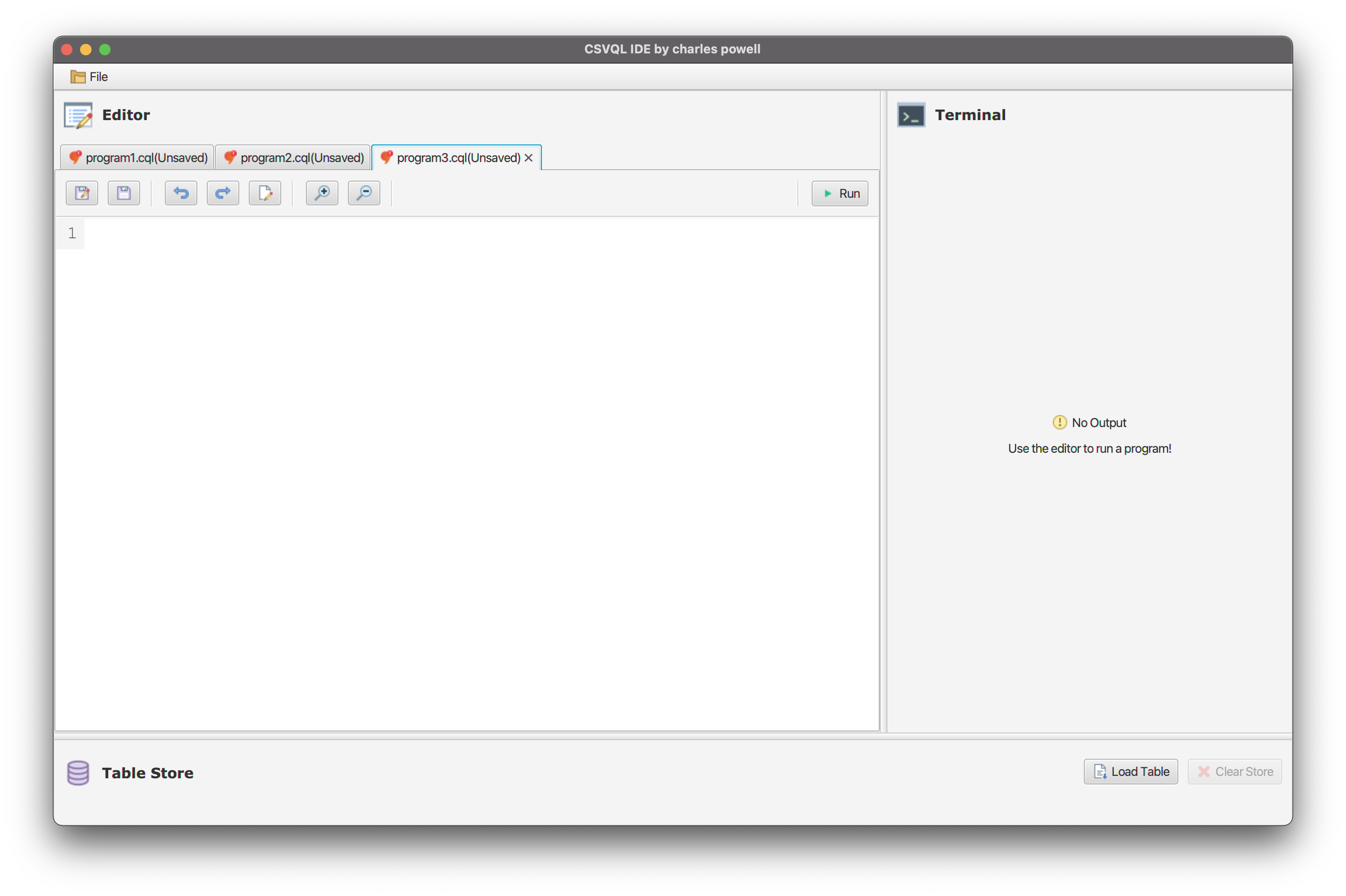
- Multiple files can be created at once by supplying multiple filenames into the pop-up window, with each filename seperated by a space character.
- The File menu in the Toolbar can be used to create a open an existing file.
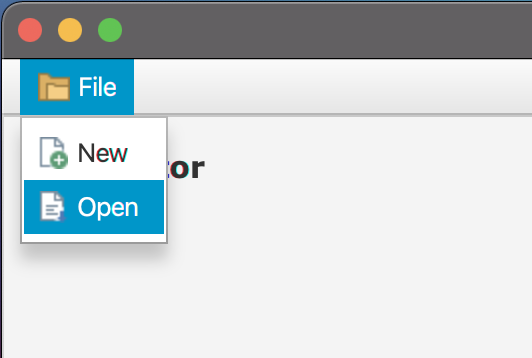
- Alterativley, when no files are open within the Editor, the Open button in the center of the Editor can be used to create a new file.
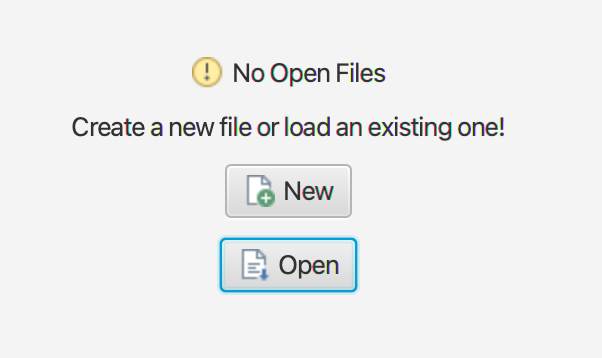
- When selected, a File Chooser window is displayed that allows for an existing CSVQL programs or tables (CSV or Text) to be chosen.
- Only supported files can be selected within the file chooser.
- All files chosen will be displayed in the system in new Editor Tabs.
- A file will fail to load if the filename is already in use within the system.
- Any Table that is loaded into the system will also be loaded into the Table Store.
- Files can be dragged and dropped into the application Editor, where they will be loaded into the system.
Editor.Drag.and.Drop.mov
- Files can be loaded directly into the Table Store using the Load button in the store, or by dragging and dropping.
- Only files of the supported type for tables can be loaded into the table store (
.csv, .txt).
- Only files of the supported type for tables can be loaded into the table store (
- A file that is loaded into the table store will not be displayed in the editor, but can be opened using the Open In Editor button on the graphic for the stored table.
- Files can also be removed from the table store using the Close Button on the graphic for the stored table.
- All loaded tables can be removed from the Table Store using the Clear Store button.
Table.Store.Drag.And.Drop.mov
- Each file open in the system is displayed in it's own tab, which contains a Toolbar for controlling the file, and a Code Area for editing the code/text within the file.
- The toolbar and code editor are configured based on the type of file that is being displayed - e.g., no 'run' button is displayed for table files, and syntax highlighting is provided for CSVQL programs.


-
The Save As and Save buttons within the Toolbar can be used to save a file. Saving can also be used with the
CTRL Skey combination. -
If the file being saved is yet to be saved, a file chooser is displayed allowing for the save destination to be selected.
-
Note that the name and graphic of the Editor Tab are updating to reflect the save state of the file as changes are made within the Code Area.
Saving.File.mov
- The rename button can be used to rename a file open within the Editor.
- After selection, a pop-up window is displayed that allows for the new file name to be provided.
- If the renaming process results in the type of file changing (e.g., from CSVQL program to table), the open Editor Tab and TableStore will update to reflect this change.
- Note that a rename will fail if the provided file type is not supported by the system, or if the filename is already in use in the system.
Renaming.File.mov
- The undo and redo buttons can be used to undo and redo recent changes made to the Code Area respectivley.
- The view of the Code Area within an Editor Tab can be altered using the zoom in and zoom out buttons, or by using the
CTRL =andCTRL -key combinations respectivley. - Changing the zoom level within an Editor Tab will only have an effect on that said Editor Tab.
- Files can be removed from the Editor by closing the tab they are contained within (note this does not remove the actual file).
- If there are unsaved changes to the file, a confirmation window is displayed asking for this action to be confirmed.
- CSVQL programs can be executed by selecting the run button within the Editor Tab Toolbar.
- The output of the program being run will be displayed in the Terminal, along with any errors that were raised.
- A Terminal Toolbar is displayed when output is present in the Terminal, which allows for the output to be saved to a file or copied to the clipboard, and for the font size to be increased or decreased (zoom in or out).
Execution.mp4
A description of the additional programming langauges supported by the CSVQL IDE.
- CSVQL IDE was developed to support the creation, development and execution of CSVQL files, but in order to show the versatility of it's implementation, support has also been added for Python and Java programs.
- Simply open or create a Python/Java program within the Editor and run it for the program output to be displayed within the Terminal.
Additional.Language.Support.mov
- Other langauges could easily be added into the system by providing information on the file/langauge structure (expected file extension, syntax rules etc) as well as defining how a program in the language should be executed within the application's Controller.
A description of the third-party packages/programs that were used in this project.
- CodeMirror: A CodeMirror application is embedded in a JavafX
WebViewcontrol within each Editor Tab to provide an area for editing the file's content.
Documented issues with the system that could not be resolved.
- It is not possible to select text within the Code Area of an Editor Tab by clicking and dragging the mouse. This appears to be related to a bug within the CodeMirror code, as per this issue.
- When the project is packaged into an executable
.jarfile, the WebView is no longer able to display the CodeMirror application. - This appears to be due toa bug meaning that the WebView is not able to load files from the
resourcesfolder within thejar, which is where the needed CodeMirror source code is located.
- If a table is loaded into the application on start up, and changes are made to this file within the Editor Tab, the title of the tab is not updated to say
(Unsaved Changes). - Note however that the table icon does change to the 'unnsaved' version, despite the fact that these changes are made at the same time in the source code.
- This issue only effects a table file, and as soon interaction is made with a control outside of the EditorTab (e.g., toolbar), the tab name corrects to say
(Unsaved), indicating that this issue is occuring at a JavaFX level.