The TIM Workspace
TIM Workspace is the entire browser page of the application that contains the tools required to produce timecode indexes for recorded audio or video files.
The workspace consists of 3 components:
- TIM Editor - A free-form editing environment for text, with timecode insertion and recognition capabilities.
- Media Player - An embedded software-based element that allows playback of A/V content.
- Timeline - A second video progress bar for the media player, enlarged for better visualization and navigation. It displays all marked down timecodes, color-coded.

The TIM Workspace
The most prominent area in the TIM Workspace is the TIM editor, where an indexer can type freely and insert timecodes for the current location of the playbar. In the TIM Editor, a user can build an index. The process involves establishing index time points at the beginning of a desired passage, and adding and arranging the descriptive text that will become metadata for those timecodes. Timecodes (see the Timecodes section, below) inserted in the text initially (typically blue in color, known as “general” timecodes) can be finalized (as black, large, bold, “segment break” timecodes). The other descriptive text related to the index points can be finalized as the timecodes are established or once all timecodes are established.
Using markdown language, the TIM Editor is a workspace for refining descriptive text into annotations, summaries, synopses, etc for an eventual index. All the timecodes and metadata for a media file can be moved into pre-existing indexing formats such as OHMS (see below), or environments that display WebVTT.
Media shortcuts/keystrokes are helpful when simultaneously listening to a recording and taking notes in TIM, allowing the user to control the player without moving the cursor out of the Notes area.
Media player controls:
- "esc" = play/pause the media
- "ctrl + [" = skip the media backward
- "ctrl + ]" = skip the media forward
Note that for these functions, the modifier key is "control" on both Macs and PCs.
With the media player at the desired point, and the cursor in the TIM Editor:
- Insert a new single timecode by pressing ctrl/cmd + j.
- Multiple nearby timecodes can be generated by pressing ctrl + shift + j.
Modes of working
- Left hand: Keep the Esc. key at the ready for stopping and starting the media
- Keep the cursor in TIM Editor for typing but also adding timecodes.
- If using multiple timecodes, click "ctrl + shift + J" just after the desired point (distance between the four timecodes can be edited in Settings)
New timecodes in the Notes area can be created through a specific keystroke/shortcut or by hand:
- Type a timecode in one of these formats: [mm:ss] or [hh:mm:ss]
- Insert a timecode in the Notes area reflecting the current time on the playbar: "cmd/ctrl + j" = add timecode
- Insert multiple timecodes preceding the current playbar time in the Notes area: "cmd/ctrl + shift + j" = add 4 timecodes
Whether typing or importing timecodes, there are three types of timecodes that TIM recognizes and links directly to the corresponding time point in the loaded media file. In the TIM Editor, their status is indicated by font size and color.
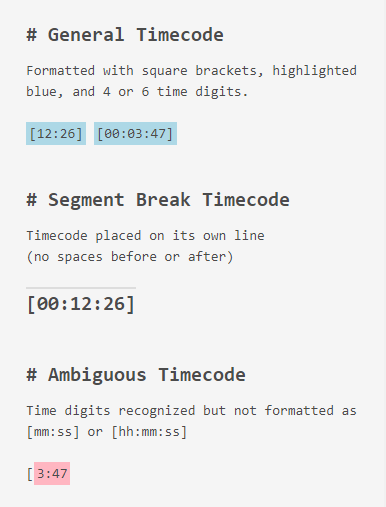
Timecode types and their display in TIM
Insert a new timecode by pressing ctrl/cmd + j. The current time location of the transport on the media progress bar will appear in the TIM Editor text wherever the cursor was located. Valid timecodes are displayed as [mm:ss], as [hh:mm:ss]. If the "Add sub-second timecodes" is selected in TIM Settings, timecodes will include milliseconds: [hh:mm:ss.mmm]
General timecodes are formatted or and are highlighted in blue. They sit in line with other text and appear as part of the text (with no highlight) when exported.
Segment break timecodes are formatted as [hh:mm:ss] or [mm:ss] and appear in a large, bold, black font. They are distinguished from other timecodes by appearing on their own line with no space or text next to them. Segment break timecodes are the official timecodes that establish the segment breakpoints of an index. These are the only timecodes that upon export, will be assigned to their own field in index metadata containers like WebVTT and OHMS.xml.
Ambiguous timecodes are highlighted in pink to signify that time digits are recognized but are not formatted precisely as [mm:ss] or [hh:mm:ss], (e.g., 00:03:47] or [00:05:6.)
Three timecode types are shown in the figure below, in context with a marked down index point/segment.
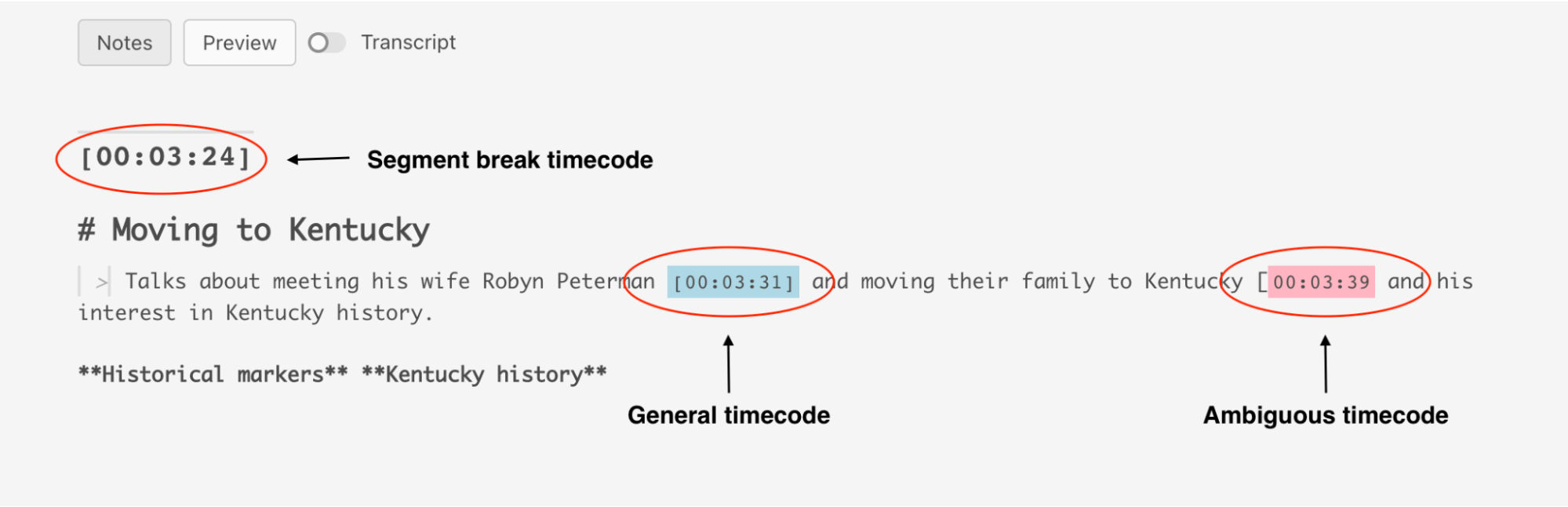
Actively-linked timecode types in TIM: Segment Break, General, Ambiguous
Multiple Timecodes can be generated by pressing ctrl + shift + J. This tool helps find the best timecode for a desired point in the A/V by displaying not only the timecode for the current location in the play bar, but also the timecodes for 3 seconds before that place. The spacing between the timecodes can be set in the TIM settings menu to multiple seconds, though the default 1 second interval is generally ideal. Users can click and listen to “audition” the options to see which is best, and simply delete the unwanted ones.
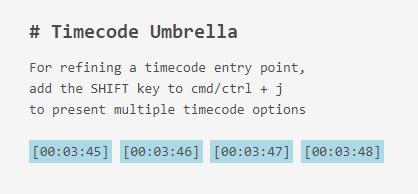
Multiple Timecode option, aka “Timecode Umbrella”
The white horizontal bar spanning across the top of TIM Workspace is a second video progress bar (displayed in blue) for the TIM media player. It spans the entire width of the TIM Workspace and represents the length of the loaded media file. It can be clicked on to play points within a file, but it does not display any time scale for the file. The TIM “timeline” graphically displays, in chronological order, all the general and segment break timecodes marked within TIM Editor as blue and orange dots.
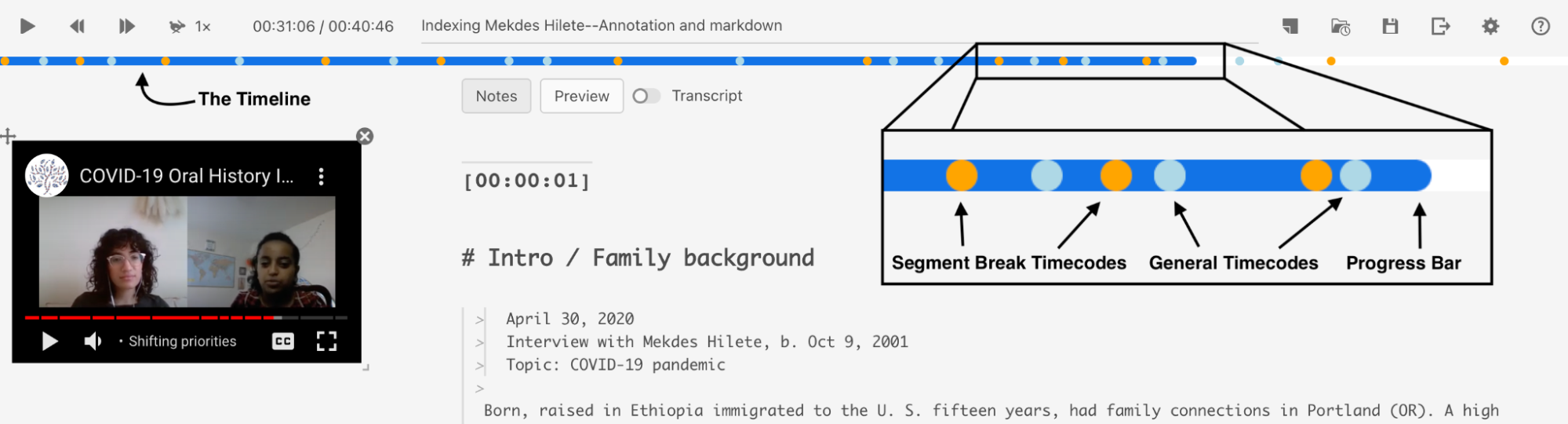
The TIM timeline spans the width of the browser window. The enlarged TIM timeline segment displays edited and in-progress index points
Hovering over the blue dots, users can see the time associated with that particular “general timecode.” Hovering over the orange “segment break timecode” dots, the marked-down “title” field associated with that time point is displayed.
The TIM Workspace provides the option to import transcripts for the loaded media. Toggle the “Transcript” slider next to the “Notes” and “Preview” buttons in the TIM Editor to reveal a new pane between the media player and the TIM Editor. A previously loaded transcript will appear, if available.
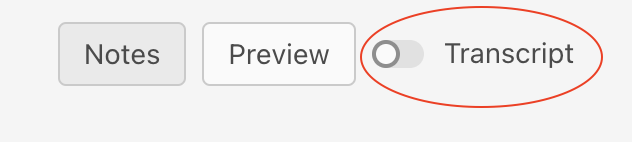
The transcript pane toggle
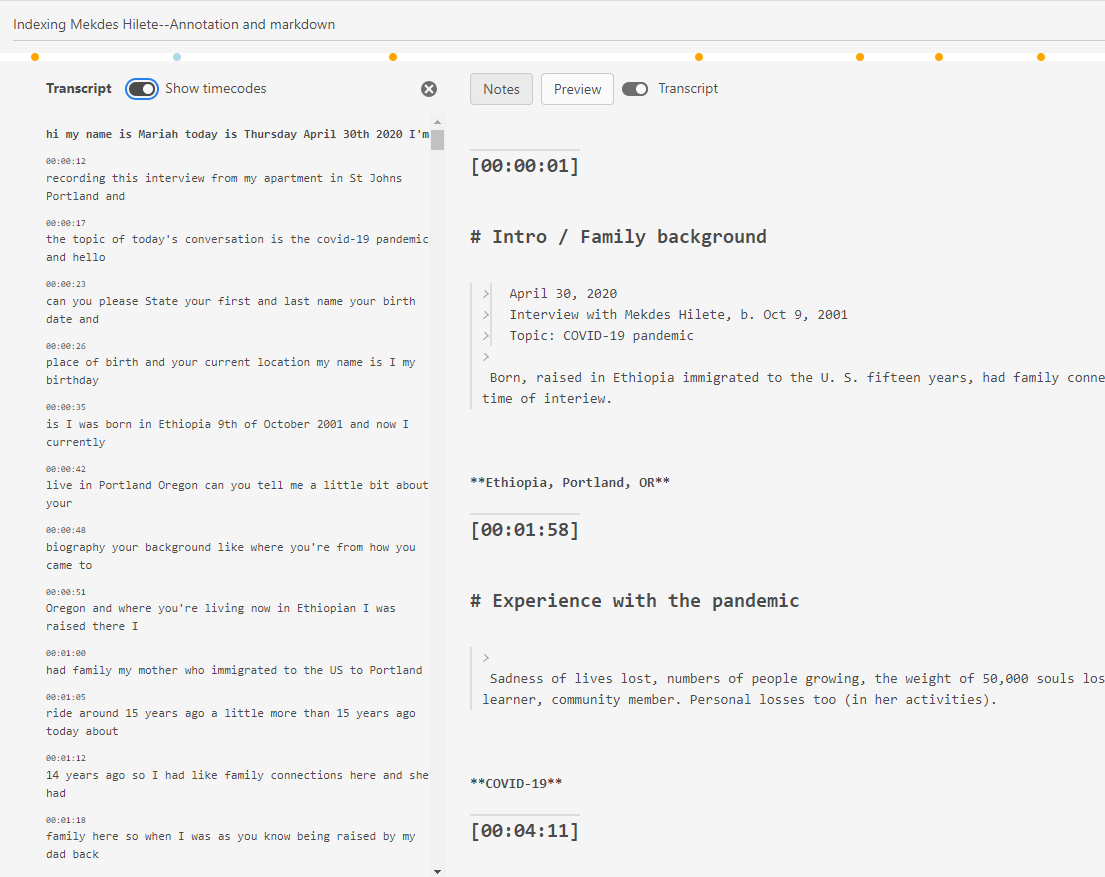
The transcript pane in TIM, revealed
If no transcript has been loaded, a “No Transcript” indicator with the following menu options displays in the transcript pane:
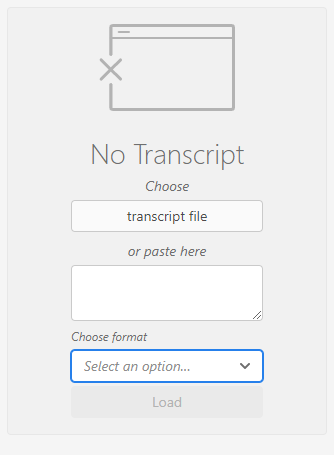
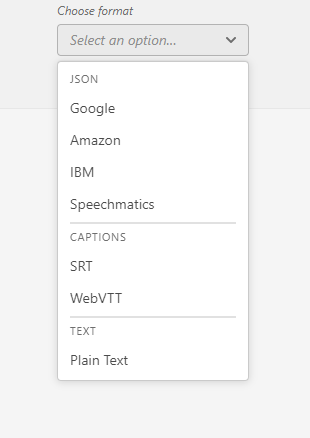
Menus for adding a transcript to the transcript pane in TIM
Choose a file in a standard transcription format, including Google, Amazon, IBM, Speechmatics in JSON format. These, along with SRT or WebVTT files, provide transcripts with timecodes embedded.