


Lockly is a custom Home Assistant integration and Lovelace card that delivers a user-friendly lock management experience for compatible Zigbee2MQTT locks. It keeps your household access in one place with an easy, reliable, fast, and ergonomic workflow for managing PIN slots. From quick edits to bulk updates, Lockly stays focused on the small details that make access changes feel simple and safe.
|
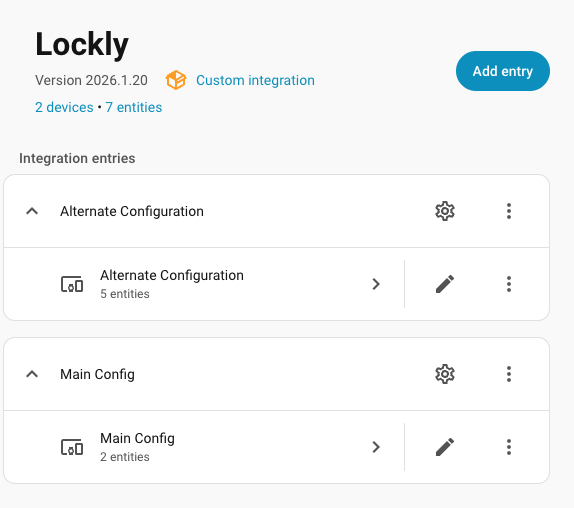
Manage multiple configurations Run separate Lockly entries for different homes, buildings, or lock groups, each with its own slots and MQTT settings. |
|
|
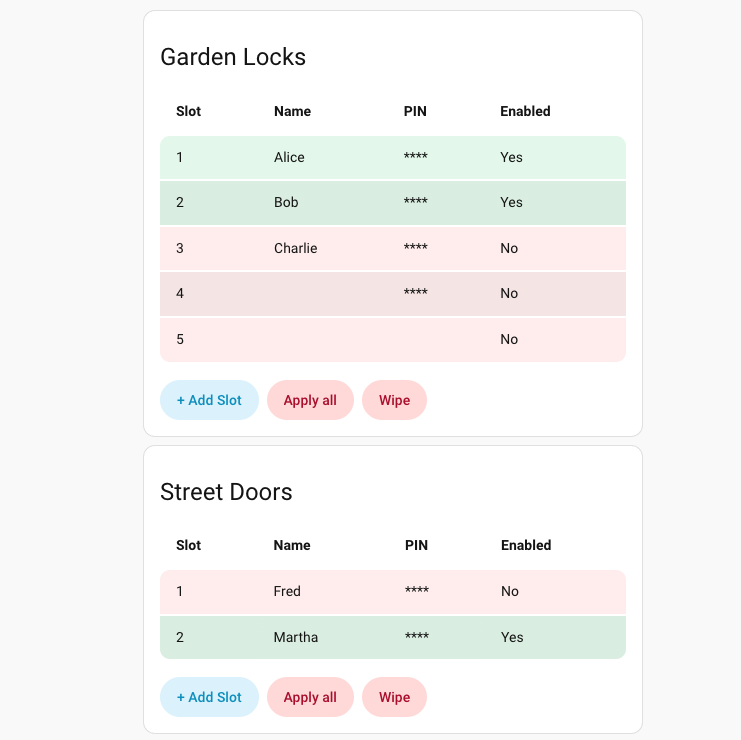
See slot status at a glance Color-coded rows show enabled vs. disabled slots plus queued/updating states during bulk operations. |
|
|
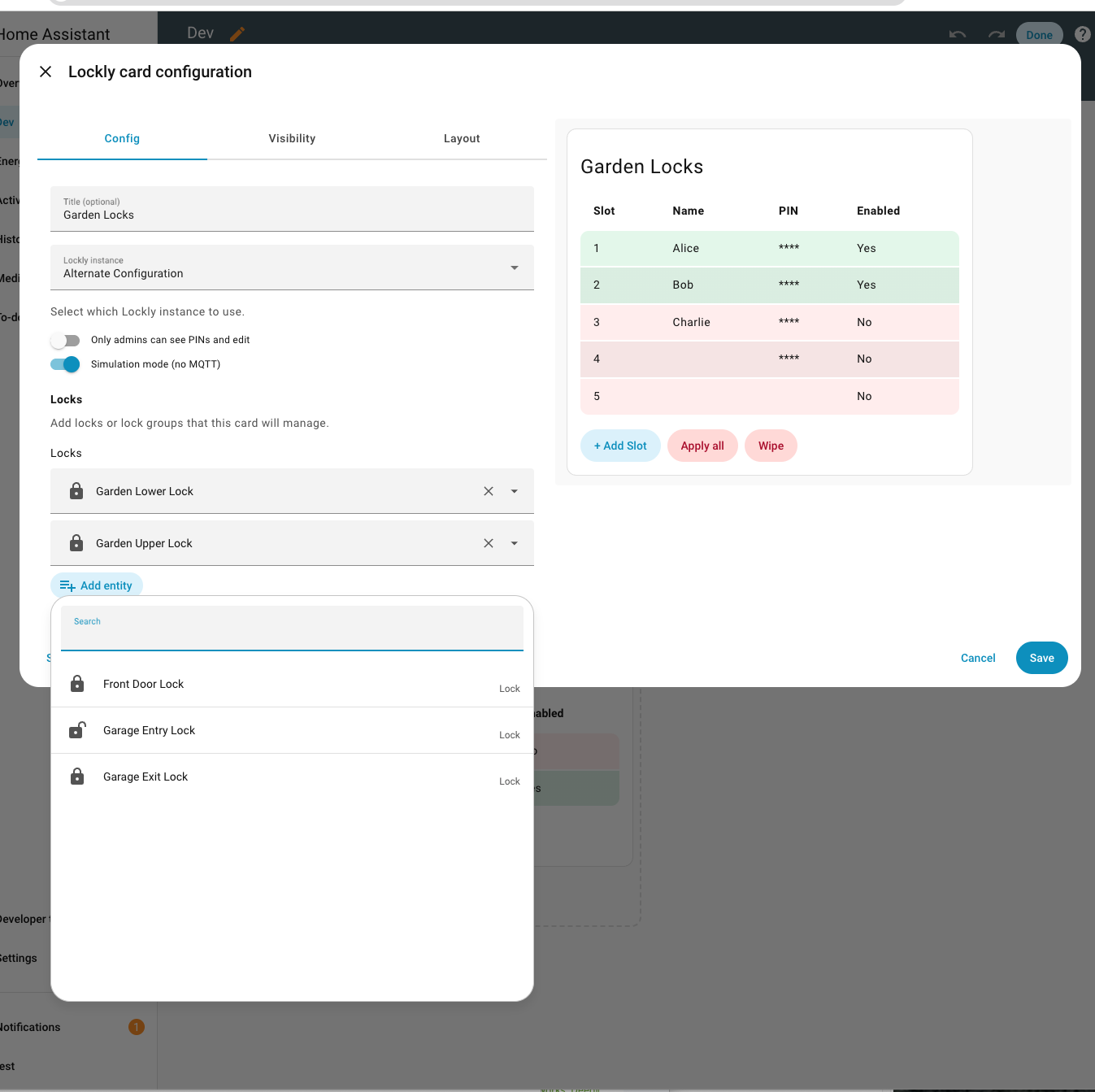
Configure with confidence Pick the Lockly instance, control admin-only access, and enable simulation mode to test without sending MQTT updates. |
|
|
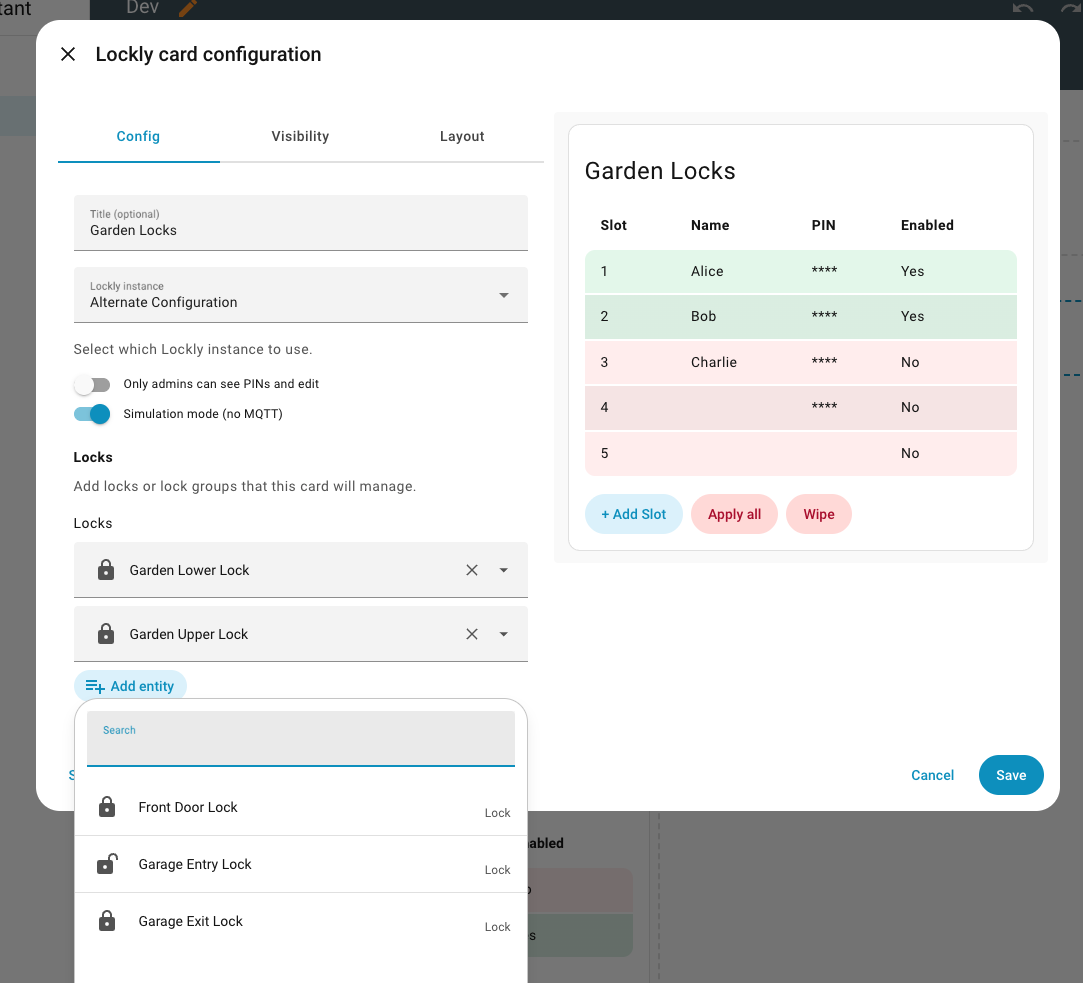
Select locks and groups visually Add individual locks or whole groups directly from the Lovelace editor. |
|
|
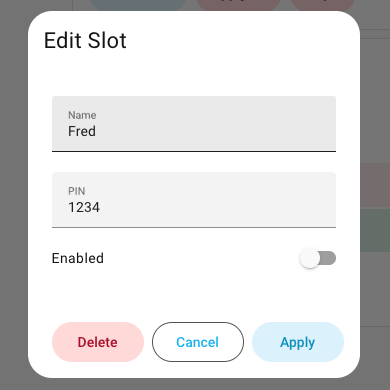
Fast slot edits with validation Update a slot name, PIN, or enabled state with clear, inline error feedback before applying changes. |
|
|
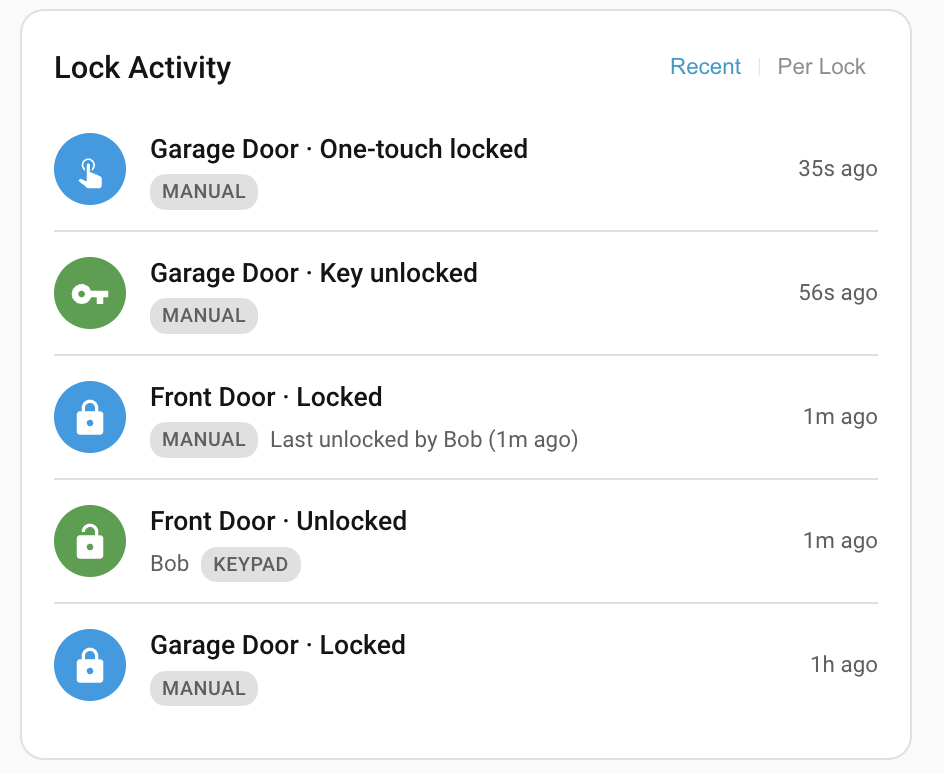
See who unlocked your doors The Lock Activity card shows recent lock events across all your managed locks — who unlocked, how, and when. Redundant events (firmware echoes, duplicate automation commands) are automatically collapsed. Toggle between a chronological feed and a per-lock summary that highlights the last identified user. Click any entry to jump to that lock's history. |
|
- Run multiple Lockly configurations side by side for different lock groups.
- Add, edit, enable, or remove lock slots on demand.
- Update slot name and PIN with inline validation and clear error feedback.
- Apply a single slot to all selected locks.
- Apply all enabled slots in one action with queued/updating progress.
- Wipe slots from locks when you need a clean slate.
- Restrict PIN visibility and edits to admins only (plus optionally grant that ability to other specified users).
- Simulate changes without sending MQTT commands.
- Choose a Lockly instance per card and preview the card live while configuring.
- Pick locks and lock groups directly from the visual editor.
- Track lock activity — see who unlocked each door, when, and how (keypad, RFID, manual, automation).
- Smart deduplication collapses firmware echoes and redundant automation locks while preserving the raw event log.
- Per-lock view shows the last identified user who unlocked each door, so you always know who came in.
- Activity data persists across restarts and integrates with HA's built-in logbook.
- Reconstruct activity history from Zigbee2MQTT logs with the included replay tool.
This integration is available directly in HACS under the Integration category. Requires Home Assistant 2026.3.1 or newer.

- Add this repository to HACS as a custom repository.
- Install the integration from HACS.
- Restart Home Assistant when prompted.
- Copy the
custom_components/locklyfolder from this repository into your Home Assistantconfig/custom_components/directory. - Restart Home Assistant.
- Go to Settings > Devices & Services and add the Lockly integration.
- Set the first and last slot, MQTT base topic, and update endpoint.
This integration ships with a bundled Lovelace card, so you can add it the usual way from the dashboard UI.
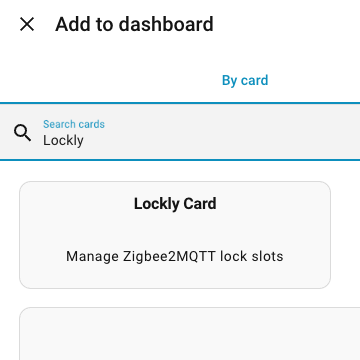
If you prefer YAML mode, add the card manually:
type: custom:lockly-card
entry_id: YOUR_ENTRY_ID
title: Lockly
lock_entities:
  - lock.front_door
  - group.downstairs_locks
admin_only: true
dry_run: true
admin_users:
  - your_user_id
To find the entry ID, open the Lockly integration in Settings > Devices & Services and copy the entry ID shown in the options dialog.
The Lock Activity card shows recent lock events — who unlocked, the method, and when. It supports two views: Recent (chronological) and Per Lock (latest event per lock with the last identified unlocker). Activity survives HA restarts and also appears as rich entries in the built-in logbook.
Events are stored raw and deduplicated at display time, so no data is lost:
- Firmware echoes —
manual_lock+lock(rf)pairs from a single Zigbee command are collapsed into one "Locked (AUTOMATION)" entry (5 s window). - Same-action repeats — duplicate
lockcommands from overlapping automations are collapsed, keeping the first (5 s window). - Deliberate physical + redundant automation — a
one_touch_lockfollowed by a redundant automationlockkeeps the physical action (60 s window).
type: custom:lockly-activity-card
entry_id: YOUR_ENTRY_ID
title: Lock Activity
view: recent
max_events: 5In the visual editor, add the locks or lock groups that this card should manage. Enable "Only admins can see PINs and edit" to restrict edits and PIN visibility. Use "Additional admin users" to allow specific IDs or display names without promoting them to HA admin. Enable "Simulation mode (no MQTT)" to test the UI without touching locks.
- Each Lockly integration entry represents a group of slots you manage together.
- Slots are stored in Home Assistant and applied to one or more locks as needed.
- The card shows live state (queued, updating, timeout) and gives you a clear, consistent edit flow.
- Storage mode (default): the integration registers the card automatically.
- YAML mode: add a resource pointing to
/lockly/lockly-card.js(typemodule).
lockly.add_slotlockly.remove_slotlockly.apply_slotlockly.push_slotlockly.apply_alllockly.update_slotlockly.export_slotslockly.import_slots
See custom_components/lockly/services.yaml for fields and descriptions.
If you want to reconstruct your activity history from Zigbee2MQTT log files (e.g. after a fresh install, or to iterate on dedup rules without losing data), use the included replay script:
# Preview parsed events
python scripts/replay_z2m_log.py /path/to/z2m/log.log --tz-offset -8

# Write directly to the HA store, resolving slot names automatically
python scripts/replay_z2m_log.py /path/to/z2m/log.log \
    --tz-offset -8 \
    --slots-store /config/.storage/lockly_slots.YOUR_ENTRY_ID \
    --store-path /config/.storage/lockly_activity.YOUR_ENTRY_ID
Stop HA before writing and restart it afterward so the integration picks up the
new data. The --slots-store flag reads slot-to-name mappings from the existing
Lockly slots file; use --slots '{"7": "Name"}' for manual overrides.
To move data between environments, export slots from one instance and import them into another:
- In production, call
lockly.export_slotswith yourentry_id. - Copy the returned JSON (the
slotsarray). - In dev, call
lockly.import_slotswith theentry_idand apayloadcontaining the JSON.
Use include_pins: true when exporting if you want PINs included. The import
will overwrite slots by default; set replace: false to merge instead.