Hi everyone, today I will show you how to create a lock screen with lines drawn using Flutter.
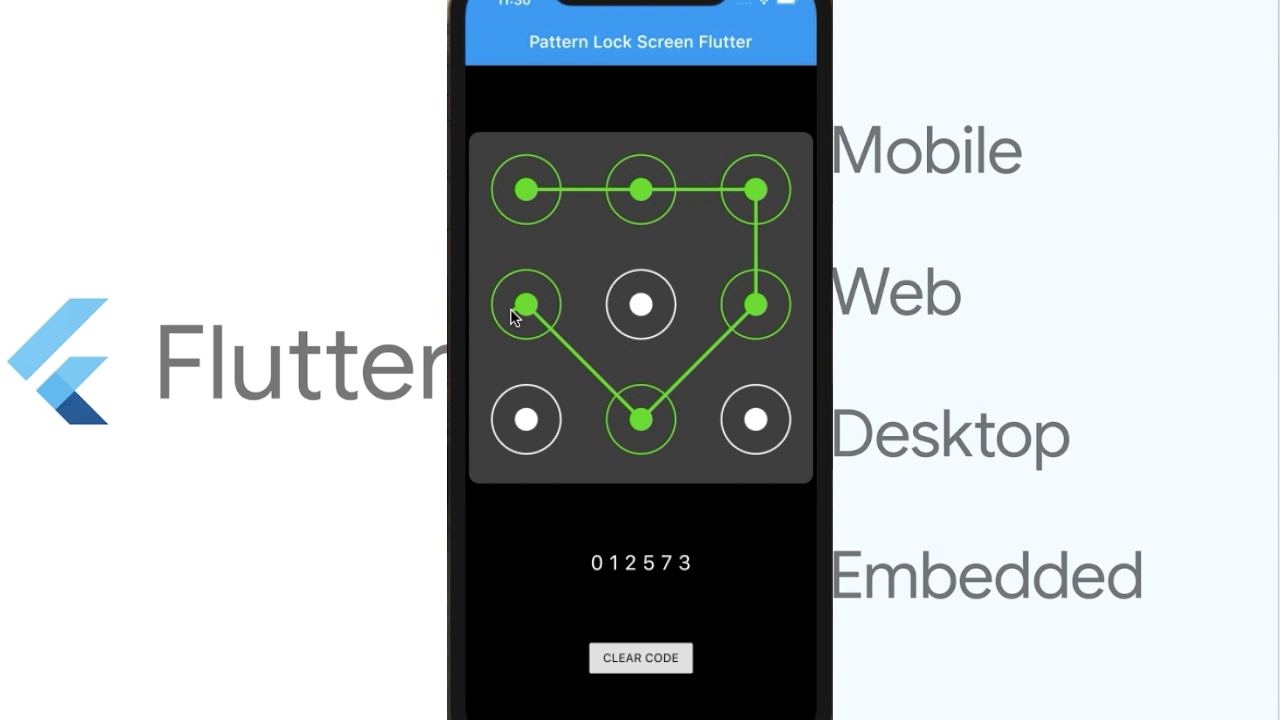
Through this article, we will know how to use CustomPainter, Path and GestureDetector, … Let’s get started !! 🚀
Our main screen is divided into three parts: the pattern section, the password display section, the clear button section. Therefore, we need to use Column [Container; Text; RasiedButton].
Column(
    children: <Widget>[
      Container(
        decoration: ...
        child: GestureDetector(
          child: CustomPaint(
            painter: _LockScreenPainter(...),
          onPanStart: _onPanStart,
          onPanUpdate: _onPanUpdate,
          onPanEnd: _onPanEnd,
        ),
      ),
      Text(...),
      RaisedButton(child: Text("CLEAR CODE"), onPressed: _clearCodes)
    ],
  );
Above, we will use GestureDetector to set Pan functions for Lock Screen Painter. What is CustomPainter ?
The interface used by CustomPaint (in the widgets library) and RenderCustomPaint (in the rendering library). To implement a custom painter, either subclass or implement this interface to define your custom paint delegate. CustomPaint subclasses must implement the paint and shouldRepaint methods, and may optionally also implement the hitTest and shouldRebuildSemantics methods, and the semanticsBuilder getter. The paint method is called whenever the custom object needs to be repainted. The shouldRepaint method is called when a new instance of the class is provided, to check if the new instance actually represents different information.
See more articles at: CustomPainter
Using Painter, we will easily create a pattern lock interface. Determine the code number is 9, the number of columns is 3. Each element will draw a dot in the middle (ratio 0.2), an outer circle (ratio 0.6).
for (var i = 0; i < 9; i++) {
  var _offset = _getOffetByIndex(i);
  var _color = _getColorByIndex(i);

  var _radiusIn = _sizeCode / 2.0 * 0.2;
  _drawCircle(canvas, _offset, _radiusIn, _color, true);

  var _radiusOut = _sizeCode / 2.0 * 0.6;
  _drawCircle(canvas, _offset, _radiusOut, _color);

  var _pathGesture = _getCirclePath(_offset, _radiusOut);
  if (offset != null && _pathGesture.contains(offset)) onSelect(i);
}
- getOffsetByIndex: Get the offset in the order of the code.
- getColorByIndex: Get the color according to the order of the code (selected or not).
- drawCircle: Draw a line circle (or fill the circle) with offset, color and radius.
- getCirclePath: Get the circle by offset and radius.
- pathGesture: Help us identify the selected code.
Next, we’ll draw the lines between the saved code and between the last code and the offset being pan.
for (var i = 0; i < codes.length; i++) {
    var _start = _getOffetByIndex(codes[i]);
    if (i + 1 < codes.length) {
      var _end = _getOffetByIndex(codes[i + 1]);
      _drawLine(canvas, _start, _end);
    } else if (offset != null) {
      var _end = offset;
      _drawLine(canvas, _start, _end);
    }
  }
- drawLine: Draw a line according to start offset and end offset.
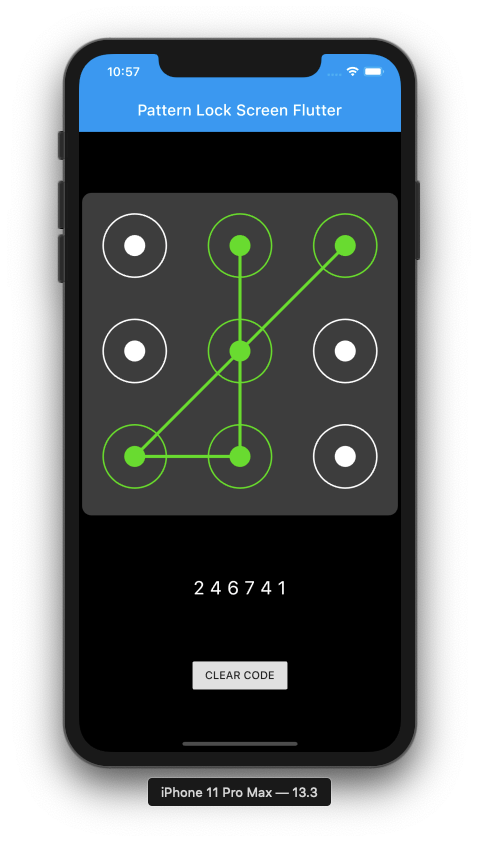
We will work with three gestures: onPanStart, onPanUpdate, onPanEnd.
- onPanStart: A pointer has contacted the screen with a primary button and has begun to move.
- onPanUpdate: A pointer that is in contact with the screen with a primary button and moving has moved again.
- onPanEnd: A pointer that was previously in contact with the screen with a primary button and moving is no longer in contact with the screen and was moving at a specific velocity when it stopped contacting the screen.
_onPanStart(DragStartDetails event) {
    setState(() {
      codes = [];
      offset = null;
    });
}

_onPanUpdate(DragUpdateDetails event) {
  setState(() => offset = event.localPosition);
}

_onPanEnd(DragEndDetails event) {
  setState(() => offset = null);
}

It seems quite easy, we just listed the important part of the article. For a better understanding, please refer to my entire project here.