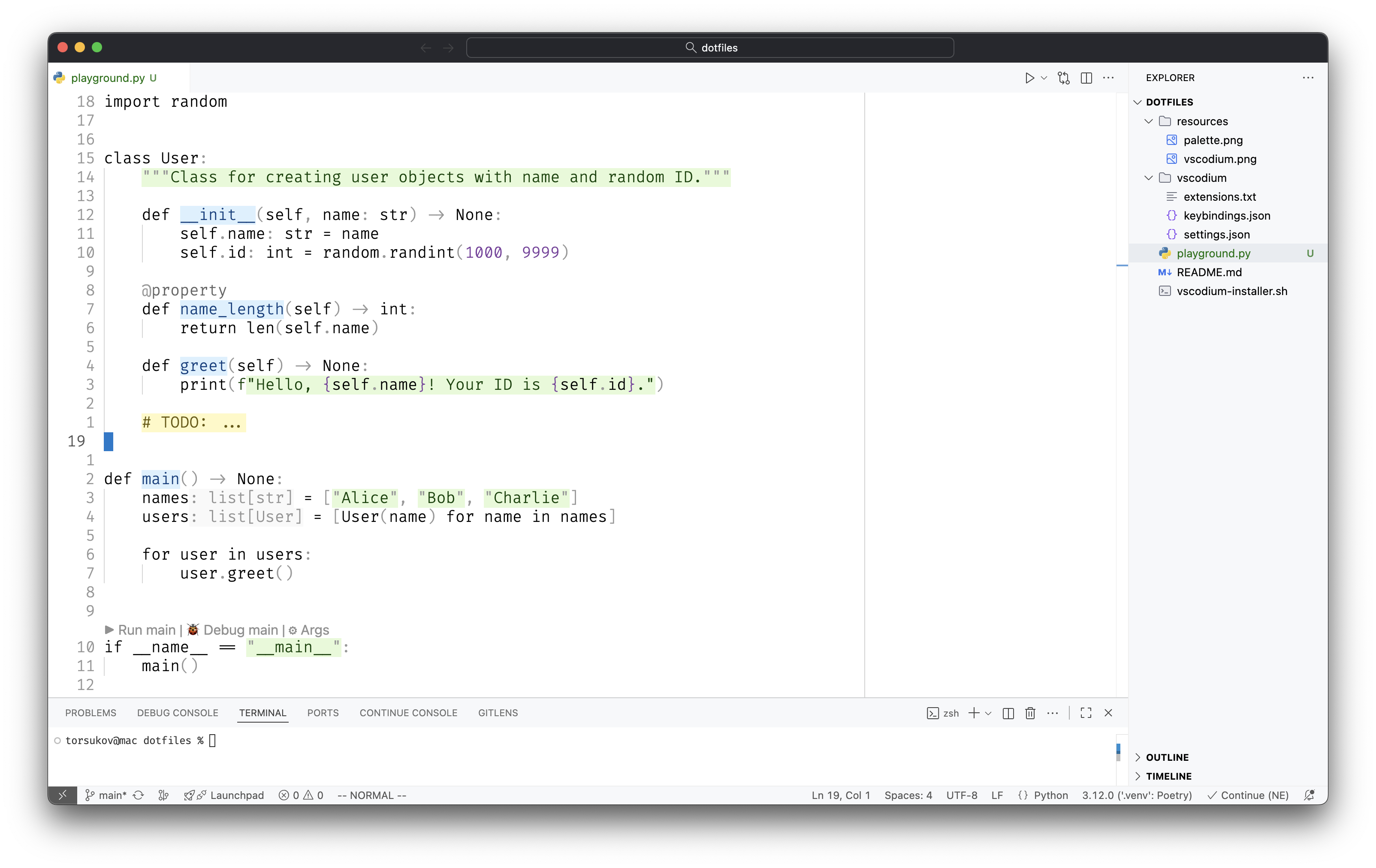
This repository contains my personal development environment configuration focused on simplicity, speed and clean UI
- Clone the dotfiles repository:
git clone https://github.com/atrskv/dotfiles.git
cd dotfiles
- Make the VSCodium installer script executable:
chmod +x vscodium-installer.sh
- Run the installer:
./vscodium-installer.sh
This script will copy the settings, install extensions and configure VSCodium according to my preferences
I really liked the original Alabaster theme, especially the version the author created for PyCharm. To bring that same look and feel to VSCodium, I made a custom variation of the theme that's visually closer to the JetBrains version
You can find it here: 👉 atrskv/vscode-theme-alabaster (or under the “Variations” section of the original Alabaster repository)
Make sure the original Alabaster theme is already installed in VSCodium. Then, to apply my custom color scheme:
- Clone the theme repository:
git clone https://github.com/atrskv/vscode-theme-alabaster.git
- Replace the original
alabaster-color-theme.jsonwith the custom one:
mv vscode-theme-alabaster/theme/alabaster-color-theme.json ~/.vscode-oss/extensions/tonsky.theme-alabaster-0.2.9-universal/theme/alabaster-color-theme.json
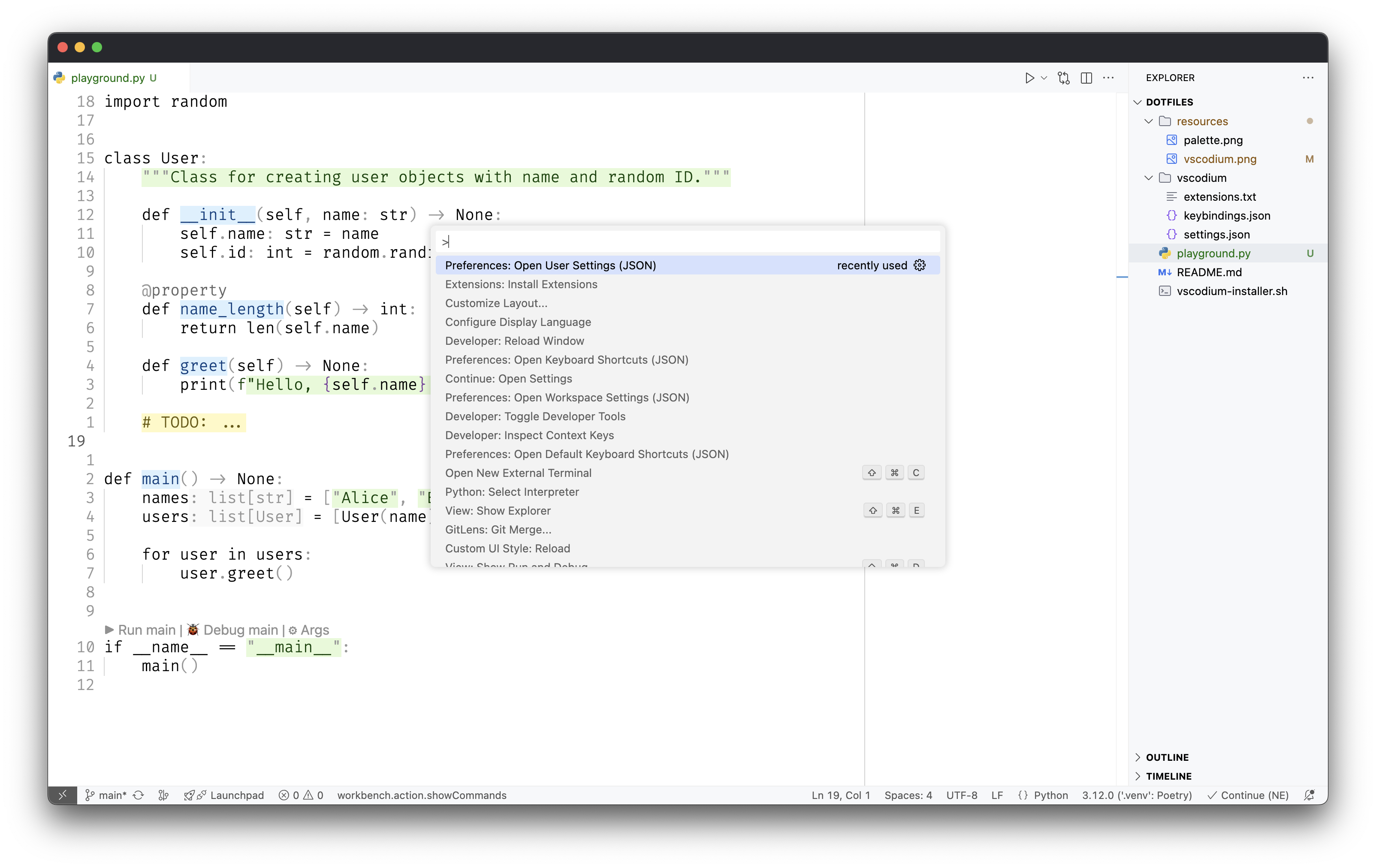
- Reload the window in VSCodium:
- Open the Command Palette (ctrl+shift+p or cmd+shift+p)
- Run
Developer: Reload Window
-
Open the Command Palette (ctrl+shift+p or cmd+shift+p)
-
Search for
Customize Layout -
In the opened layout editor, look for the section called
Quick Input Positionand selectCenter