I needed a script to ensure that Windows and Office installations on staff laptops would stay activated as staff transitioned to remote work because of COVID-19.
Usually staff would be on-site and would be working on desktop computers permanently connected to the university's network.
My university uses the Cisco AnyConnect Secure Mobility Client for VPN access.
This script can probably be modified to work with other VPN clients.
- Download the script here and modify the $km_server variable under the # VARIABLES header to your KMS. See image below for reference.
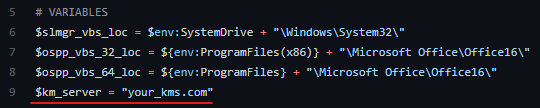
-
Open the Windows Task Scheduler.
-
Go to Action > Create Task
-
Under the General tab Change User or Group to SYSTEM (if appropriate).
- Ensure that Run with highest privileges is checked.
- Pick your OS in the Configure for: dropdown.
-
Under the Triggers tab click New... and in the Begin the task: dropdown select On an event.
- Under settings select Basic.
- For the Log: field select Cisco AnyConnect Secure Mobility Client in the dropdown.
- For the Source: field select acvpnagent in the dropdown.
- For the Event ID: field type is 2039 and finally hit OK.
-
Under the Actions tab click New... and in the Action: dropdown select Start a program.
- For the Program/script field provide your path to powershell. Usually this path is
C:\Windows\System32\WindowsPowerShell\v1.0\powershell.exe - For the Add arguments (optional) field type the path to the pshell_kms_activator script as:
-WindowStyle Hidden -ExecutionPolicy Bypass -file "C:\your_path_to_script\pshell_kms_activator.ps1" - For the Start in (optional) field the path to your script as:
C:\your_path_to_script\ - Finally click OK.
- For the Program/script field provide your path to powershell. Usually this path is
-
Configure the Conditions and Settings tabs as per your circumstances. I unchecked both Power options under Conditions. I left everything else unchanged.