Getting Started
- AdformSDK runs on Android 4.0, so created project version should be 4.0 and above.
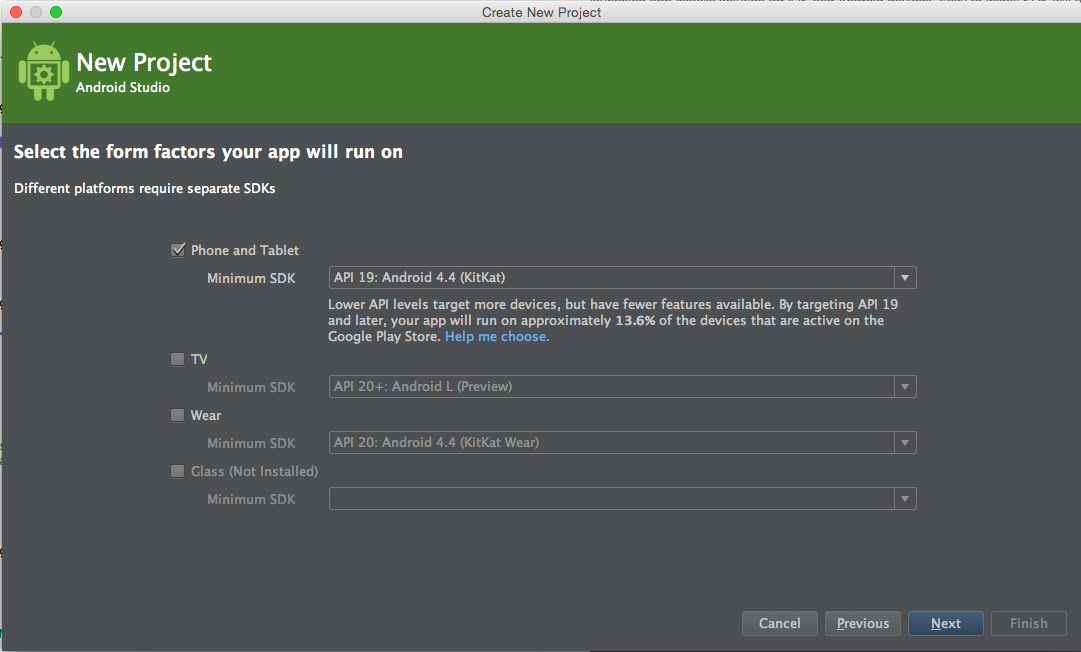
- The instructions described here are done on Android studio. These instructions should also be compatible with Intelli J.
-
To add a library to the dependencies, first we need to specify repository location. This can be done by editing
build.gradlefile and by inserting snippet (specified below) right above theandroidconfiguration group.... repositories { maven { url "https://github.com/adform/adform-android-sdk/raw/master/releases/" } } ... -
Then in the dependency group we need to specify that we will be using
AdformSdk, and also addGoogle Playservices.... dependencies { ... implementation 'com.adform.advertising.sdk:advertising-sdk:2.22.0' ... } ...
-
By default, AdformSdk needs
Google Playservices, so if your project does not have it already, please insert it.dependencies { ... implementation 'com.google.android.gms:play-services-ads:18.2.0' ... }
apply plugin: 'com.android.application'

// This can be used if using maven repository to include library
// repositories {
//      maven { url "https://github.com/adform/adform-android-sdk/raw/master/releases/" }
// }

android {
    compileSdkVersion 20
    buildToolsVersion "19.1.0"

    defaultConfig {
        applicationId "com.adform.adformdemo"
        minSdkVersion 14
        targetSdkVersion 20
        versionCode 1
        versionName "1.0"
    }
    buildTypes {
        release {
            proguardFiles getDefaultProguardFile('proguard-android.txt'), 'proguard-rules.pro'
        }
    }
}

dependencies {
    implementation fileTree(dir: 'libs', include: ['*.jar'])
    implementation 'com.google.android.gms:play-services-ads:18.2.0'

    implementation 'com.adform.advertising.sdk:advertising-sdk:2.22.0'

}
- For more infromation how to add Google Play Services to your project please follow these instructions: https://developer.android.com/google/play-services/setup.html#Setup
For the SDK to work properly, you need to extend a default or use already created Application class and add two steps.
- Initialize service by adding
adService = AdApplicationService.init(); - Implement
AdApplicationService.ServiceListenerinterface.
public class DemoApplication extends Application implements AdApplicationService.ServiceListener {

    private AdApplicationService adService;

    @Override
    public void onCreate() {
        super.onCreate();
        // [mandatory] Initializes application service
        adService = AdApplicationService.init();
    }

    // [mandatory] A mandatory method for the SDK to work properly
    @Override
    public AdApplicationService getAdService() {
        return adService;
    }
}Update AndroidManifest.xml with additional information.
- Add proper permissions for the sdk to work properly. This can be done by inserting snippet shown below between the
<manifest></manifest>tags.
<!--[mandatory] Base permissions that are used in sdk-->
<uses-permission android:name="android.permission.INTERNET" />
<uses-permission android:name="android.permission.ACCESS_NETWORK_STATE" />
<uses-permission android:name="android.permission.WRITE_EXTERNAL_STORAGE" />
<uses-permission android:name="android.permission.READ_EXTERNAL_STORAGE" />
<!--[optional] This is needed for additional information to be sent when collecting data-->
<uses-permission android:name="android.permission.READ_PHONE_STATE" />
<!--[optional] This is needed for additional information to be sent when collecting data-->
<uses-permission android:name="android.permission.ACCESS_WIFI_STATE" />
<!--[optional] This is needed when location data is used in ad requests-->
<uses-permission android:name="android.permission.ACCESS_COARSE_LOCATION"/>
<uses-permission android:name="android.permission.ACCESS_FINE_LOCATION"/>
<uses-feature android:name="android.hardware.location.gps" android:required="false" />- The SDK needs an additional window to display its various states. To do that, insert snippet shown below between
<application></application>tags.
<activity
        android:theme="@android:style/Theme.Translucent.NoTitleBar"
        android:name="com.adform.sdk.activities.AdActivity" android:configChanges="orientation|keyboard|keyboardHidden|screenSize|screenLayout|uiMode"/>
<activity
        android:name="com.adform.sdk.activities.AdformBrowserActivity"
        android:configChanges="keyboard|keyboardHidden|orientation|screenLayout|uiMode|screenSize|smallestScreenSize"
android:theme="@android:style/Theme.NoTitleBar"/> - The SDK still uses Apache HTTP Legacy library, so you must include the following declaration within the element of AndroidManifest.xml
<uses-library android:name="org.apache.http.legacy" android:required="false" />- Sign app to use earlier created application class by adding
android:name=".DemoApplication"in<application>properties.
<application
    android:name=".DemoApplication"...
<?xml version="1.0" encoding="utf-8"?>
<manifest xmlns:android="http://schemas.android.com/apk/res/android"
    package="com.adform.adformdemo" >

    <!--Permissions that are used in AdformSDK-->

    <!--[mandatory] Base permissions that are used in sdk-->
    <uses-permission android:name="android.permission.INTERNET" />
    <uses-permission android:name="android.permission.ACCESS_NETWORK_STATE" />
    <uses-permission android:name="android.permission.WRITE_EXTERNAL_STORAGE" />
    <uses-permission android:name="android.permission.READ_EXTERNAL_STORAGE" />
    <!--[optional] This is needed for additional information to be sent when collecting data-->
    <uses-permission android:name="android.permission.READ_PHONE_STATE" />
    <!--[optional] This is needed for additional information to be sent when collecting data-->
    <uses-permission android:name="android.permission.ACCESS_WIFI_STATE" />
    <!--[optional] This is needed when location data is used in ad requests-->
    <uses-permission android:name="android.permission.ACCESS_COARSE_LOCATION"/>
    <uses-permission android:name="android.permission.ACCESS_FINE_LOCATION"/>

    <!--[mandatory] 'android:name=".DemoApplication"' must be set to the extended Application class with SDK implementation-->
    <application
        android:name=".DemoApplication"
        android:allowBackup="true"
        android:icon="@drawable/ic_launcher"
        android:label="@string/app_name"
        android:theme="@style/AppTheme">
        <activity
            android:name=".SampleActivity"
            android:label="@string/app_name">
            <intent-filter>
                <action android:name="android.intent.action.MAIN" />

                <category android:name="android.intent.category.LAUNCHER" />
            </intent-filter>
        </activity>

        <!--[mandatory] Must be set for the SDK to work properly -->
        <activity
            android:name="com.adform.sdk.activities.AdActivity"
            android:configChanges="orientation|keyboard|keyboardHidden|screenSize|screenLayout|uiMode"
            android:theme="@android:style/Theme.Translucent.NoTitleBar" />
            <activity
            android:name="com.adform.sdk.activities.AdformBrowserActivity"
            android:configChanges="keyboard|keyboardHidden|orientation|screenLayout|uiMode|screenSize|smallestScreenSize"
            android:theme="@android:style/Theme.NoTitleBar"/>

        <uses-library android:name="org.apache.http.legacy" android:required="false" />

    </application>

</manifest>
If you use Proguard in your project, in order to prevent ProGuard from stripping away needed classes or class members, add a keep options to your ProGuard config:
-keepclassmembers class * {
    @android.webkit.JavascriptInterface <methods>;
}

-keepattributes JavascriptInterface
And you're set!