The aim of this fork is to produce markdown pages specific for Grav CMS from a WP XML export.
This is a modification of a WordPress to markdown exporter. You can find the original readme after this one (keep scrolling :v), or have a look at it on the original repository.
- Note that this project was thought to export blog entries exclusively.
- Also, this project won't get any maintenance or support whatsoever. If you want to make a better version, feel free to fork it.
- Summary and text properties added to be displayed in a blog item list.
index.md -> blog_item.mdto match our template name.- Added route aliases per blog entry.
- Images get stored at
.mdlevel instead of inside a subdirectory (this may arise issues if not split folders). - A cover image is set.
- All entries with category
Aviso Novedades APget omitted. - WordPress custom categories get 'translated' into Grav taxonomies. You will probably want to change them, though it should not mean much effort.
Disclaimer: Grav twig template files may need some tweaking in order to work.
-
A bash script to wipe the
.mdfiles of the previous output.It was created for not having to re-download all the images of the original webpage every time this project was run. In case you want to update the images you can remove those you want to re-download or simply delete the output folder completely.
Either run the previously mentioned script or run
npm install && node index.js
as in the original project.
A script that converts a WordPress export XML file into Markdown files suitable for a static site generator (Gatsby, Hugo, Jekyll, etc.).
Each post is saved as a separate Markdown file with appropriate frontmatter. Images are also downloaded and saved. Embedded content from YouTube, Twitter, CodePen, etc. is carefully preserved.
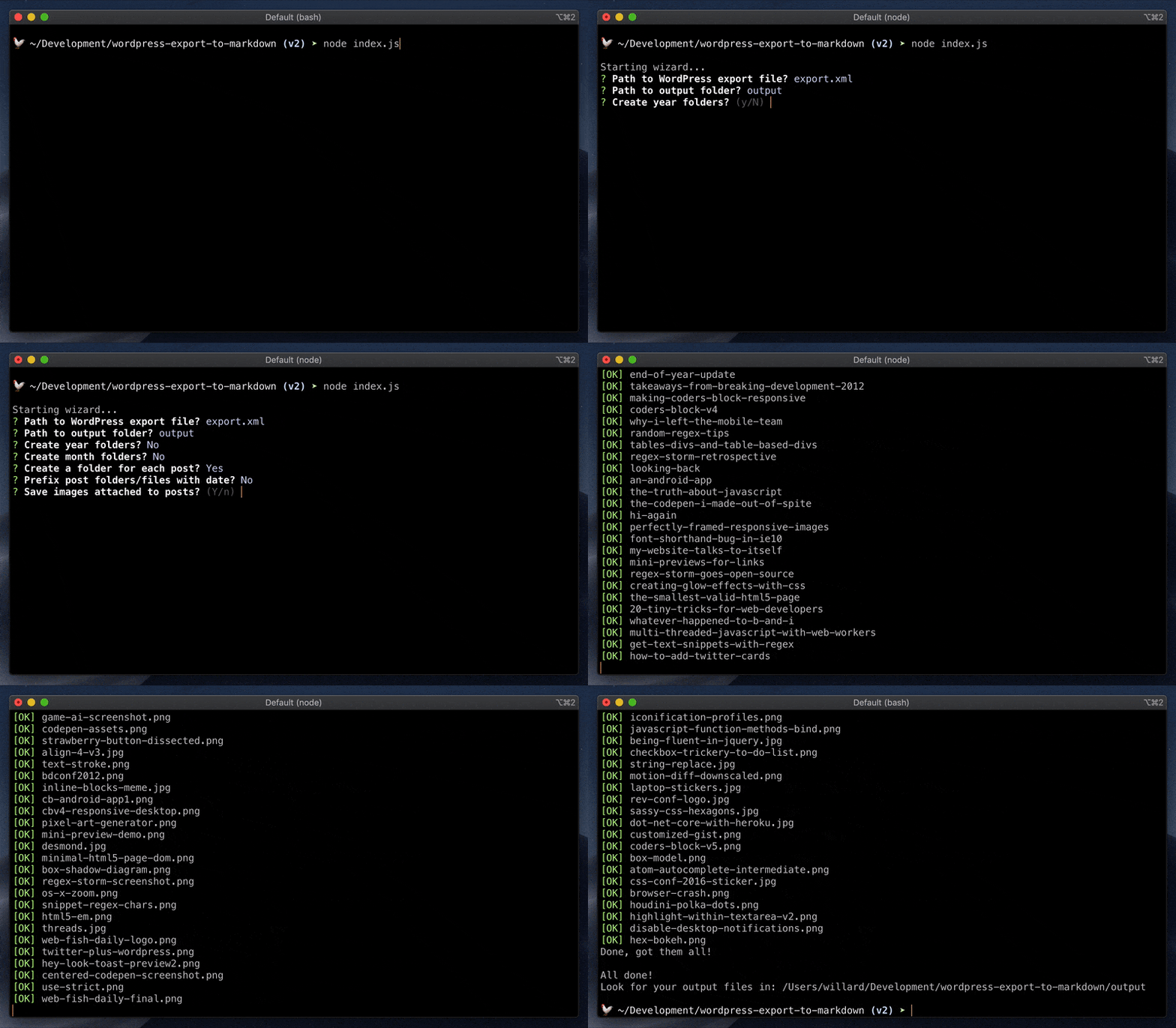
You'll need:
- Node.js v12.14 or later
- Your WordPress export file (be sure to export "All content" if you want to save images and/or pages)
It is recommended that you drop your WordPress export file into the same directory that you run this script from so it's easy to find.
You can run this script immediately in your terminal with npx:
npx wordpress-export-to-markdown
Or you can clone and run (this makes repeated runs faster and allows you to tinker with the code). After cloning this repo, open your terminal to the package's directory and run:
npm install && node index.js
Either way you run it, the script will start the wizard. Answer the questions and off you go!
The wizard makes it easy to configure your options, but you can also do so via the command line if you want. For example, the following will give you Jekyll-style output in terms of folder structure and filenames.
Using npx:
npx wordpress-export-to-markdown --post-folders=false --prefix-date=true
Using a locally cloned repo:
node index.js --post-folders=false --prefix-date=true
The wizard will still ask you about any options not specifed on the command line. To skip the wizard entirely and use default values for unspecified options, add --wizard=false.
- Argument:
--wizard - Type:
boolean - Default:
true
Enable to have the script prompt you for each option. Disable to skip the wizard and use default values for any options not specified via the command line.
- Argument:
--input - Type:
file(as a path string) - Default:
export.xml
The path to the WordPress export file that you want to parse. It is recommended that you drop your WordPress export file into the same directory that you run this script from so it's easy to find.
- Argument:
--output - Type:
folder(as a path string) - Default:
output
The path to the output directory where Markdown and image files will be saved. If it does not exist, it will be created for you.
- Argument:
--year-folders - Type:
boolean - Default:
false
Whether or not to organize output files into folders by year.
- Argument:
--month-folders - Type:
boolean - Default:
false
Whether or not to organize output files into folders by month. You'll probably want to combine this with --year-folders to organize files by year then month.
- Argument:
--post-folders - Type:
boolean - Default:
true
Whether or not to save files and images into post folders.
If true, the post slug is used for the folder name and the post's Markdown file is named index.md. Each post folder will have its own /images folder.
/first-post
    /images
        potato.png
    index.md
/second-post
    /images
        carrot.jpg
        celery.jpg
    index.md
If false, the post slug is used to name the post's Markdown file. These files will be side-by-side and images will go into a shared /images folder.
/images
    carrot.jpg
    celery.jpg
    potato.png
first-post.md
second-post.md
Either way, this can be combined with with --year-folders and --month-folders, in which case the above output will be organized under the appropriate year and month folders.
- Argument:
--prefix-date - Type:
boolean - Default:
false
Whether or not to prepend the post date to the post slug when naming a post's folder or file.
If --post-folders is true, this affects the folder.
/2019-10-14-first-post
    index.md
/2019-10-23-second-post
    index.md
If --post-folders is false, this affects the file.
2019-10-14-first-post.md
2019-10-23-second-post.md
- Argument:
--save-attached-images - Type:
boolean - Default:
true
Whether or not to download and save images attached to posts. Generally speaking, these are images that were uploaded by using Add Media or Set Featured Image when editing a post in WordPress. Images are saved into /images.
- Argument:
--save-scraped-images - Type:
boolean - Default:
true
Whether or not to download and save images scraped from <img> tags in post body content. Images are saved into /images. The <img> tags are updated to point to where the images are saved.
- Argument:
--include-other-types - Type:
boolean - Default:
false
Some WordPress sites make use of a "page" post type and/or custom post types. Set this to true to include these post types in the results. Posts will be organized into post type folders.
You can edit settings.js to tweak advanced settings. This includes things like throttling image downloads or customizing the date format in frontmatter.
You'll need to run the script locally (not using npx) to make use of advanced settings.